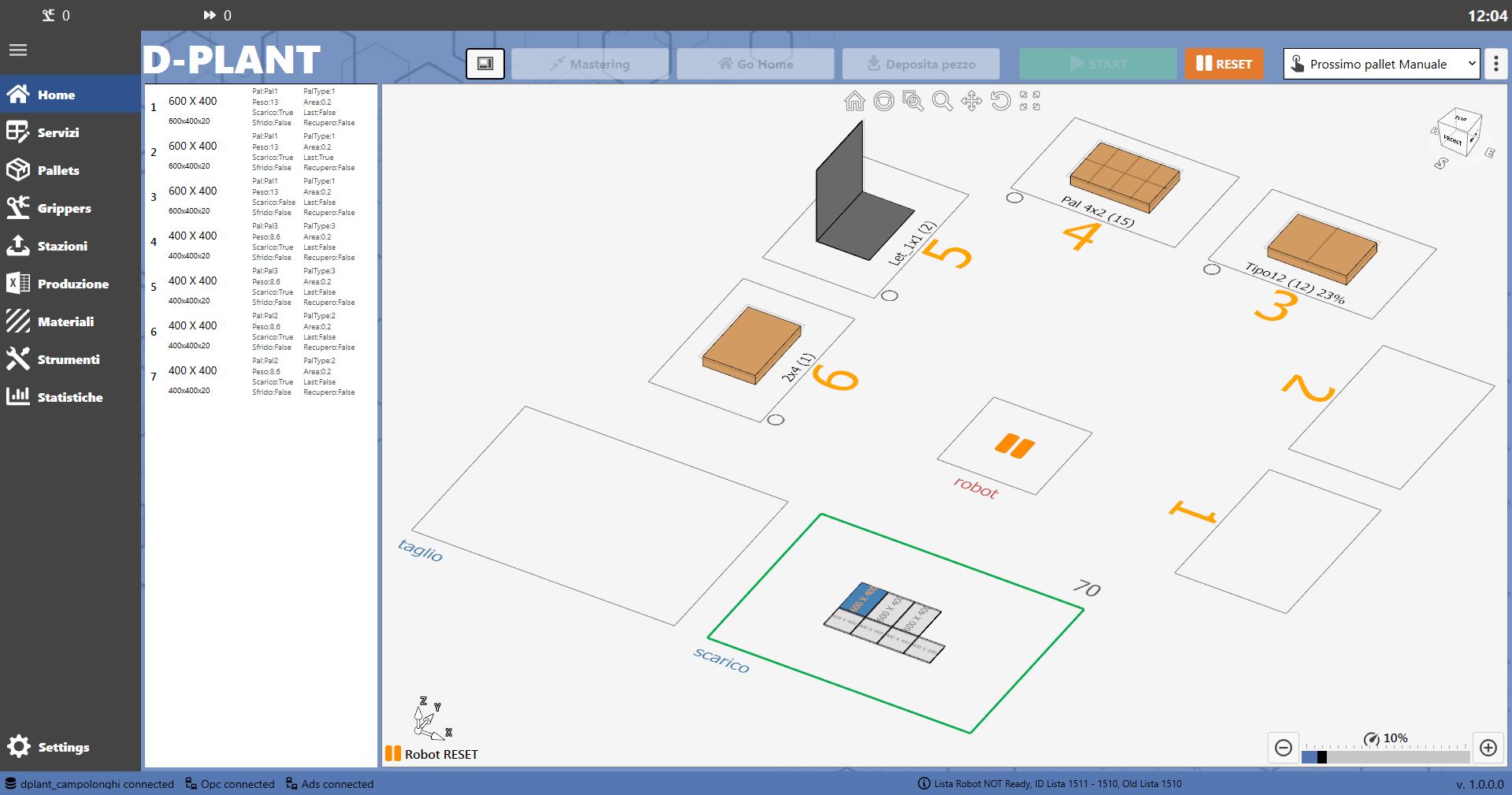
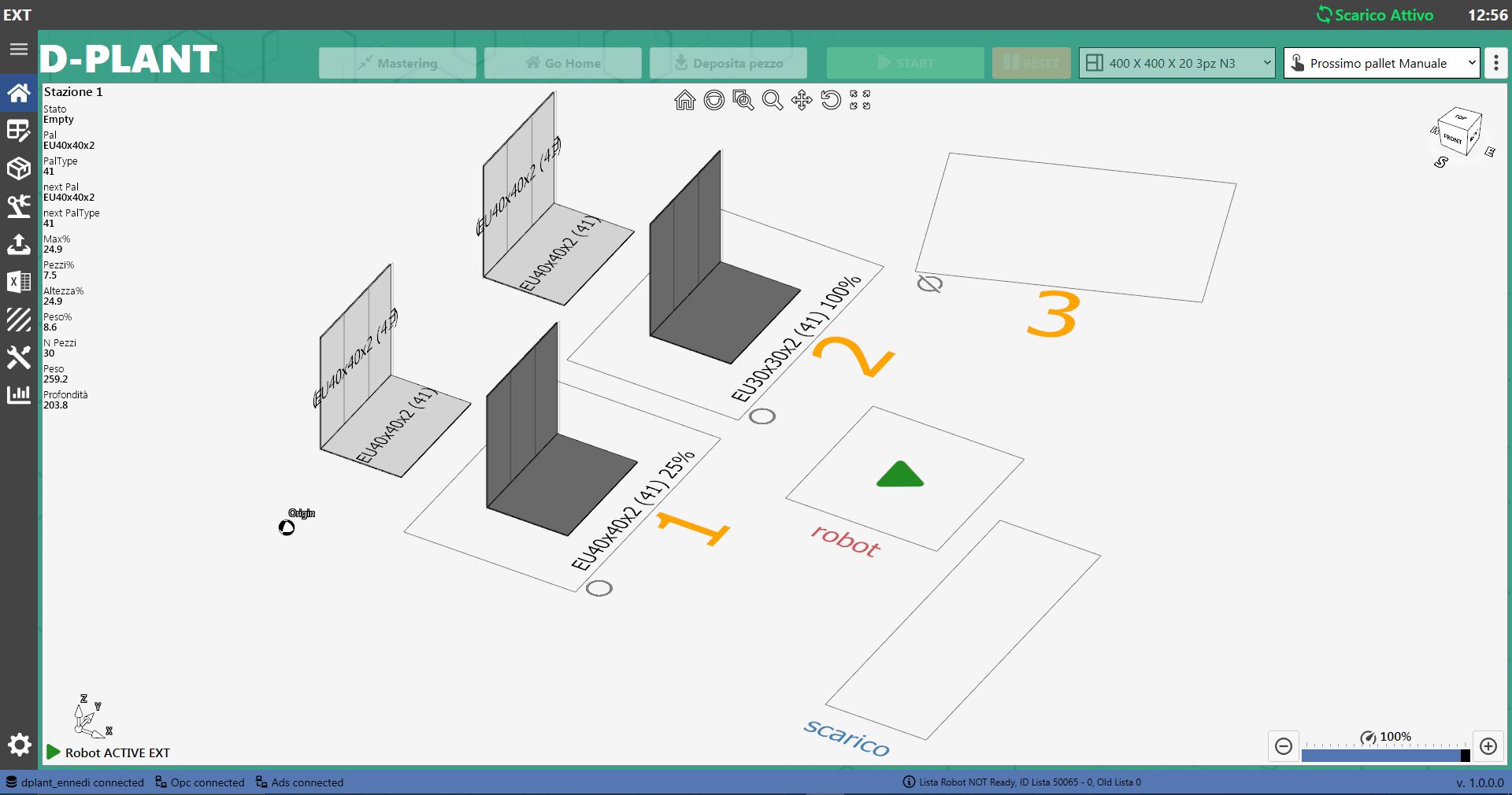
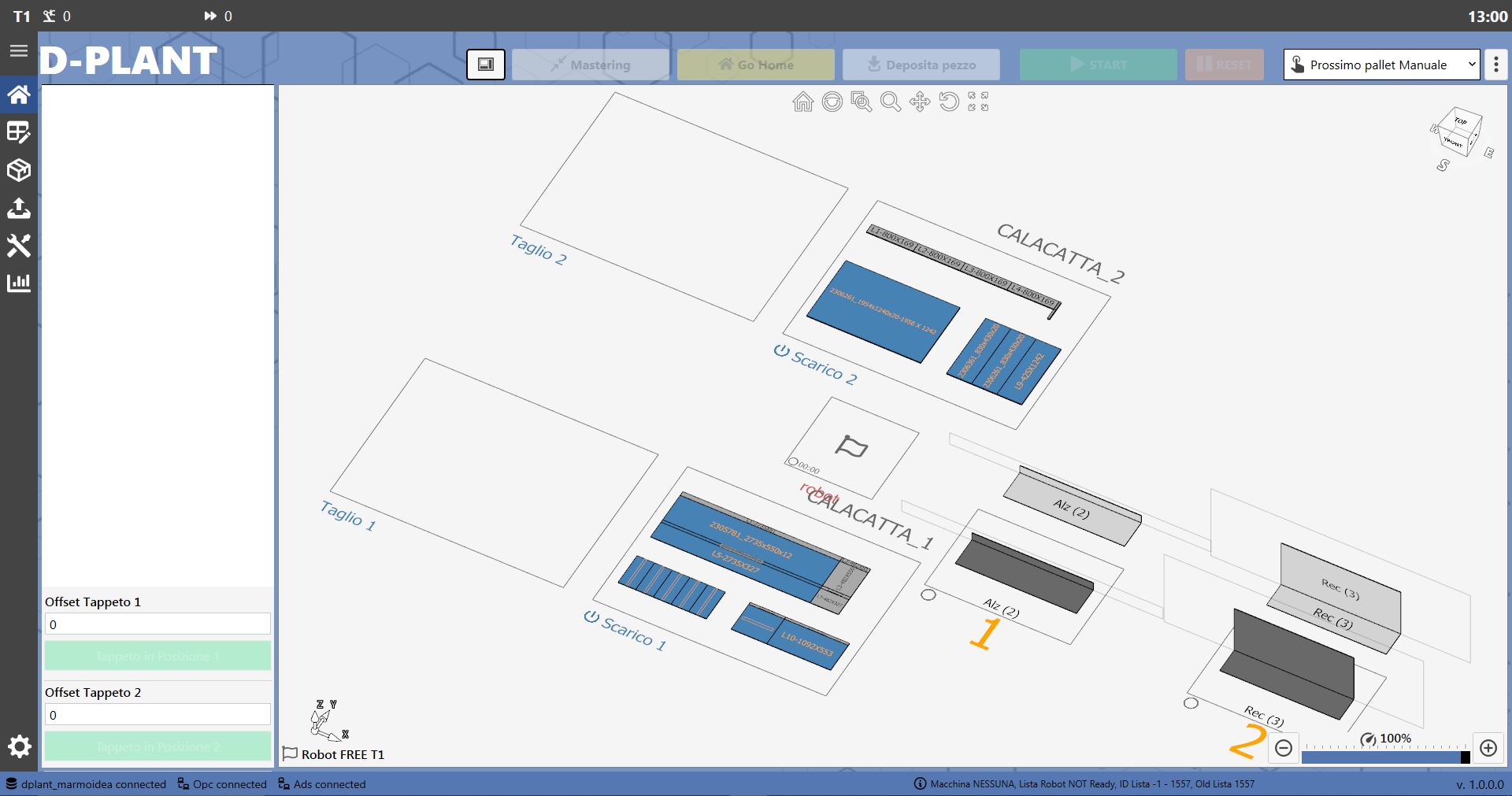
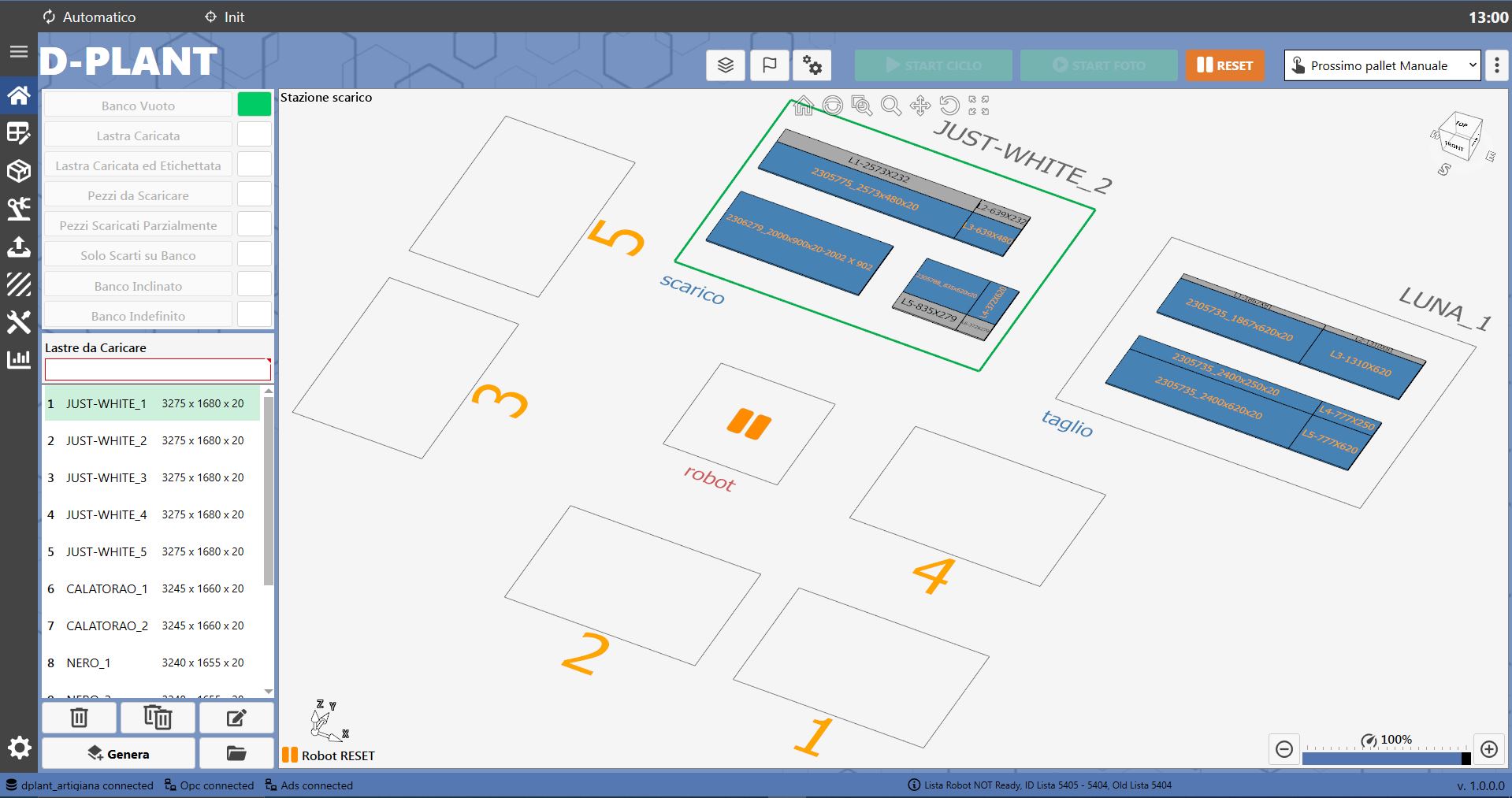
The appearance of the Home page may vary considerably depending on the selected configuration.
Plant configurations
Some examples of D-Plant configurations are shown below
A) Single-pick unloading with separate cutting and unloading belts
B) Multiple-pick unloading
C) Single-pick unloading from two machines with one belt
D) Single-pick loading and unloading
Status information
The “Home” page is the software start page, where the following information can be viewed:
The robot operating status:
FREE
RESET
ACTIVE EXT
STOP
Identifies the unloading status
Installed gripper
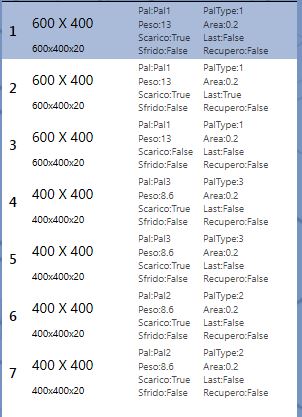
No. of piece being unloaded
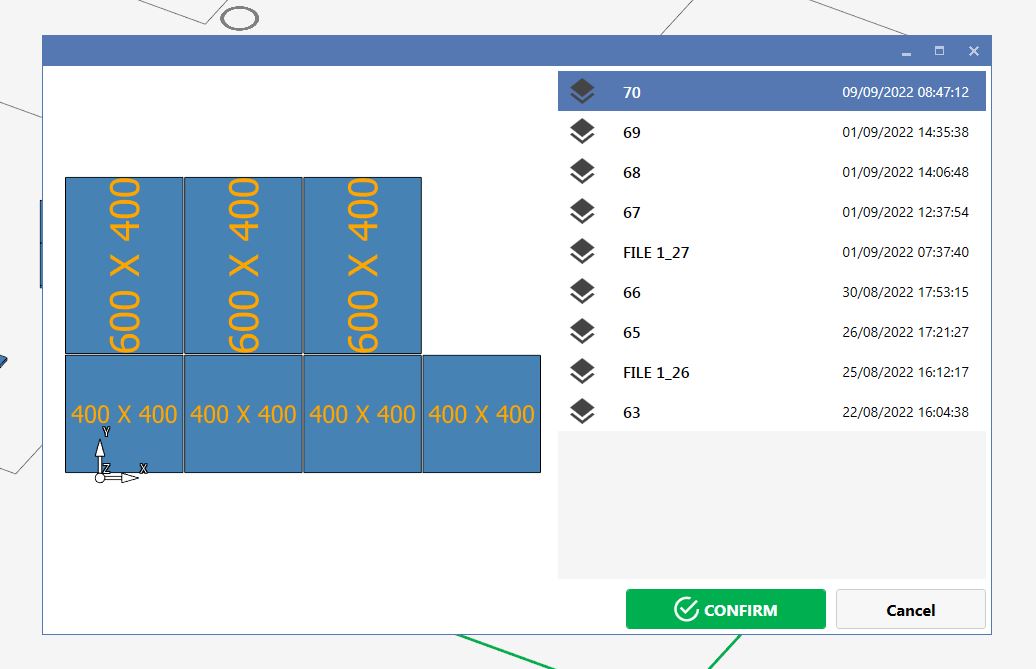
View pieces being unloaded Opens the window showing the pieces being unloaded
Mastering Sends the mastering command.
Homing Sends the homing command.
Place piece Sends the command to place the piece in the designated area/station.
Start Sends the command to start the piece unloading cycle.
Reset Sends the reset command.
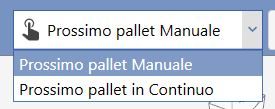
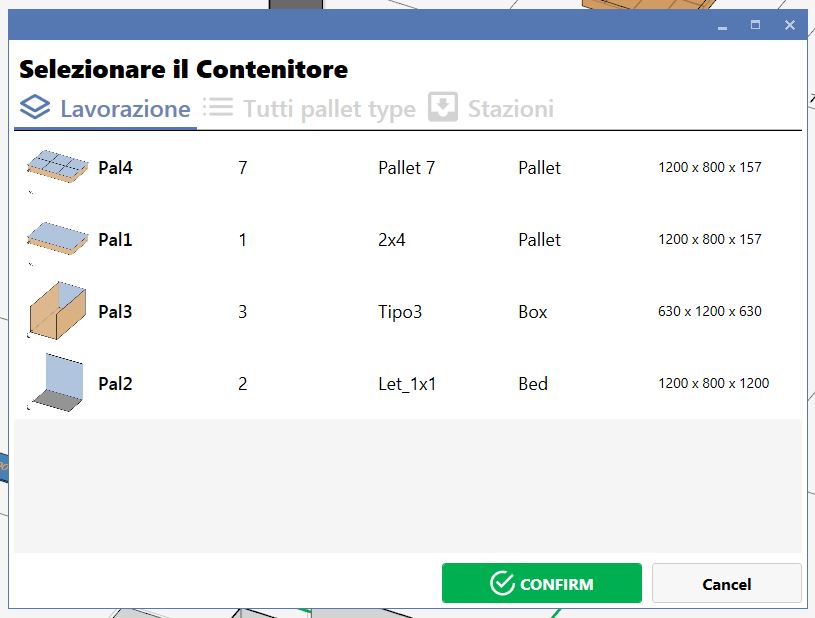
Next pallet Manual: next pallet to be defined. Continuous: next pallet same as the previous one.
Frame correction menu Displays the frame correction menu.
Robot working speed Displays and changes the robot working speed.
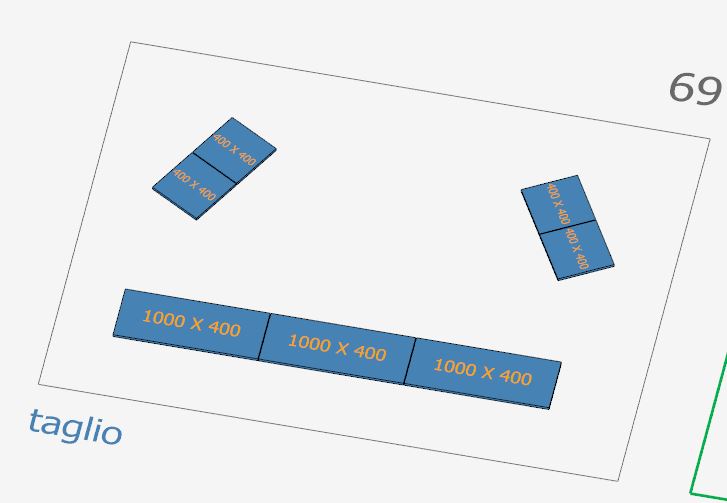
Cutting area Machine cutting area, with the layout of the pieces being cut.
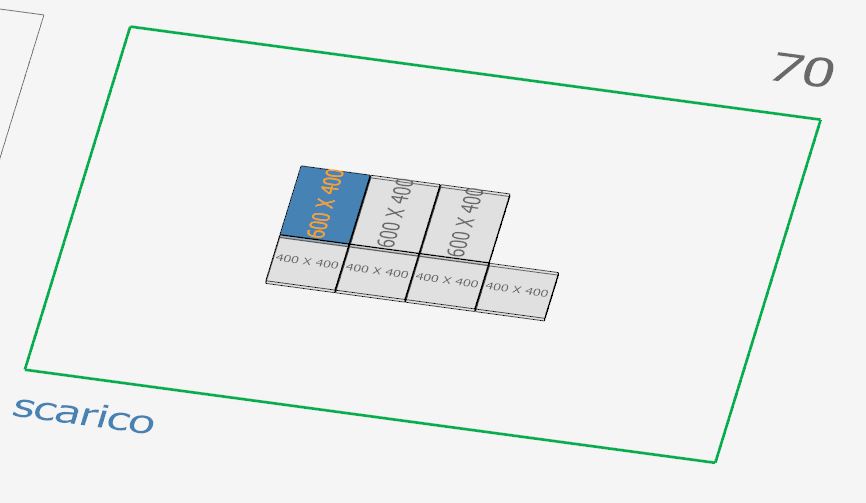
Unloading area Robot unloading area, with the layout of the pieces being unloaded.
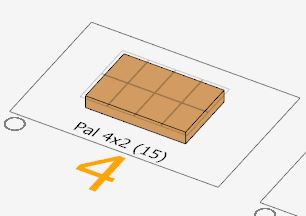
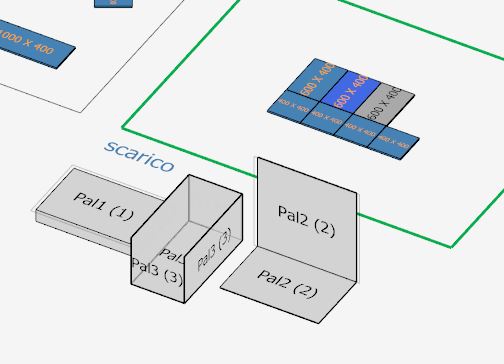
Placement station Placement station with the corresponding station number and the type of pallet it contains.
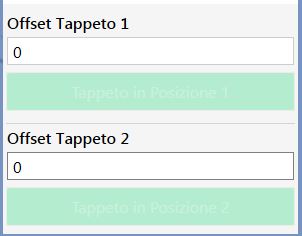
Conveyor offset If supported by the model (e.g. model C), the conveyor positioning offset relative to ZERO can be changed.
In addition, beneath both editable values, a light-green button allows the operator to force the conveyor into position.
Multiple-unloading piece format If supported by the model (e.g. model B), the operator can view and select different piece formats for the multiple-pick unloading area.
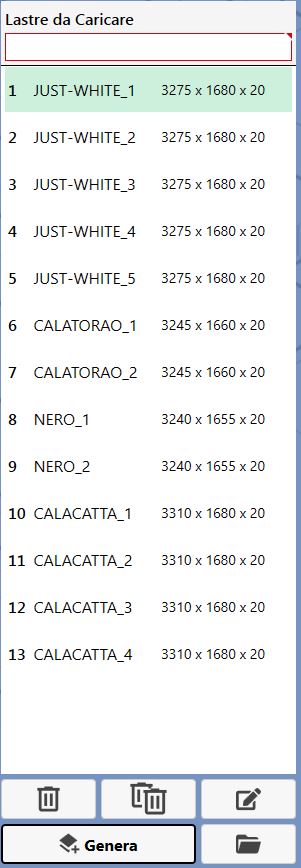
Slabs to load menu If supported by the model (e.g. model D), the operator can view the menu of slabs to load.
Slabs to load
If supported by the model (e.g. model D), the operator can specify the number of slabs to load.
Delete slab to load If supported by the model (e.g. model D), the operator can delete a slab to be loaded.
Delete all slabs to load If supported by the model (e.g. model D), the operator can clear the list of slabs to load.
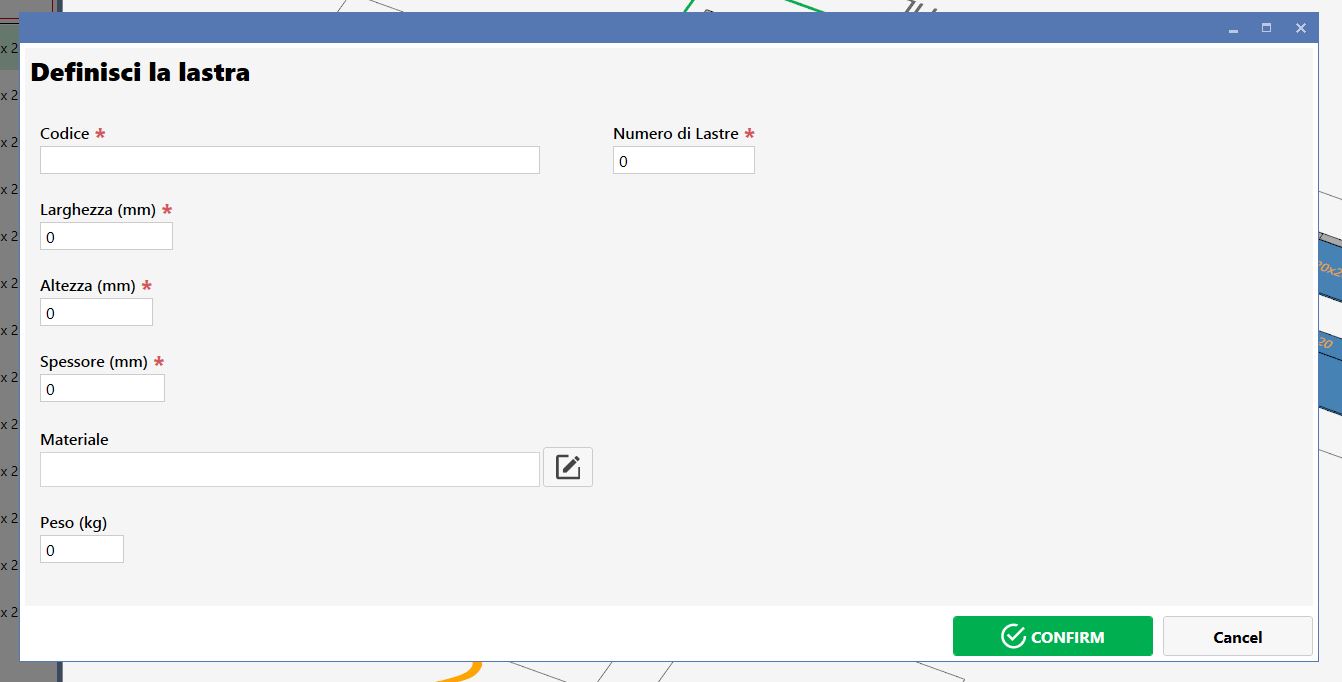
Edit data of slab to load If supported by the model (e.g. model D), the operator can edit the data of a slab to be loaded.
Generate slab to load If supported by the model (e.g. model D), the operator can create a new slab to load.
Load slab management file If supported by the model (e.g. model D), the operator can use File Explorer to locate and load a slab management file.
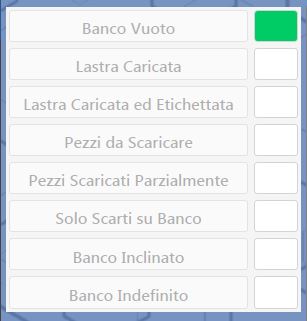
Initial scenario menu If supported by the model (e.g. model D), the operator can view and set the initial scenario using the dedicated menu.
Mastering and Homing If supported by the model (e.g. model D), the operator can access the Mastering and Homing functions.
Send slab photo command If supported by the model (e.g. model D), the operator can request that a command be sent to take a photo of the slab.
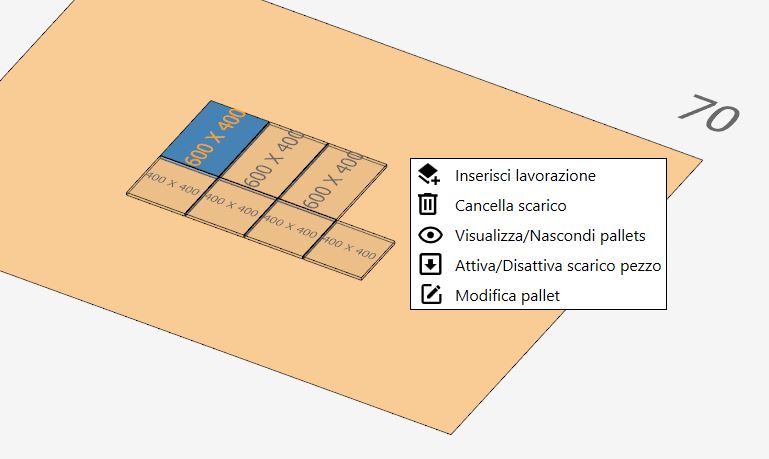
Menu in the unloading or cutting area
Right-click in the unloading or cutting area
INSERT WORKING Allows any cutting layout to be inserted.
DELETE UNLOADING Deletes the current cutting layout.
SHOW/HIDE PALLETS Enables/disables the display of the PalTypes required for unloading.
ENABLE/DISABLE PIECE UNLOADING Enables or disables robot unloading of the piece.
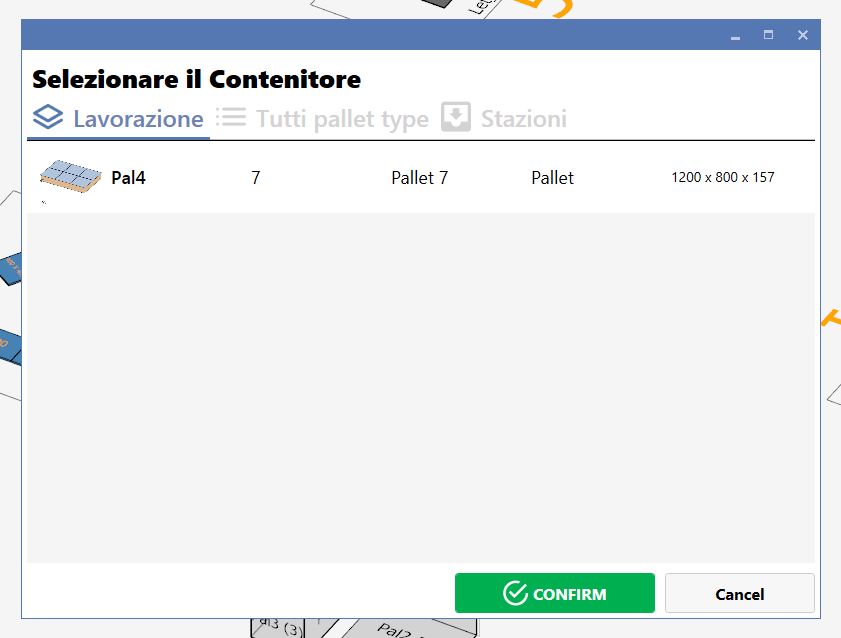
EDIT PALLET Allows the destination pallet of a piece being cut to be changed.
Menu in the placement area
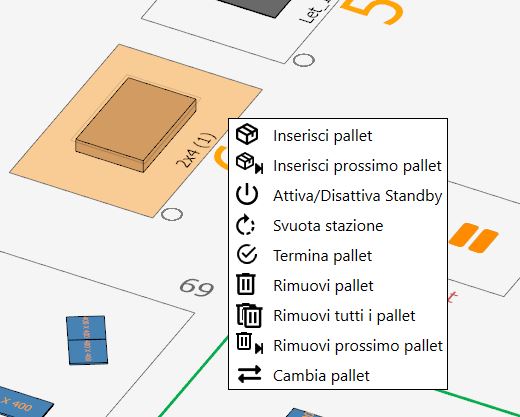
Right-clicking in the placement area displays the following menu for pallet-related actions.
INSERT PALLET Allows a pallet to be inserted into an empty station.
INSERT NEXT PALLET Allows a pallet to be set as the next pallet in a station.
ENABLE/DISABLE STANDBY Puts the station in standby.
EMPTY STATION Empties the pallet in the station.
COMPLETE PALLET Sets the pallet in the station to FULL.
REMOVE PALLET Removes the pallet from the station.
REMOVE ALL PALLETS Removes all pallets from all stations.
REMOVE NEXT PALLET Removes the next pallet from the station.
CHANGE PALLET Moves the pallet in the next-pallet area into the station.