This functionality allows to add a curbs of type bevel or of type beak (beak of owl) on the cuts of the selected piece.
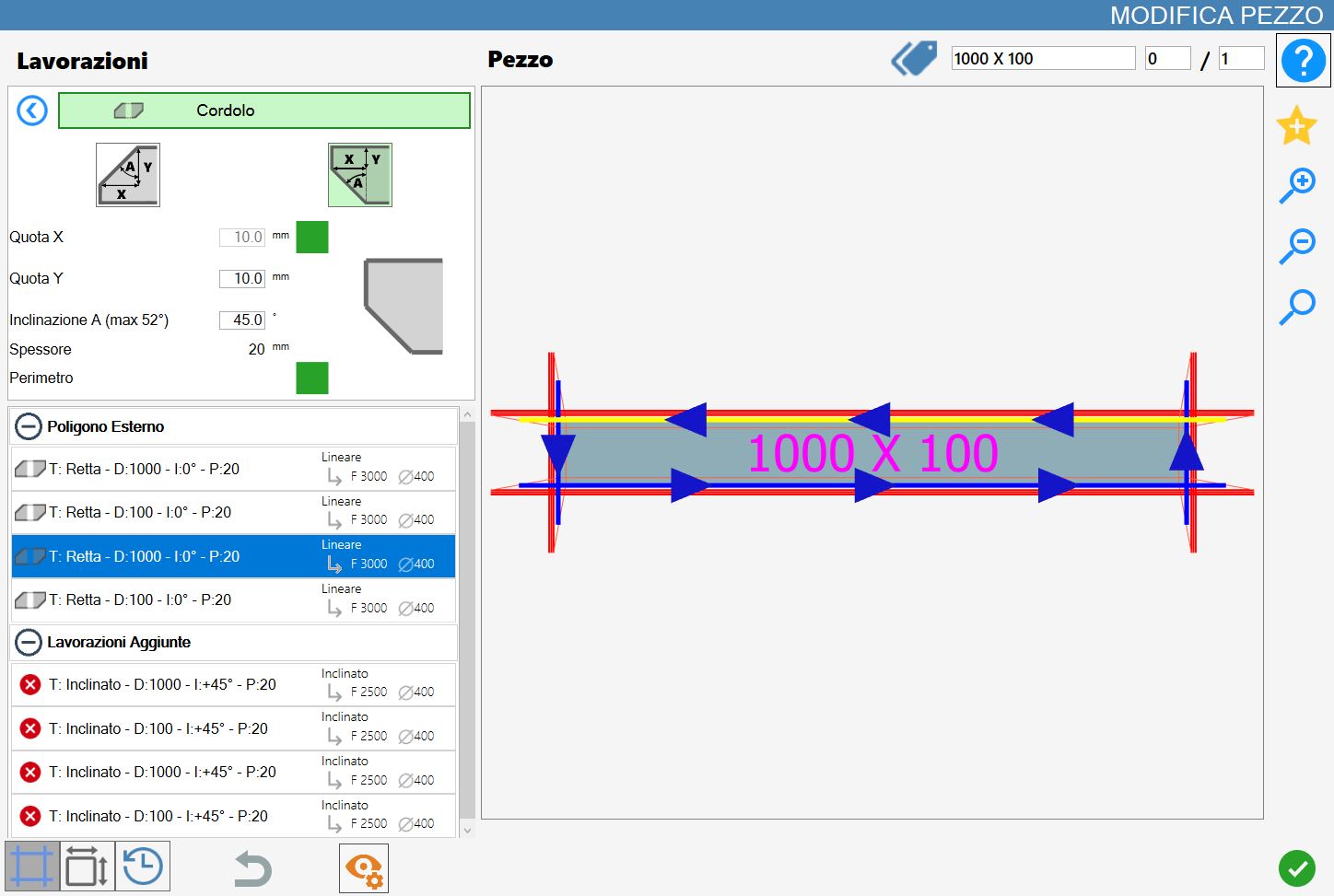
The interface for this function resembles the following image:
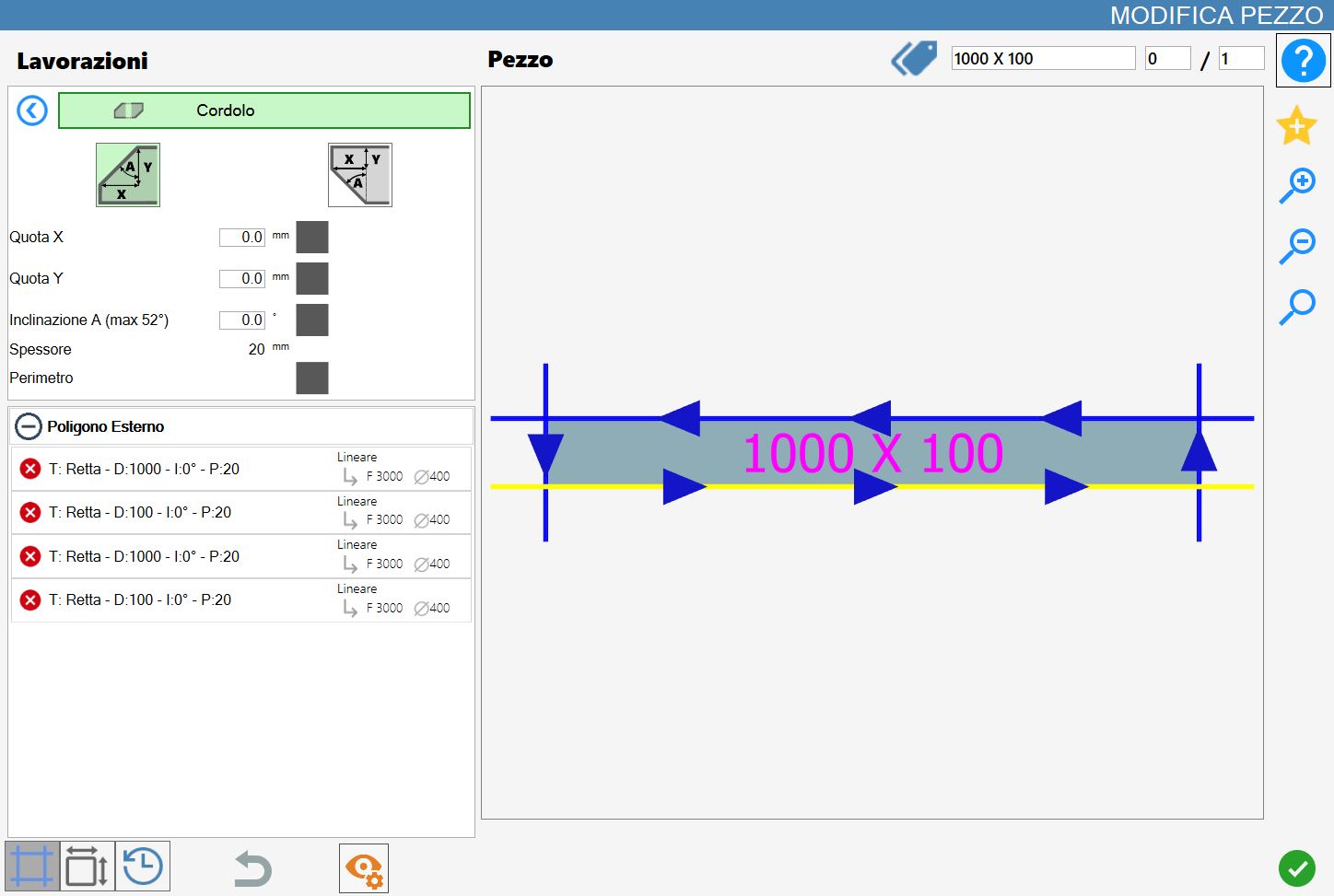
Parameters
To use this processing, it is necessary to first choose one of the two available modes, selecting the corresponding button:
The 'Top Corner' and 'Bottom Corner' modes are mutually exclusive: activation of one automatically excludes the other.
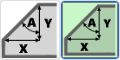 | Chamfer |
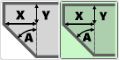 | Lower Chamfer (Lower Chamfer) |
The following parameters are common to both working types:
X Quote | Distance along X axes from piece's edge. |
Y Quote | Distance along Y axis from the piece's edge. |
Inclination A | Inclination angle of the cut expressed in sexagesimal degrees. |
Thickness | The slab thickness is shown currently set in Parametrix to help the user apply the processing. |
Perimeter | Activating this parameter the working will be executed on all the perimeter of the piece. |
Next to the first three geometric parameters, there are square selection boxes, initially deactivated. It is necessary to activate one to specify which parameter to keep constant; in this way, providing a second value, the third is calculated automatically. The selection boxes cannot be enabled if the value of the corresponding parameter is equal to zero, in order to prevent the setting of geometrically inconsistent or invalid configurations.
Execution of working
It is possible to apply the processing by pressing the button on the left of the suitable cut in the polygon list.
A red icon with an 'X' indicates that the processing can not be applied to the desired cut.
The cordolo working can be executed only on the row type cuts.
For each ridge inserted successfully on the material, there is the update of the preview and the automatic insertion in the 'Additional works' section on the left.
Chamfer Execution
Side
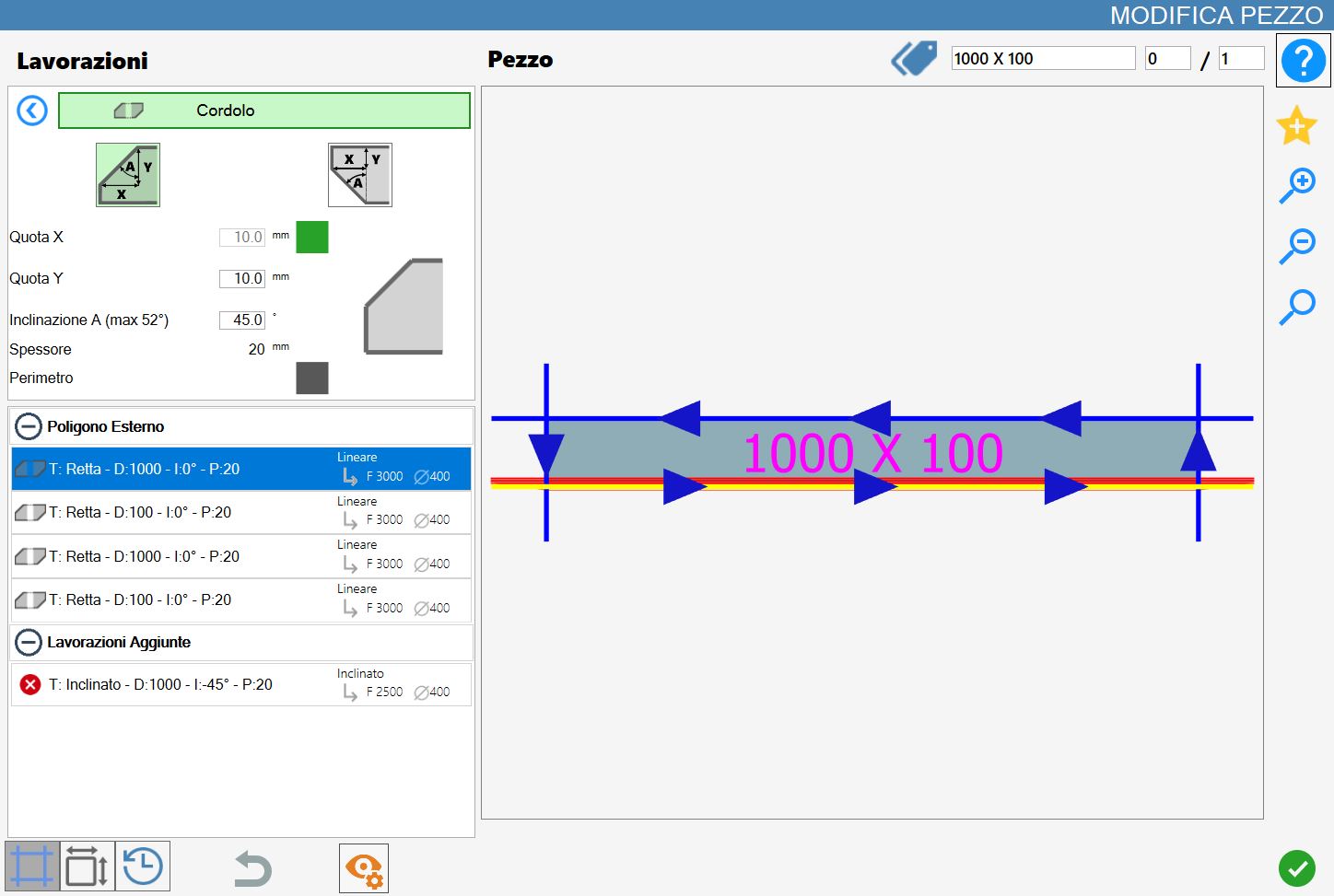
In the following image we can see the working of the curbs applied to one side of the piece in the top corner.
To apply the job on the desired side you have to click on it.
Perimeter
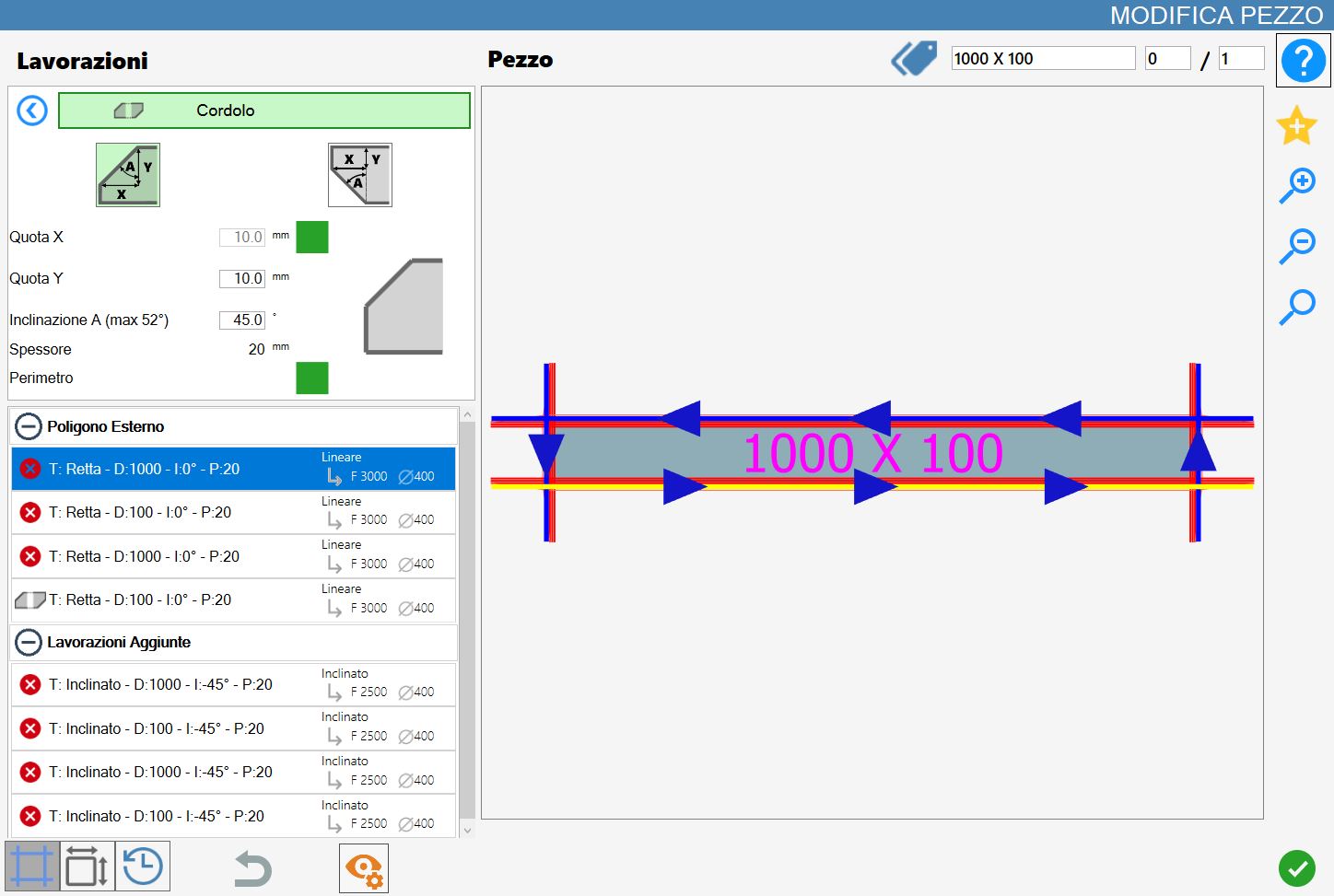
In the following image we can see the curb work applied to the perimeter of the piece in the upper corner.
To apply the working on the perimeter you have to activate the checkbox on the right of the writing and then click on one side of the piece.
Execution Lower Chamfer
Side
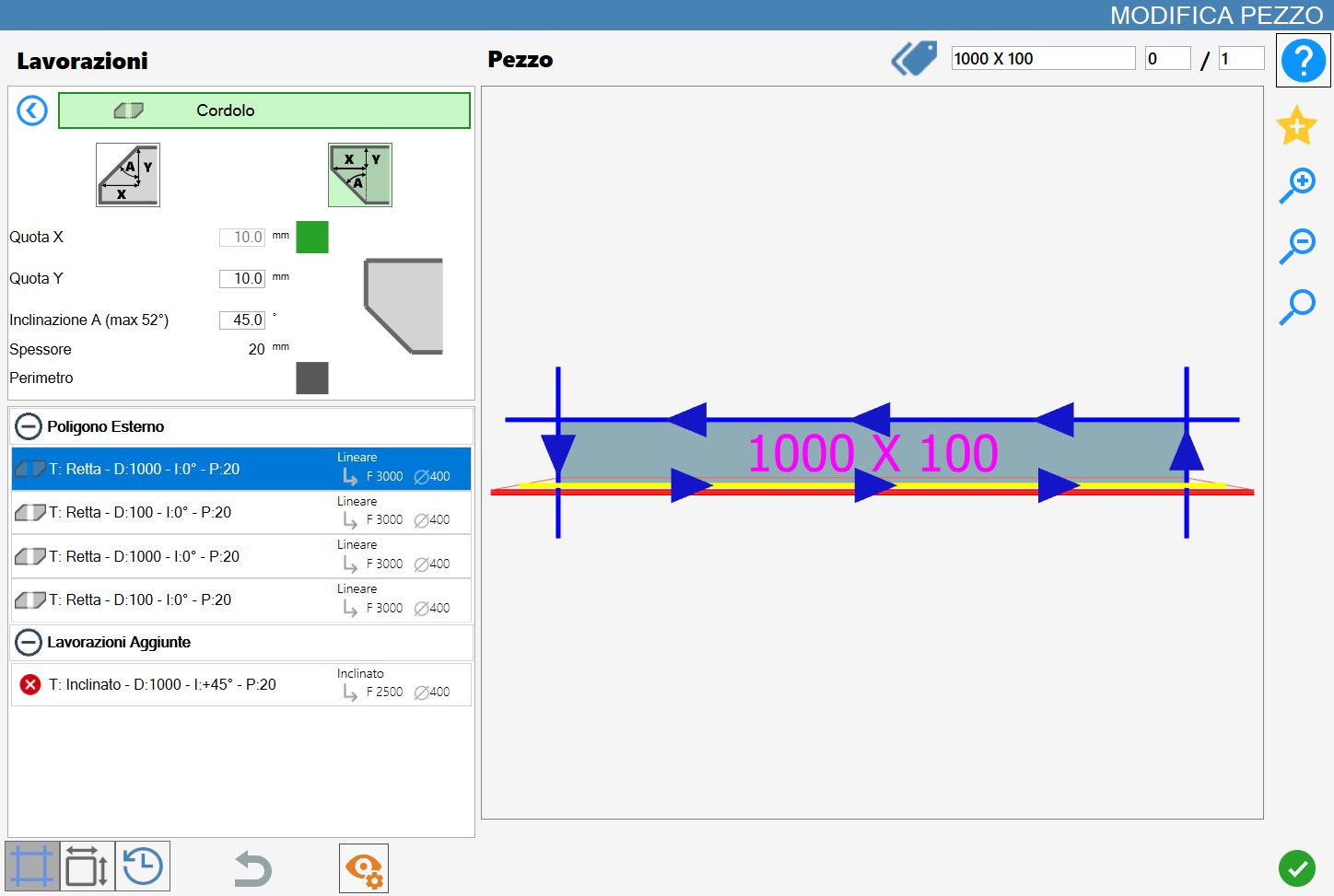
In the following image we can see the working of the curbs applied to a side of the piece in the lower corner.
To apply the processing on the desired side you have to click on it.
Perimeter
In the following image we can see the curbs' working applied to the piece's perimeter in the lower corner.
To apply the working on the perimeter it’s necessary to activate the checkbox on the right of the writing and subsequently click on one side of the piece.