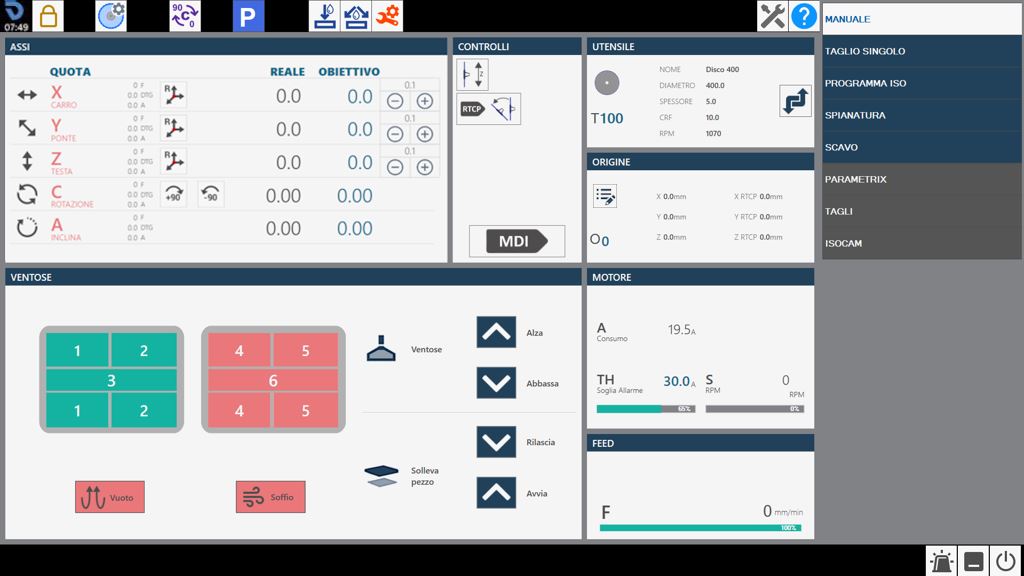
When the application starts, if the axes have already been homed, the following initial screen is displayed:
Top bar
Parameters Provides access to the Parametrix program parameters.
Parameters tool Pressing the button opens the tool parameters page. See the “Tool Configuration” chapter for a detailed description of the parameters page.
Automatic rotation 0/90 degrees The “C” axis is automatically moved to 0 or 90 degrees when the button is pressed.
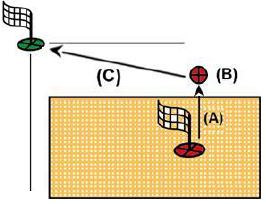
Automatic parking When pressed, the machine automatically moves the “X”, “Y”, “Z” and “C” axes to their zero positions. The machine movements are performed in the following order: (A) - “Z” axis to the absolute zero position; (B) - “C” axis to the absolute 0 position; (C) - “X” and “Y” axes simultaneously to the absolute Zero position;
WARNING!
To perform automatic parking, certain safety conditions must be met:
The “A” axis position must be at 0_.
Make sure that the movement area involved in positioning (see figure alongside) is clear.
Internal water On/Off Pressing this button activates the water supply from inside the tool. The indicator above the button changes colour: Green = On; Red = Off.
External water On/Off Pressing this button activates the water supply from the main line. The indicator above the button changes colour: Green = On; Red = Off.
Manual Tool Change Pressing the button starts the tool change procedure.
Maintenance Pressing this button displays a window containing all machine maintenance operations. Both maintenance operations that must be carried out and those within normal limits are displayed.
Help Pressing this button slightly changes the appearance and behaviour of all buttons currently visible. You can then press any button showing a small question mark in the top-left corner to display a short message explaining its function. To exit this help mode, simply press the “Help” button again.
Common interface elements
The graphical interface elements common to the various functions are:
Axes
This interface displays the machine axis values.
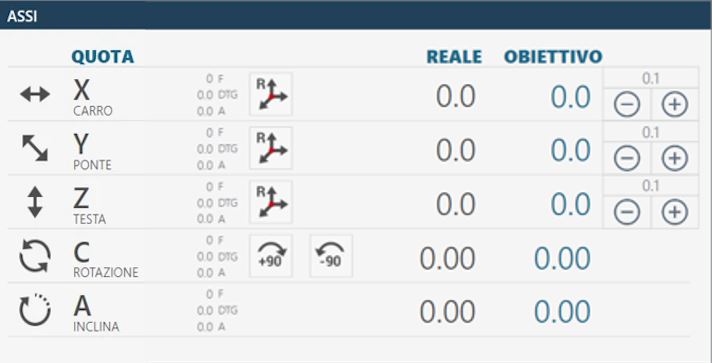
Example of the “Axes” interface element with origin 0 and the axes already homed:
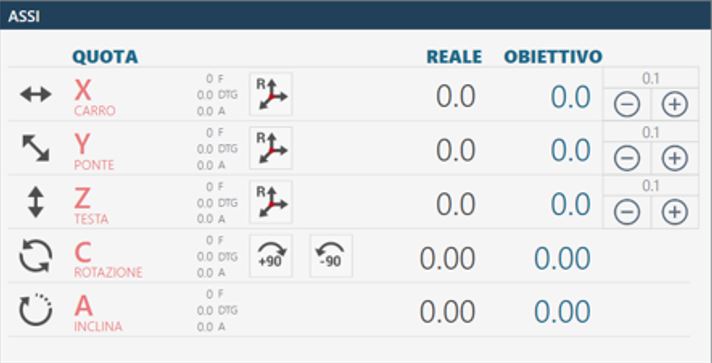
Example of the “Axes” interface element with origin 0 and the axes still to be homed:
The elements that make up this section of the common interface are explained below, using the elements shown with the axes already homed as reference.
Actual position: indicates the axis position relative to the active origin. Target position: indicates the position to be set in order to move the axis by pressing the MDI or RTCP button. F: Feed, movement speed expressed in mm/min. DTG: Distance To Go, distance from the target. A: Amperes.
Reset Axis Pressing this button sets the zero point of the active origin at the current position of the corresponding axis (X, Y or Z). The axis reset operation can only be performed on origins other than 0 (zero). To use the tool-coordinate origin (TCP), the correct dimensions of the mounted tool must be set before pressing the Reset Axis button.
Automatic rotation _90 degrees The “C” axis position is increased by 90 degrees clockwise. Example: if the machine is at 12 degrees, pressing the “Automatic rotation _90 degrees” button moves the machine to 102 degrees: 12 _ 90.
Automatic rotation -90 degrees The “C” axis position is decreased by 90 degrees counter-clockwise. Example: if the machine is at 102 degrees, pressing the “Automatic rotation -90 degrees” button moves the machine to 12 degrees: 102 - 90.
Controls
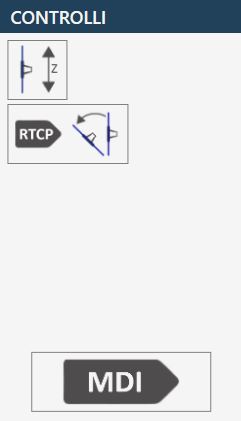
This panel contains several buttons whose functions are described below:
Interpolation mode When the button is active (figure on the right), manual Z, C and A movements are performed taking rotation and inclination into account. Interpolated Z-axis movement: operating the Z-axis JOG moves the machine aligned with the mounted tool.
NOTE
The selected tool type affects the direction of movement.
Interpolated C-axis movement: operating the C-axis command moves the X and Y axes in addition to rotation, so that the inside edge of the blade (or the tool tip) remains stationary. Interpolated A-axis movement: operating the A-axis command moves the X, Y and Z axes in addition to inclination, so that the inside edge of the blade (or the tool tip) remains stationary at its current position. Simultaneous movement of the Z, C and A axes is not permitted while interpolated mode is active.
WARNING!
Pay close attention to the status of the button, as machine movements may differ from what is expected.
RTCP interpolation Performs positioning to the “Target” position set for the A or C position while keeping the inside edge of the blade (or the tool tip) stationary. For further details, see the paragraph: “Semi-Automatic RTCP Rotation Tool Center Point Function”
MDI When pressed, the machine moves until the positions set as target positions are reached (see above). The speed of the X and Y axes is controlled by their respective potentiometers, while the other axes are controlled by the interpolated potentiometer.
Tool
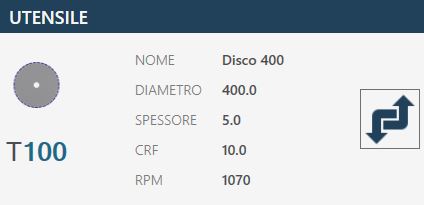
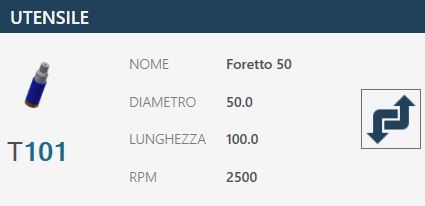
This interface element displays the main information relating to the tool mounted on the machine.
Example of a tool mounted on the machine: Disk
Example of a tool mounted on the machine: Coredrill
Active tool Clicking this button displays a confirmation pop-up that allows the operator to change the type of tool mounted on the machine.
The selection is limited to:
Disk
Milling / Coredrill
Origin
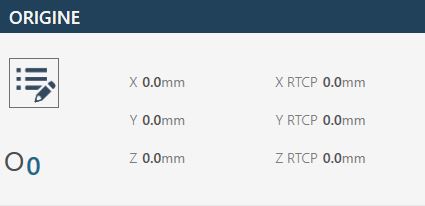
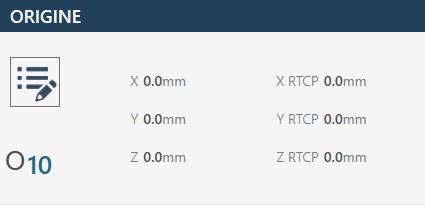
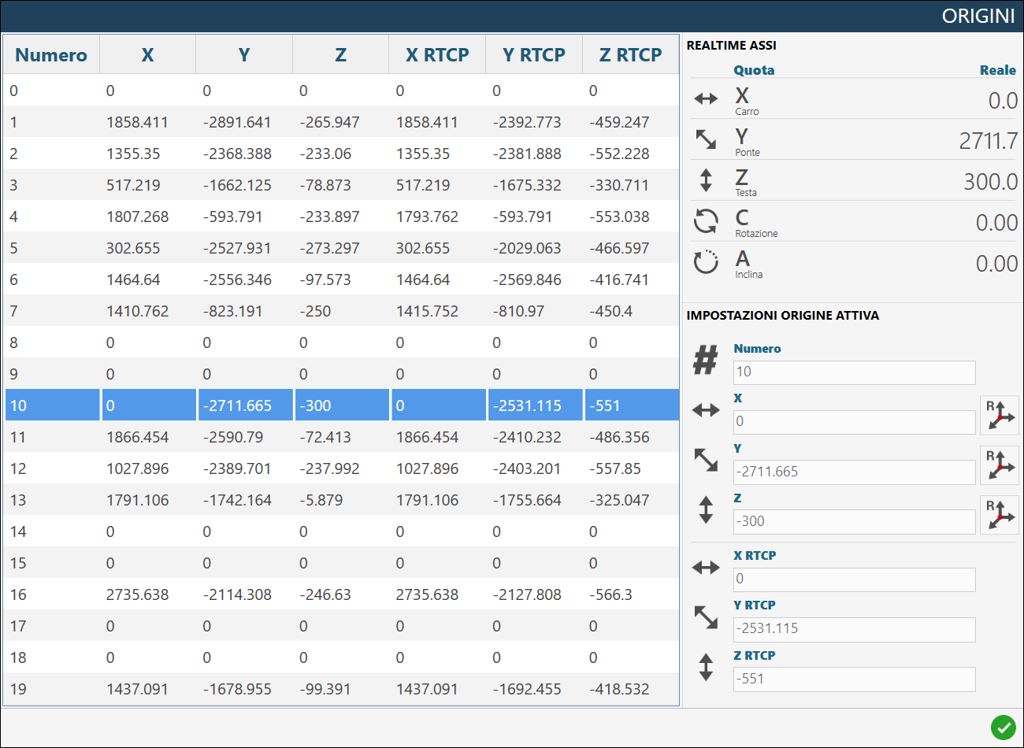
Clicking the “Origin” field displays a small on-screen numeric keypad that allows the operator to select a different origin to work with. Origin values can range from 0 to 19 inclusive.
Example with origin 0:
Example with origin 10:
Advanced origin settings
Pressing the options button above the origin opens a panel containing a centralised view of all available origins and their associated values. The active origin can be changed by clicking the corresponding row.
RTCP - Rotation Tool Center Point
The RTCP function allows the operator to position the machine for a miter cut while keeping the tool height unchanged even though the inclination changes during positioning. The inside edge of the disk remains in the same position as at the start of the movement.
Operating procedure
Set the target position in the area dedicated to the “A” (inclination) or “C” axis.
Pressing the RTCP button starts the inclination or rotation function while keeping the lowest point of the tool fixed.
NOTE
Movement using the RTCP command is permitted only when the coded key is inserted in the appropriate station on the operator console.
Wait for the machine to reach the set position.
Motor
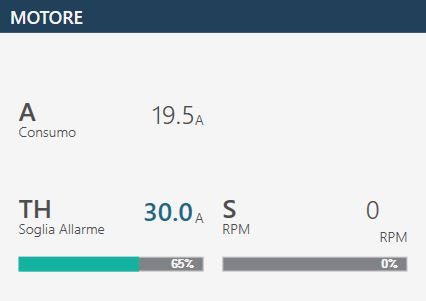
This section shows some statistics relating to the machine motor:
Revolutions per minute (RPM) Indicates the spindle motor speed in revolutions per minute. If the direction of rotation is clockwise, the value is positive; if the direction is counter-clockwise, the sign is negative.
Consumption (A) Indicates the current drawn by the spindle motor.
Alarm threshold (A) Indicates the threshold above which the alarm is activated and spindle rotation is stopped.
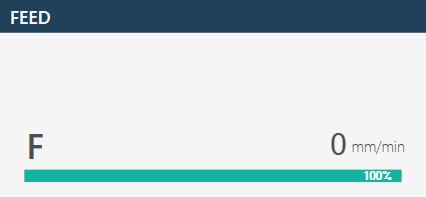
Feed
The Feed value represents the interpolated movement of the machine.
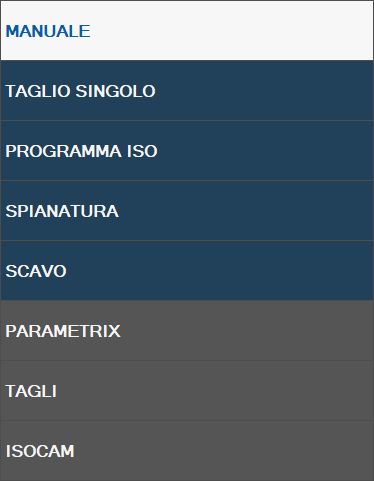
Right sidebar
When the application starts, the preselected function is MANUAL. This sidebar contains the following available commands and programs/functions:
Bottom bar
The bottom bar displays information and error messages as well as several buttons for specific functions. Three examples of the bottom bar are shown below:
With no active alarms.
With a general emergency enabled, shown with an icon, an error code (PE0000 in this case), the corresponding description, and the alarms button on the right flashing.
With a message displayed; in the example, direct JOG active.
Alarms Allows the operator to access the alarms window.
Software minimisation Allows the operator to exit the software page.
Machine shutdown Allows the operator to shut down the machine completely.
Alarms
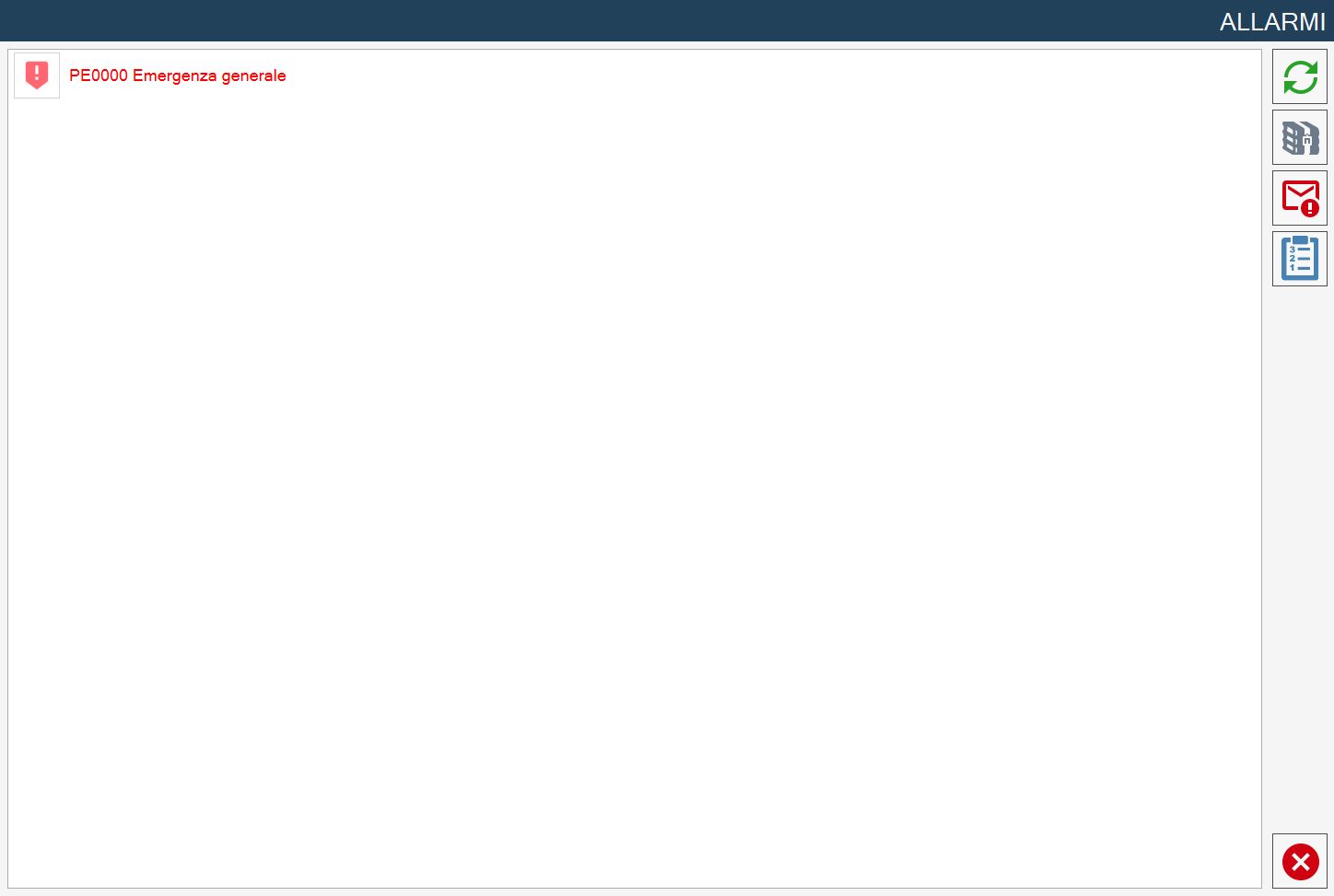
The alarms page shows the active system Alarms/Messages. If the machine has no active alarms, the page is empty; otherwise, one row is displayed for each error present. The following example alarm management and display page shows an active alarm in the system:
Alarm buttons
Updates Used to update the status of the machine alarms.
Alarm history Allows the daily alarm history to be displayed.
Messages / Alarms Allows you to choose whether to display alarms or messages.
Alarm groups Displays complete information about the alarms currently present on the machine.
Alarm display - Standard
The standard display of an alarm consists of:
Online link A button with a link to the corresponding online guide.
Alarm code Identification code of the problem that caused the alarm.
Description A brief description of the detected error.
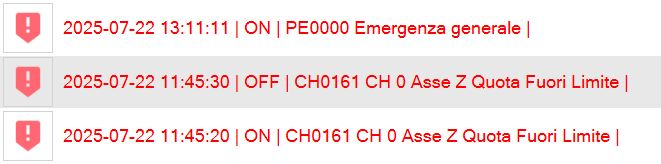
Alarm display - History
In addition to the elements already described, the daily alarm history also includes the following data:
Status change time Date and time when the alarm status changed.
Alarm status Status reached by the alarm (ON / OFF).
Alarm display - Groups
The grouping system displays a single entry for each alarm, avoiding duplicates.
Number of Occurrences The number of times the alarm has been activated.
First activation time Date and time of the first alarm activation.
Last activation time Date and time of the last alarm activation.