Donatoni Macchine
Machine technical documentation Operational document

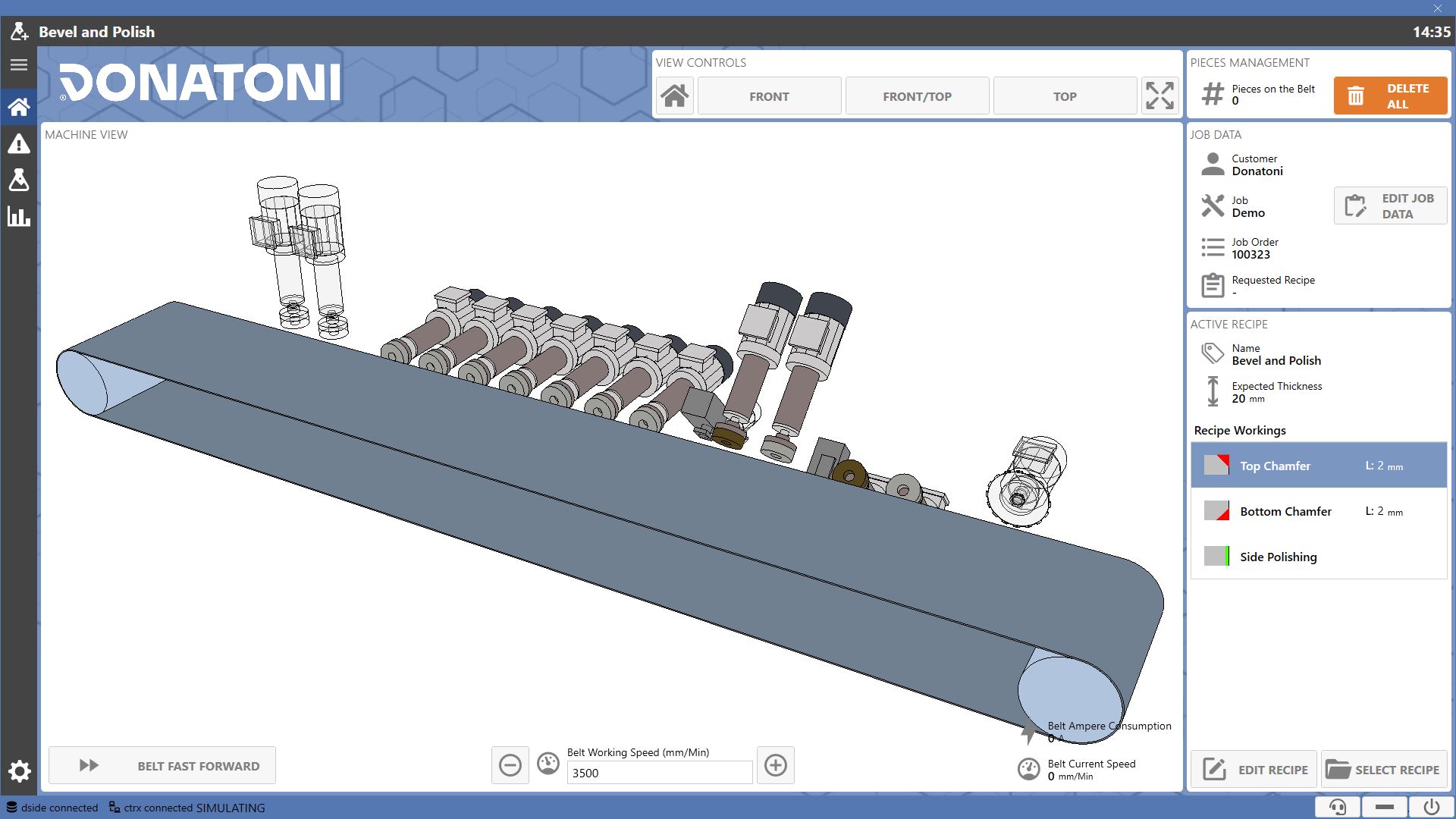
The system has been designed to facilitate the operator in the working of pieces. Through the software it is possible:

  • Create recipes for piece workings

  • Check and modify the configuration of the Group and Elements that make up the machine

  • Monitor execution of workings on screen

  • Display statistics related to the machine and the work performed by it
0.00.png

Operational status of the Machine

Operational status of the machine indicates whether it is in Working, waiting for instructions, on alert or in Error.
Each state is associated with a color, visible in the background of the application pages.

0.33.png

Waiting
No working is running, and the machine detects no errors.

0.36.png

Working
The machine is Running correctly, and is working one or more Working Piece.

0.34.png

Error
The machine sensors have detected errors preventing its operation.

0.35.png

Alert
Indicates presence of anomalies to check.

Side menu

The sidebar allows navigation between the different program pages.

0.22.png
0.18.png

Menu
Allows the expansion and contraction of the sidebar.
When the menu is expanded, page names are visible.

0.02.png

Home
Returns to the application's main screen.

0.03.png

Alarms
Page displaying active warnings and errors on the machine, and their history.

0.04.png

Recipes
From this page it is possible to create and edit recipes.

0.05.png

Statistics
Page that allows viewing of the Machine Statistics and Workings.

0.06.png

Settings
Allows access to the system Parameters page.

Top bar

The active warning and error messages are displayed in the application's top bar. Additionally, the name of the recipe currently loaded on the machine is shown.
The operator can access the alarms page by pressing the messages.

0.26.png
0.24.png

Active Recipe
Current Recipe Name Loaded On Machine.

0.27.png

Error
Error message.

0.25.png

Notice
Warning message.

Bottom bar

Utility buttons are located to the right of the lower section of each screen.

0.07.png
5_2_BottomBar_Assistance-20260304-130736.png

Remote Assistance
Opens a panel to request remote assistance from a Donatoni technician.

riduci_a_icona-20260817-074254.png

Minimize to icon
Allows hiding the program window by moving it to the taskbar.

5_4_BottomBar_ShutDown.png

Stop system
Allows to shut down the machine computer.

Remote Assistance

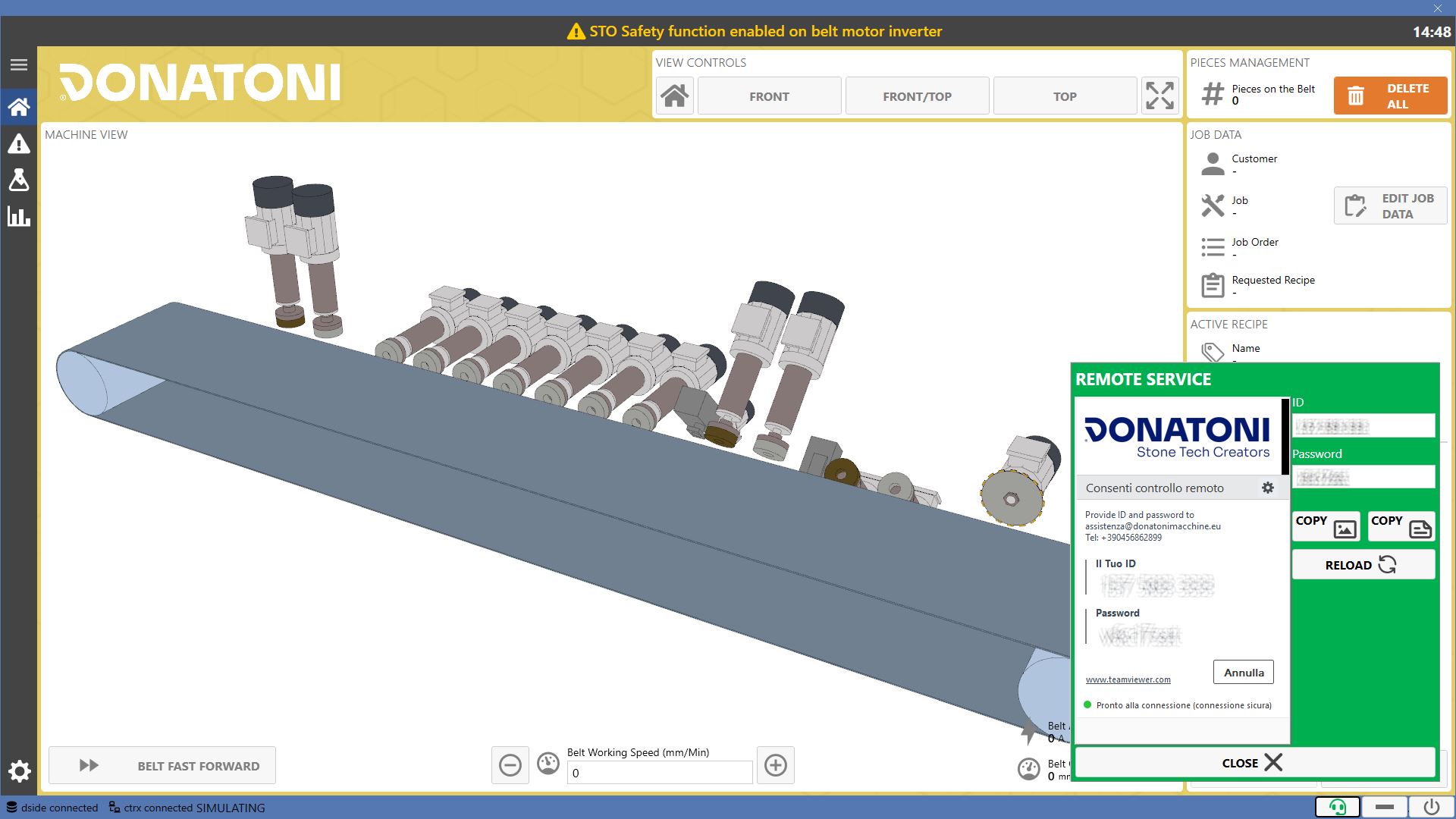
Clicking the Remote Assistance button in the bottom bar allows opening a panel with ID and Password to be communicated to Donatoni technical assistance when needed to enable remote connection to the machine.
0.11_-_Copia-20260817-082327.png

NOTE

The Remote Assistance icon and panel background will be green if the system is online and ready for connection, red otherwise.

6_1_RemoteAssistance_ID.png

ID
Field indicating the ID of the remote assistance session.

6_2_RemoteAssistance_Password.png

Password
Field indicating the password for the remote assistance session.

6_3_RemoteAssistance_CopyImage.png

Copy as image
Allows an image of the remote assistance panel to be saved to the clipboard.

6_4_RemoteAssistance_CopyText.png

Copy as text
Allows text containing the ID and Password for the connection to be saved to the clipboard.

6_5_RemoteAssistance_Reload.png

Reload
Allows remote assistance to be reloaded in the event of a malfunction.

chiudi-20260817-075515.png

Close
Allows the remote assistance panel to be closed.

0.19.png

Copy as image
Allows saving a Remote Assistance panel image to clipboard.

0.20.png

Copy as text
Allows saving textual notes containing ID and Password for connection.

0.21.png

Reload
Allows reloading remote assistance in case of malfunction.

;