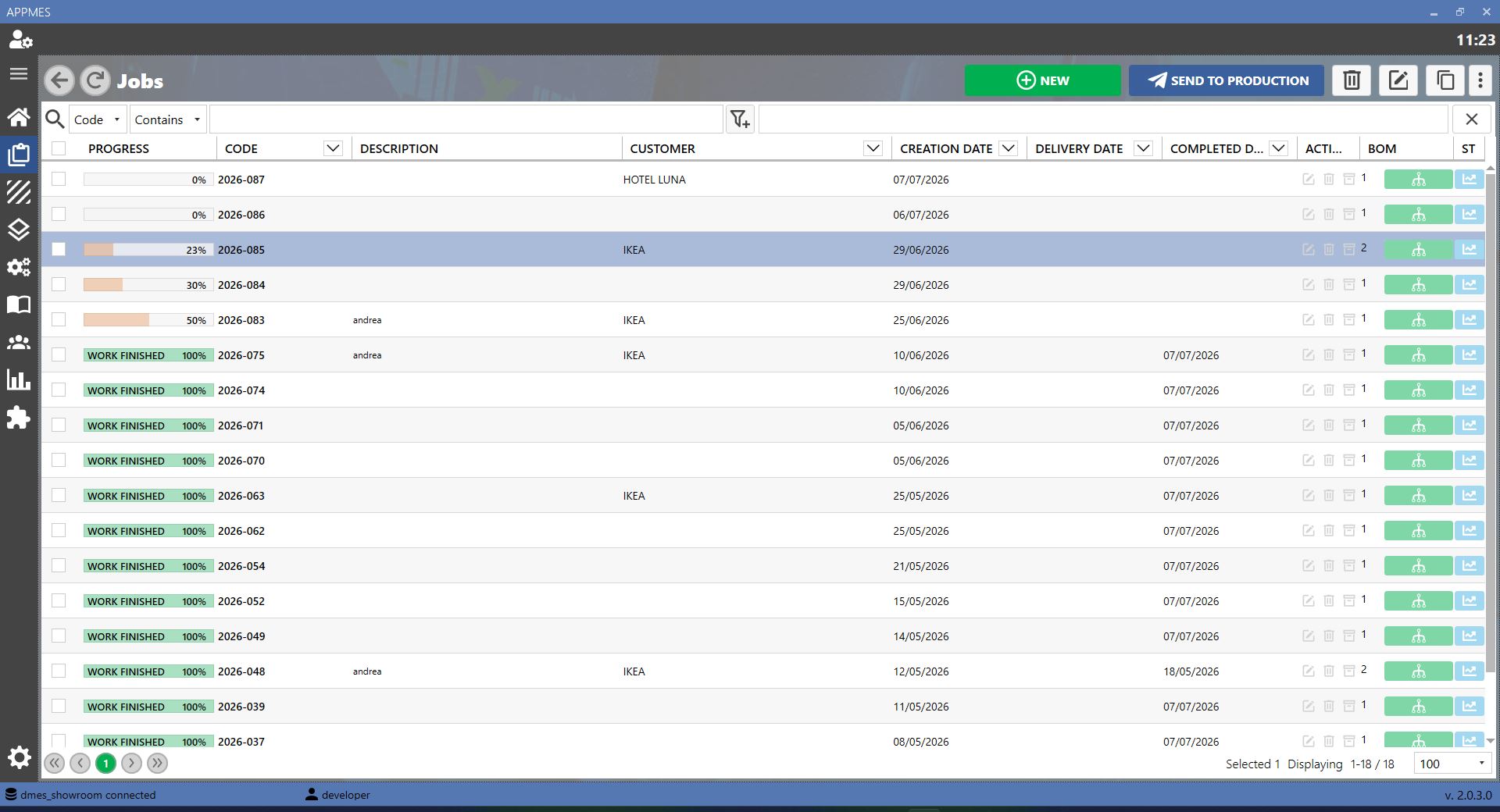
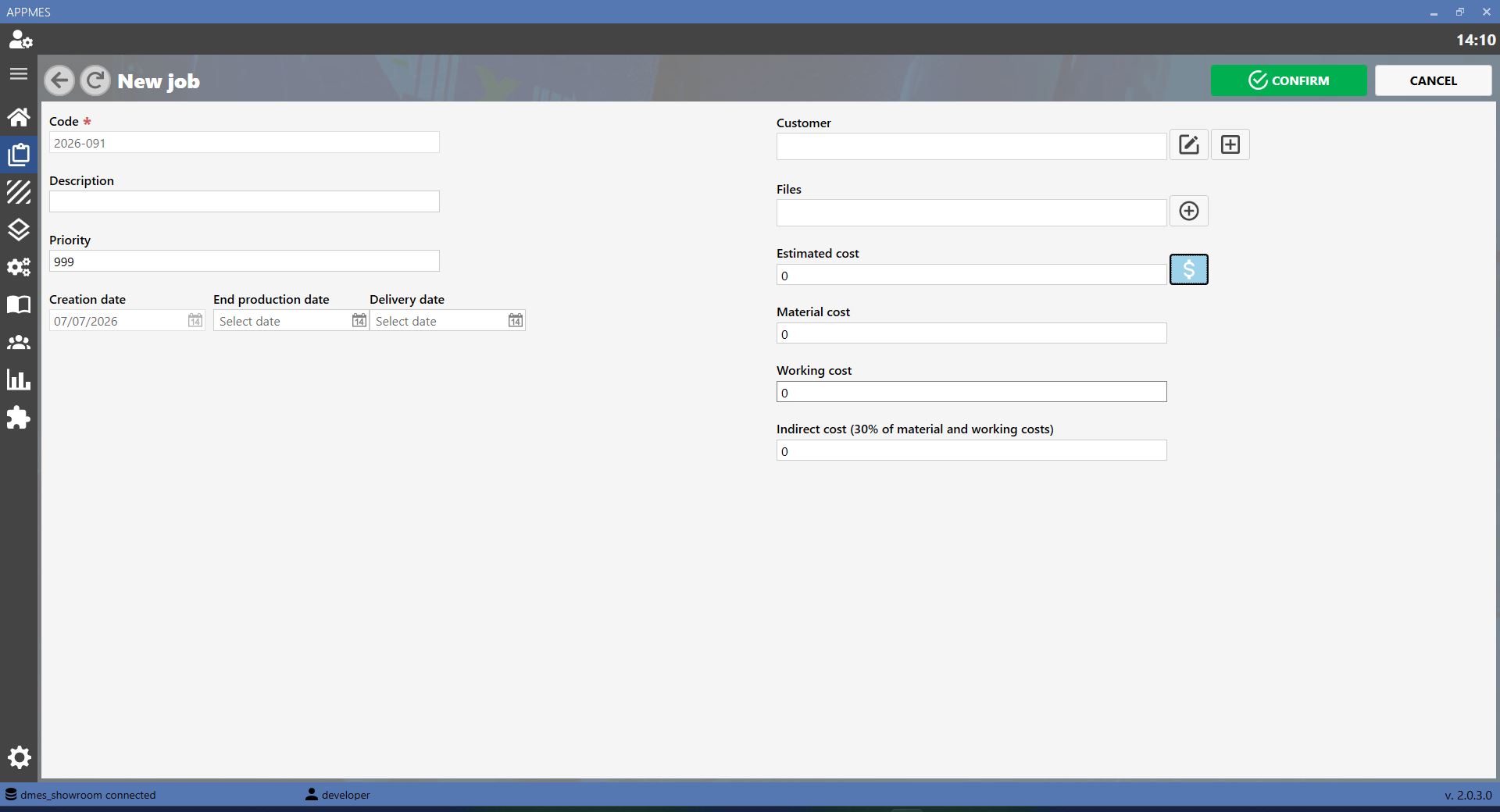
To create a new working in this MES software, press the NEW button. A screen will open where the information required to register and manage the working can be entered.
BUTTONS
ADD Creates a new working. Use it to register a new order or production activity in the MES.
EDIT Updates the data of a working already present in the system.
COPY Duplicates an existing working, allowing a new one to be created from data that has already been entered.
DELETE Deletes an existing working. Use it only when the working no longer needs to be managed in the MES.
SELECT CONTACT Selects the customer associated with the working from those already saved in the system.
NEW CUSTOMER Opens the section where a new customer can be created if it is not already in the list.
EXTRA COSTS When enabled, displays additional fields for entering or viewing extra costs related to the working.
STAGE MANAGEMENT Allows the stages of the working to be managed, i.e. the operating activities that make up the production process.
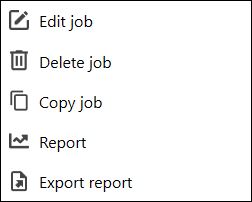
OPTIONS MENU Allows actions to be performed on the selected working, such as editing, deleting, copying, generating a report or exporting the report.
NOTE
This menu is displayed by right-clicking the selected working.
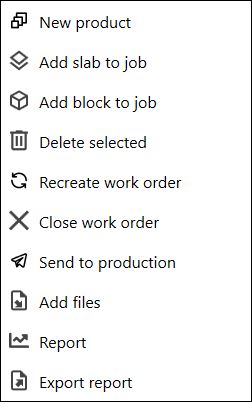
CREATION OPTIONS MENU Allows the options available during the creation or configuration of work stages to be managed.
NOTE
This menu is displayed by clicking the three dots at the top right of the work stages screen.