

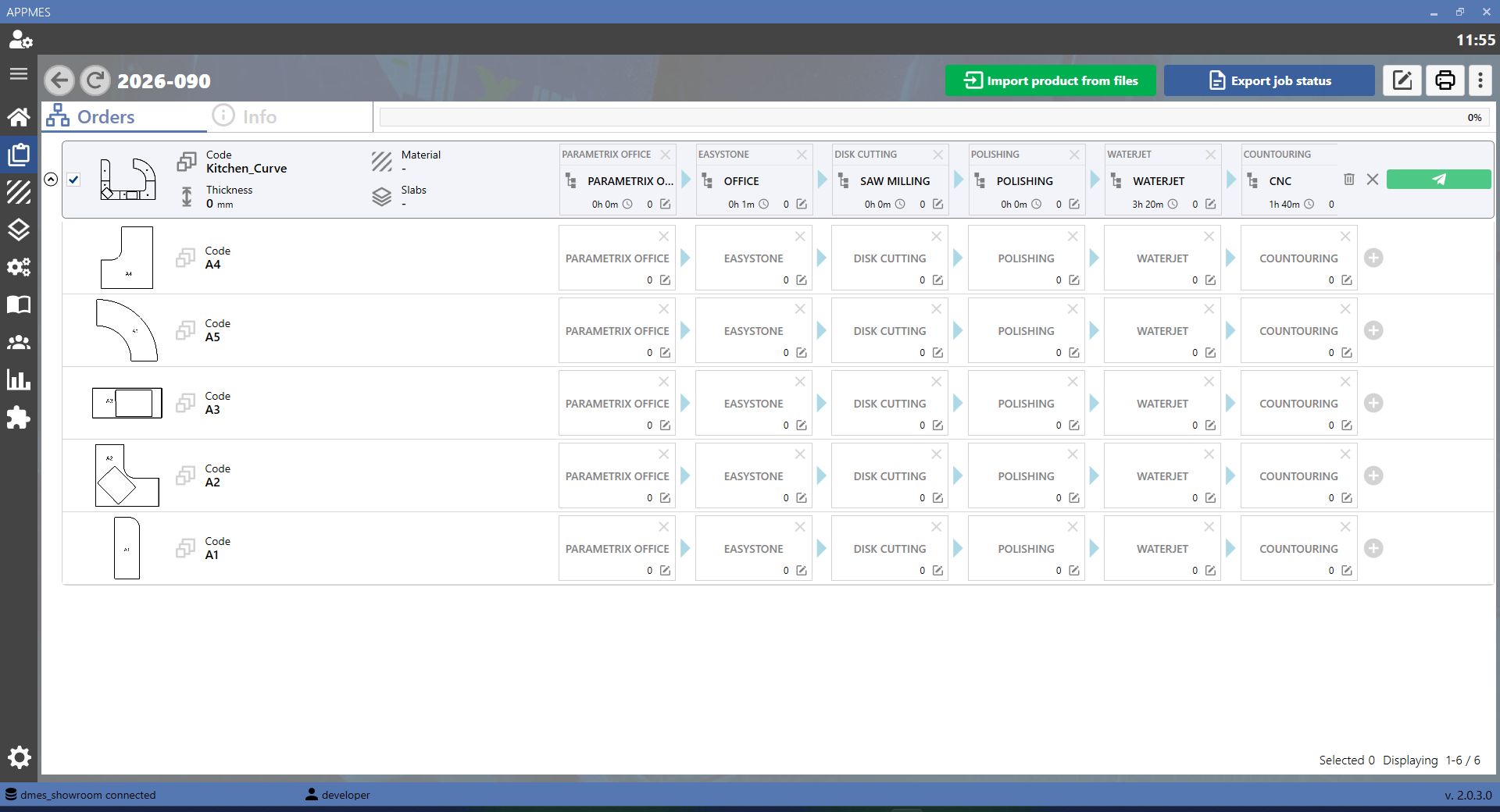
This page allows all piece working stages to be managed within the MES. The MES is the software that tracks production progress, from creating or importing pieces through to label printing and sending to production.
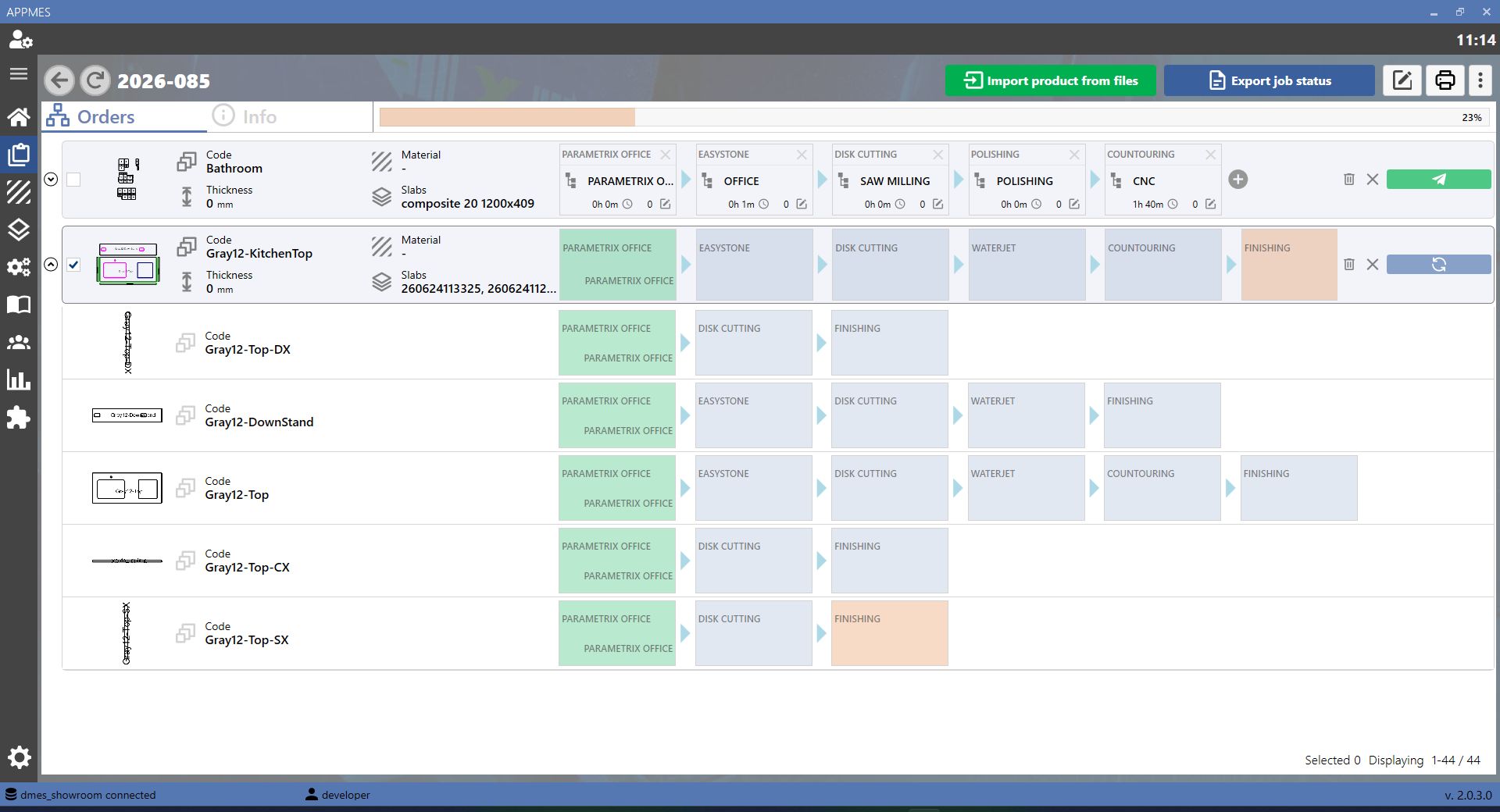
BUTTONS
 | Import |
 | Export |
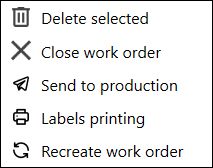 | Options menu |
 | Edit |
 | Print |
 | Send |
WORKING STATES
Green | Indicates that the working stage has been completed. |
Light blue | Indicates that the working stage has not yet started. |
Yellow | Indicates that the working stage has been taken over and is being managed. |
PIECE IMPORT
To import pieces, click the Import button. A screen similar to the one shown below will open.
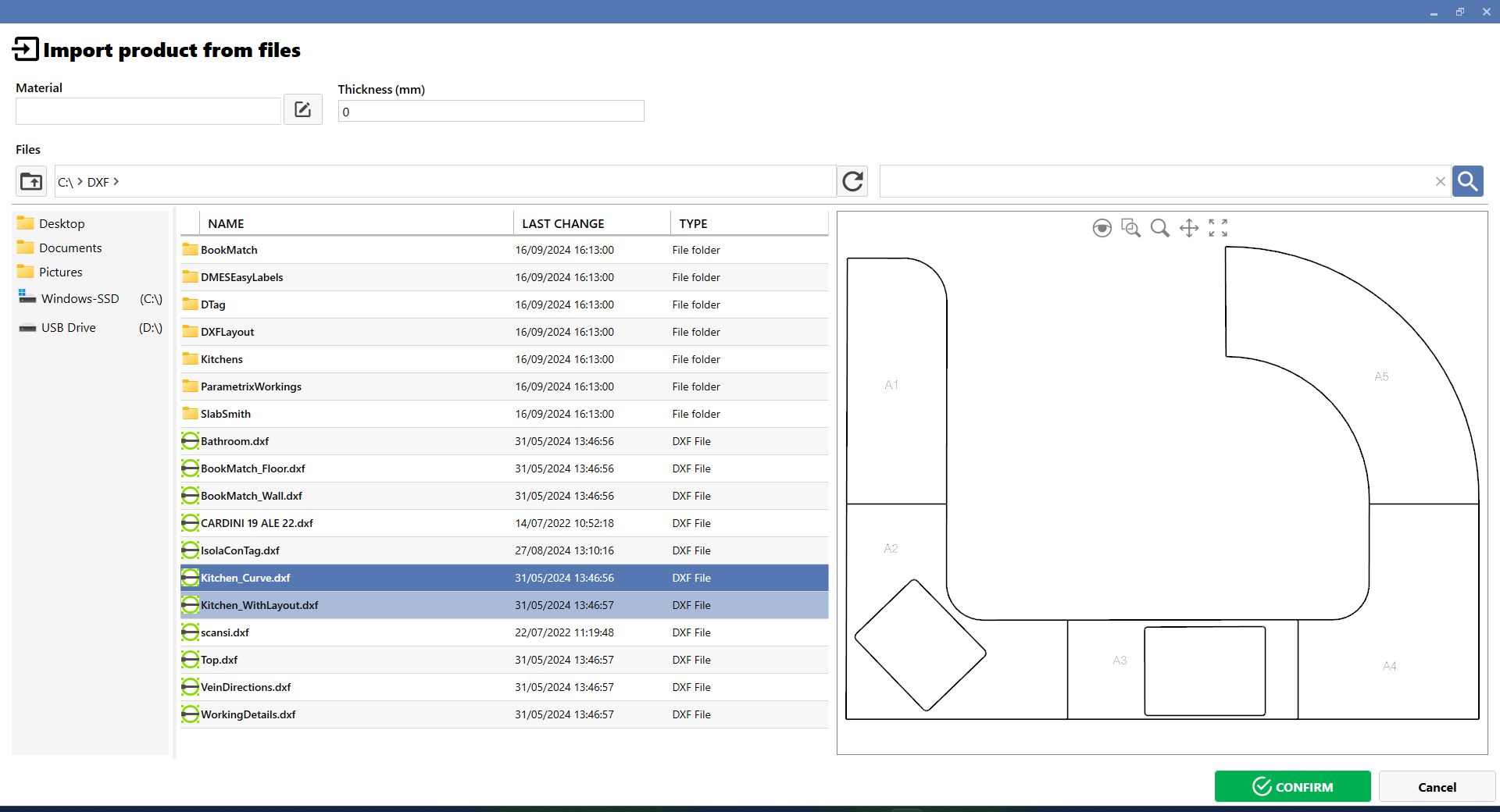
Press OK on the next screen. When complete, verify that all pieces have been correctly added to the working.

EXPORTING WORKING STATES
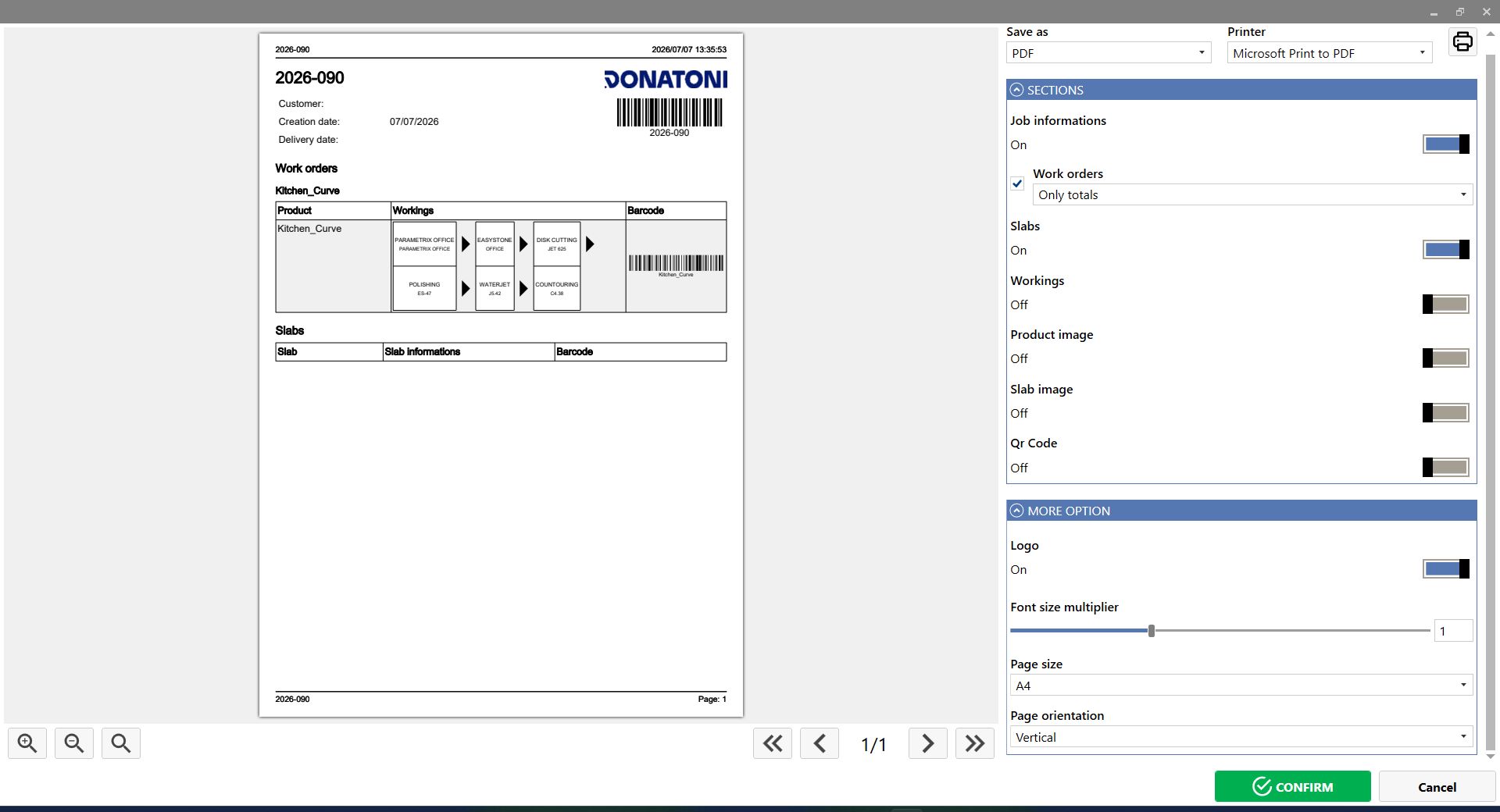
To export the states of a working, press the Export button. A screen similar to the one shown below will open, where the information to be exported can be selected or modified.
PRINT LABELS
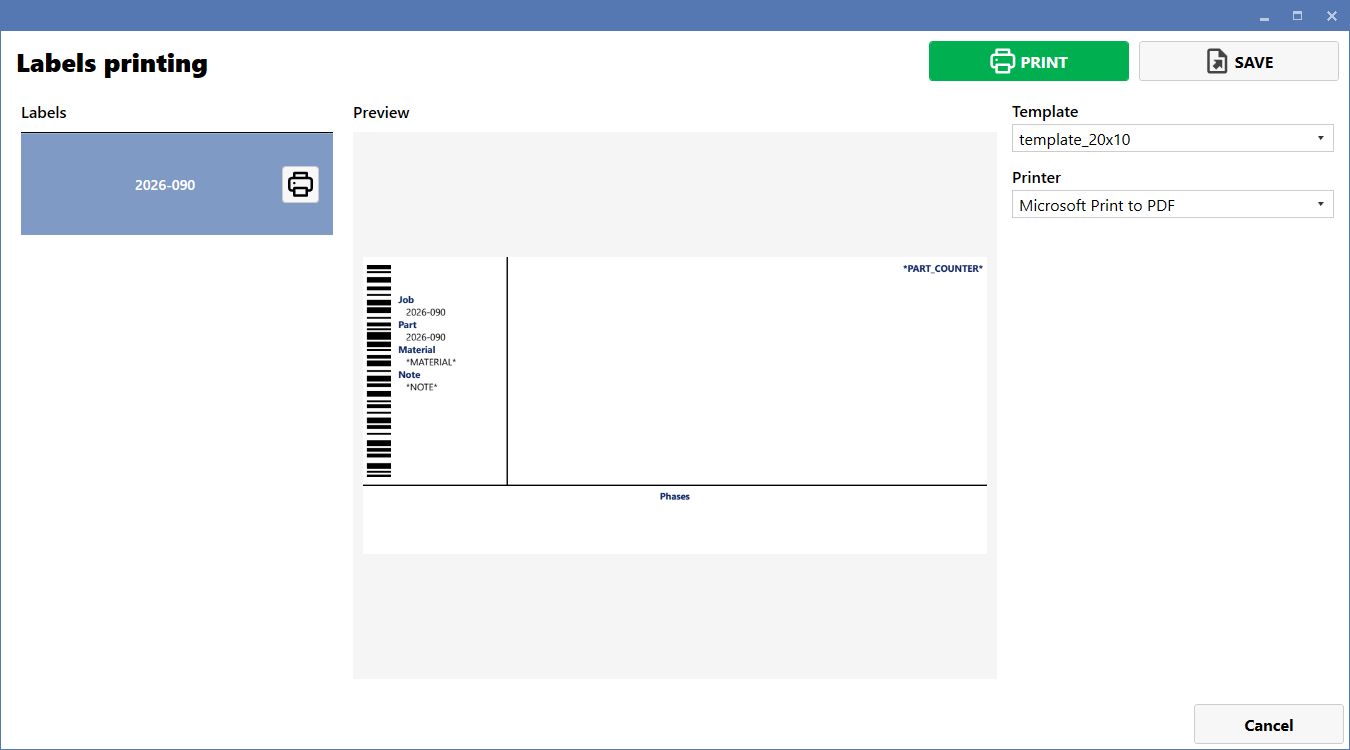
To print a label for the entire working, press the Print button. A screen similar to the one shown below will open.
PRINT LABELS FOR A WORKING STAGE
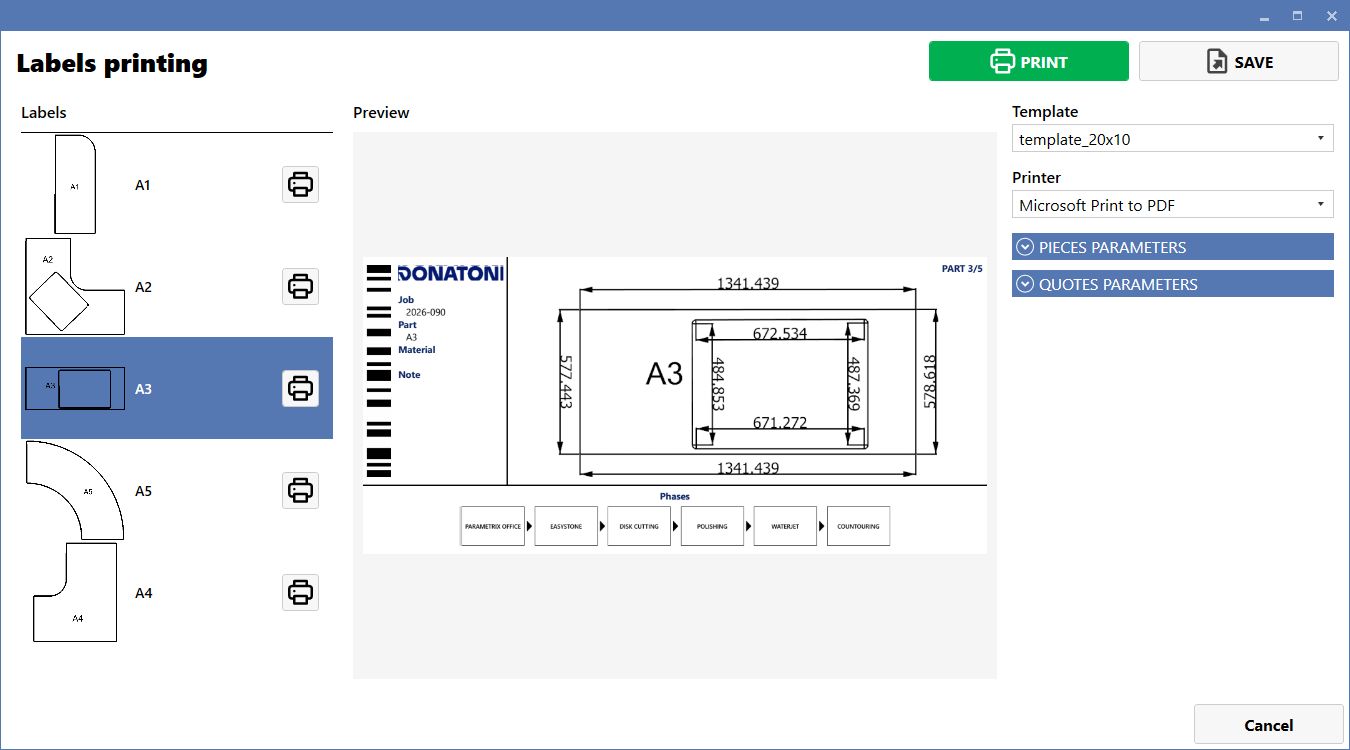
To print a label for a single working stage, right-click the required stage and select Labels printing. A screen similar to the one shown below will open. Then select the piece for which the label is to be printed.
NEW PRODUCT
To add a new product to the working, click the three dots and select New product. A screen similar to the one shown below will open.
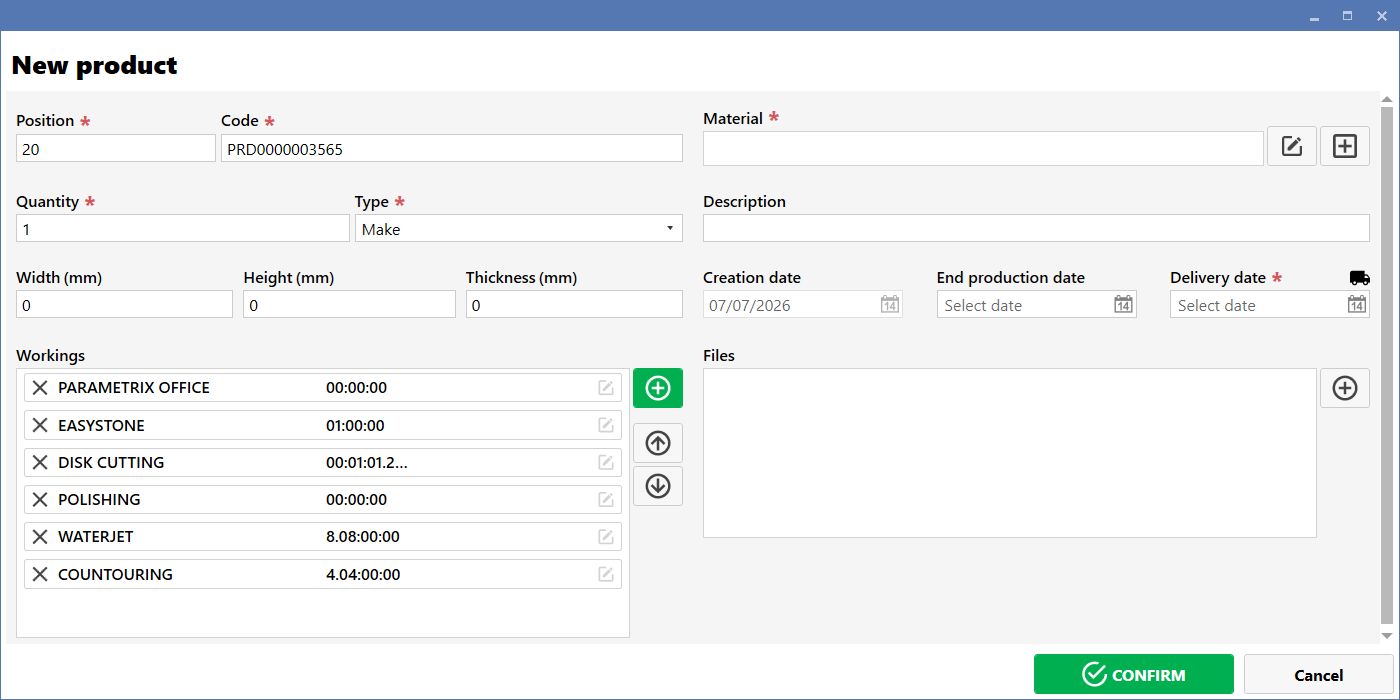
NEW PRODUCT BUTTONS
 | Add |
 | Move up |
 | Move down |
