

The machine can execute cuts, millings and holes through designs created with CAD software and saved in '.dxf' format with the automatic recognition of some workings useful to simplify and make faster the work to the machine operator.
To make Parametrix able to interpret these informations, some conventions must be respected in design realization phase.
All pieces drawn must be closed and converted into polylines forming a polygon.
Should you wish to insert the brand of the piece for identification, it must be inserted within the polygon.
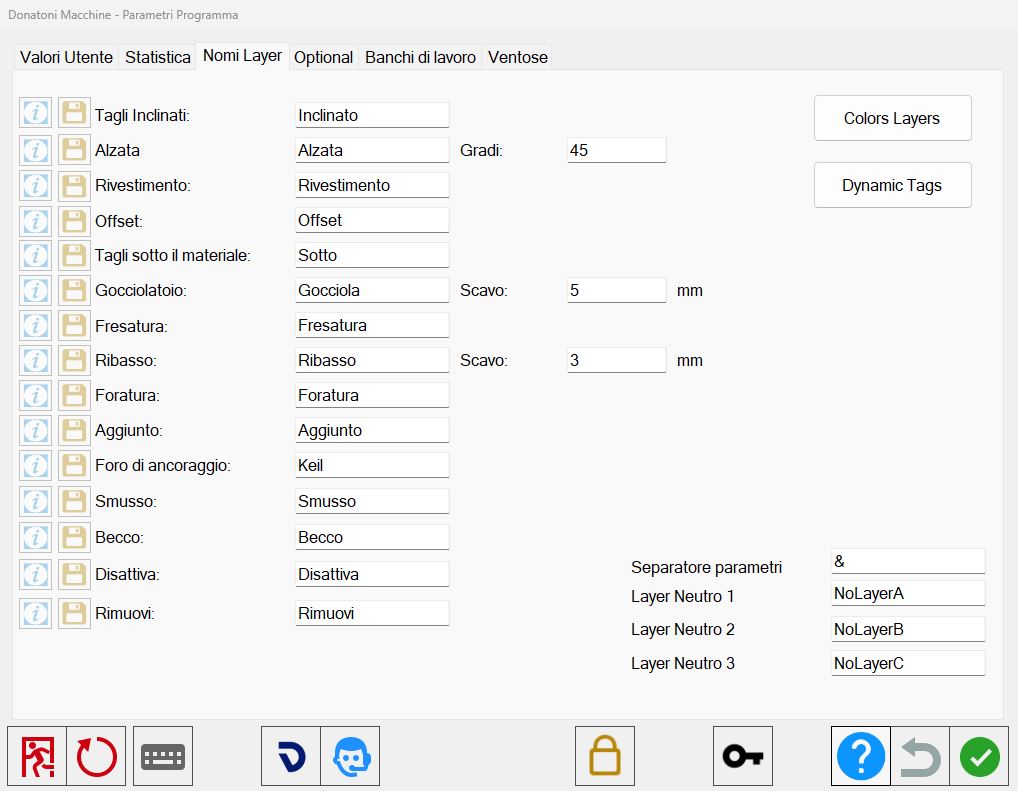
Parametrix settings for the recognition of imported layers
To access the window dedicated to the customization settings related to the import of DXF files, press the User Parameters button located on the top bar of Parametrix.
From here, move to the section dedicated to managing the names of the Layers.
For each type of function listed, the user can assign a name (corresponding to the name of the Layer set in the CAD software used) and assign some parameters related to the default values for some workings.
Funzione | Nome Layer |
Miter cut | Miter cut |
Downstand | Downstand |
Backsplash | Backsplash |
Offset | Offset |
Cuts under the material | Below |
Drip system | Drip |
Milling | Milling |
Rim | Rim |
Drilling | Drilling |
Cut added | Added |
Anchoring hole | Keil |
Chamfer | Chamfer |
Lower Chamfer | Lower Chamfer |
Deactivate | Deactivate |
Remove | Remove |
Buttons
The buttons on the left of each working allow to:
 | Information window |
 | Download example |
Miter Cut mode
To be able to insert automatic an inclined edge is necessary observe some conventions:
The miter cuts can be inserted only on the sides of the pieces; if the miter cut is not valid for the entire section, it can be divided into more parts.
It can be applied the miter cut on external arcs (Eg: circular table, or on curved covers only as far as the external cut is concerned).
Regarding internal arcs (e.g. curved covers) the cut is made in passes; the cut will be made inclining the disk automatically, avoiding collision problems with the material.
The procedure for those who use CAD systems, provides for the creation of a Layer that has the following properties:
Layer Name | Inclined _ (followed by the number that identifies the desired inclination degrees). |
Example | Mitered 45 or Mitered-45 |
When a negative value is entered the inclination is referred to a diverging cut while if the value is positive the cut will be convergent towards the polygon’s inside.
Upstand
The function lift is a processing that allows to obtain a rectangular piece of equal length to the line set as a reference side.
For the automatic insertion of cuts wanting to create a downstand it will be necessary to create a Layer with the name 'Downstand' and then insert the measure of the height.
Layer Name | Downstand _ (followed by the height measure of the downstand). |
Example | Downstand100 |
This automation inside Parametrix creates a new piece of width equal to the length of the line that identifies the side of the risalita desired with the two sides that will be glued together cut with the same inclination, ready for a finish with cartabuono.
The inclination associated to these sides is adjustable from the parameter next.
Degrees | Allows to set the inclination with which the inclined sides of the working are imported. |
Backsplash Mode
The backsplash / lift function is a working that allows to obtain a rectangular piece of the same length to the straight line set as reference side.
In the same way, for the automatic insertion of cuts wanting to create a backsplash it will be necessary to create a Layer with the name 'Backsplash' and then insert the height measurement.
Layer Name | Backsplash _ (followed by the height measurement of the backsplash). |
Example | Backsplash150 |
This automaton inside Parametrix creates a new piece of width equal to the length of the line that identifies the side of the desired coating without miter cut but rather ready for a straight angle finishing with rib grip.
Offset Mode
The offset function is very useful when you want to leave more material than the dimensions of the finished piece; through the drawing of lines on the desired sides, the functions associated with the indicated sides will be automatically moved in the correct direction.
In order to insert automatically the desired over material, it will be necessary to create a Layer with the name 'Offset' and insert all the straight lines relative to the sides where you want to have the automatic effect of the setting.
Layer Name | Offset _ (followed by the number that identifies the offset measure). |
Example | Offset3 |
Lower Cut mode
The lower cut function is valid only for those who have installed the mechanical optional that allows to make a lower cut under the visible surface of the slab.
To be able to insert a lower cut automatically, it will be necessary to create a Layer with the name 'Sotto' and insert a line that will represent the cut.
Layer Name | Below |
Example | Below |
The length of the cut results also from the diameter of the disk and the material thickness set on Parametrix.
Drip System mode
The drip system function allows to insert a cut of width greater than the diameter of the disk and depth lower than the thickness material.
To be able to insert a drip system automatically it will be necessary to create a Layer with the name 'Gocciola' and insert a line or arch that represents the center of the width.
Layer Name | Drip _ (followed by the number that identifies the drip system width). |
Example | Gocciola10 |
In this way the drip system's depth is established by the dedicated parameter.
Depth of the cut associated with the drip system. This value is not considered if the user set a value on the DXF. |
The cut depth can be managed automatically by taking the value of the dedicated parameter in Parametrix or letting the user set a value by inserting the character '&' followed by the desired thickness.
Layer Name | Drip _ (drip system’s width) _ & _ (drip system’s depth). |
Example | Drip10&5 |
The length of the cut results also from the diameter of the disk and the material thickness set on Parametrix.
For drip system in curve is made a single cut with the external disk to the same arch.
The eventual parameters indicated in the name of the Layer are not considered.
Milling mode
To be able to insert an automatic milling it is necessary to observe some conventions.
If a milling geometry is created that concerns one or more sides of the outer polygon, the milling cutter will perform the external machining outside the drawn perimeter; this also applies to a single side of the perimeter; if the machining involves cutting the entire perimeter with the milling cutter, any cuts with the disk are removed.
The depth of the cut can be defined through the creation of a dedicated Layer.
Layer Name | Milling _ (followed by the number that identifies the milling thickness). |
Example | Milling10 |
If no depth value is indicated at the Layer 'Milling' name, the thickness of the current working is considered.
An additional feature made possible is the insertion of a polyline (open/closed, for example circle or single path composed by a linear polyline) to go to mill a shape inside the bigger perimeter.
Rim mode / Top edge
The function Rim / top edge is a working that allows to lower a perimeter, usually to carry out the recessing of household appliances or sinks.
To be able to insert the desired rim automatically it will be necessary to create a Layer with the name 'Ribasso'.
Layer Name | Rim _ (followed by the number that identifies the width of the Rim). |
Example | Rim20 |
In this way the depth of the rim is established by the dedicated parameter.
Depth of the Rim. This value is not considered if the user sets a value on the DXF. |
The depth of the rim can be managed automatically taking as value the dedicated parameter in Parametrix or set a value by the user inserting the character '&' followed by the desired thickness.
Layer Name | Rim _ (width of rim) _ & _ (thickness of rim). |
Example | Rim20&3 |
The rounding radius between the sides of the perimeter can not be changed by the user but the cutter radius will determine it.
The undercut can be carried out on a closed path not overlapped to the piece's sides, in this case a milling will be carried out inside the drawn perimeter.
Drilling mode
The drilling function allows the Parametrix software to add drilling workings on the pieces.
To be able to insert automatically a drilling working, it is necessary to create a Layer with the name 'Foratura' and to draw a circle where it is wanted to realize the hole.
Layer Name | Drilling _ (followed by the number that identifies the depth of the hole). |
Example | Drilling5 |
If the depth is not specified the hole will be applied with the thickness of the material currently used by Parametrix.
In base mode the radius of the circle corresponds to the radius of the tool currently set on Parametrix.
Add Cut Mode
The cutting addition function allows the Parametrix software to add a cut.
To be able to insert an added cut automatically, it is necessary to create a Layer with the name 'Added' and draw over the line that represents the side of which you want to create an added cut, a new line.
Layer Name | Added _ (followed by the number that identifies the distance at which the cut will be added). |
Example | Added50 |
The cut will be added inside (where there is material) or outside (where there isn’t material) of the piece, based on sign distance:
If the distance sign is positive, the cut will be added externally to the piece.
In the opposite case when the distance sign is negative, the internal cut will be added to the piece.
Applying an added cut on internal cuts, for example of a rebate, the cut will be added internally to the piece, where there is no material.
Anchorage Hole Mode
The anchoring hole function allows the Parametrix software to add anchoring hole workings on the pieces.
To be able to insert automatically a hole working of anchoring, it is necessary to create a Layer with the name 'Keil' and to draw a circle where it is wanted to realize the hole of anchoring.
Layer Name | Keil _ (followed by the number that identifies the depth of the anchoring hole). |
Example | Keil5 |
In base mode the radius of the circle corresponds to the radius of the tool currently set on Parametrix.
Chamfer Mode
The bevel function allows the Parametrix software to add bevel workings on the pieces.
To be able to insert an angled working automatically is necessary to create a Layer with the name 'Smusso' and draw over the line that represents the side of which you want to create an added cut a new line.
Layer Name | Chamfer _ (distance along X axis) _ & _ (distance along Y axis) _ & _ (inclination angle). |
Example | Chamfer10&10&45 |
If the three values are not geometrically compatible with each other, the processing will not be applied.
Lower Chamfer Mode
The beak function allows to the Parametrix software to add bevel workings on the pieces.
To be able to insert automatically a beak working it is necessary to create a Layer with the name 'Becco' and to draw over the line that represents the side of which one wants to create a cut added a new line.
Layer Name | Becco _ (distance along X axis) _ & _ (distance along Y axis) _ & _ (inclination angle). |
Example | Lower Chamfer10&10&45 |
If the three values are not geometrically compatible with each other, the processing will not be applied.
Deactivate mode
The function deactivate allows to the Parametrix software to deactivate cuts on the pieces.
To be able to insert automatically a deactivate function, it is necessary to create a Layer with the name 'Disattiva' and draw a new line above the one that represents the side that you want to deactivate.
Layer Name | Deactivate |
Example | Deactivate |
Remove mode
The function remove allows to the software Parametrix to remove cuts on the pieces.
To be able to automatically insert a working, it is necessary: create a Layer with the name 'Rimuovi' and draw a new line above the one that represents the side to be removed.
Layer Name | Remove |
Example | Remove |
Hole Mode
The drilling function allows the Parametrix software to recognize each circle having a radius lower than the 'Maximum drill radius' parameter present within the piece area.
The holes can be inserted freely in all Layers (that are not identified as neutral).
An additional option referred to the use of the drill allows to remove a material island that remains attached after having made the cuts with the disk; this option to be considered by the Parametrix software must draw one or more circles that intersect the sides of the island cut with the disk and through the parameter 'Automatic Holes Distance' a series of holes calculated automatically based on the material remaining to be cut after cutting the disk.
Neutral Layers Management
Wanting to maintain in the DXF file some parts of drawing that are not to be considered as cuts or other functionalities to manage with Parametrix software it is possible to assign them to some Layers that are recognized as neutral.
Create the Layers with names assigned in the neutral Layer fields (1,2,3) in the 'Layers name' page of the Parametrix user parameters keeping in mind that the '*' character will make all Layers imported with the same name before and after the symbol '*' not be considered in the import.
Examples
