Donatoni Macchine
Machine technical documentation Operational document

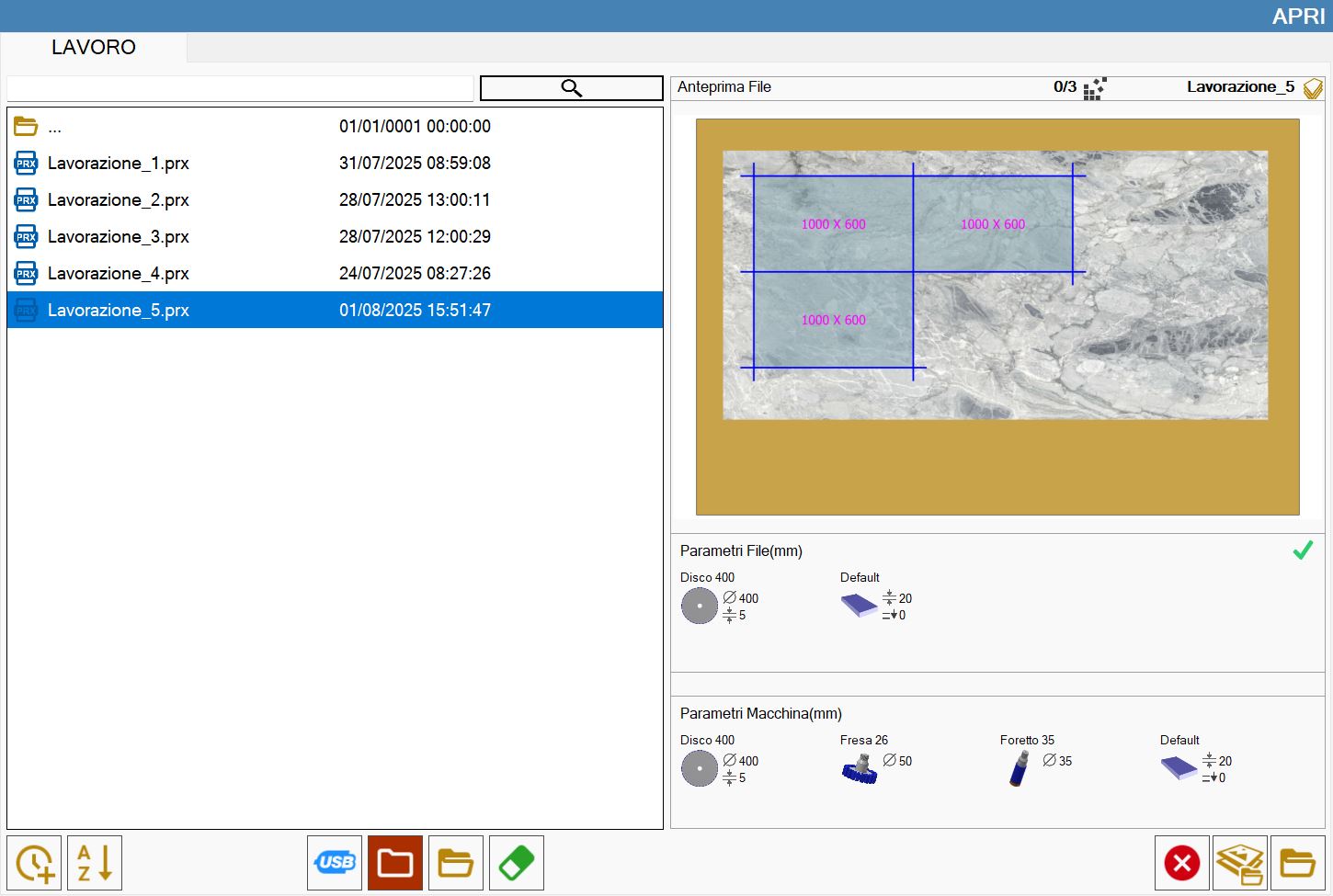
This function allows to load the state of a working that was saved.
2.01.png

Pieces list

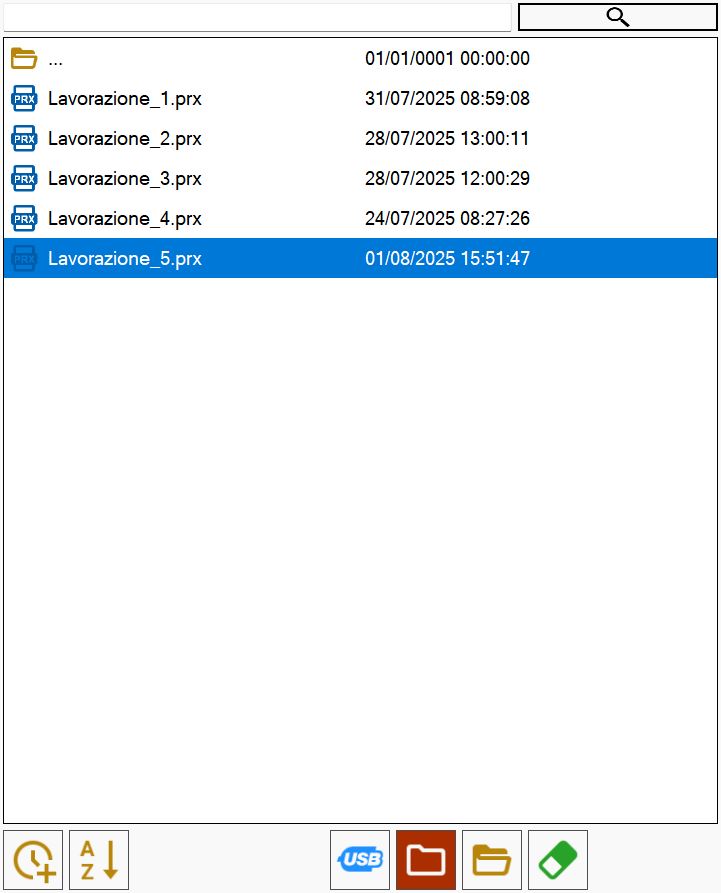
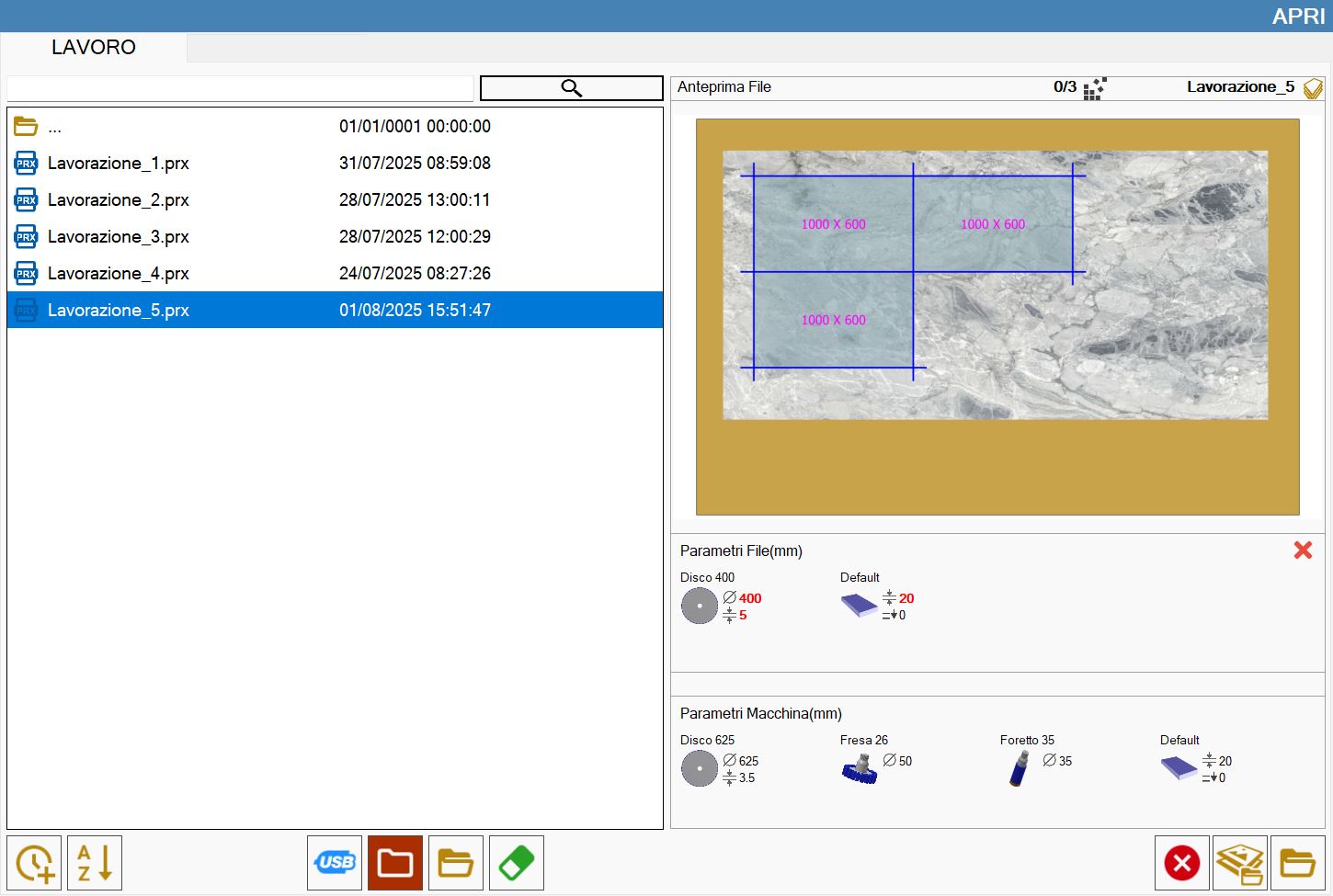
In the left section is located the list of files state that is possible to load.
2.04.png

Buttons

3_3_OrdinamentoData-20250320-153737.png

Sort by date
Order the files present in the list based on the creation date. By default, they are ordered from the most recent to the oldest. Pressing the button again, the files will be ordered from the oldest to the most recent. You can repeat the operation several times, changing the order.

3_4_OrdinamentoAlfab-20250320-153823.png

Sort by name
Order the files present in the list based on the name. Pressing the button allows you to choose whether the files should be sorted in ascending or descending order.

pulsante_usb.png

USB memory
Allows to access the USB memory inserted on the PC, navigate its folders, and view its files.

PathInstallazione-20250320-153210.png

Working folder
Quick access to the PC's working folder.

CercaPath-20250320-153333.png

Explore folders
Through this button, it is possible to explore all the PC folders.

EliminaFile-20250320-153530.png

Delete file
Allows to switch to 'Delete file' mode. In this mode, the icon of a gum will appear on the left of each file's name contained in the list.
Select a file, in this case, delete it permanently.

2.05.png

Search file
Allows to search among the files inside the folder that contain the text inserted in the box next.

Preview

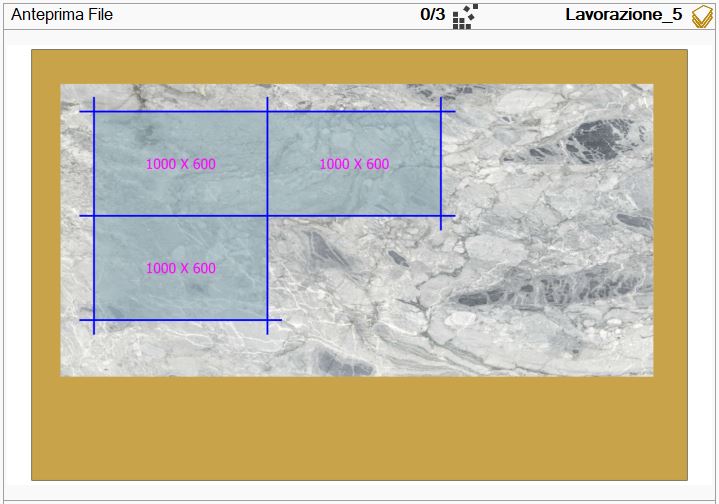
In this section is shown a preview of the selected file among those of the list.
2.02.png

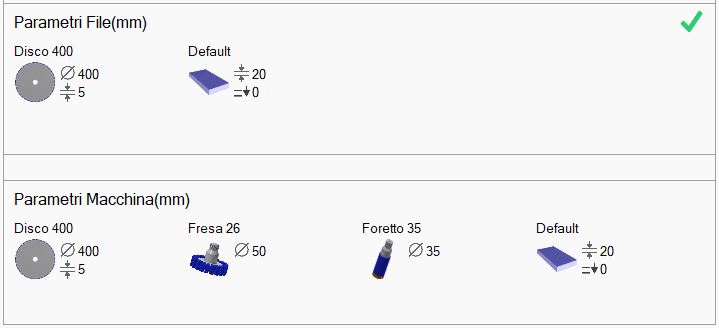
Under the preview are shown the parameters of the slab and the tools of the selected file and of the machine, respectively placed in the upper and lower section.
2.03.png

WARNING!

To open completely a working the parameters of the files must be identical to the machine parameters.
In the contrary, the file parameters different from the machine parameters are highlighted in red.
If the parameters are not the same, the work opens partially, only pieces placement. A message warns the user that changes to the cuts cannot be performed.
2.06.png

Other buttons

1.8-20250616-063115.png

Slab Matching
It allows to position the pieces in the Parametrix office installation using an image of the slab, then realign the perimeter and the pieces with the actual position of the same slab positioned on the machine's work bench.

2.07.png

Load state
Allows to upload the saved status in the selected file.

How to load a state

From the main page, access the panel for uploading a status.
So, select the file relating to the working that you want to reproduce.

2.01.png

After the confirmation, the pieces will be created and inserted inside the work area with all the operations that have been applied to them.
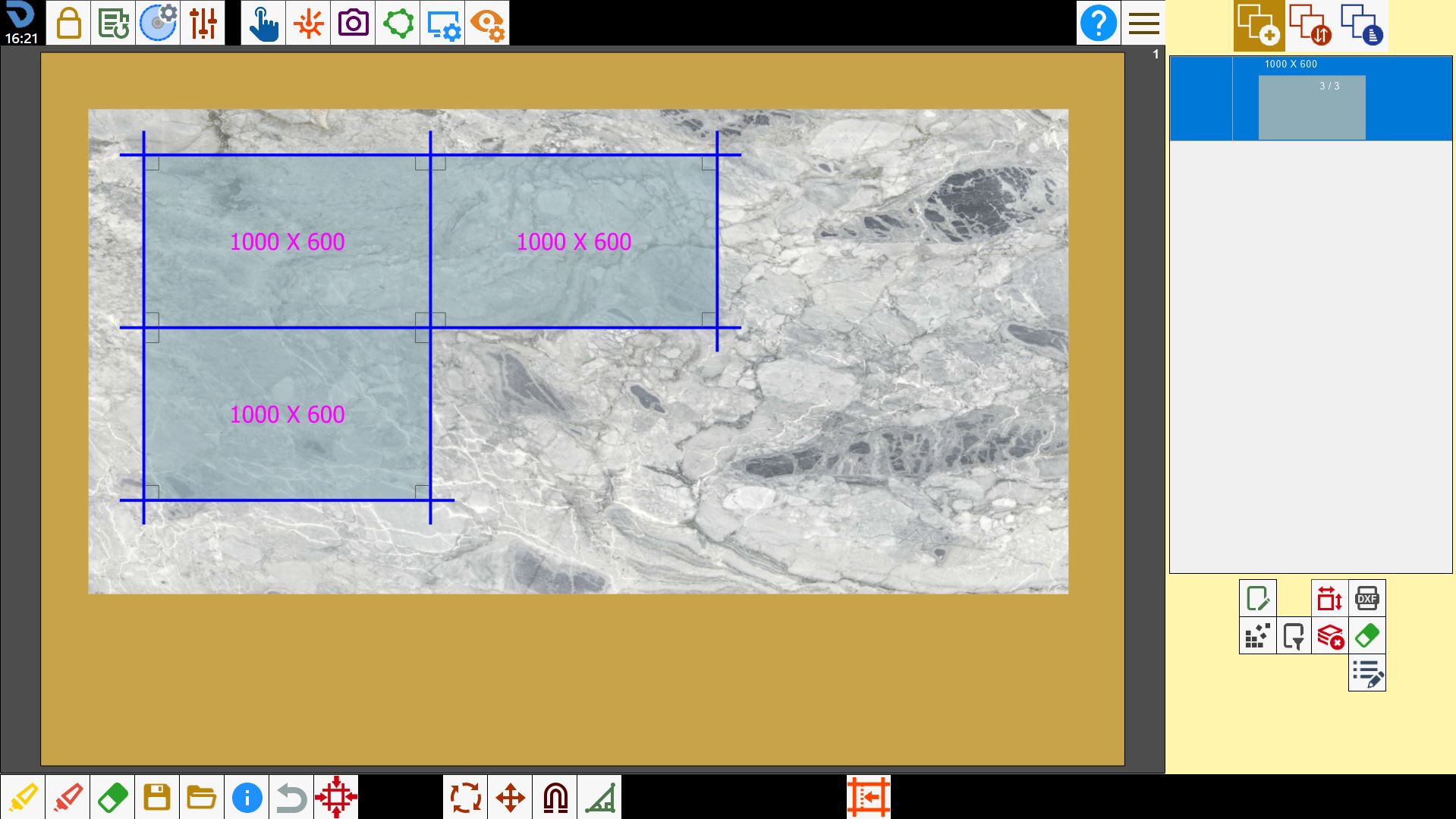
2.08.png

In the same way, it is possible to load a previously programmed working with all the operations carried out.
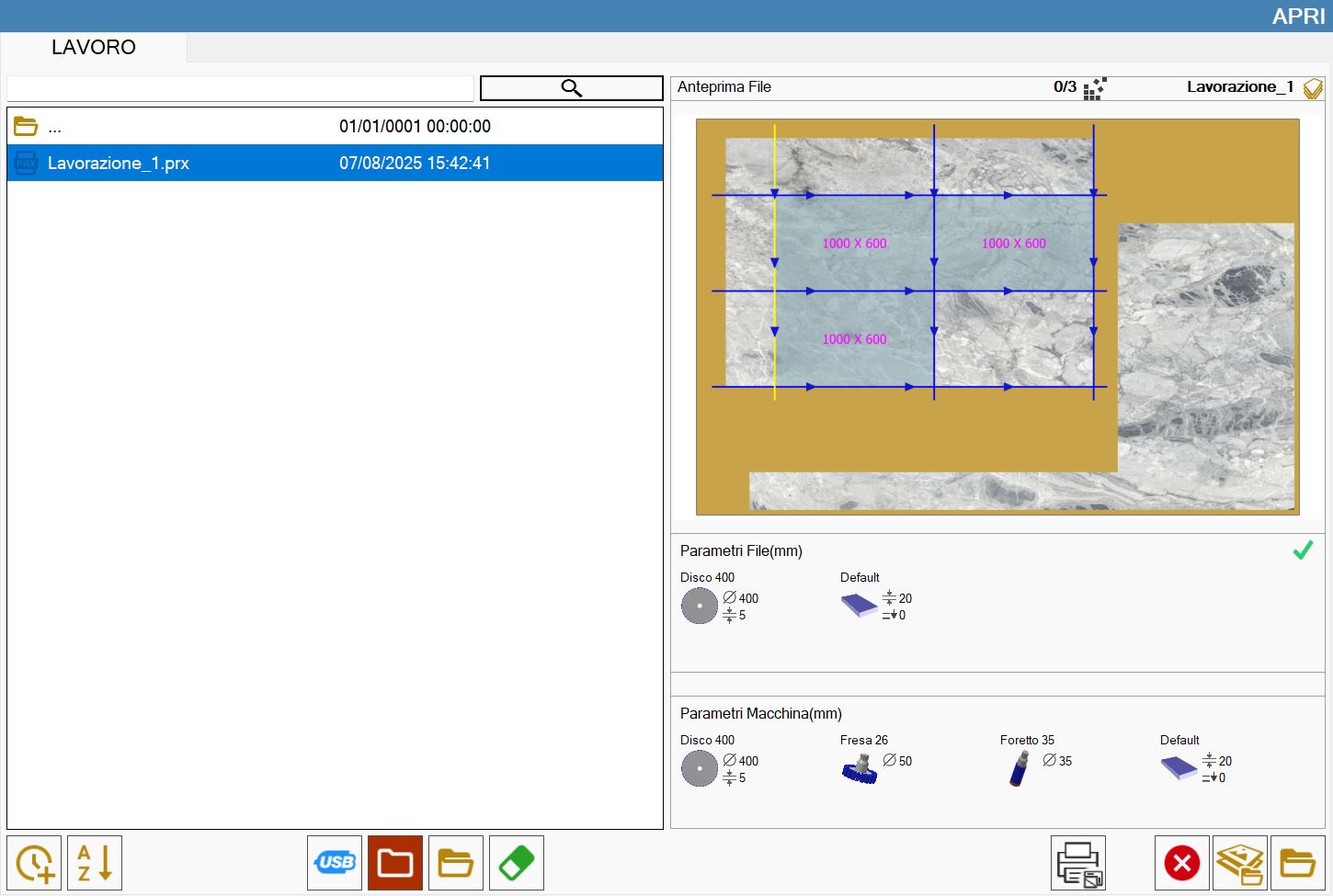
2.11.png

This functionality is used to load in the machine a project programmed in the office.
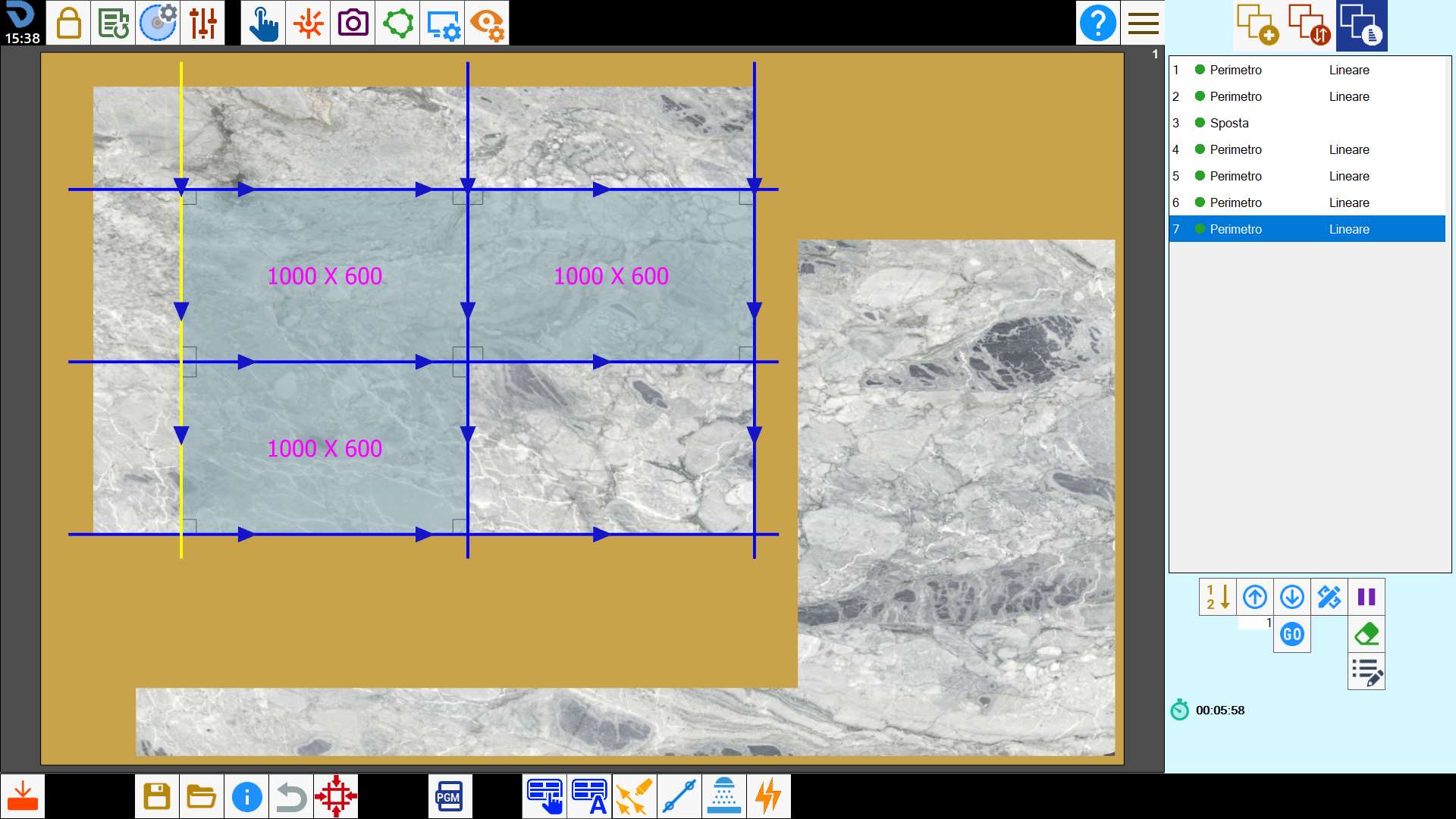
2.12.png

Import DXF (Optional)

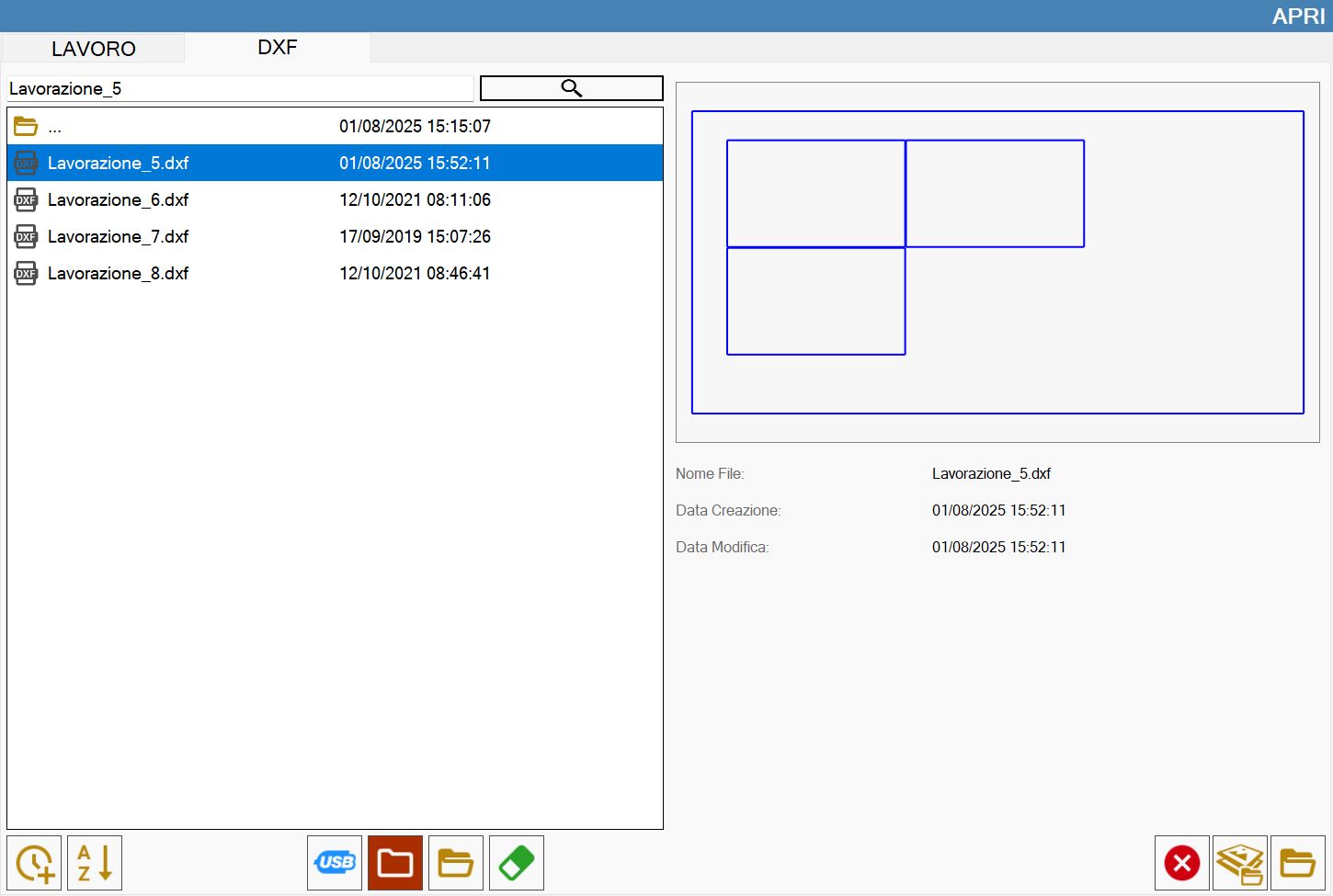
This function allows to load the state of a working saved on a dxf file.
2.10.png

;