

The machine can perform cuts, milling operations and holes from drawings created with CAD software and saved in “.dxf“ format, with automatic recognition of certain useful workings to simplify and speed up the machine operator's work.
For Parametrix to interpret this information, certain conventions must be observed when creating the drawing:
All drawn pieces must be closed and converted into polylines forming a polygon.
If a piece mark is to be inserted for identification, it must be placed inside the polygon.
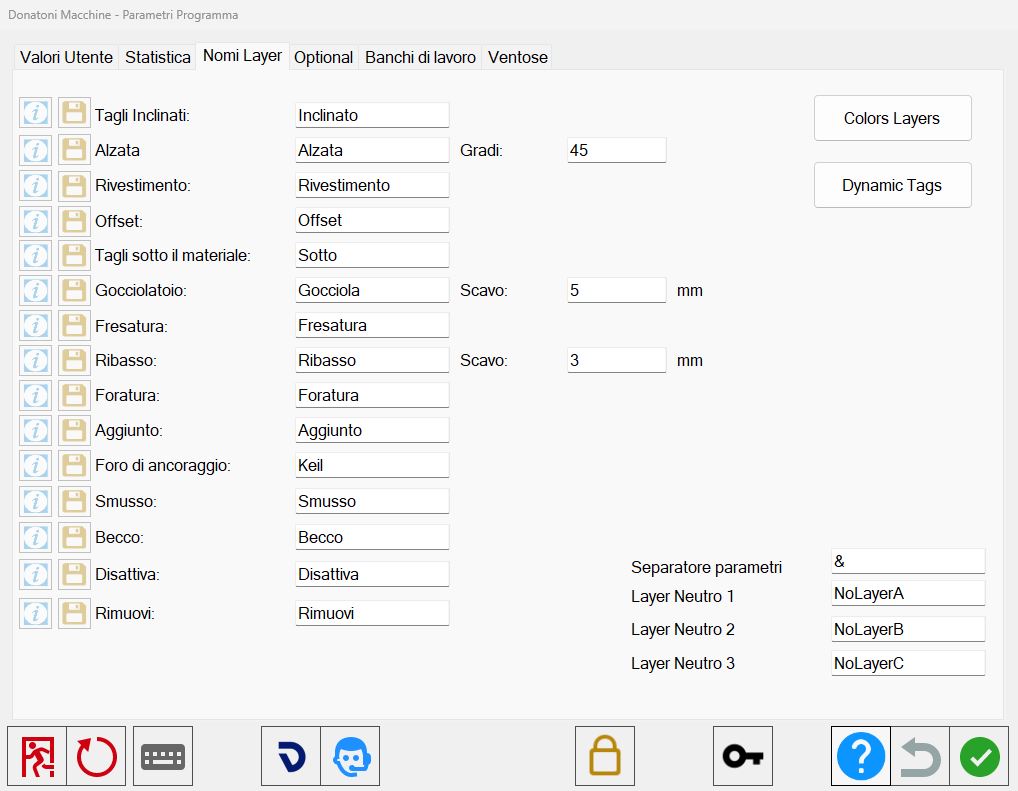
Parametrix settings for recognising imported layers
To access the window containing the customisation settings for DXF file import, press the User Parameters button on the top bar of Parametrix.
From here, go to the section for managing Layer names.
For each listed function type, the user can assign a name (corresponding to the Layer name set in the CAD software used) and assign parameters relating to the default values for certain workings.
Function | Layer Name |
Miter cuts | Miter cut |
Downstand | Downstand |
Backsplash | Backsplash |
Offset | Offset |
Cuts under the material | below |
Drip system | Gocciola |
Milling | Milling |
Rim | Rim |
Drilling | Drilling |
Added cut | Added |
Anchoring hole | keil |
Chamfer | Chamfer |
Lower Chamfer | Lower Chamfer |
Deactivate | Deactivate |
Remove | Remove |
Buttons
The buttons to the left of each working allow the following:
 | Information window |
 | Download example |
Miter Cut Mode
To insert a miter cut automatically, certain conventions must be observed:
Miter cuts can be inserted only on the sides of pieces; if the miter cut does not apply to the entire section, it can be divided into several parts.
A miter cut can be applied to external arcs (e.g. circular table, or curved worktops only with regard to the external cut).
For internal arcs (e.g. curved worktops), the cut is made in passes; the cut is performed by automatically inclining the disk, preventing collision problems with the material.
For users of CAD systems, the procedure requires creation of a Layer with the following properties:
Layer Name | Inclinato _ (followed by the number identifying the desired inclination in degrees). |
Example | Inclinato45 or Inclinato-45 |
When a negative value is entered, the inclination refers to a diverging cut; when the value is positive, the cut converges towards the inside of the polygon.
Downstand Mode
The Downstand function is a working that creates a rectangular piece with the same length as the line set as the reference side.
To insert cuts automatically when creating a downstand, create a Layer named “Alzata” followed by the height dimension.
Layer Name | Alzata _ (followed by the downstand height value). |
Example | Alzata100 |
This automation in Parametrix creates a new piece whose width is equal to the length of the line identifying the side of the desired downstand, with the two sides to be glued together cut at the same inclination, ready for a miter-joint finish.
The inclination associated with these sides can be set using the adjacent parameter.
Degrees | Sets the inclination with which the inclined sides of the working are imported. |
Backsplash Mode
The Backsplash / Downstand function is a working that creates a rectangular piece with the same length as the line set as the reference side.
Similarly, to insert cuts automatically when creating a backsplash, create a Layer named “Rivestimento” followed by the height dimension.
Layer Name | Rivestimento _ (followed by the backsplash height value). |
Example | Rivestimento150 |
This automation in Parametrix creates a new piece whose width is equal to the length of the line identifying the side of the desired backsplash, without a miter cut and ready for a straight-corner finish with edge machining.
Offset Mode
The Offset function is very useful when extra material is to be left beyond the finished-piece dimensions; by drawing lines on the desired sides, the functions associated with those sides are automatically shifted in the correct direction.
To automatically insert the desired extra material, create a Layer named “Offset” and insert all lines corresponding to the sides where the setting is to be applied automatically.
Layer Name | Offset _ (followed by the number identifying the offset dimension). |
Example | Offset3 |
Lower Cut Mode
The Lower Cut function is valid only for machines fitted with the mechanical option that allows a cut to be made below the visible surface of the slab.
To insert a lower cut automatically, create a Layer named “Sotto” and insert a line representing the cut.
Layer Name | below |
Example | below |
The resulting cut length also depends on the disk diameter and material thickness set in Parametrix.
Drip System Mode
The Drip System function allows a cut to be inserted with a width greater than the disk thickness and a depth less than the material thickness.
To insert a drip system automatically, create a Layer named “Gocciola” and insert a line or arc representing the centre of the width.
Layer Name | Gocciola _ (followed by the number identifying the drip system width). |
Example | Gocciola10 |
In this way, the drip system depth is set by the dedicated parameter.
Depth of the cut associated with the drip system. This value is not taken into account if the user sets a value in the DXF. |
The cutting depth can be managed automatically using the dedicated Parametrix parameter, or the user can set a value by entering the “&” character followed by the desired thickness.
Layer Name | Gocciola _ (drip system width) _ & _ (drip system depth). |
Example | Gocciola10&5 |
The resulting cut length also depends on the disk diameter and material thickness set in Parametrix.
For curved drip systems, only one cut is made with the disk outside the arc.
Any parameters specified in the Layer name are not taken into account.
Milling Mode
Certain conventions must be observed to insert an automatic milling operation.
If a milling geometry is created involving one or more sides of the external polygon, the milling cutter performs the working outside the drawn perimeter; this also applies to a single side of the perimeter. If the working requires the entire perimeter to be cut with the milling cutter, any disk cuts are removed.
The cutting depth can be defined by creating a dedicated Layer.
Layer Name | Fresatura _ (followed by the number identifying the milling depth). |
Example | Fresatura10 |
If no depth value is specified in the “Fresatura” Layer name, the thickness of the current working is used.
An additional function makes it possible to insert a polyline (open/closed, e.g. a circle or a single path consisting of a linear polyline) to mill a shape inside the larger perimeter.
Rim / Top Flush Mode
The Rim / Top Flush function is a working that allows a perimeter to be recessed, usually to fit appliances or sinks.
To automatically insert the desired rim, create a Layer named “Ribasso”.
Layer Name | Ribasso _ (followed by the number identifying the rim width). |
Example | Ribasso20 |
In this way, the rim depth is set by the dedicated parameter.
Rim depth. This value is not taken into account if the user sets a value in the DXF. |
The rim depth can be managed automatically using the dedicated Parametrix parameter, or the user can set a value by entering the “&” character followed by the desired thickness.
Layer Name | Ribasso _ (rim width) _ & _ (rim thickness). |
Example | Ribasso20&3 |
The fillet radius between the perimeter sides cannot be changed by the user; it is determined by the milling-cutter radius.
The rim can be made on a closed path that does not overlap the piece sides; in this case, milling is performed inside the drawn perimeter.
Drilling Mode
The drilling function allows Parametrix software to add drilling workings to pieces.
To insert a drilling working automatically, create a Layer named “Foratura” and draw a circle where the hole is to be made.
Layer Name | Foratura _ (followed by the number identifying the hole depth). |
Example | Foratura5 |
If the depth is not specified, the hole is applied using the material thickness currently used by Parametrix.
In basic mode, the circle radius corresponds to the radius of the tool currently set in Parametrix.
Added Cut Mode
The Added Cut function allows Parametrix software to add a cut.
To automatically insert an added cut, create a Layer named “Aggiunto” and draw a new line over the line representing the side for which the added cut is to be created.
Layer Name | Aggiunto _ (followed by the number identifying the distance at which the cut will be added). |
Example | Aggiunto50 |
The cut will be added inside (where material is present) or outside (where no material is present) the piece, according to the sign of the distance:
If the distance sign is positive, the cut will be added outside the piece
Otherwise, when the distance sign is negative, the cut will be added inside the piece
When an added cut is applied to internal cuts, for example an internal break, the cut is added inside the piece, where no material is present.
Anchoring Hole Mode
The anchoring-hole function allows Parametrix software to add anchoring-hole workings to pieces.
To automatically insert an anchoring-hole working, create a Layer named “Keil” and draw a circle where the anchoring hole is to be made.
Layer Name | Keil _ (followed by the number identifying the anchoring-hole depth). |
Example | Keil5 |
In basic mode, the circle radius corresponds to the radius of the tool currently set in Parametrix.
Chamfer Mode
The Chamfer function allows Parametrix software to add chamfer workings to pieces.
To insert a chamfer working automatically, create a Layer named “Smusso” and draw a new line over the line representing the side for which the added cut is to be created.
Layer Name | Smusso _ (distance along X axis) _ & _ (distance along Y axis) _ & _ (inclination angle). |
Example | Smusso10&10&45 |
If the three values are not geometrically compatible with one another, the working will not be applied.
Lower Chamfer Mode
The Lower Chamfer function allows Parametrix software to add chamfer workings to pieces.
To insert a lower-chamfer working automatically, create a Layer named “Becco” and draw a new line over the line representing the side for which the added cut is to be created.
Layer Name | Becco _ (distance along X axis) _ & _ (distance along Y axis) _ & _ (inclination angle). |
Example | Becco10&10&45 |
If the three values are not geometrically compatible with one another, the working will not be applied.
Deactivate Mode
The Deactivate function allows Parametrix software to deactivate cuts on pieces.
To insert a Deactivate function automatically, create a Layer named “Disattiva” and draw a new line over the line representing the side to be deactivated.
Layer Name | Deactivate |
Example | Deactivate |
Remove Mode
The Remove function allows Parametrix software to remove cuts from pieces.
To insert a Remove working automatically, create a Layer named “Rimuovi” and draw a new line over the line representing the side to be removed.
Layer Name | Remove |
Example | Remove |
Hole Mode
The drilling function allows Parametrix software to recognise any circle within the piece area having a radius smaller than the “Maximum core drill radius” parameter.
Holes can be inserted freely in all Layers (except those identified as neutral).
An additional option related to use of the core drill makes it possible to remove an island of material left attached after disk cutting. For Parametrix to recognise this option, one or more circles must be drawn intersecting the sides of the island cut with the disk; using the “Automatic holes distance” parameter, a series of holes is then positioned automatically according to the material remaining to be cut after disk cutting.
Neutral Layer management
To keep parts of a drawing in the DXF file that are not to be treated as cuts or other functions managed by Parametrix, they can be assigned to Layers recognised as neutral.
Create the Layers using the names assigned in the Neutral Layer fields (1,2,3) on the “Layer Names” page of the Parametrix user parameters. Note that the “*” character causes all imported Layers with the same name before and after the “*” symbol to be ignored during import.
Examples
