In this section, pieces can be created by importing DXF files.
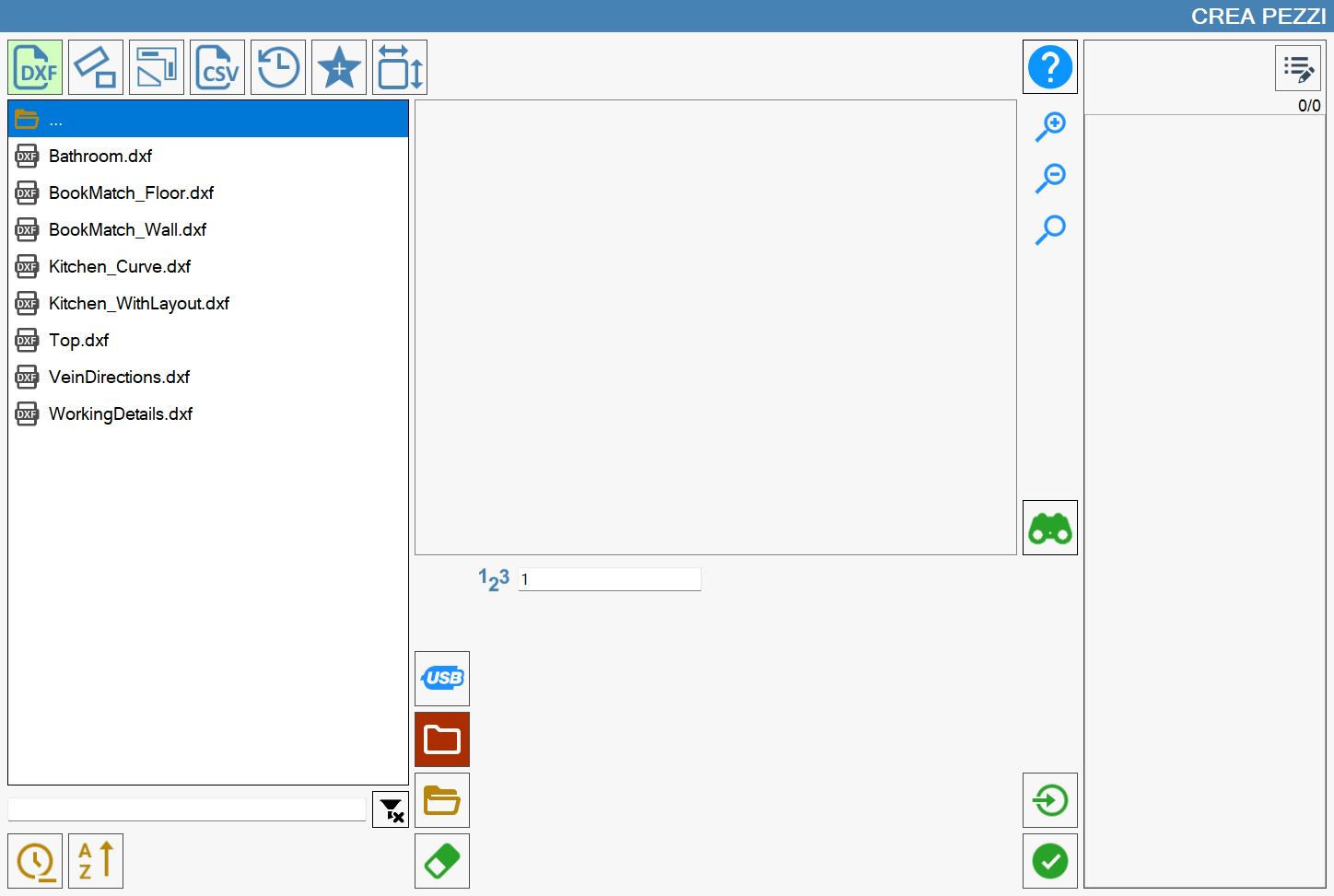
File list
On the left side of the window is a list showing all folders and DXF files contained in the currently selected path.

The item at the top of the list

returns to the folder above the current folder.
Initially, the list of DXF files in the PC working folder is shown. The folder can be changed using the dedicated buttons to the right of the file list.
 | USB memory |
 | Working folder |
 | Browse folders |
 | Delete file |
Sort and filter displayed files
The elements below the list manage the application of filters and sorting of the displayed files.

At the top of the image is a search bar that can be used to filter files by name, displaying only those containing the entered text.
The following buttons are also located in this section of the screen:
 | Clear filter |
 | Sort by date |
 | Sort by name |
Search by name applies only to files contained in the folder and not to any subfolders.
Conversely, sorting by name and date applies to every item in the list, although folders are always shown before files.
Preview
When a file is selected, a preview of the drawing is displayed in the pane at the centre of the screen so that its contents can be identified immediately.
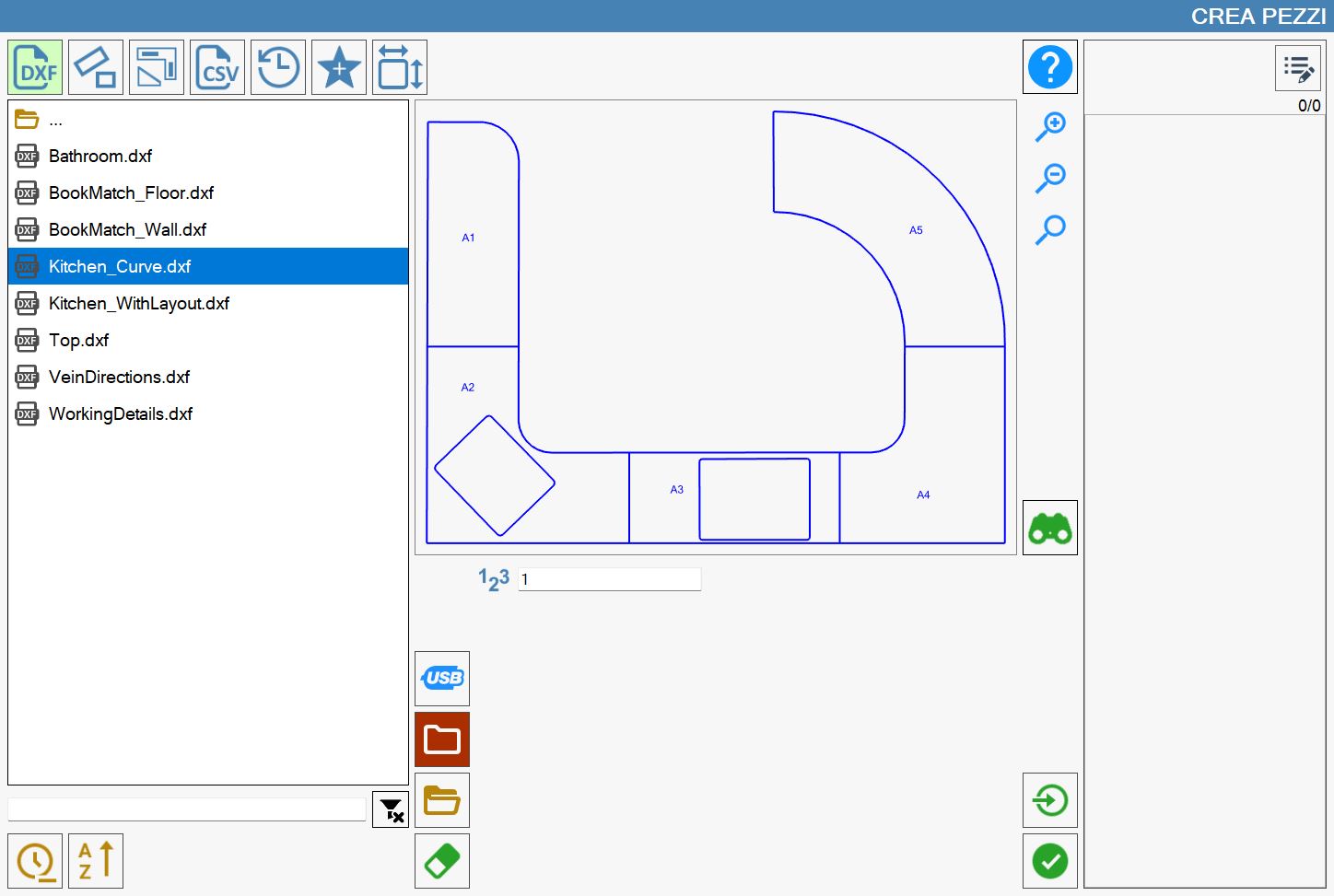
The preview can be manipulated either by dragging its contents or using the buttons to its right.
 | Zoom in |
 | Zoom out |
 | Reset view |
Additional buttons
The following buttons also allow additional actions to be performed.
 | Panel Details |
Panel Details
If a file has been selected, the “Details Panel” can be opened to view the DXF properties. This is done using the following button to the right of the preview:
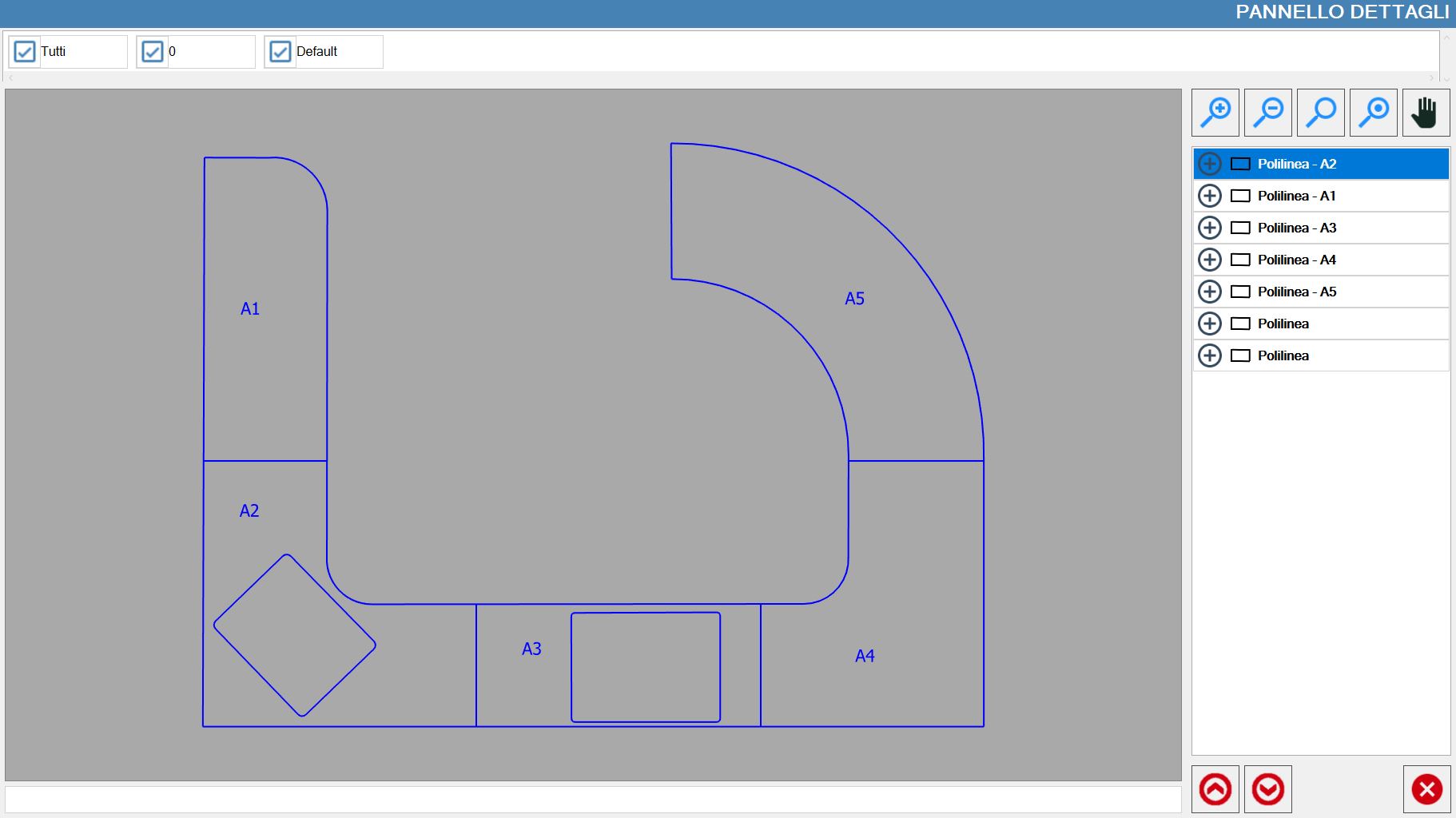
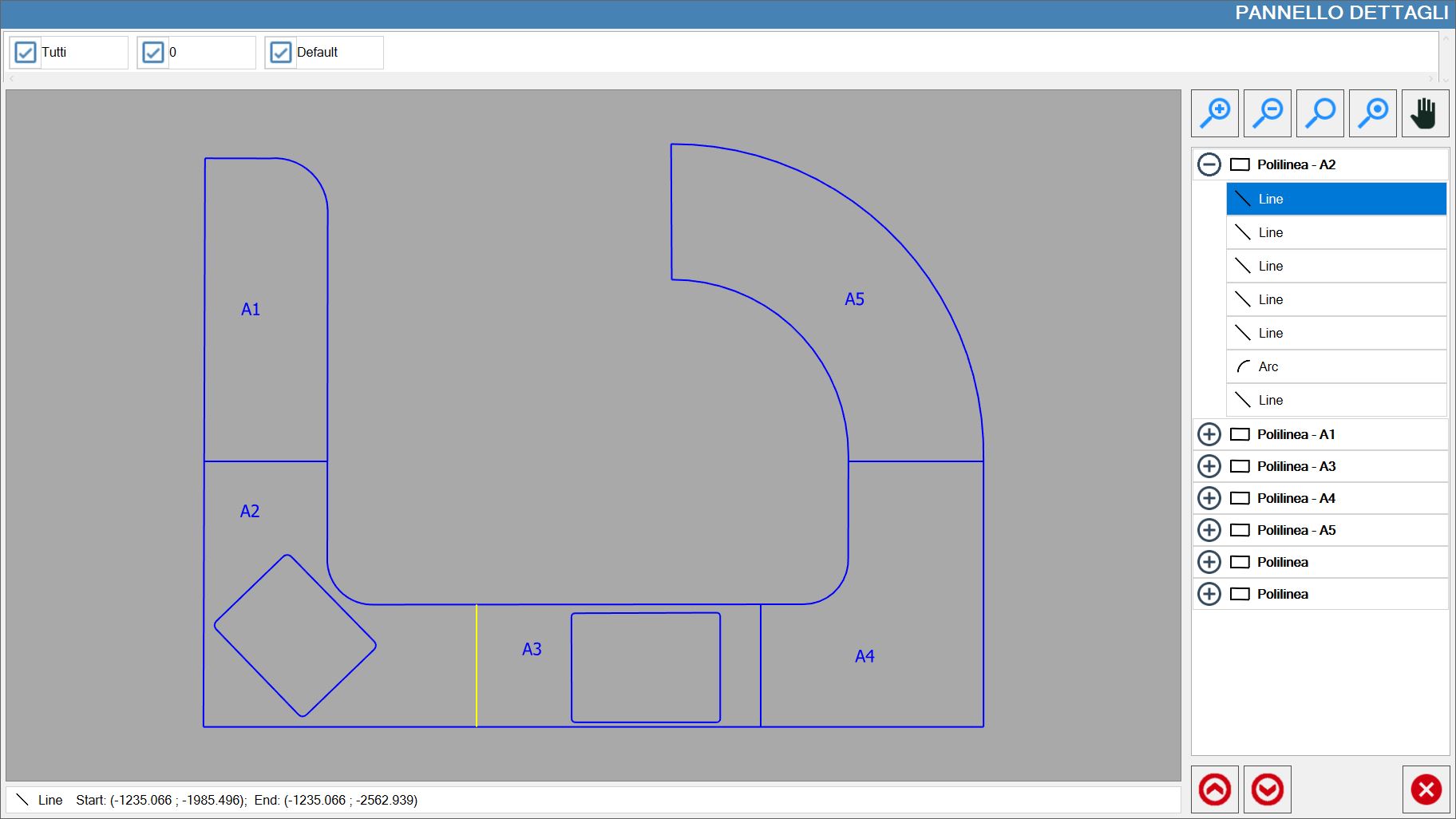
Once opened, the following panel is displayed in addition to the list of pieces that make up the selected DXF:
Layout visibility management
At the top of this panel, the layouts are shown as checkboxes that can be enabled or disabled as required:

The first item in this layout list enables or disables display of all layouts.
Side panel
Visibility and padding buttons
In addition to the buttons already shown for changing the zoom level and resetting it, two new buttons are available:

 | Highlight selected piece |
 | Pan view |
Polyline list
The centre-right side of the panel shows the pieces that make up the selected DXF as polylines.
Selecting one of the values in the list highlights the corresponding piece visible in the preview in yellow.

When the button next to each piece is pressed, the list of polylines making up the piece is displayed.
An individual DXF polyline can also be highlighted simply by selecting the corresponding row in the list:
Bottom buttons
These buttons are located at the bottom of the sidebar.

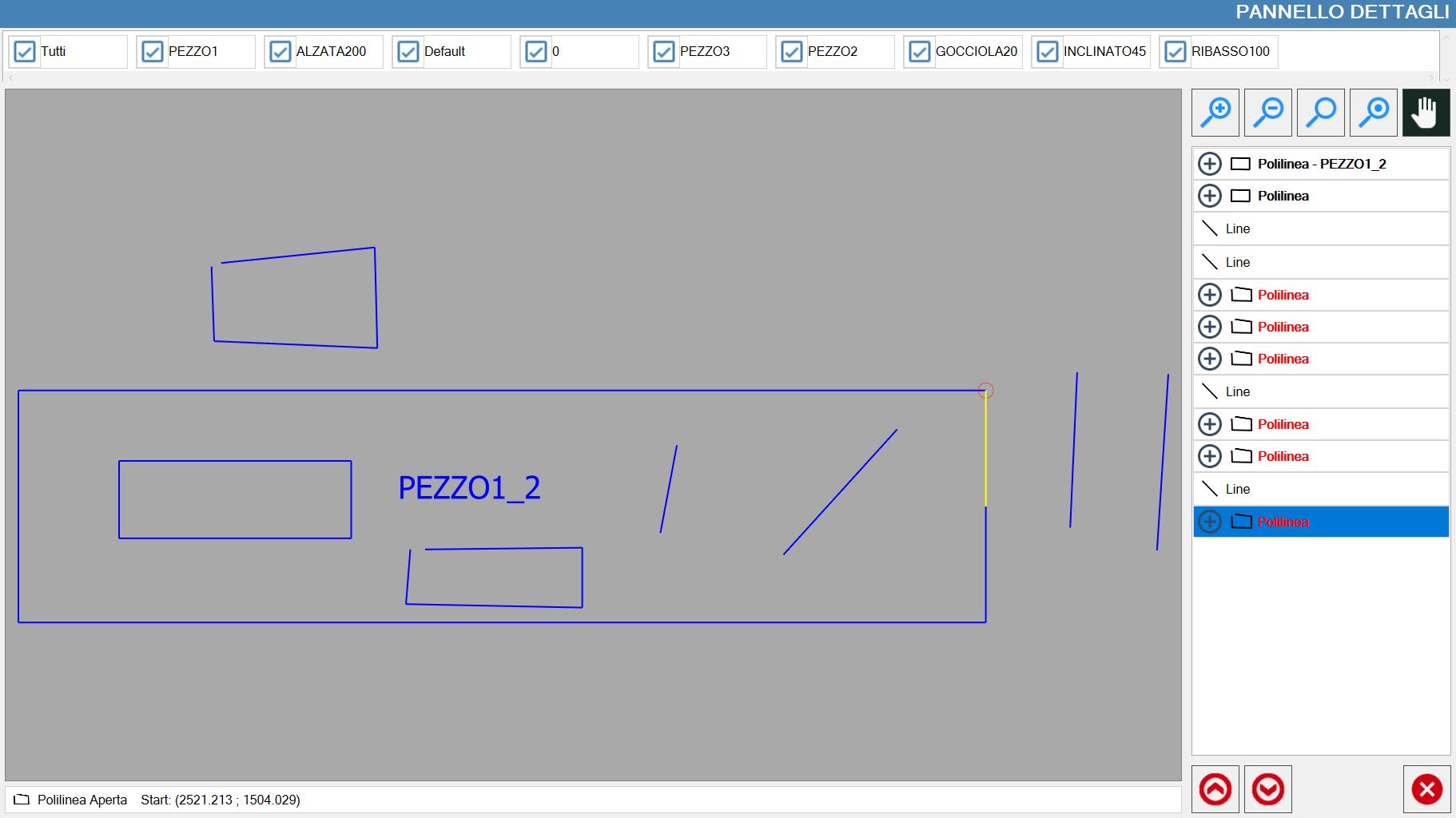
 | Find previous open polyline |
 | Find previous open polyline |
In the following example, the Details Panel has been opened for a DXF containing pieces made up of open polylines, shown in red in the list: