This function allows a rectangular piece to be created from the side of an object in order to obtain a downstand.
Working types
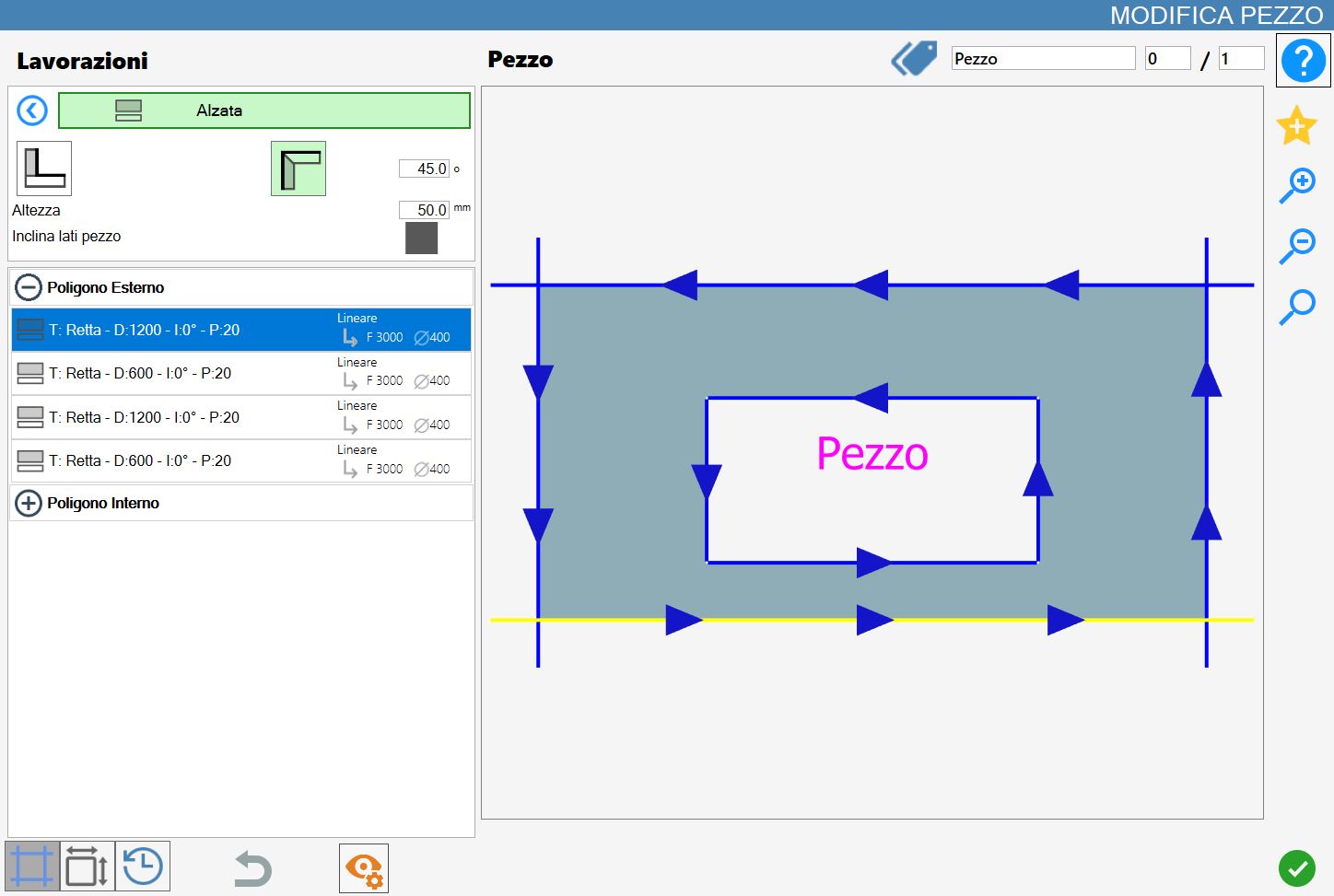
To use this working, first select one of the two available modes by pressing the corresponding button:
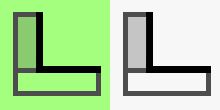 | Backsplash Mode |
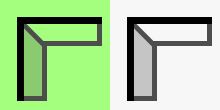 | Downstand Mode |
Parameters
height | Height of the downstand that will be inserted during execution of the working. |
Miter sides piece | When enabled, automatically inserts miter cuts where cuts would otherwise collide. |
Additional Downstand mode parameter
Degrees | This parameter is active only when Backsplash mode is selected. |
Executing the working
The working can be applied by pressing the button to the left of the appropriate cut in the polygon list.
A red icon with an 'X' indicates that the working cannot be applied to the desired cut.
Clicking directly on the cut in the preview, or on the icon to the left of the cut in the corresponding list on the left when available, executes the selected working.
Each downstand or fillet successfully applied to the material updates the preview and the cut list on the left.
Each piece created with this function will be added to the Parametrix pieces list.
The new pieces introduced will also be added to a list located just above the preview in the ‘Edit Piece’ panel;

From this list, the desired piece in the block can be selected to display its preview and the corresponding cuts in the cut list.
Executing Backsplash
The application of two backsplashes is now shown with the “Miter sides piece” parameter enabled and disabled.
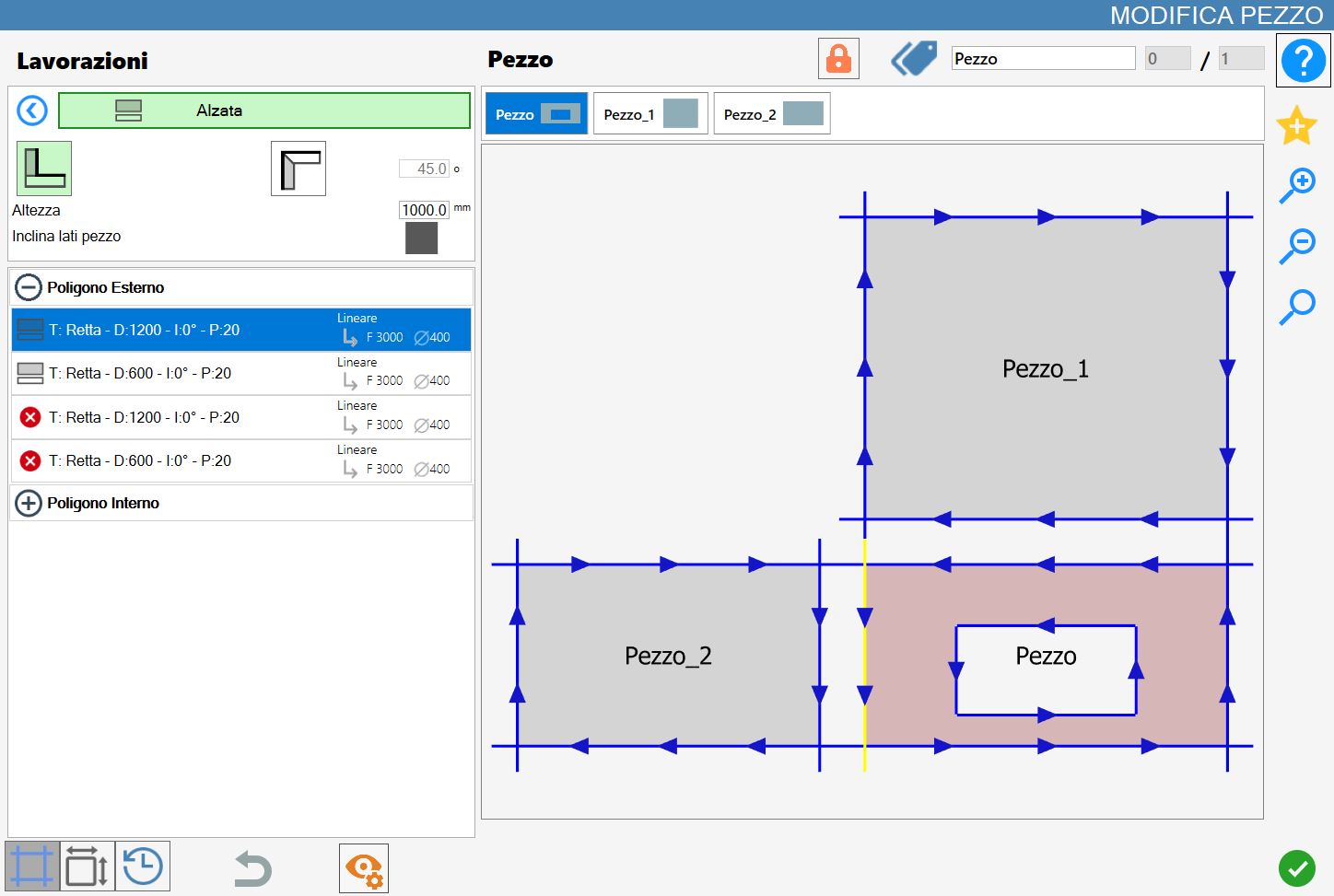
First, a backsplash with a height of 1000 mm is applied to the lower side of the rectangle, followed by a second backsplash on its right side.
Miter sides piece disabled
No mitered sides appear in the resulting configuration and the cuts of the original piece are not changed in the cut list:
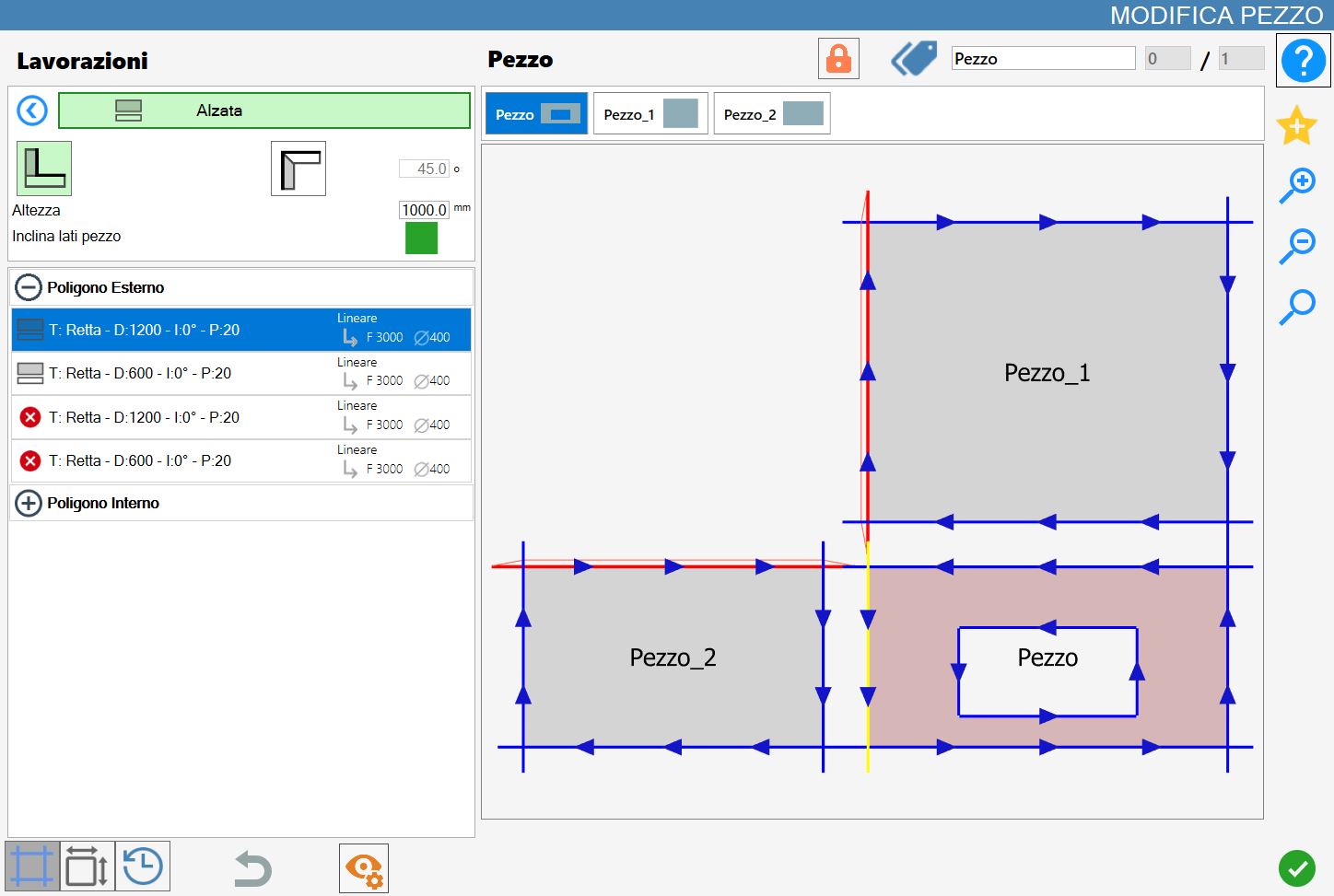
Miter sides piece enabled
If the vertices of the new pieces, i.e. Piece_1 and Piece_2, are aligned, the sides that share a vertex but are not adjacent to the original piece will be replaced with miter cuts:
Executing Downstand
The application of two downstands is now shown with the “Miter sides piece” parameter enabled and disabled.
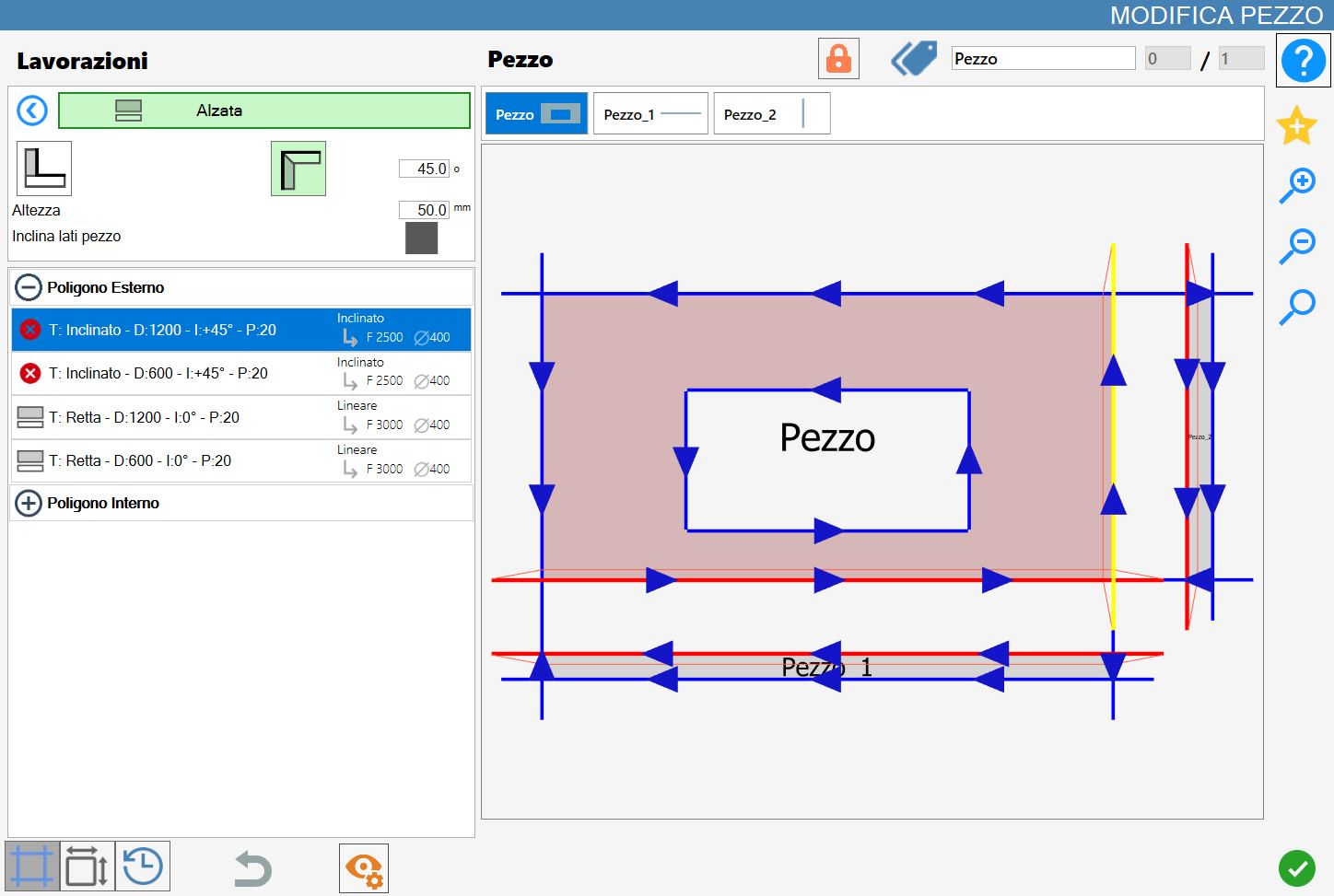
First, a downstand with a height of 50 mm is applied to the lower side of the rectangle, followed by a second downstand on its right side.
In this mode, the original piece (Piece) and each generated piece (Piece_1 and Piece_2) will automatically have miter cuts applied to all sides that are adjacent to each other.
The miter angle is determined by the degrees parameter.
Miter sides piece disabled
In this case, the adjacent sides between the original piece and the newly created pieces are automatically replaced with miter cuts.
The cut inclination depends on the set Degrees parameter.
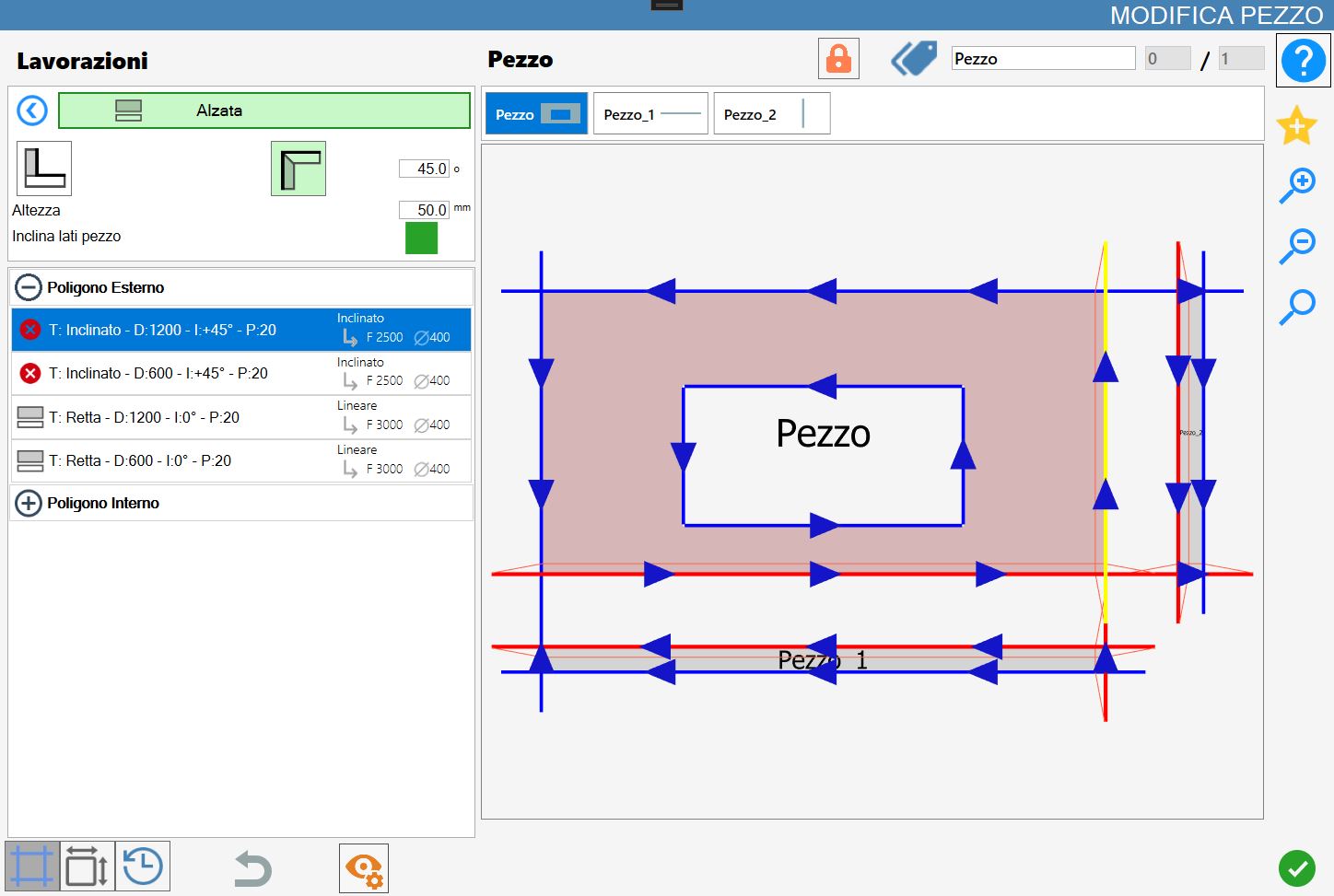
Miter sides piece enabled
As in the previous case, miter cuts are inserted on the cuts adjacent to the various pieces and the inclination depends on the value of the Degrees parameter.
In addition, when the “Miter sides piece” parameter is enabled, as with backsplashes, if the new pieces have aligned vertices, the sides sharing a vertex and not adjacent to the original piece are automatically replaced with miter cuts.
Splitting pieces
When one or more pieces have been associated with the selected piece through Downstand or Backsplash workings, a specific button for managing the associated pieces appears at the top of the “Edit Piece” panel.
 | Split pieces |
|---|
Before splitting, the associated pieces are managed as a single unit within the work area. In this state, a block consisting of multiple elements is created; these elements undergo the same operations and have not yet been separated.
For example, when the original piece, a downstand or a backsplash is added to the work area from the pieces list, all other associated elements are automatically inserted as well.
When the Split Pieces button is pressed, each piece generated through a downstand or backsplash working is dissociated from the original piece and treated as an independent element.
Subsequently, both the list of associated pieces previously visible above the preview in the Edit Piece panel and the button for splitting the pieces disappear from the interface.
At the time of splitting, each piece retains the miter cuts obtained when it was generated through a downstand or backsplash, as well as all customisations and changes made while it was still associated with the original piece.
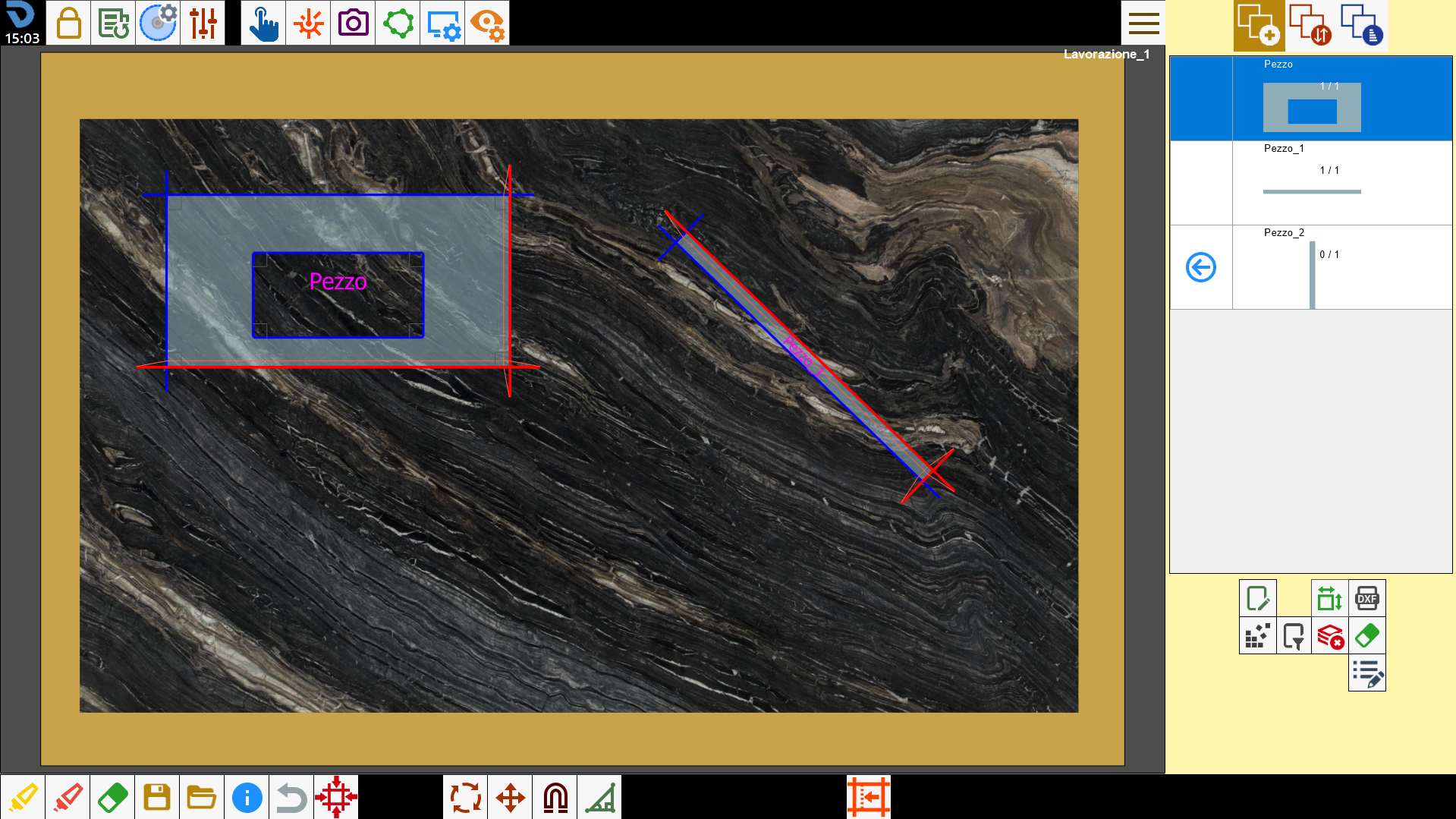
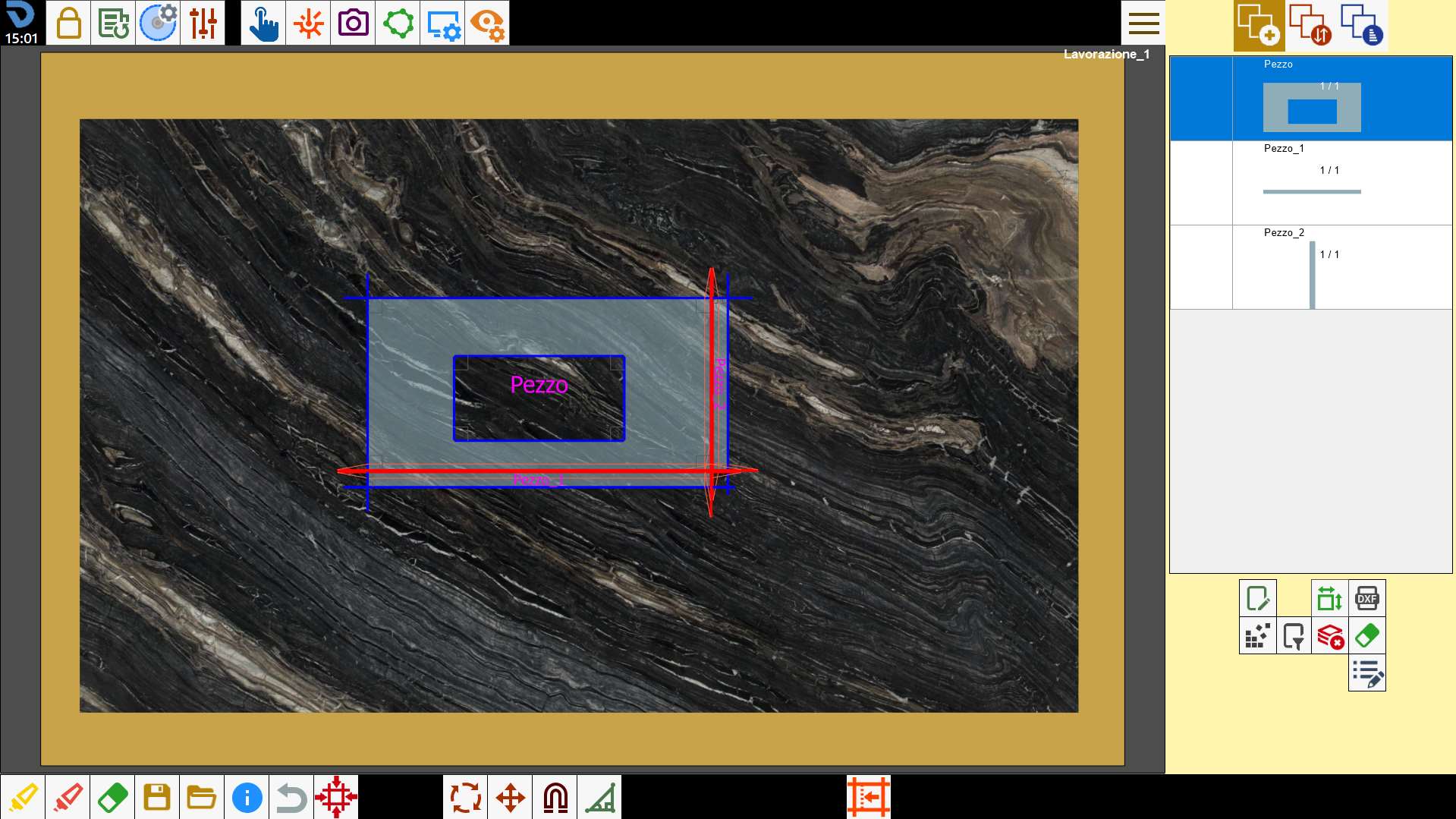
The following image shows the independent management of the individual pieces that previously belonged to the same block.
In particular, only two of the three pieces have been inserted in the work area (the original piece and the first piece generated by applying the first downstand), and the second piece has been repositioned and rotated without causing any interference with the original piece: