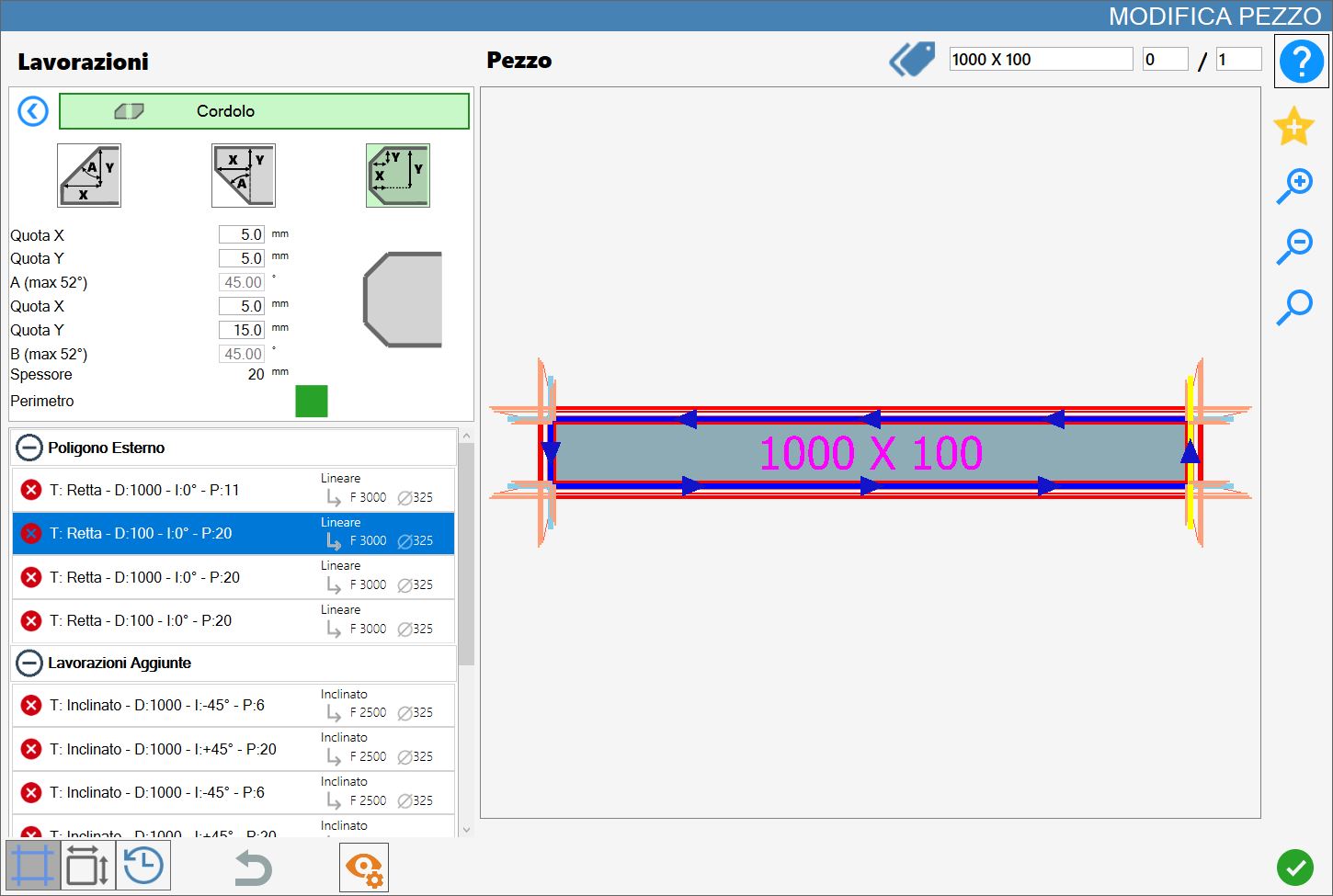
This function allows a chamfer, a lower chamfer (ogee) or both to be added to the cuts of the selected piece.
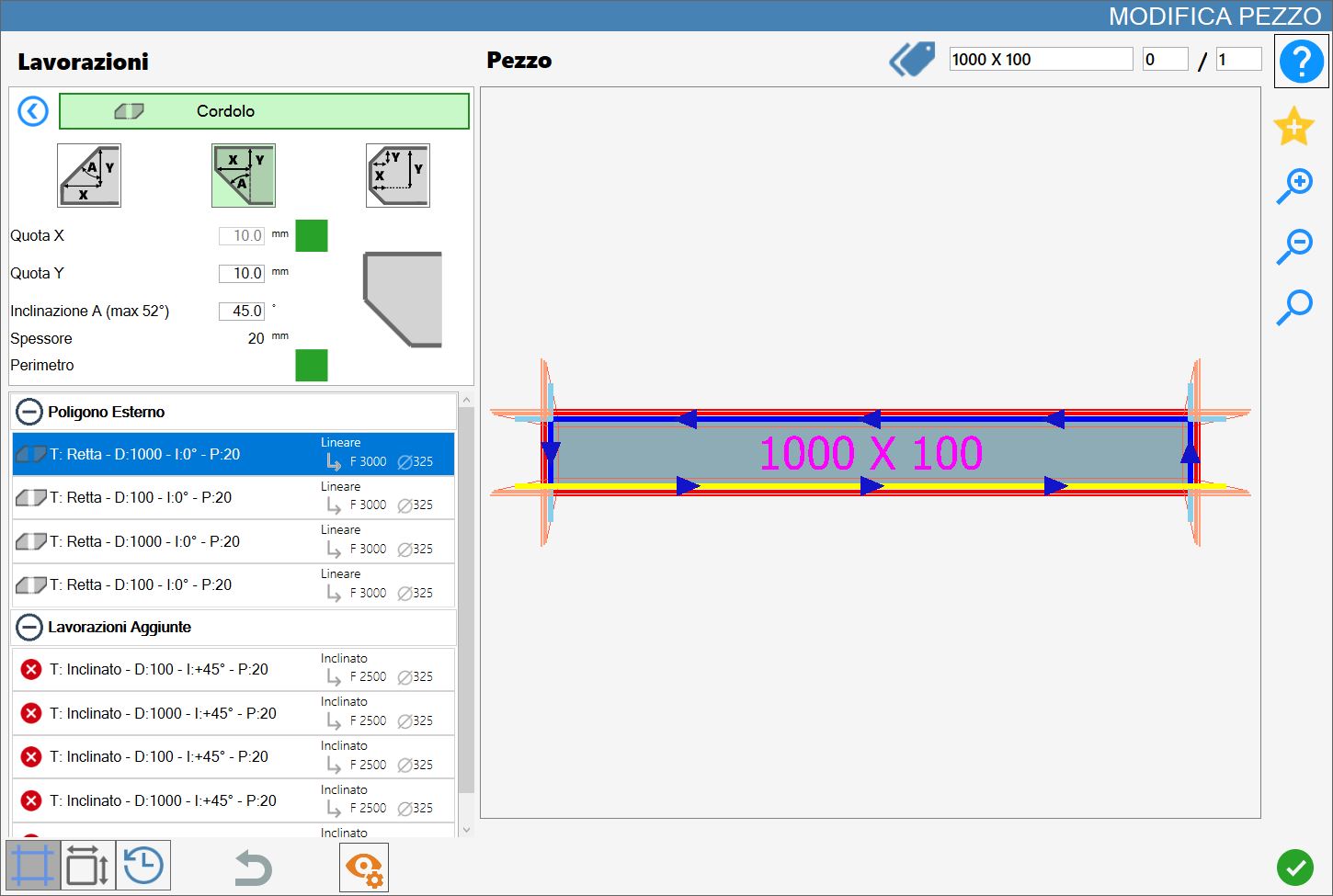
The interface for this function is similar to the following image:
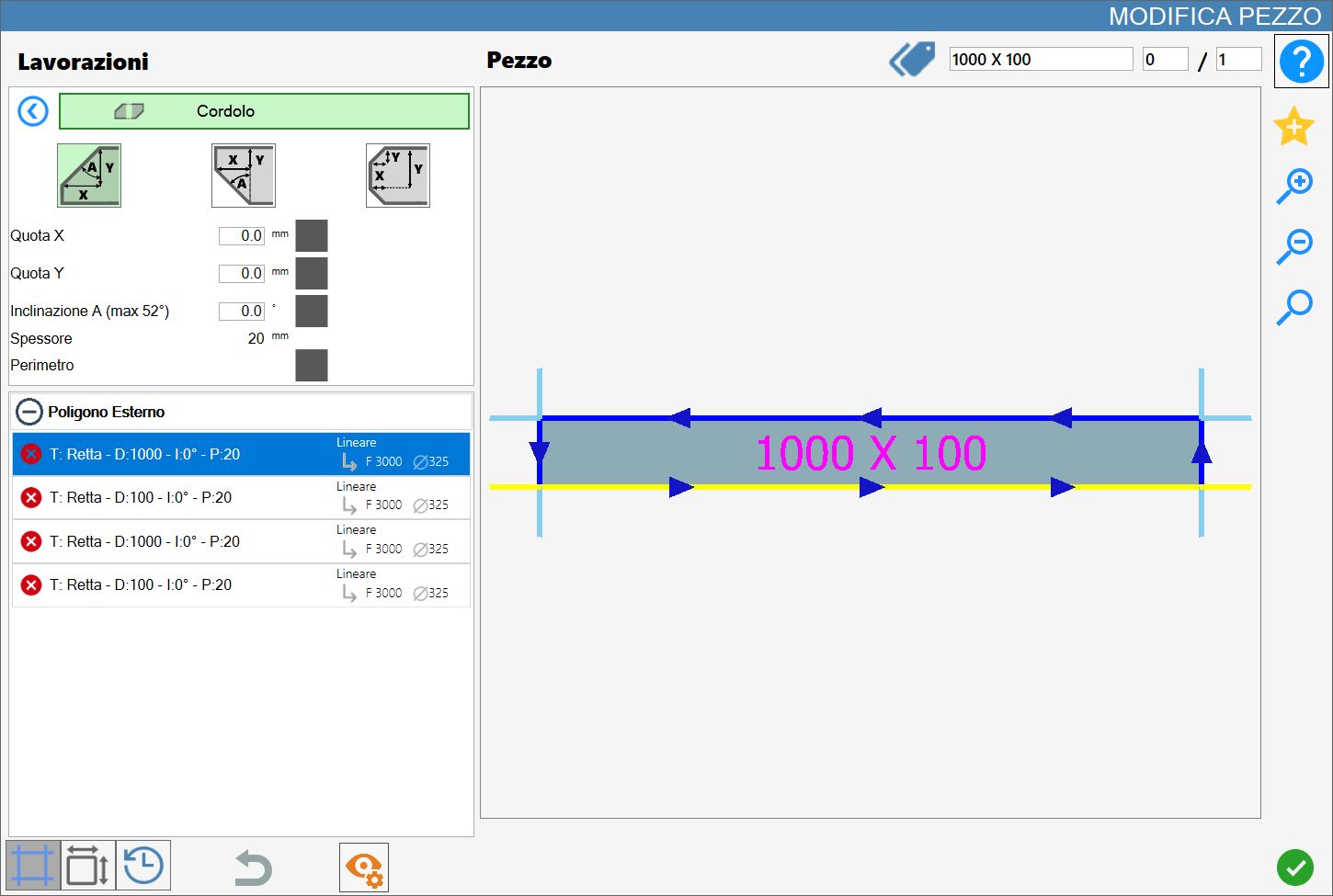
Parameters
To use this working, first select one of the three available modes by pressing the corresponding button:
The ‘Chamfer’, ‘Lower Chamfer’ and ‘Chamfer and Lower Chamfer’ modes are mutually exclusive: enabling one automatically disables the others.
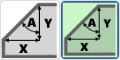 | Chamfer |
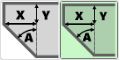 | Lower Chamfer (ogee) |
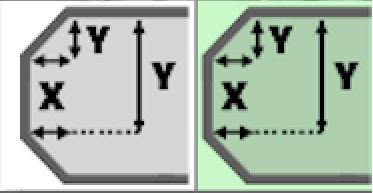 | Chamfer and Lower Chamfer |
The following parameters are common to both types of working:
X Quote | Distance along the X axis from the edge of the piece. |
Y Quote | Distance along the Y axis from the edge of the piece. |
Inclination A | Cut inclination angle expressed in sexagesimal degrees. |
Inclination B | Cut inclination angle relative to the lower chamfer, expressed in sexagesimal degrees. |
Thickness | The slab thickness currently set in Parametrix is displayed to help the user apply the working. |
Perimeter | Enabling this parameter applies the working to the entire perimeter of the piece. |
Square checkboxes, initially disabled, are located next to the first three geometric parameters. One must be enabled to specify which parameter is to remain constant; once a second value is provided, the third is calculated automatically. The checkboxes cannot be enabled if the corresponding parameter value is zero, in order to prevent geometrically inconsistent or invalid configurations from being set.
Executing the working
The working can be applied by pressing the button to the left of the appropriate cut in the polygon list.
A red icon with an 'X' indicates that the working cannot be applied to the desired cut.
The Curbs working can be performed only on line cuts.
Each curb successfully added to the material updates the preview and is automatically added to the 'Added Workings' section on the left.
Executing Chamfer
Side
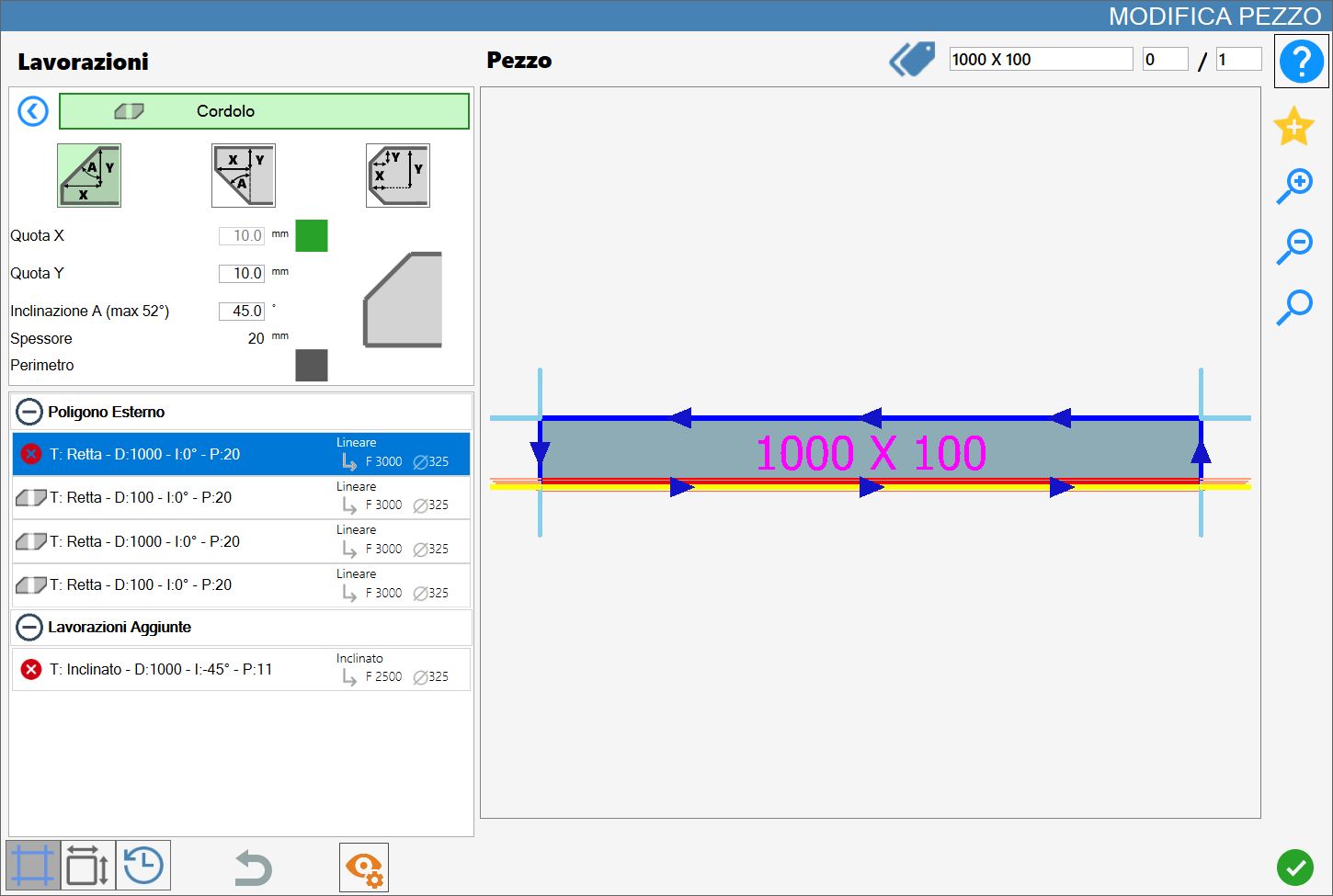
The following image shows the Curbs working applied to one side of the piece at the upper corner.
To apply the working to the desired side, click it.
Perimeter
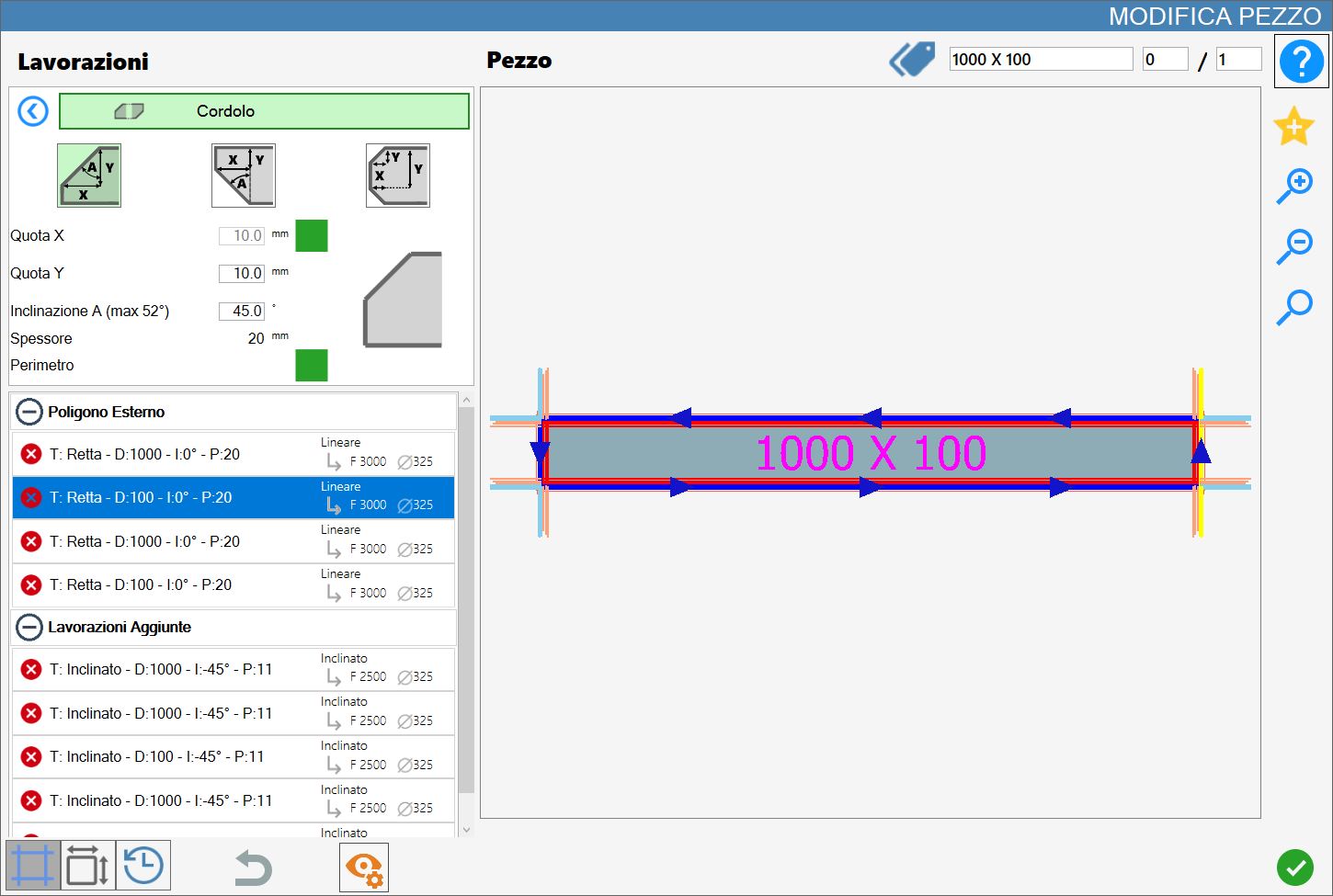
The following image shows the Curbs working applied to the perimeter of the piece at the upper corner.
To apply the working to the perimeter, enable the checkbox to the right of the label and then click a side of the piece.
Executing Lower Chamfer
Side
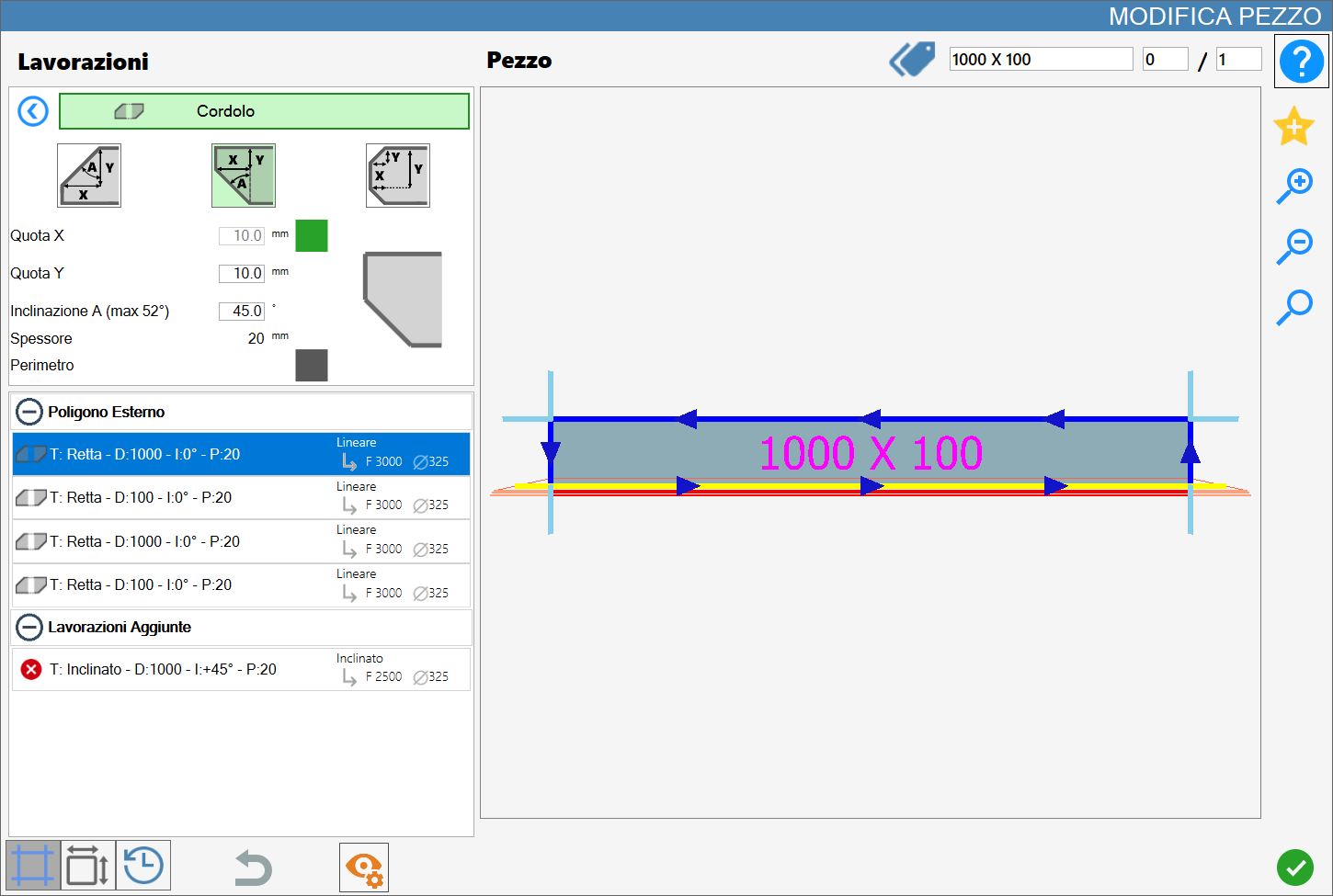
The following image shows the Curbs working applied to one side of the piece at the lower corner.
To apply the working to the desired side, click it.
Perimeter
The following image shows the Curbs working applied to the perimeter of the piece at the lower corner.
To apply the working to the perimeter, enable the checkbox to the right of the label and then click a side of the piece.
Executing Chamfer and Lower Chamfer
Side
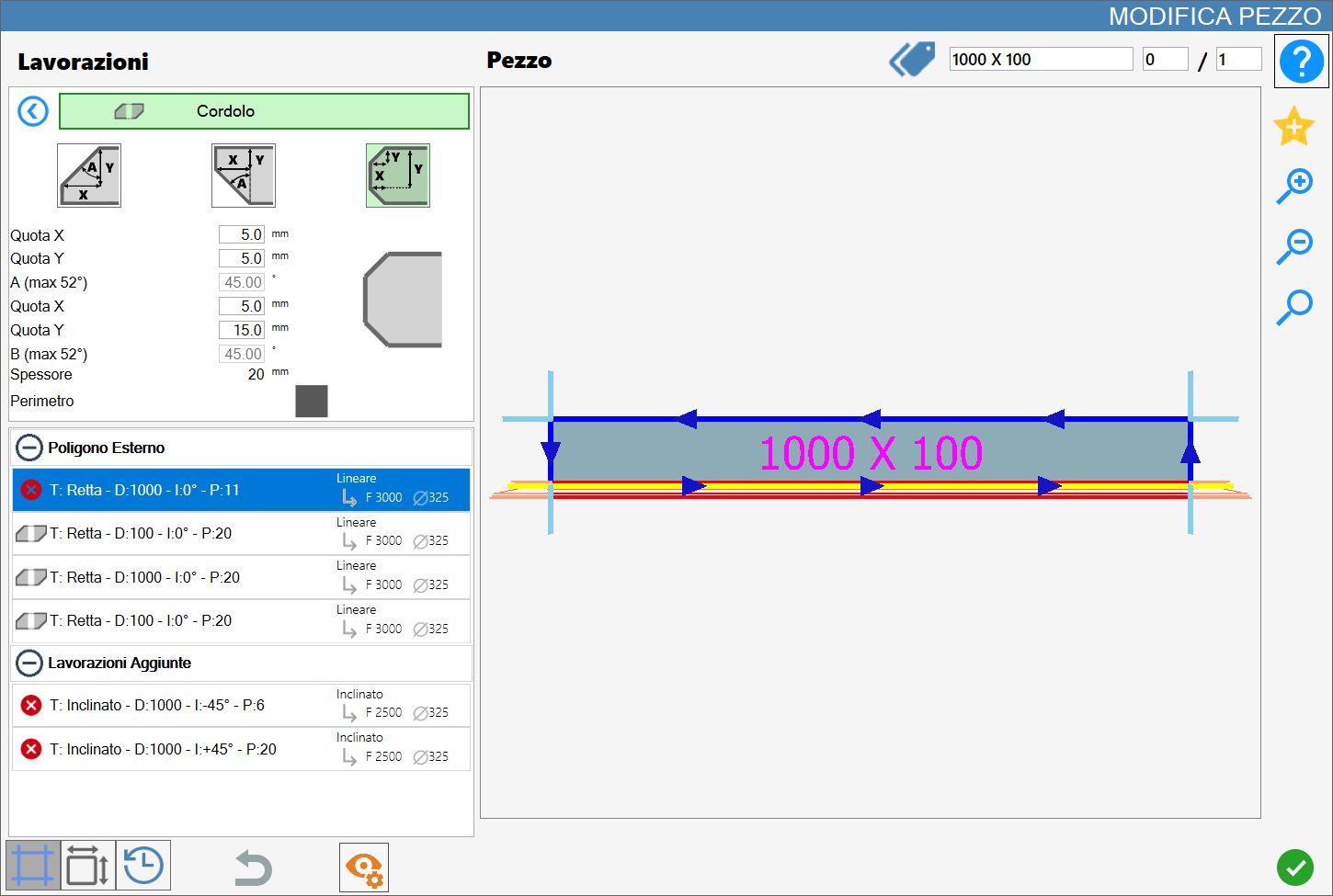
The following image shows the Curbs working applied to one side of the piece at both the upper and lower corners
To apply the working to the desired side, click it.
Perimeter
The following image shows the Curbs working applied to the perimeter of the piece at both the upper and lower corners.
To apply the working to the perimeter, enable the checkbox to the right of the label and then click a side of the piece.