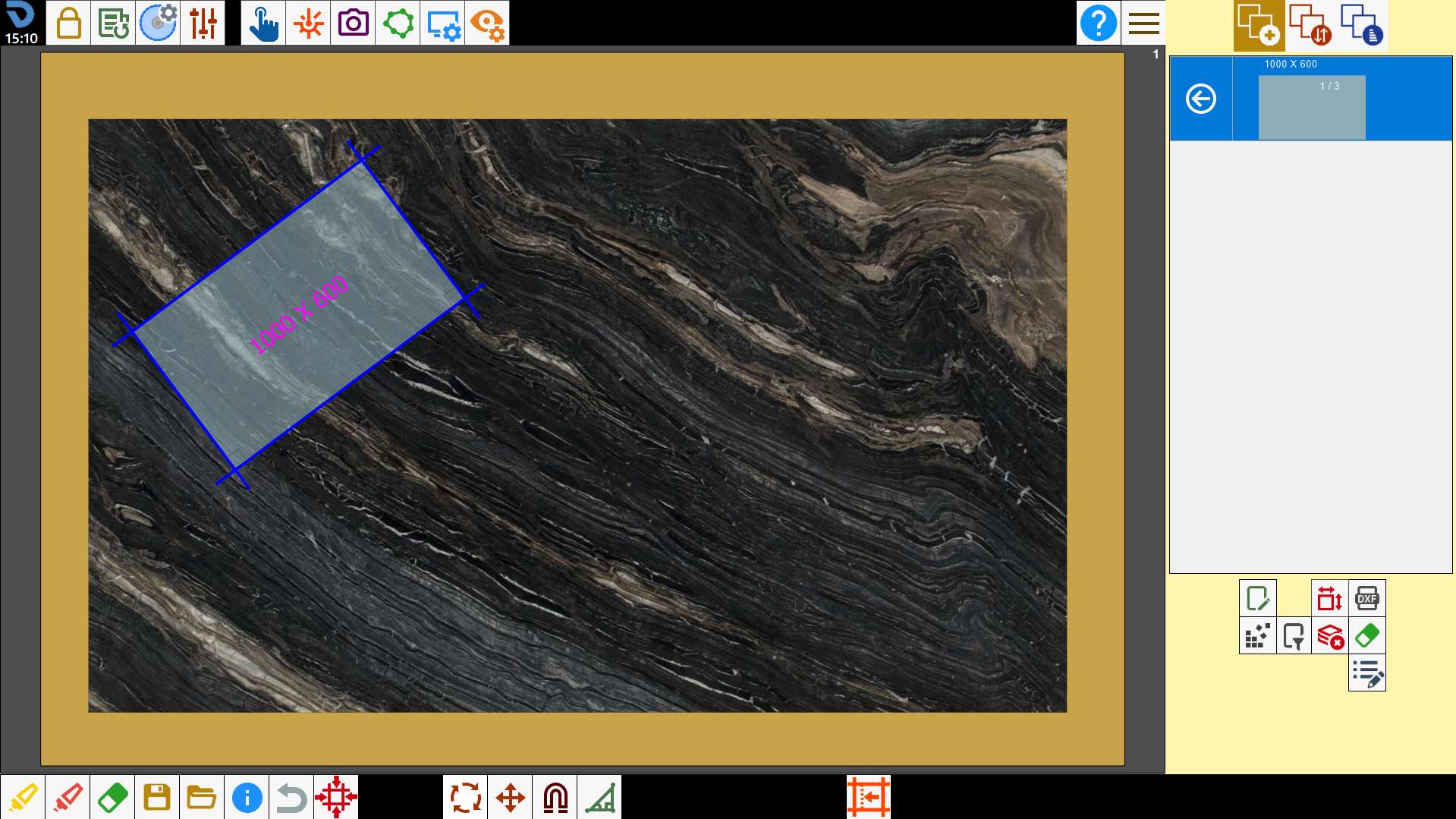
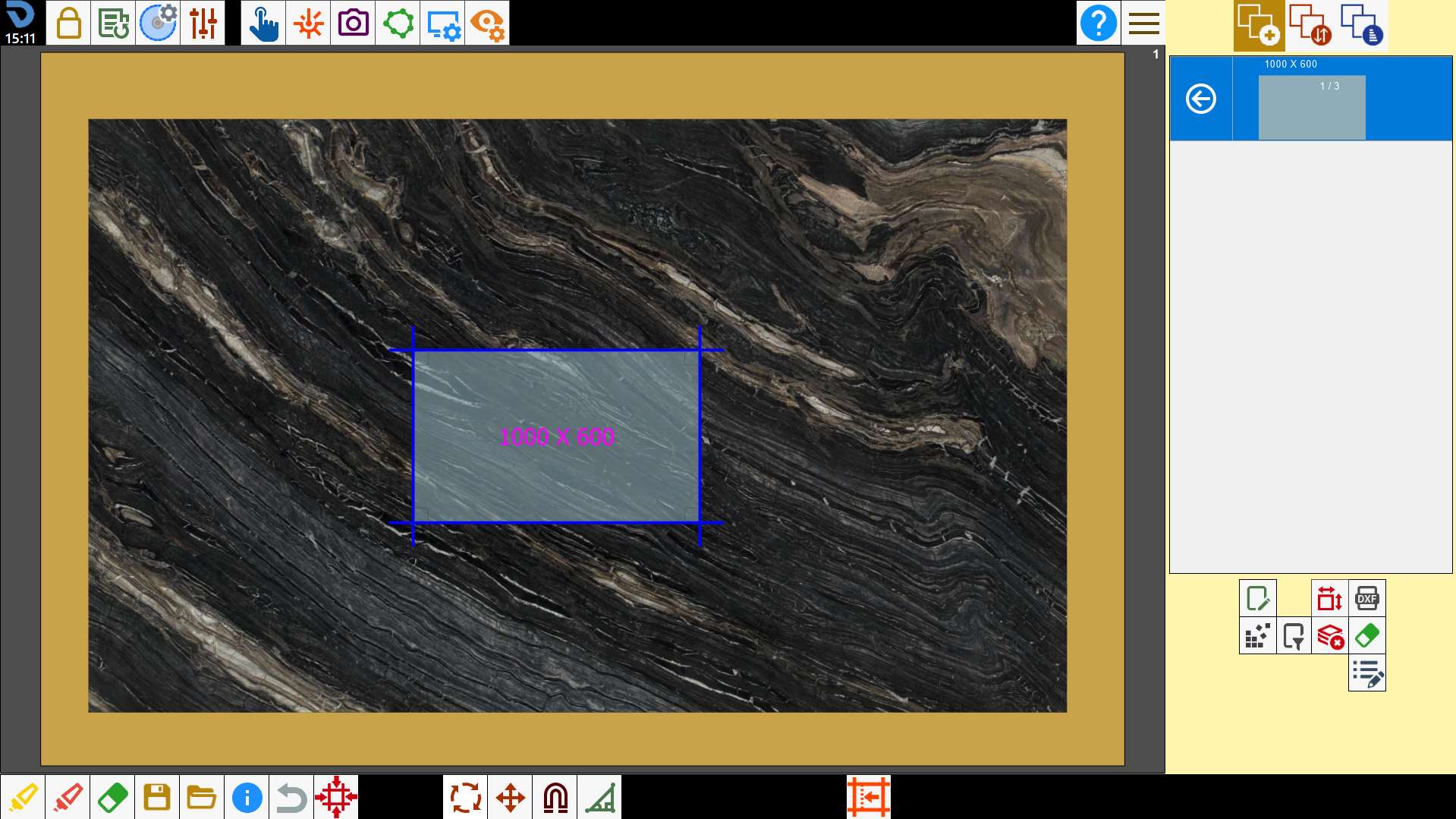
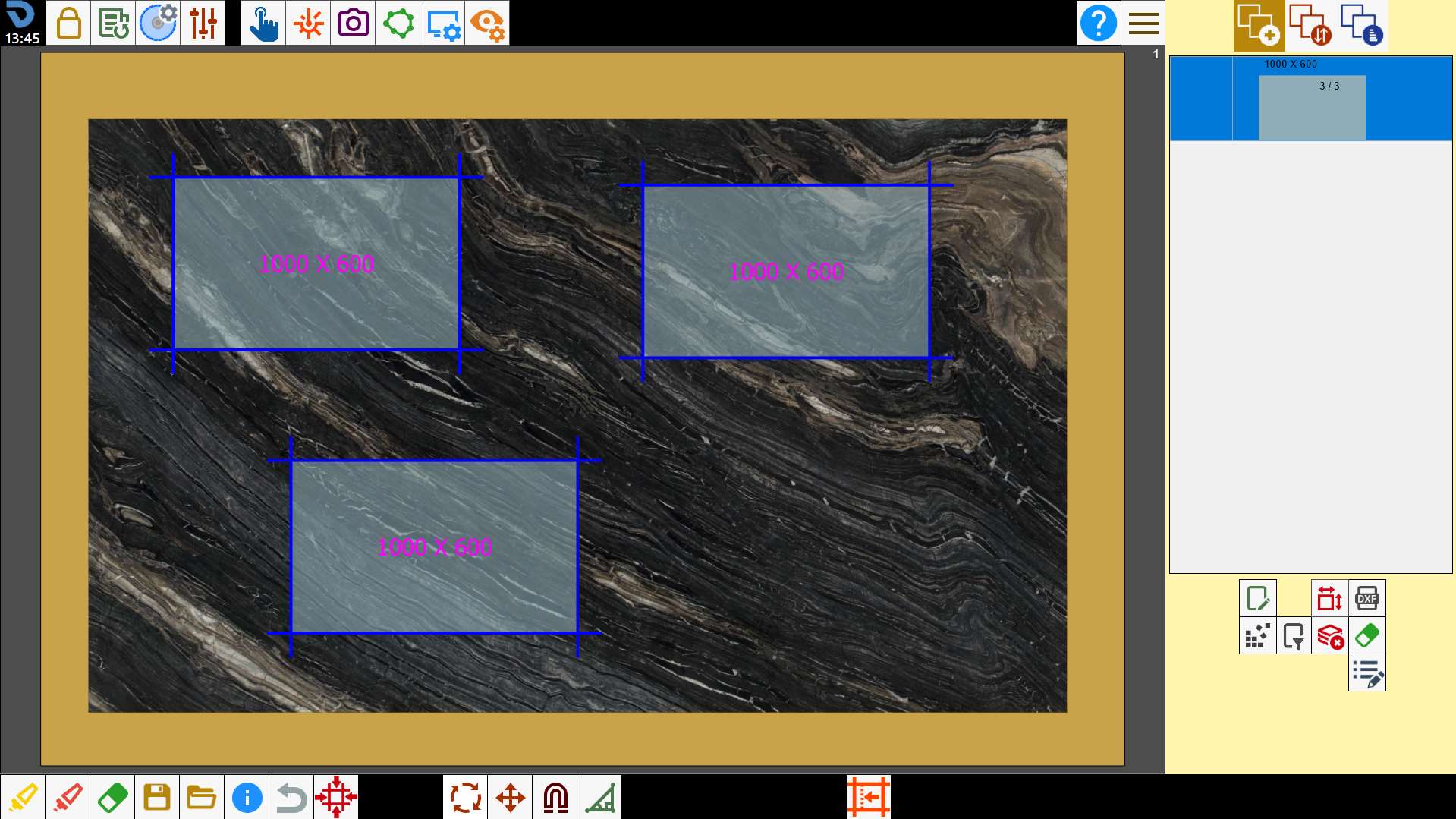
The operator can change the positioning of pieces on the workbench by interacting with the work area.
Functions
 | Multiple selection |
 | Select all |
 | Remove pieces |
 | Move pieces |
 | Rotate pieces |
 | Undo operation |
 | Magnetise pieces |
 | Miter cut |
 | Edit piece offset |
Select pieces
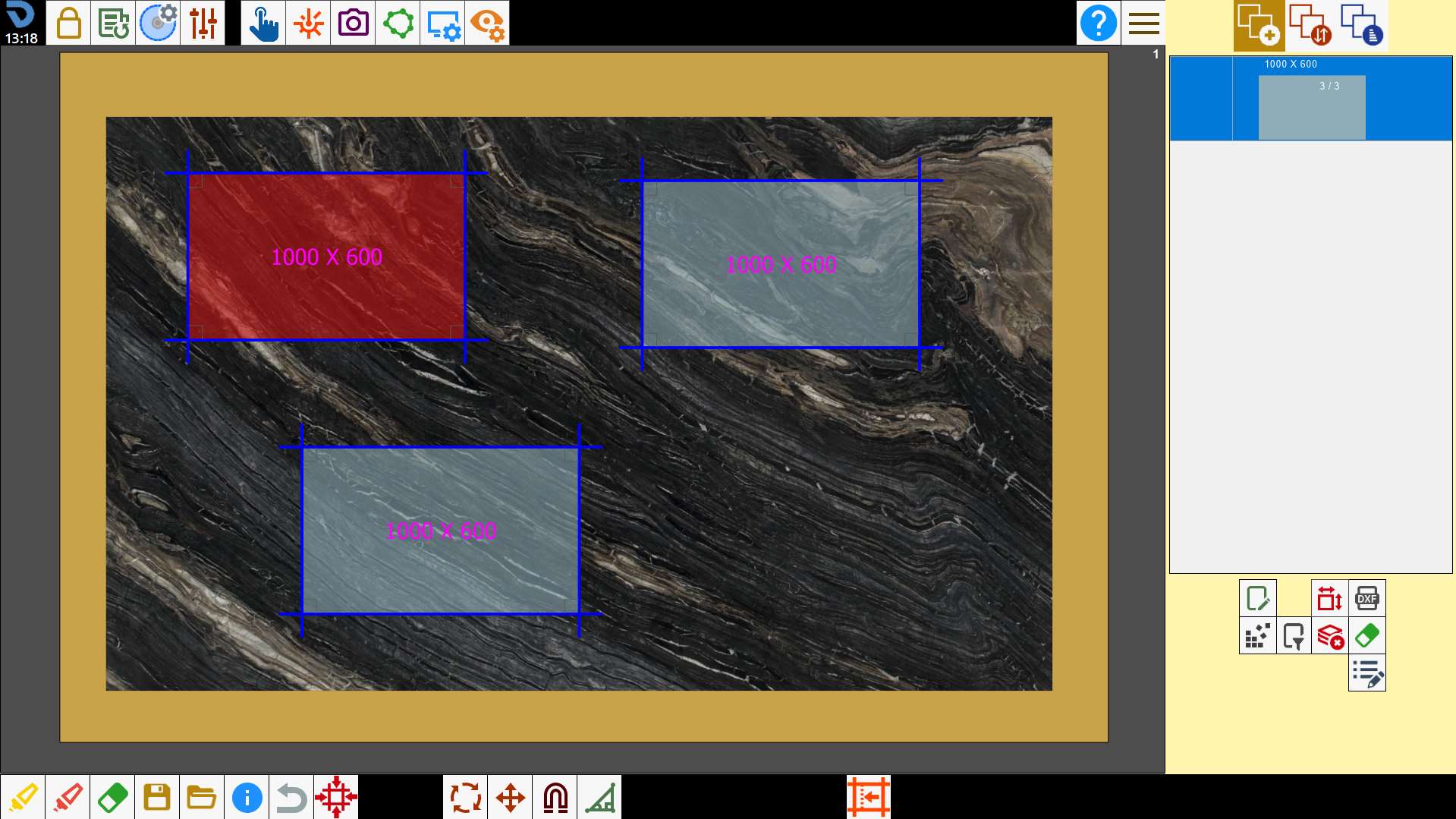
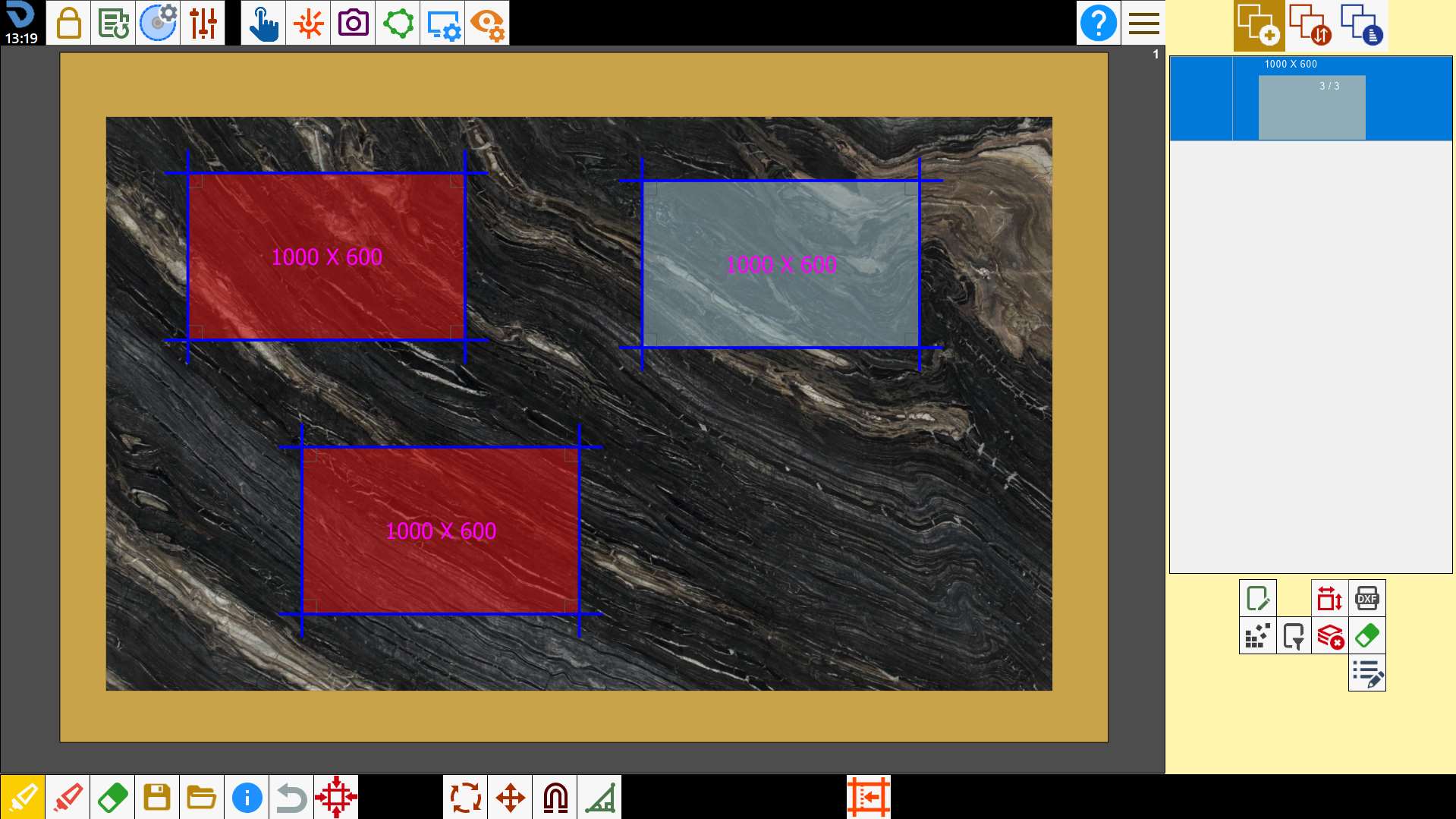
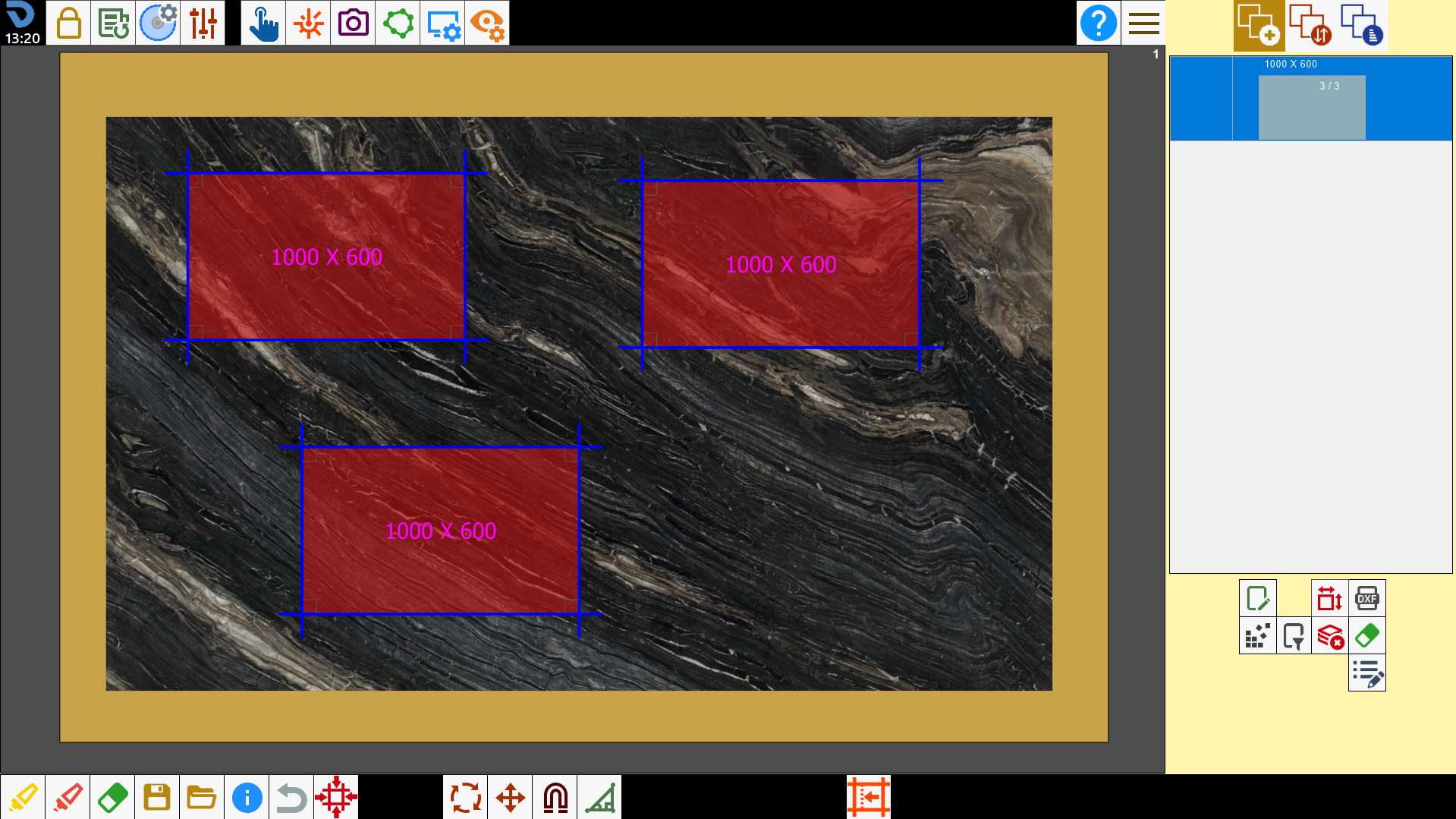
To select a piece, press inside it. The piece background is light blue when not selected and red when selected.
Multiple selection
Pressing the button enables multiple selection mode. In this mode, multiple pieces can be selected at the same time. To deselect a piece, press inside an already selected perimeter.
Select all pieces
This button selects or deselects all pieces in the work area at the same time.
Remove pieces
Pressing the button removes the selected pieces from the work area and returns them to the piece list so that they remain available for later use.
Move pieces
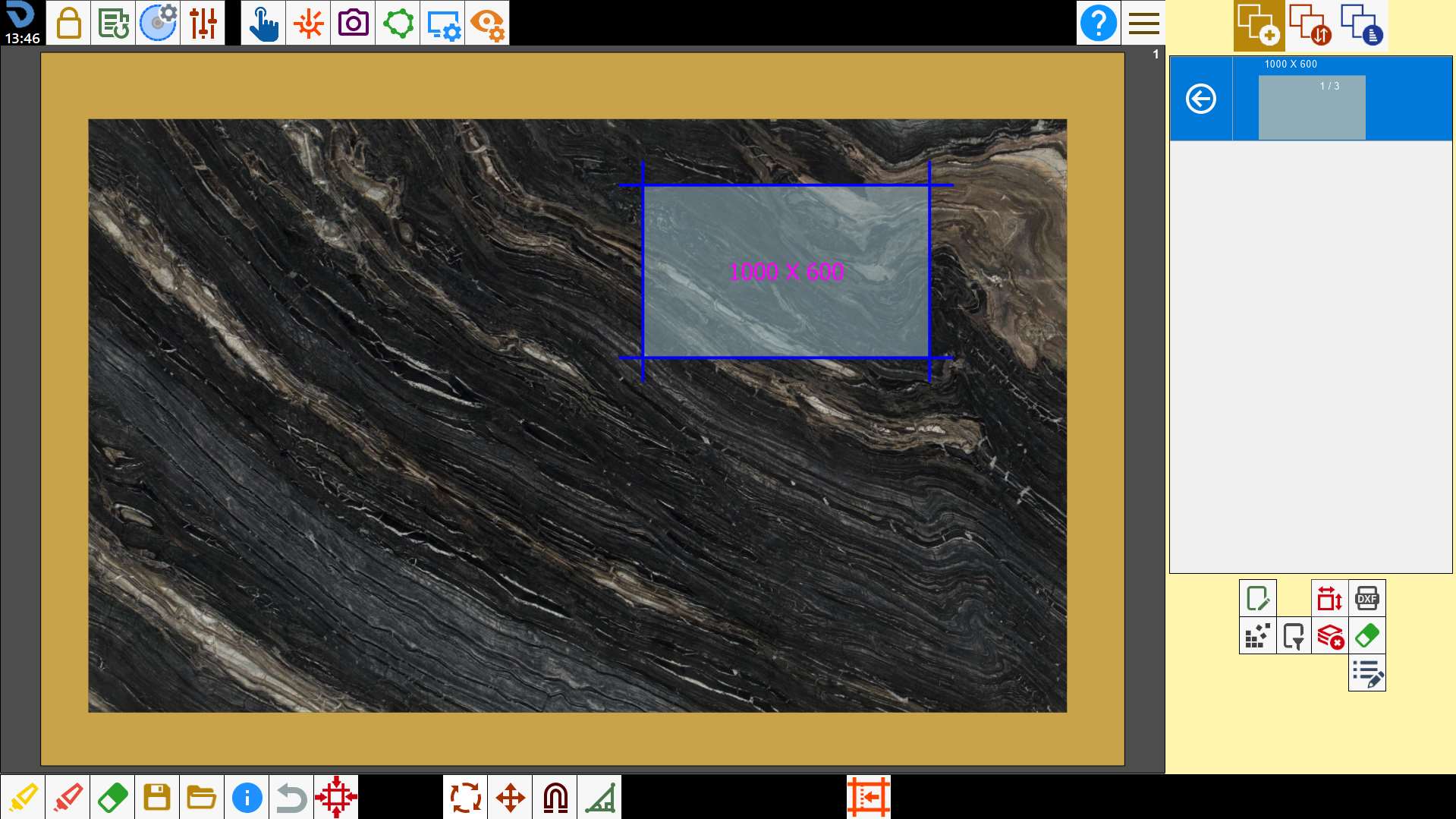
To move the selected piece, press and hold inside the perimeter and drag it within the work area.
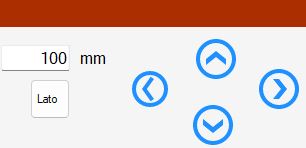
Alternatively, use the directional-arrow movement panel.
This function is applied to all selected pieces. Therefore, multiple pieces can be moved at the same time.
Buttons
 | Directional arrows |
 | Movement along the side axis |
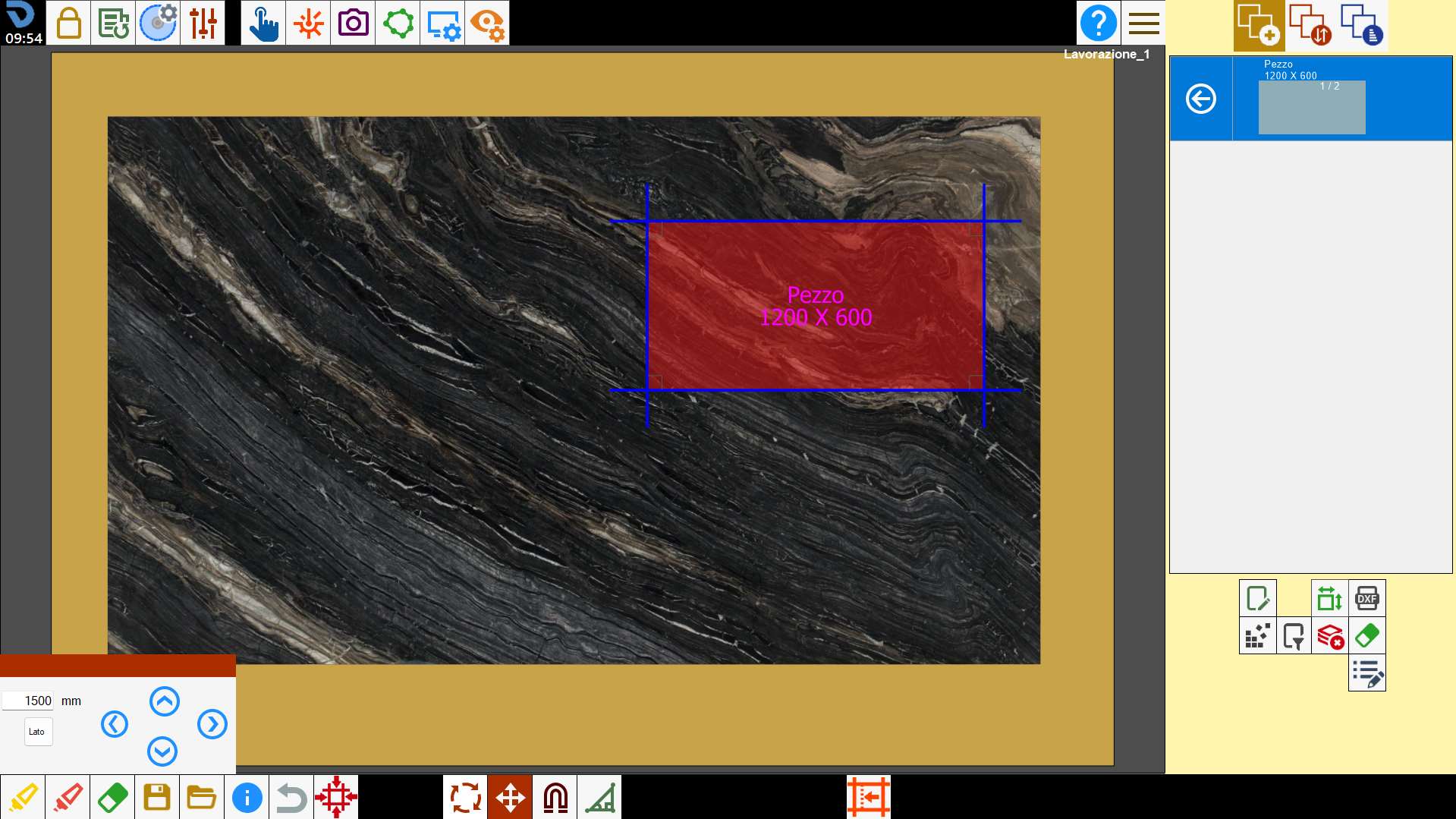
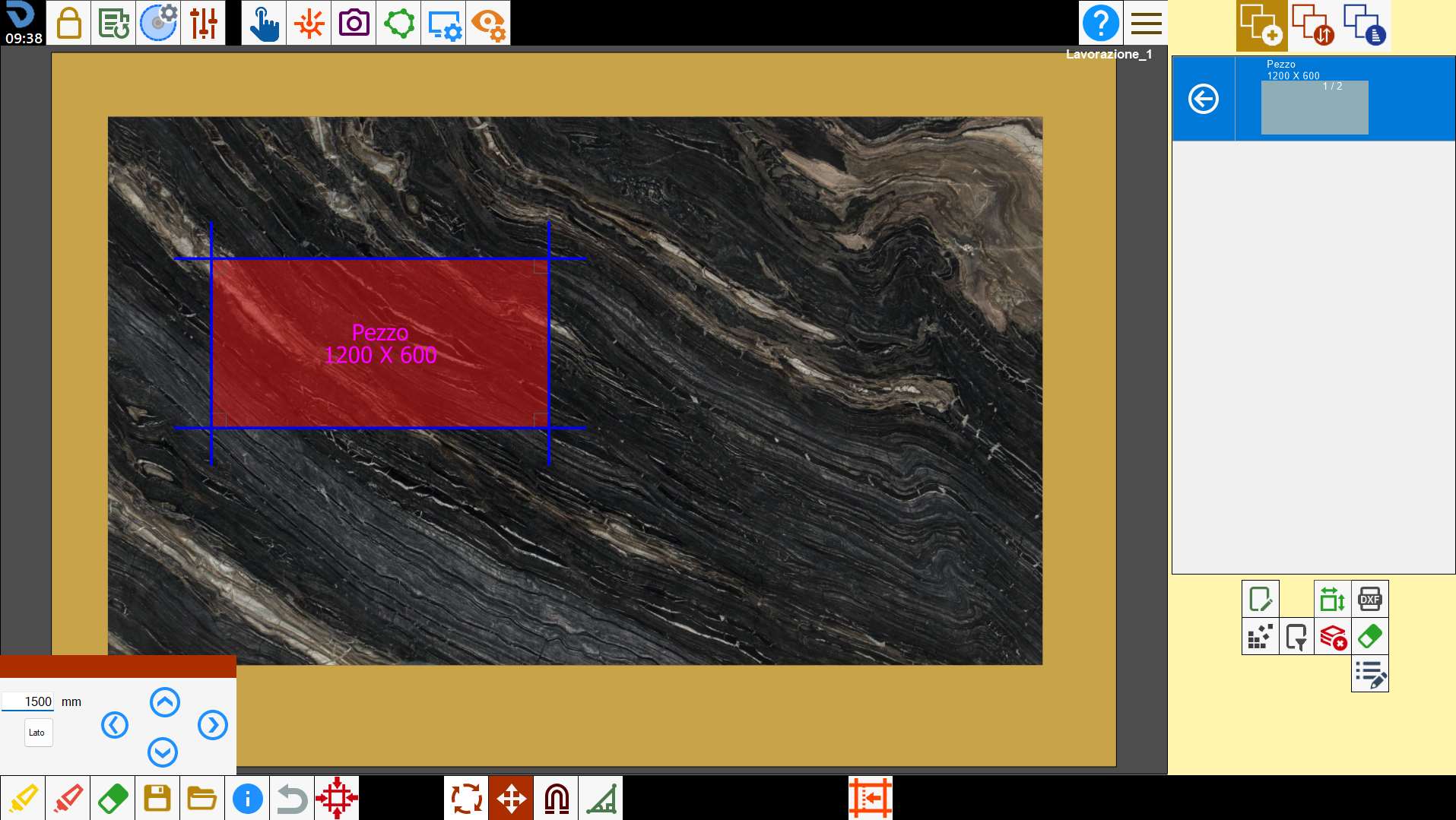
Move pieces along the standard axes
A movement of 1500 mm to the left is to be applied to the piece.
Move pieces along the side axis
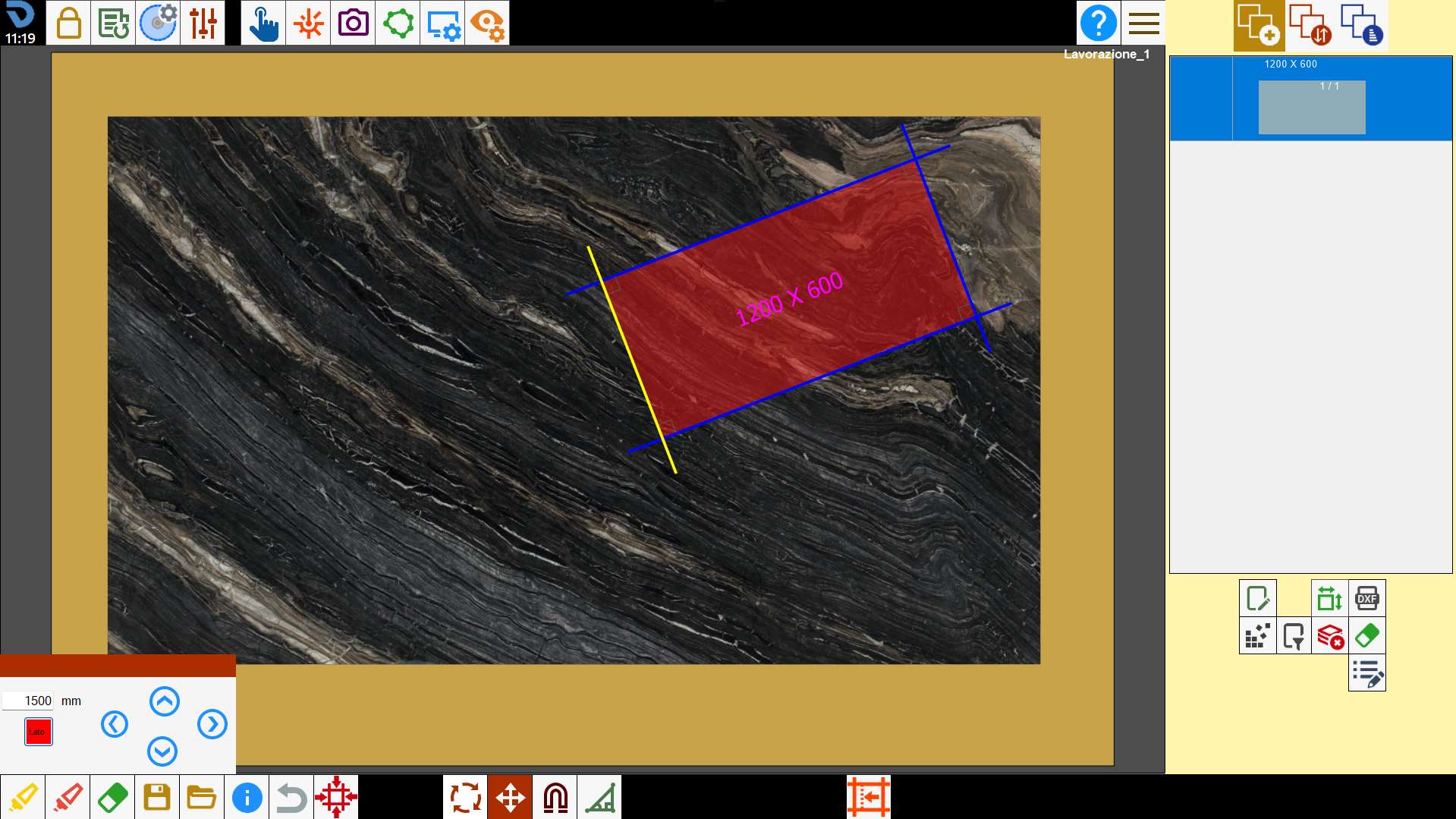
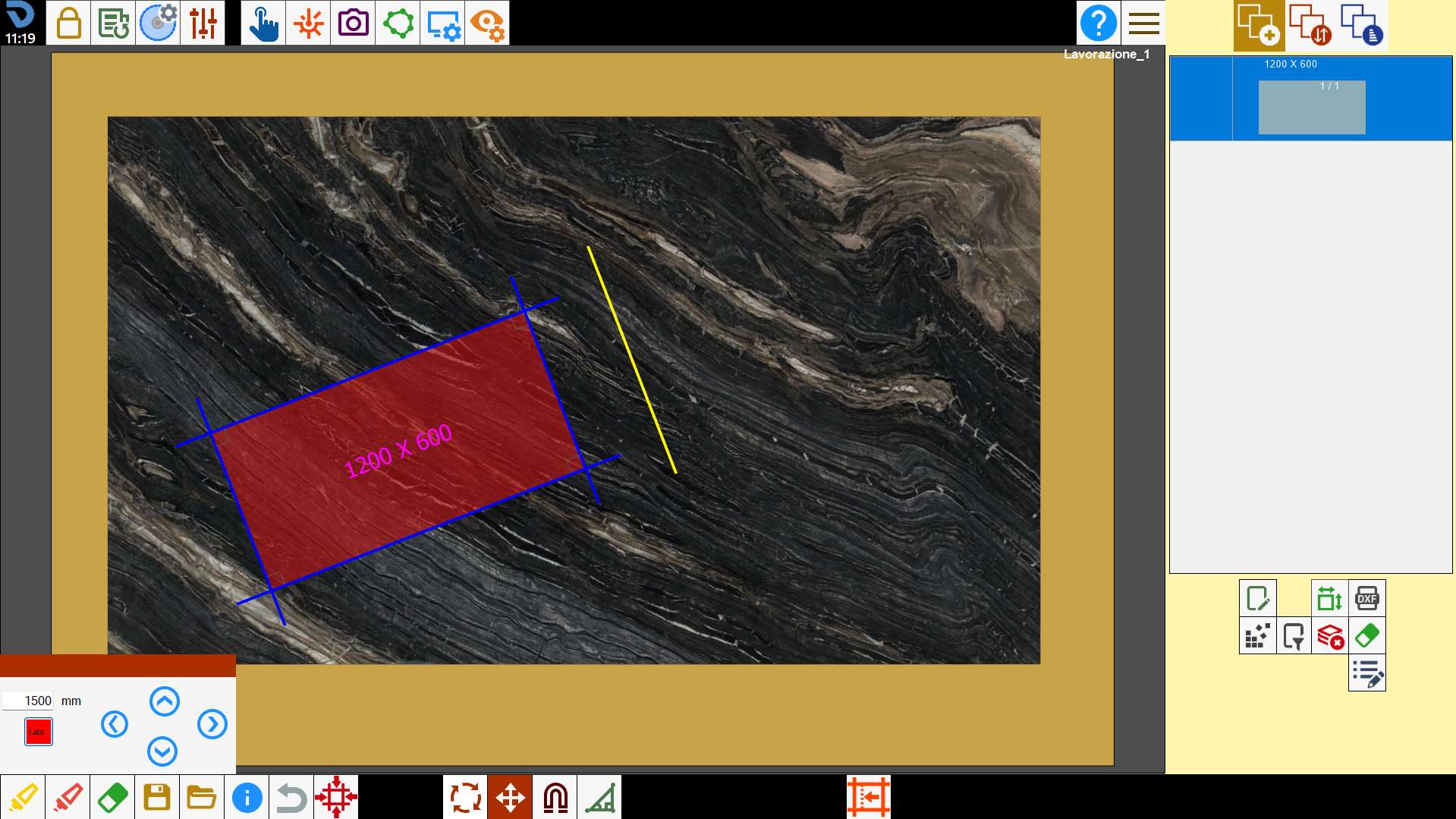
A movement of 1500 mm to the left relative to the axis of the piece side is to be applied to the piece.
To do this, the corresponding button must be enabled.
Rotate pieces
To rotate the selected pieces, press and hold outside the perimeter and drag them within the work area.
Alternatively, use the rotation panel with predefined angles.
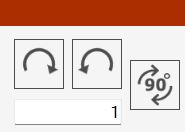
This function is applied to all selected pieces. Therefore, multiple pieces can be rotated at the same time.
Buttons
 | Clockwise rotation |
 | Counter-clockwise rotation |
 | 90_ rotation |
Apply rotation
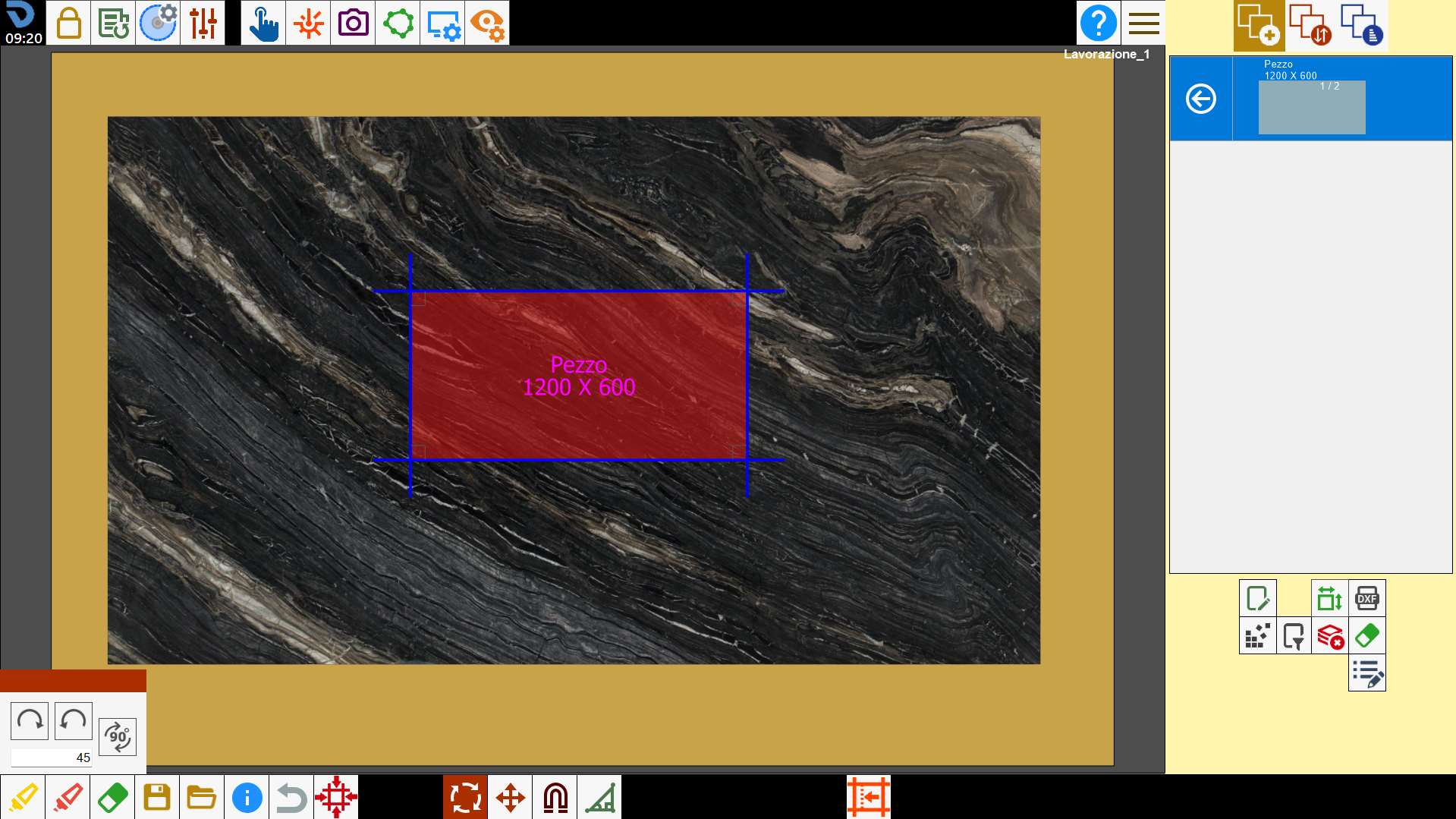
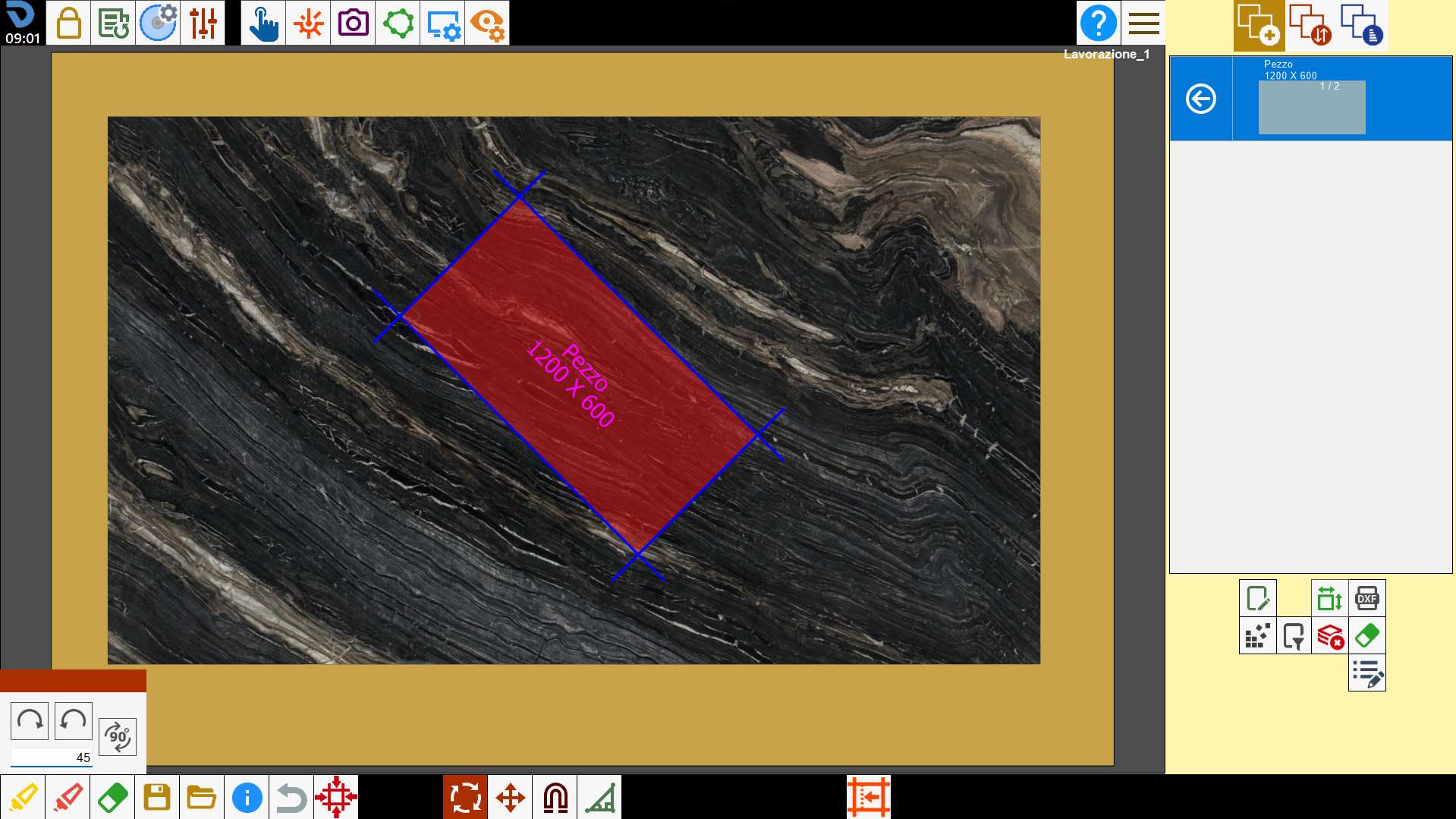
A clockwise rotation of 45 degrees is to be applied to the piece.
Undo operation
This function undoes the last operation performed.
For example, if the operator deletes a piece by mistake, pressing this button returns to the state before the piece was deleted.
There is no history of changes made, but pressing the button repeatedly undoes multiple operations.