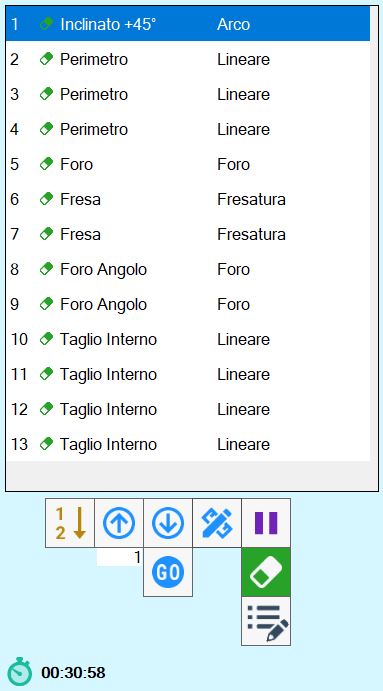
The cuts that the machine must perform are shown in this list.
Using the cut list, the operator can:
Change the cut execution order.
Edit the characteristics of a cut.
Insert pauses between cuts.
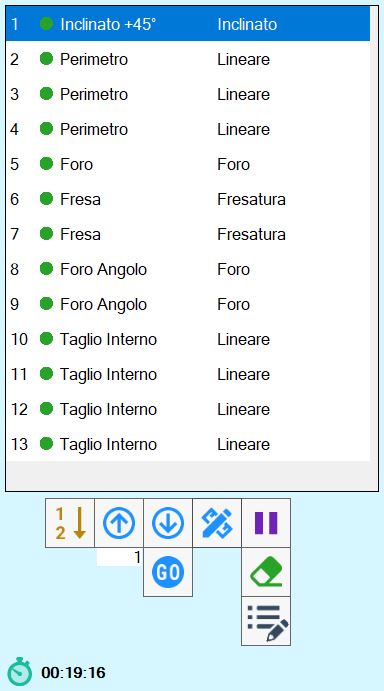
List elements

 | Enable/Disable cut |
 | Cut type |
 | Working type |
Functions
The arrangement of the cuts in the list on the right indicates the order in which they are cut.
The buttons below can be used to change this order or insert a pause in operation execution between one cut and the next.
 | Move using arrows |
 | Move to desired position |
 | Select order from work area |
 | Pause |
 | Delete cut |
 | Edit cut |
 | Additional piece properties |
The following is also shown at the bottom of the list:
 | Estimated cutting time |
Move using arrows
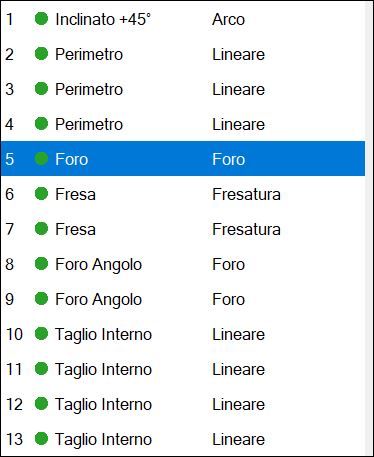
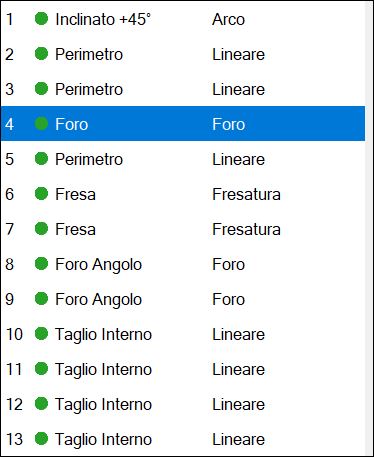
These buttons can be used to move the selected cut to the position above or below.
In the following example, the cut in fifth position is to be moved up by one position.
Before movement | After movement |
 |  |
Move to desired position
This function moves the selected item to the position in the list indicated in the adjacent text box.
In this example, the fifth cut in the list is to be moved to the second position. Enter the value “2“ in the box and then press the button.
Before movement | After movement |
| 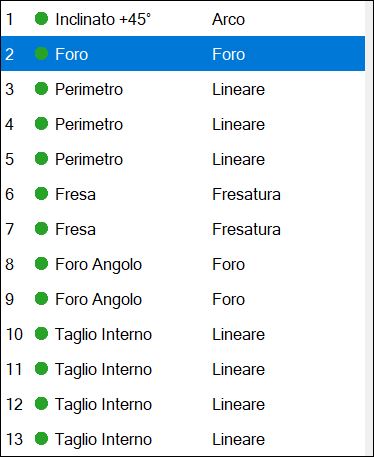 |
Select order from work area
This function allows the cut order to be selected directly from the work area.
Pressing the button causes the program to write a number on each cut indicating its position in the list.
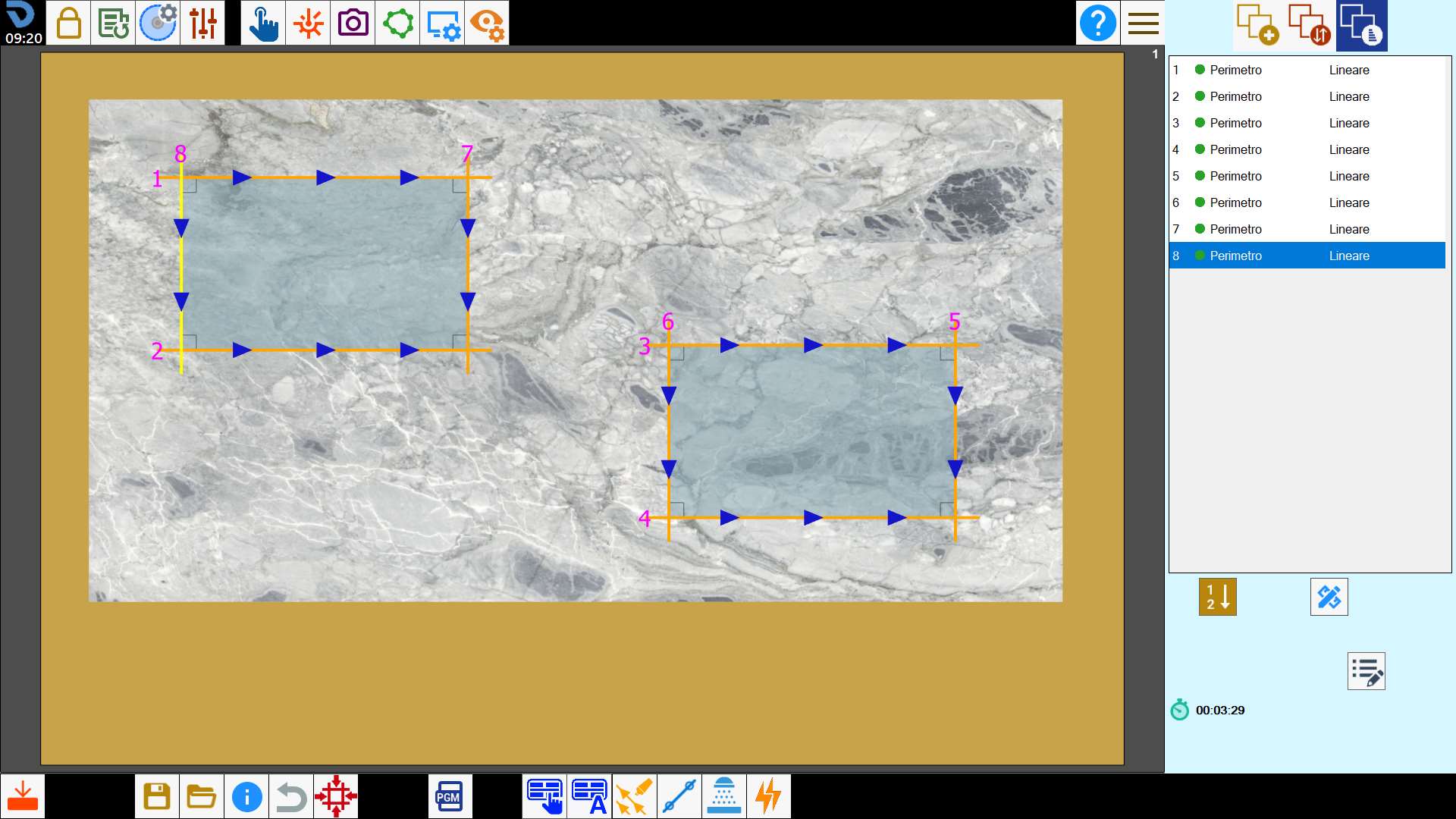
To change the order, click inside the cut to be first, then the cut to be second, and so on.
When finished, press the button again to confirm the selected order.
Pause
A pause can be inserted between execution of one cut and the next.
The program performs all cuts preceding the pause, then stops the machine and waits for the operator to issue the Start command.
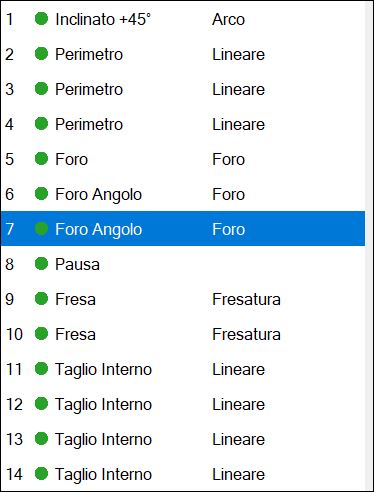
The pause is always inserted after execution of the selected cut.
It can be used, for example, to change the tool.
Delete cut
Once the button is pressed, an eraser icon is displayed next to each item in the list.
Then press a cut to delete it permanently.