

This panel allows the operator to change certain characteristics of a cut.
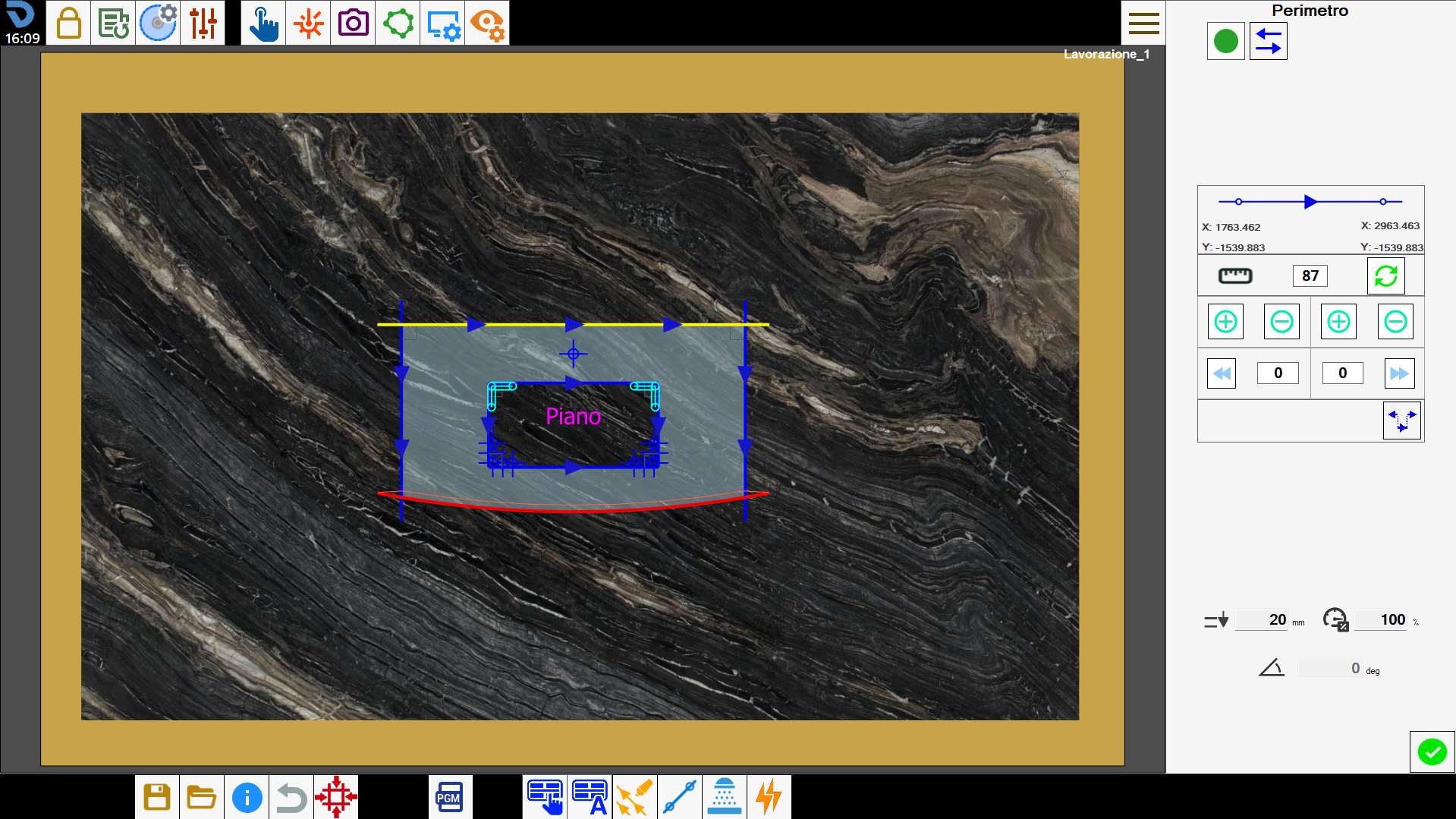
Buttons
The activation status of the cut can be changed in the upper-left corner.
 | Enable/Disable cut |
Different versions of this panel are displayed according to the type of selected cut.
Disk cuts
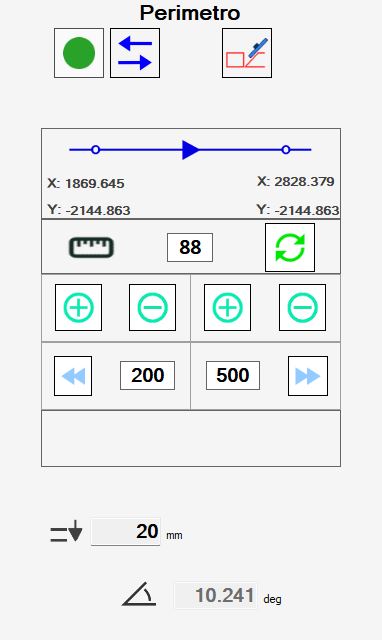
When a disk cut, either linear or arc, is selected, the following panel is displayed:
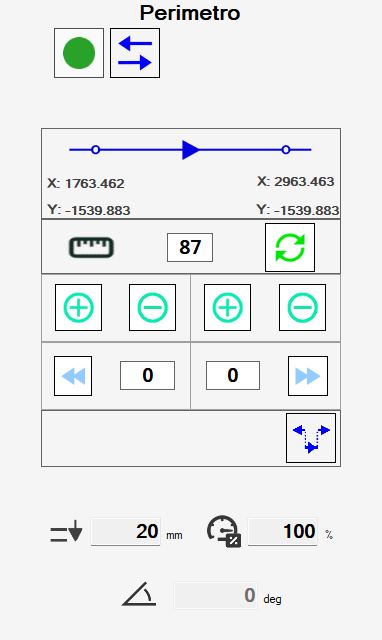
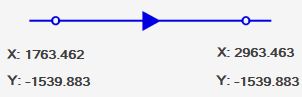
Disk cuts are characterised by a starting point and an end point. The arrows define the direction of travel, from start to end.
The table below shows the buttons that the operator can use to change the cut characteristics:
 | Reverse cut direction |
 | Extension amount |
 | Calculate disk obstruction |
 | Extend cut |
 | Shorten cut |
 | Extend start endpoint to slab edge |
 | Extend end endpoint to slab edge |
 | Extend short cuts |
Some data relating to cut execution are also displayed.
 | Plunge |
 | Speed percentage |
 | Inclination |
Edit the cut from the work area
Selecting a cut in the work area and pressing the right mouse button opens a window for quickly changing the cut.
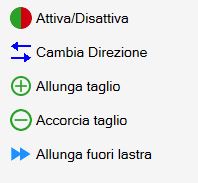
The buttons correspond to the functions already listed. The endpoint of the cut nearest to the point where the button was pressed is extended.
Internal arc cuts
For arc cuts whose curvature faces the inside of the piece, the disk obstruction during working may damage the side and must be taken into account.
For this reason, these cuts must be performed differently from external cuts.
Parametrix provides two modes for cutting internal arcs, selectable using the button at the top right.
 | Inclined arc |
 | Offset arc |
By default, Parametrix recommends setting these cuts to “inclined arc“ mode.
If this is not desired, the execution mode of each cut must be changed individually.
Each working mode has advantages and disadvantages:
Inclined arcs provide a better finish on the final result, which therefore requires less manual finishing work.
However, they place a greater load on the machine, so the working must be performed at reduced speeds and with multiple passes.Offset arcs are less demanding in terms of the load placed on the machine during processing, and can therefore be performed at higher speeds.
On the other hand, the disk obstruction causes greater damage to the material and more material must be removed during manual finishing.
Holes and Milling
Workings such as holes and milling operations allow fewer changes by the operator.
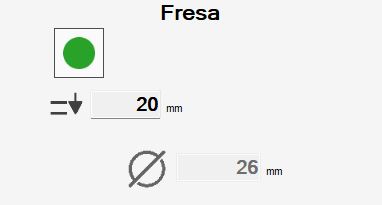
Information is available for:
 | Plunge |
 | Tool diameter |
Rims and Vertex Holes
Corner holes and rims are workings composed respectively of multiple holes and milling operations. When one of these items is selected, a list of all the cuts making it up is displayed.
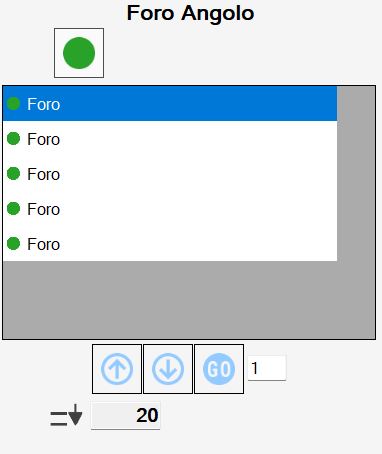
The operator can enable or disable each cut individually using the button on each item in the list, or act on all cuts in the working at the same time using the button at the top.
The buttons below the list allow the order in which the individual cuts are executed to be changed.
 | Move using arrows |
 | Move to desired position |
In addition, the operator can change the working penetration using the field below:
| Plunge |
