

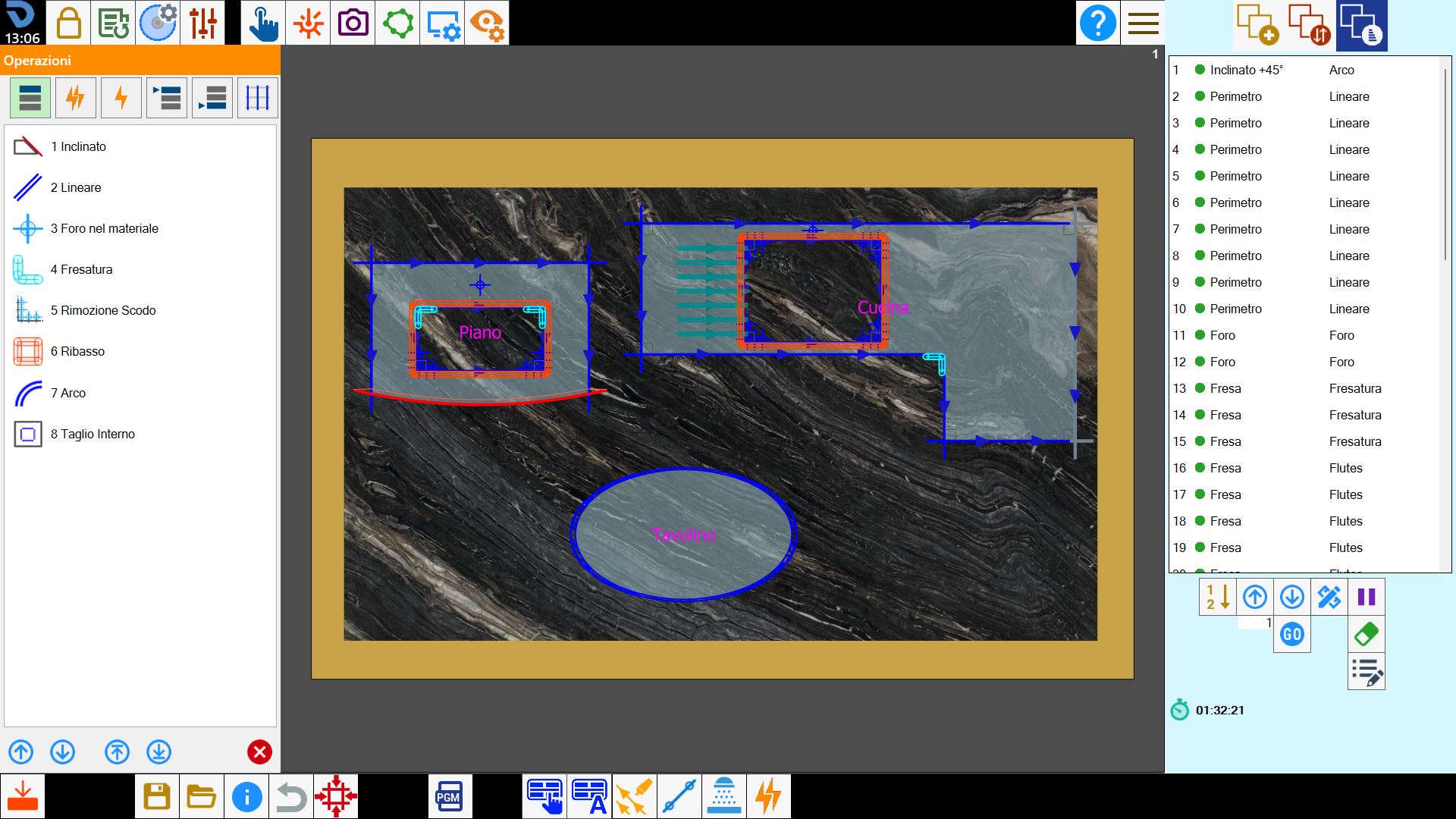
This function allows custom sorting and operations to be applied to the cuts.
Available Operations
 | Sort by working |
 | Macro |
 | Individual operations |
 | Move workings to start |
 | Move workings to end |
 | Sort by cuts |
Working execution order
Allows the operator to select the cut execution order according to the working type used.
The list consists of the workings required to perform the cuts.
Changing the working order also changes the order of the cuts in the list.
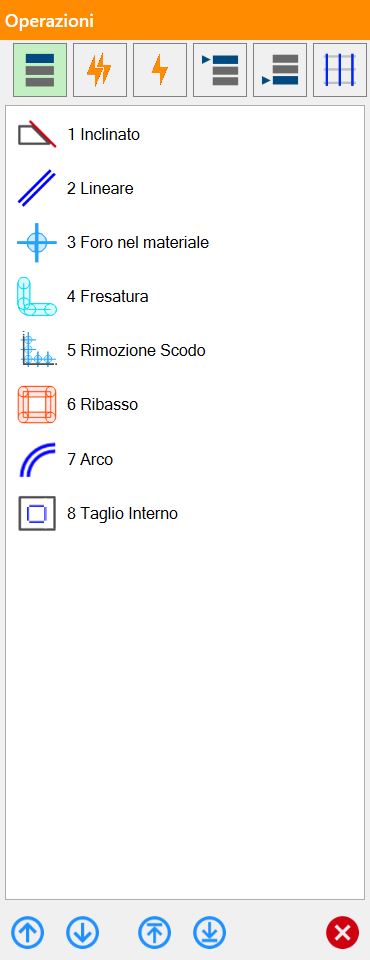
The working types shown in this list refer to those associated with the cuts in the work area.
Different items may therefore be shown.
Bottom bar
The items in the list can be sorted using movement buttons.
 | Move |
 | Go to top/bottom |
Macro
Macros can be defined and applied. Each macro allows the operator to apply advanced cut-sorting options.
Selecting a macro at the top of the panel allows the operator to view all operations contained in that macro.
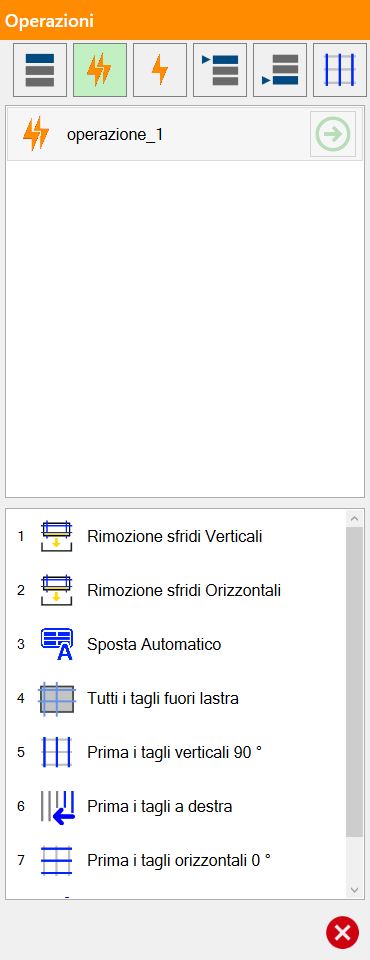
The macros available to the operator can be managed in the user parameters.
Different items may therefore be shown.
Buttons
 | Apply operation |
Individual operations
Some operations can be applied by pressing the green arrow shown to the right of each item in the list.
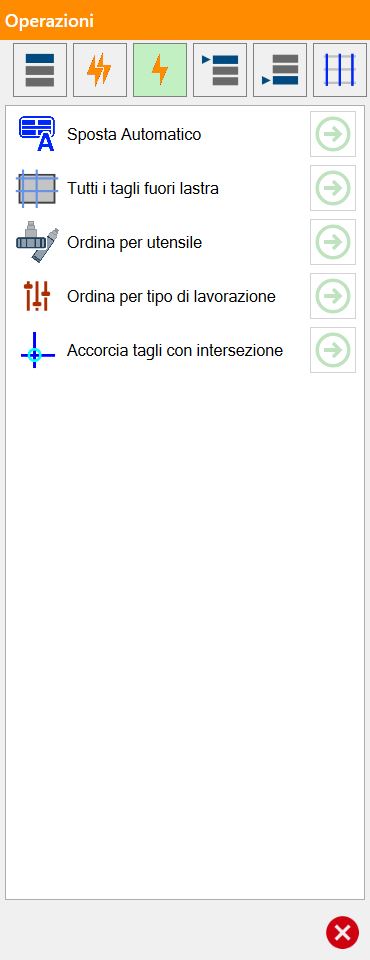
Available individual operations
 | Move auto |
 | All cuts out slab |
 | Order by tool |
 | Order by working type |
 | Shorten cuts with intersections |
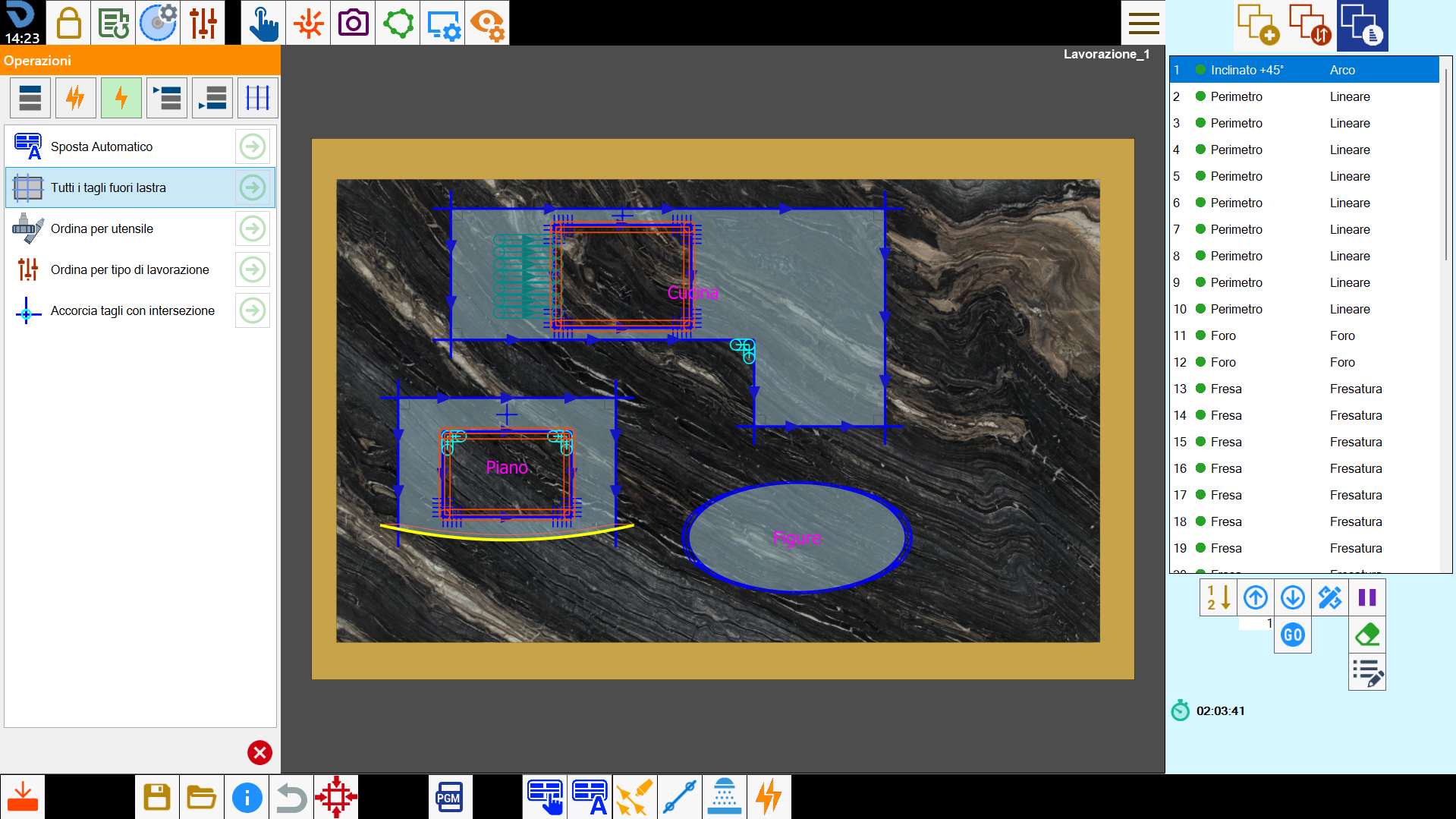
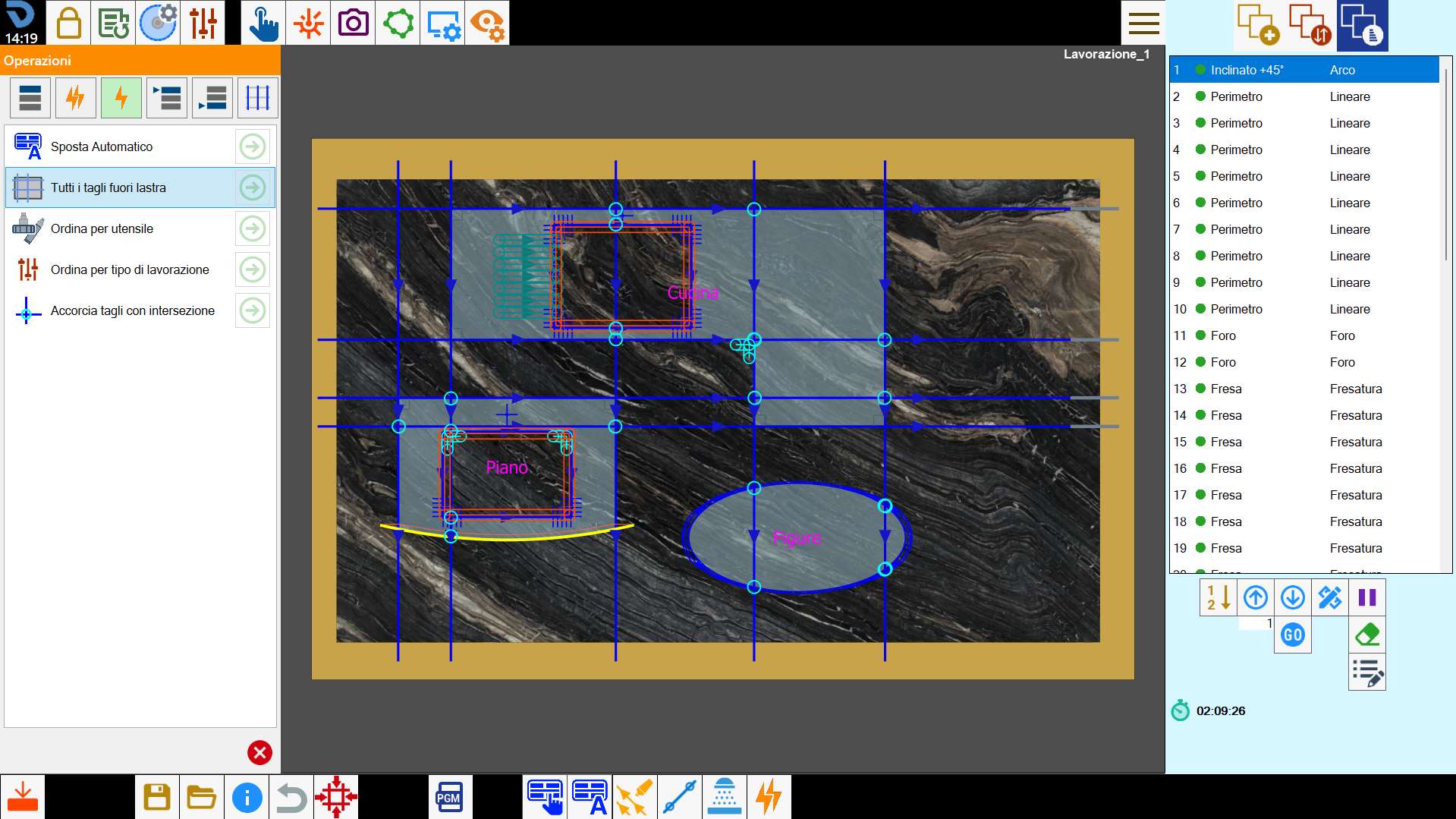
All cuts out slab
The following is an example of the above working before it is applied:
And the result obtained after application:
Shorten cuts with intersections
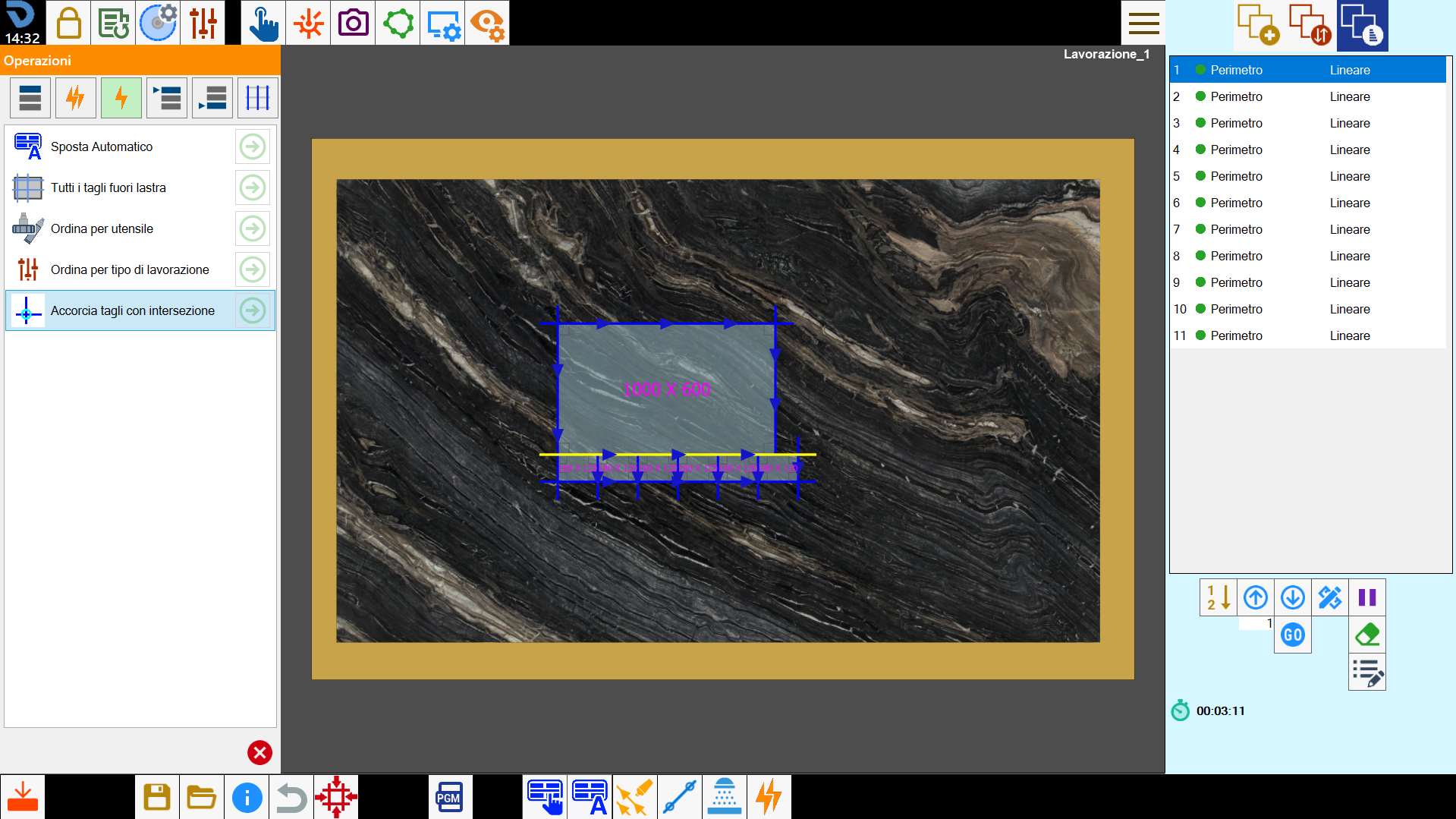
This operation allows the operator to shorten cuts that intersect one another to prevent damage to the inside of a piece.
In the following example image, there are 6 intersections between the piece cuts, shown in the work area by small light-blue circles:
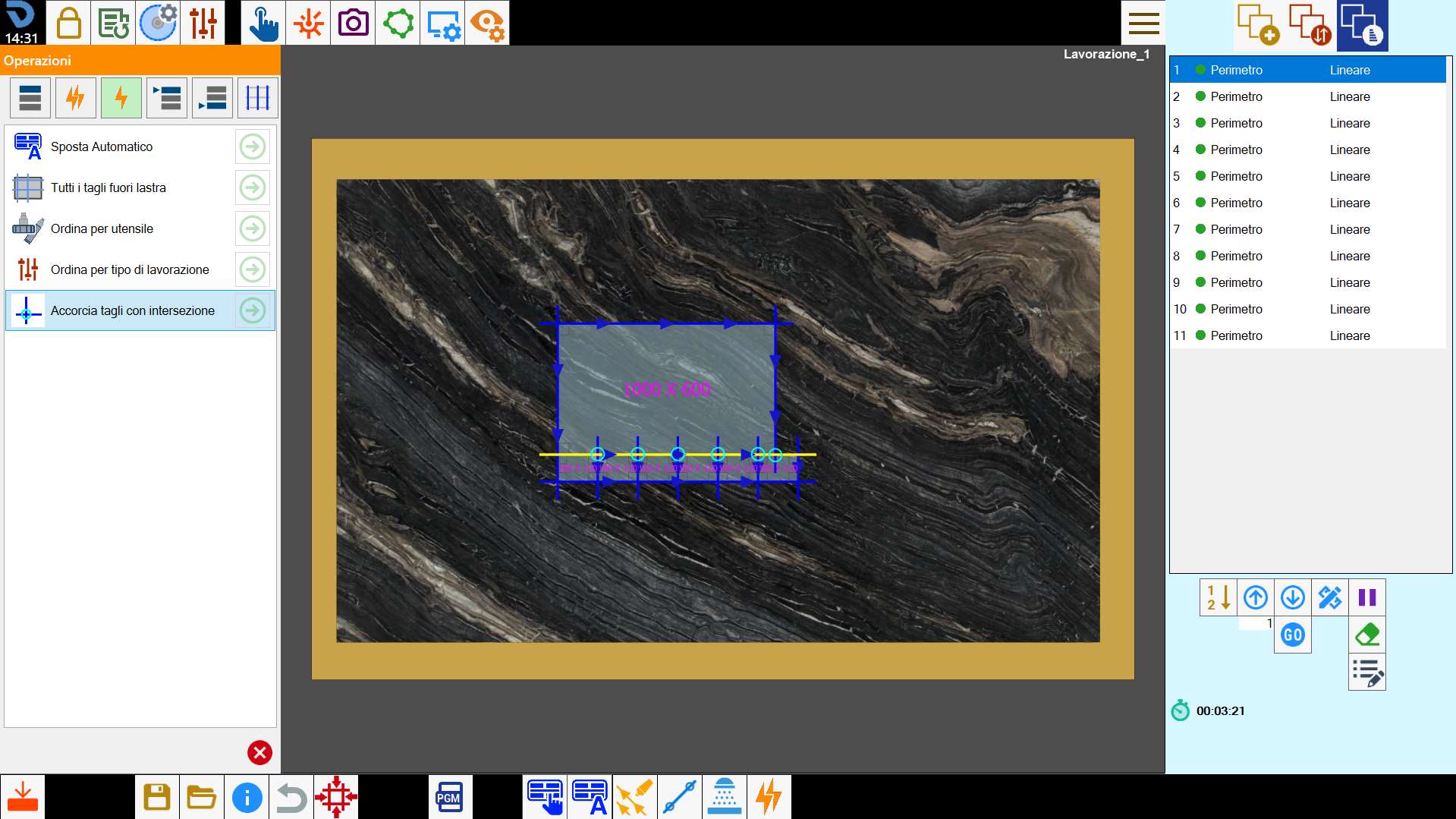
Applying this operation shortens the cuts so as to prevent possible intersections.
Available individual operations (Optional)
The availability of some individual operations can be configured according to how the following options are set.
Unload Piece
When the Unload Piece function is enabled, some specific individual operations become available:
 | Unload pieces |
| Unload all pieces with repetition |
| Unload wireframe with repetition |
Double disk
When the Double disk function is enabled, some specific individual operations become available:
 | Extend cut for double disk |
| Verify for double disk |
Move workings to start
The operator can change the working execution order and place one of the workings shown in this window first.
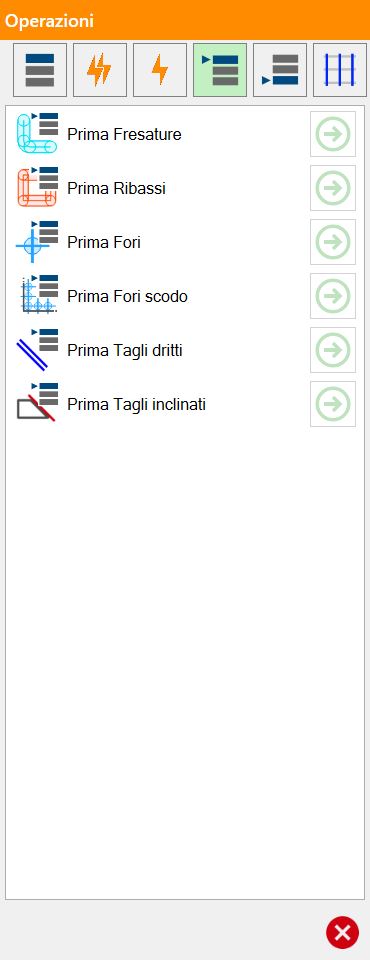
The working types shown in this list refer to those associated with the cuts in the work area.
Different items may therefore be shown.
Move workings to end
The operator can change the working execution order and place one of the workings shown in this window last.
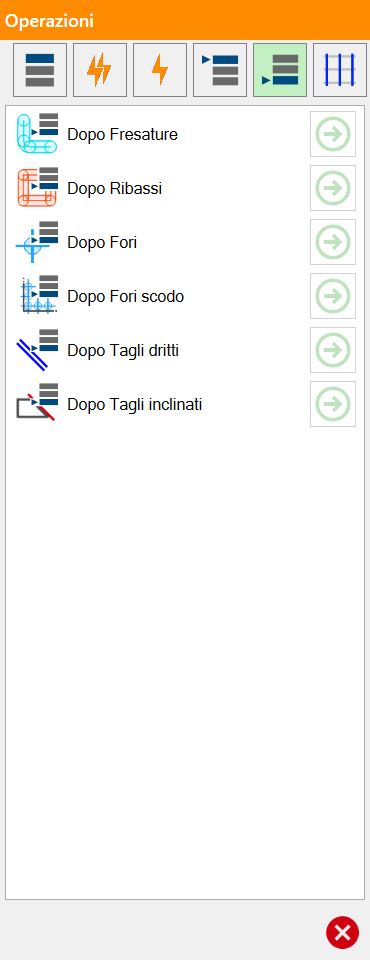
The working types shown in this list refer to those associated with the cuts in the work area.
Different items may therefore be shown.
Sort by cuts
These operations change the order of the cuts in the list according to criteria based on their position in the work area.
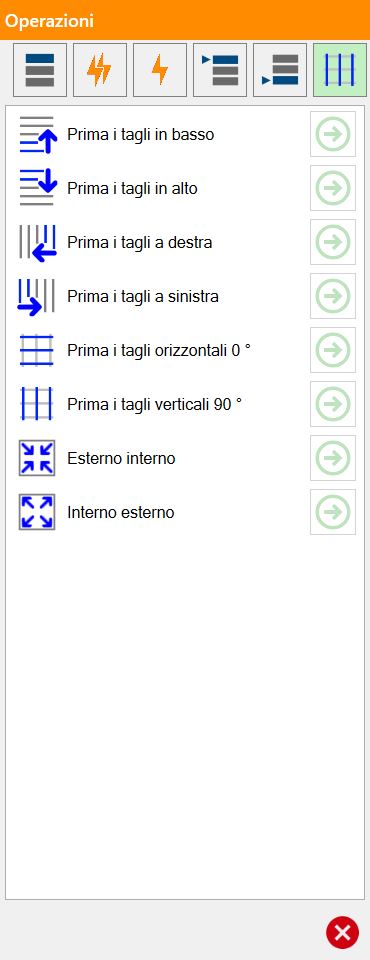
Cut-based sorting operations
 | First bottom cuts |
 | First top cuts |
 | First right cuts |
 | First left cuts |
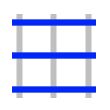 | Horizontal cuts first 0_ |
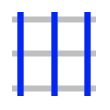 | Vertical cuts first 90_ |
 | First cuts with direction |
 | External internal |
 | Internal external |
