

The following screen allows the operator to manage the machine tools.
Tool type selection
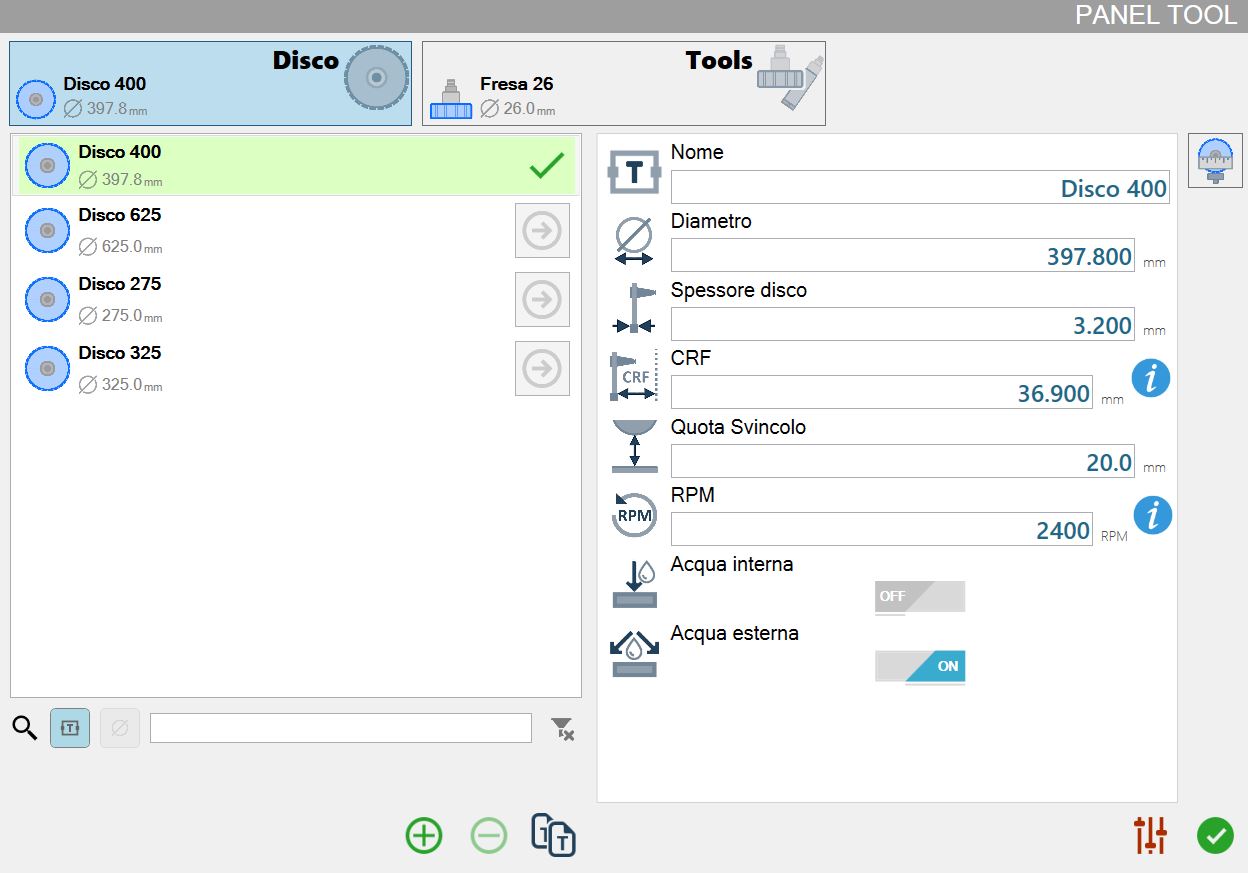
Each tool type has one tool selected, as shown in the following example image:

 | Disk |
 | Tools |
The background of the “Disk” type is light blue because it is the currently selected tool category.
Simply click the rectangle for the desired tool type to update the tool list below with the tools available for that type.
As a result of changing the tool type, it is automatically selected as shown in the previous example image.
List of tools for selected tool type
The tool list shown as an example in the following image contains four disks: “Disk 400”, “Disk 625”, “Disk 2755” and “Disk 325”.
The first disk in the list is the one currently mounted on the machine, indicated by the light green background and green check mark.
The section on the right shows the parameters relating to the selected tool.

List elements
 | Tool type |
 | Main tool information |
 | Force Tool |
Search filter
At the bottom of the tool list is a search bar consisting of the following elements:

The elements that make up the search filter are described below:
 | Search by tool name button |
-20250307-155302.png) | Search by tool diameter button |
 | Cancel applied filter button |
Bottom bar
The bottom bar of the tool list provides functions for adding and removing tools from the list.

 | Add tool |
 | Delete tool |
 | Duplicate tool |
Add tool
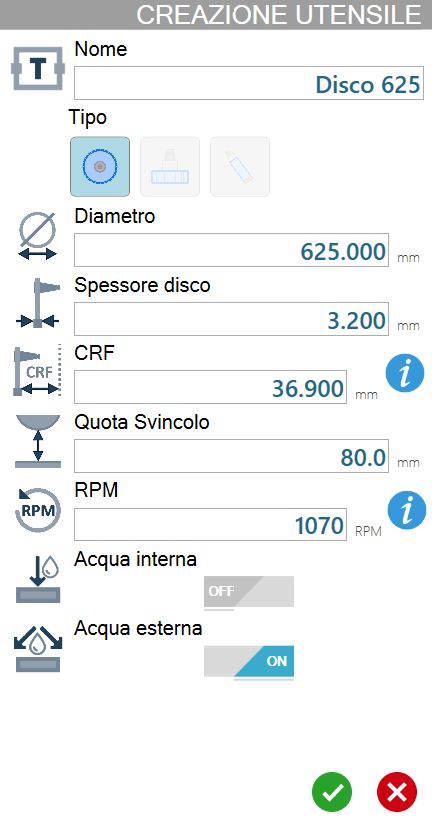
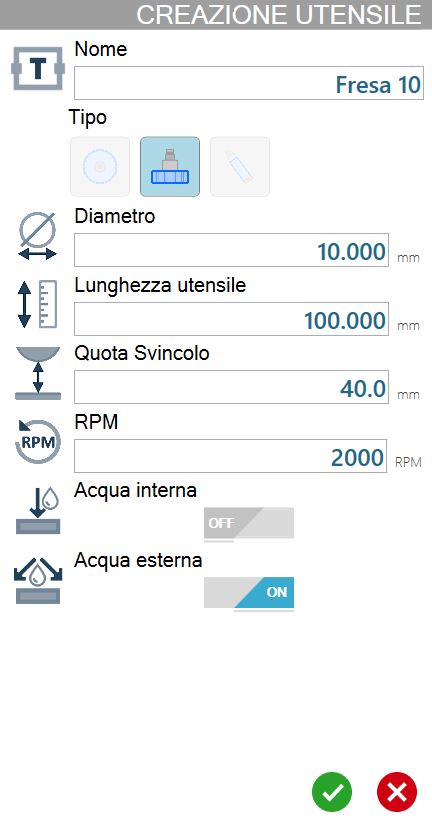
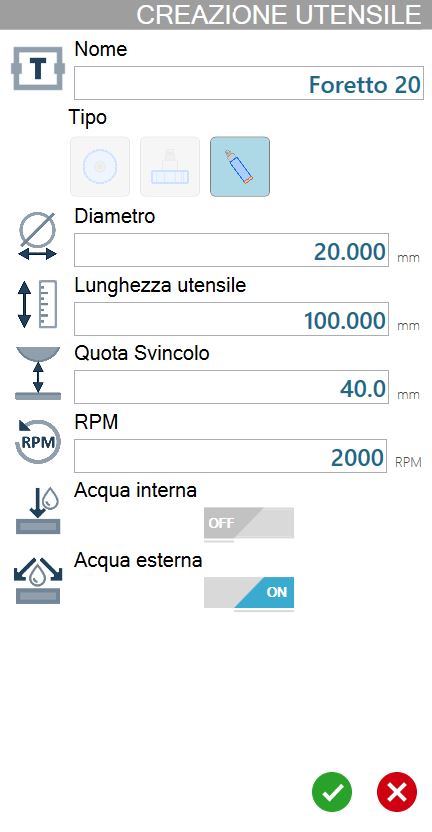
This window is used to create a new tool. The required parameters change according to the type of tool to be created.
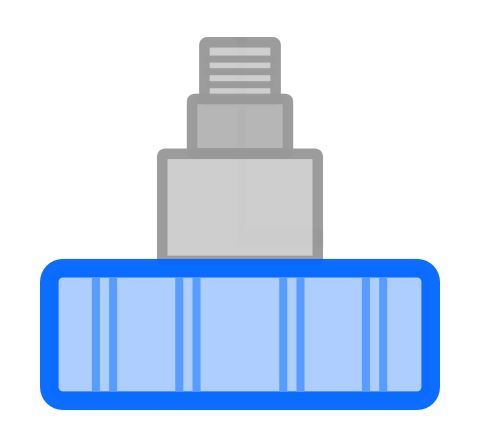
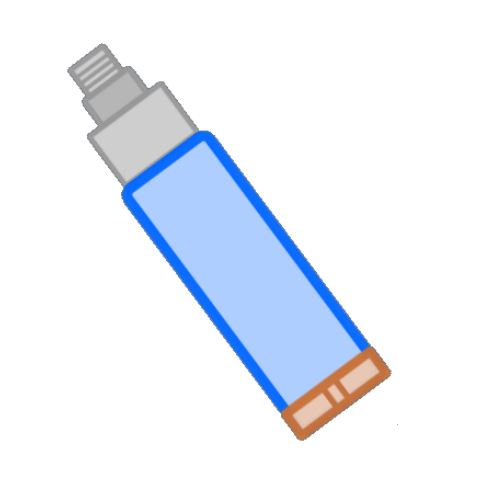
The following image shows the new tool creation window for each available type:
Disk | Milling | Coredrill |
|  |  |
 |  |  |
Parameter list for selected tool
This list shows all parameters relating to the currently selected tool.
Whenever the currently selected tool changes, the operator can view the updated values for the desired tool and edit each value if necessary.
The parameter list and corresponding values are also updated when a different tool type (Disk / Tools) is selected, showing the values of the selected tool for each category.
Disk parameters
The parameters associated with a disk are shown below.
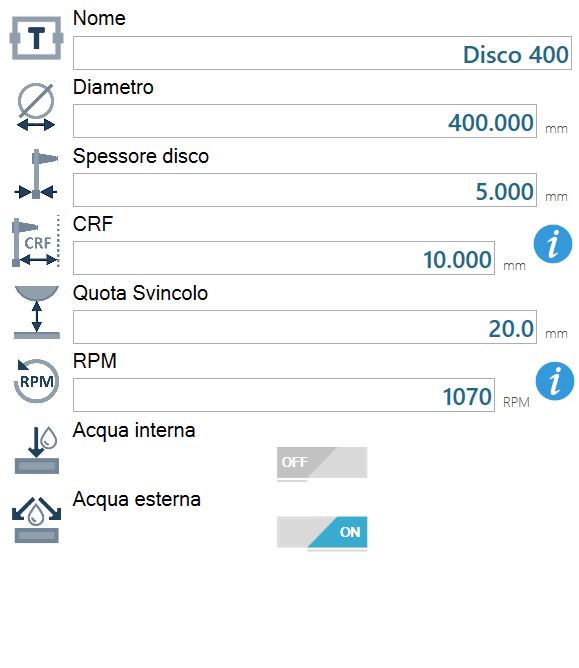
 | Name |
 | Diameter |
 | Disk thickness |
 | CRF - Flange Rotation Centre |
 | Junction Quote |
 | RPM |
 | Internal water |
 | External water |
Disk rotation speed
The following button is located to the right of the RPM parameter:
 | RPM information |
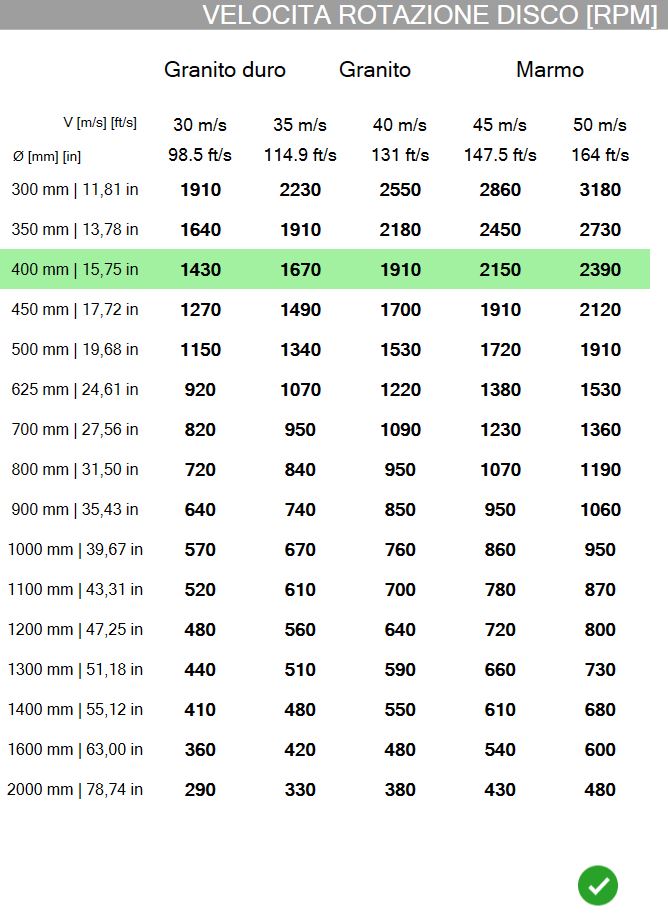
This window displays a table containing rotational speed-to-RPM conversions based on the diameter of the selected disk.
Recommended values for the selected disk are highlighted in green.
Milling cutter and core drill parameters
Parameters relating to tools such as milling cutters and core drills are shown below.
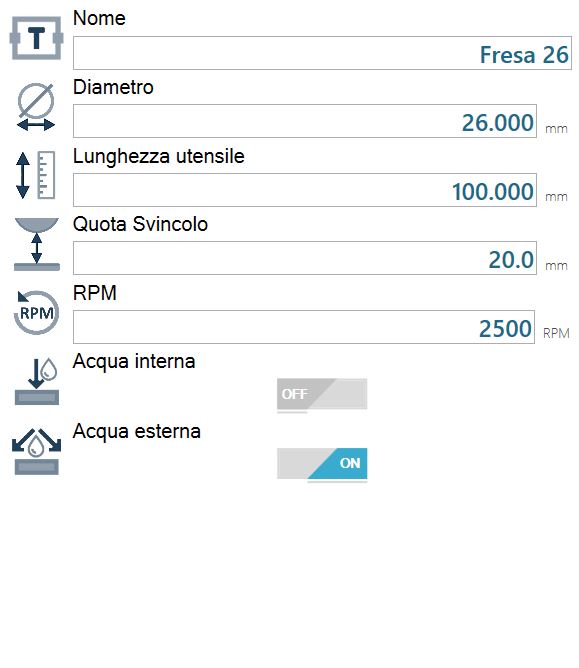
 | Tool length |
Tool probing
If the machine is equipped with the optional tool probing device, the procedure can be activated from this panel.
Starts a cycle that can calculate the diameter for a disk, or the length for milling cutters and core drills.
Buttons
One of the following buttons is located on the right side of the panel.
 | Start disk probing |
 | Start secondary tool probing |
The disk probing button is available only in the “Disk” section of the panel.
The secondary tool probing button is available only in the “Tools” section of the panel.
Procedure
To measure the diameter of the disk or the length of the core drill/milling cutter currently mounted on the machine, press the corresponding button in the right section of the panel.
At the end of the cycle, the program automatically updates the data corresponding to the probed tool measurement.
Other Buttons
The following button is located at the bottom left of the screen:
 | Switch to “Slab working parameters” panel |
