Donatoni Macchine
Machine technical documentation Operational document

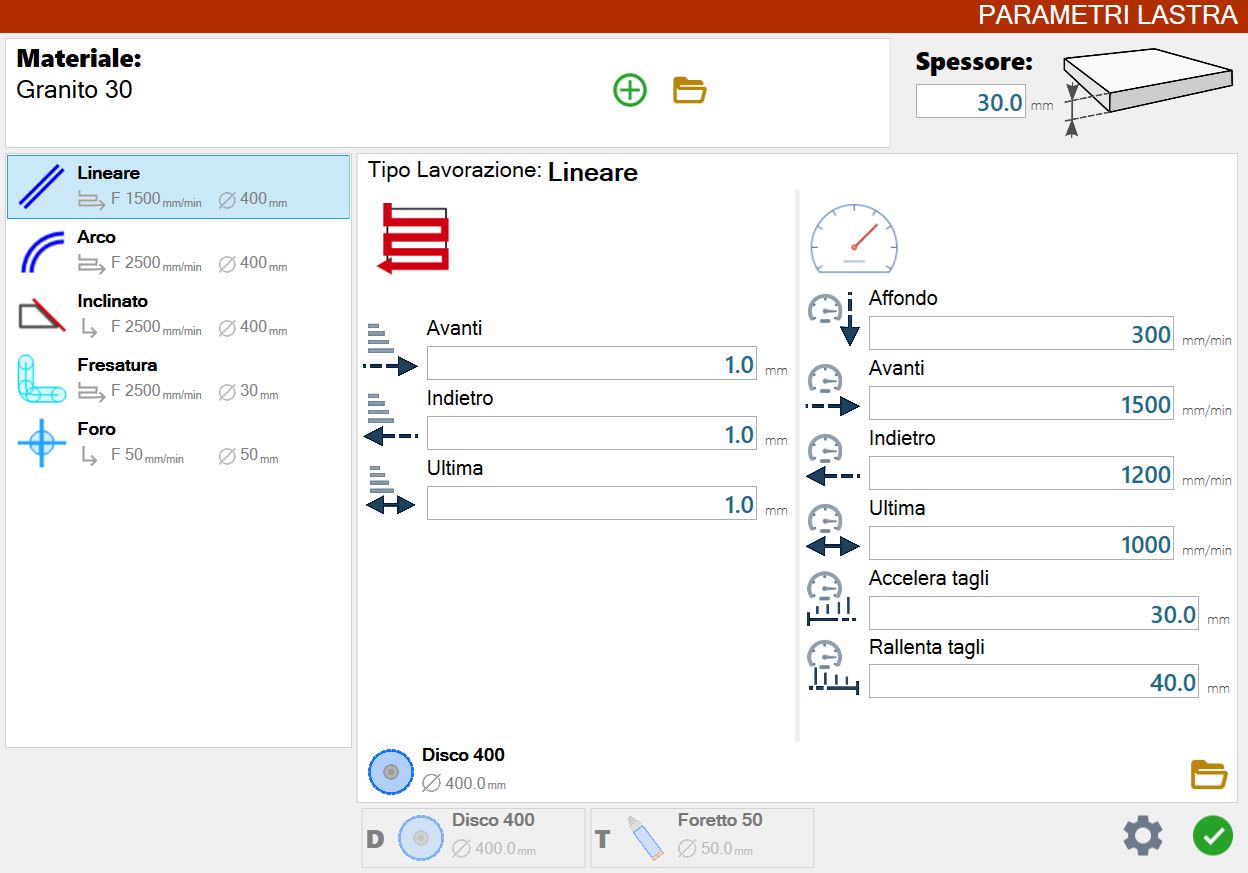
When the “Slab Parameters” panel is opened, the working parameters screen is displayed, allowing the operator to manage working data.
Working data can be set and edited using the parameters panel.
FinestraParametriLastra_B-20250325-122554.png

Selected material management

At the top of the “slab working parameters” panel are several elements for managing materials:

barra_materiale_e_spessore-20250715-054752.png

The elements that make up this section of the slab working parameters are described below.
materiale-20250715-054838.png

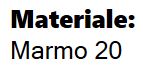
Selected Material
Displays the name of the currently selected material.

__B-20250320-154920.png

Create new material button
Pressing this button opens a window for creating a new material.
The corresponding window is shown below.

Apri-20250320-154953.png

Button open Materials Management panel
Pressing this button opens a window for managing the available materials.
The corresponding window is shown below.

materiale_spessore-20250715-054920.png

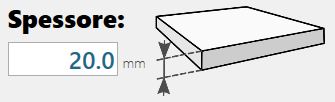
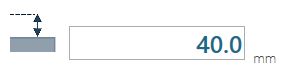
Selected material thickness
The value in this field shows the thickness of the selected material.
This value is essential for all calculations performed by the program.

Add a new material

This small graphical window allows the name of a new material to be entered:
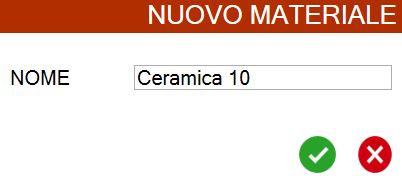
image-20250325-122740.png

If creation of the new material is confirmed, it is selected automatically.
The material parameters and thickness are updated accordingly.

Open materials management panel

Materials can be managed from this panel:
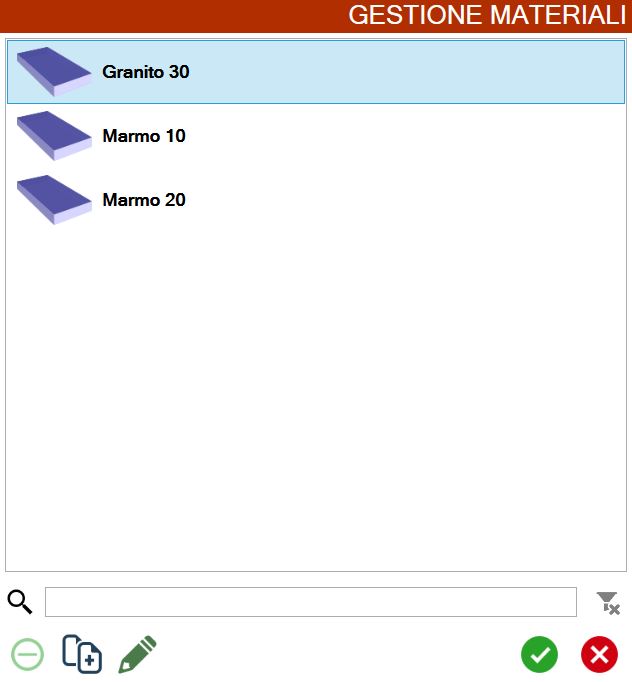
image-20250325-122848.png
1C-20250314-152532.png

Search bar
The text bar immediately to the right of this icon can be used to apply search filters based on the names of the available materials.

2C.png

Remove filter
This button is enabled only after a filter has been applied; pressing it removes the applied filter.

3C.png

Remove material
This button deletes a material from the list.
A material can be deleted only if it is not the currently selected material (this is visible and highlighted in the first image in this section).
An additional confirmation pop-up allows the material to be deleted.

4C.png

Duplicate material
This button duplicates the material selected in the list and its corresponding parameters.

5C.png

Edit Material
This button edits the parameters of the material selected in the list.

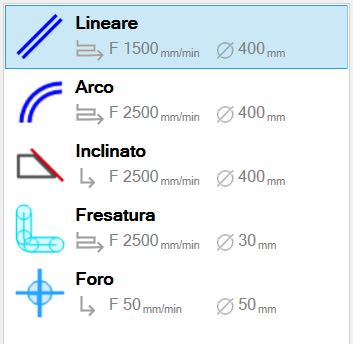
Working type selection

The selected working type controls the contents of the parameter management window.
0.png

For each working type, the corresponding preview shows the selected increment mode, the forward cutting speed (plunge / entry speed for the Hole working type), and the tool diameter.

Pass type

NoStep_D-20250829-061915.png

Full Pass
Full Pass performs the entire working in a single pass. The tool therefore enters the full depth of the material immediately and performs the working.

passate_a_spirale_e_a_step_D-20250613-061504.png

Step / spiral pass
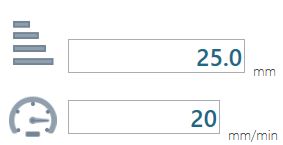
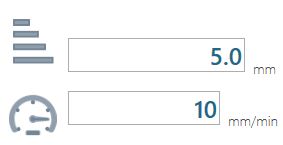
These passes do not enter the material to full depth immediately, but gradually.
This means that the working is performed several times at different heights until the bench quote (end of material) or the selected height is reached.

Working types

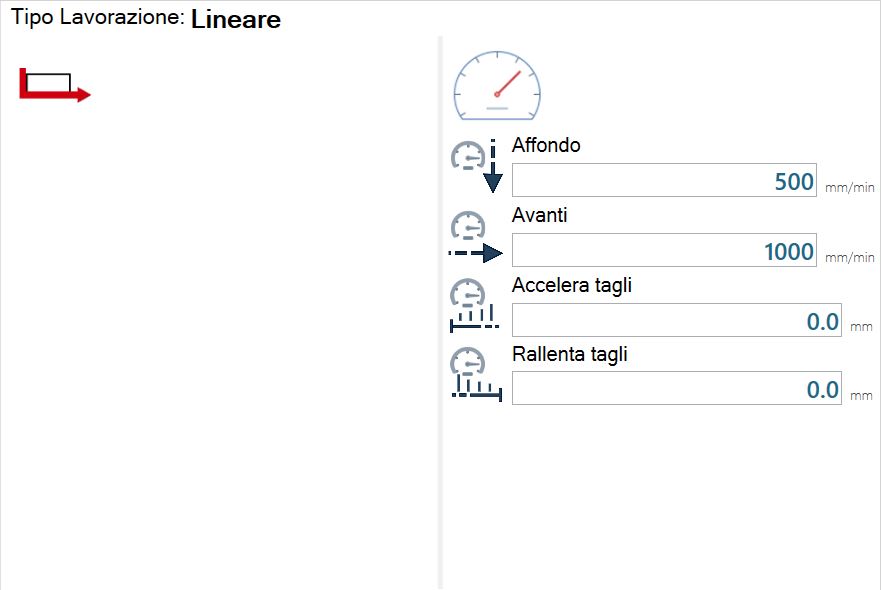
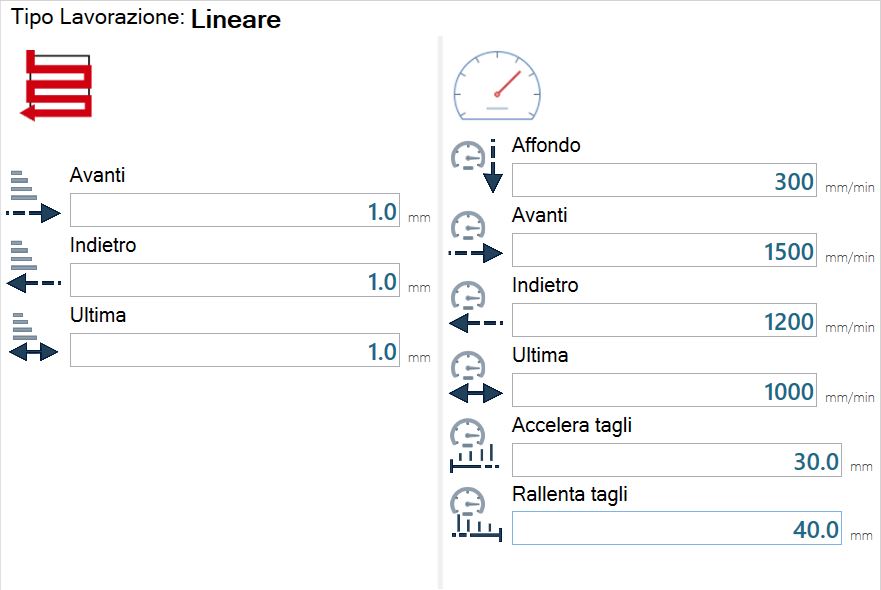
Linear

1B-20250314-145227.png

Full pass

TipoLavorazione1_Lineare_PassataPiena.png

Step pass

TipoLavorazione1_Lineare_PassataStep.png

Increment parameter description

Inc_Avanti_B.png

Forward
Indicates the cutting depth in the material when the machine cuts in the direction of disk rotation.

Inc_Indietro_B.png

Back
Indicates the cutting depth in the material during the cutting phase in the direction opposite to the tool direction.

Inc_Ultima_B.png

Last Step
Indicates the cutting depth of the last tool pass through the material. This cut is always in the direction opposite to the disk movement.

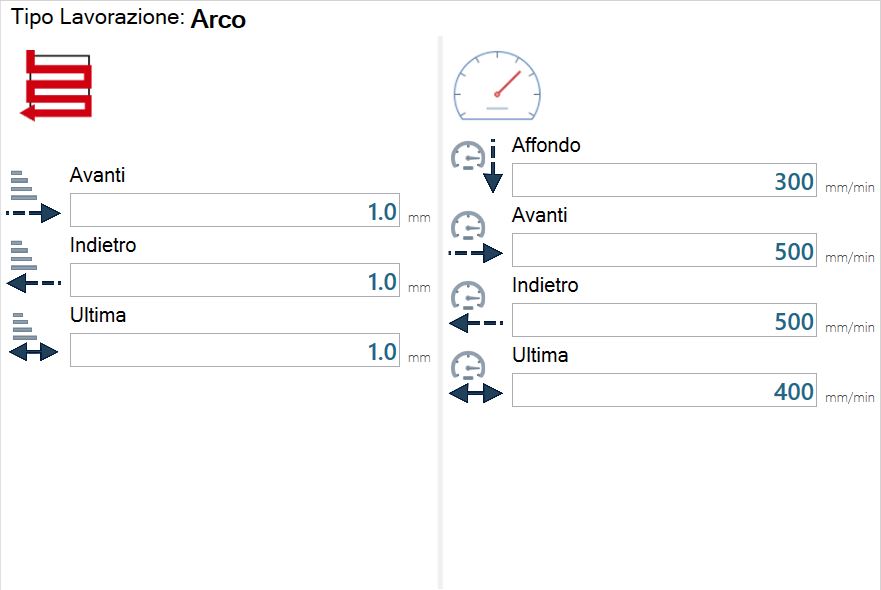
Speed parameter description

Vel_Affondo_B.png

Plunge
Determines the speed during the tool penetration phase into the material.
This value is expressed in millimetres per minute.

Vel_Avanti_B.png

Forward
Indicates the desired speed for the forward cutting phase.
This value is expressed in millimetres per minute.

Vel_Indietro_B.png

Back
Indicates the desired speed for the return cutting phase.
This value is expressed in millimetres per minute.

Inc_Ultima_B.png

Last Step
Indicates the speed the machine must maintain on the cut during the last pass.
This value is expressed in millimetres per minute.

Vel_AcceleraTagli_B.png

Acceleration cuts
If this parameter is set to a value greater than zero, the disk rotation speed is progressively increased from the start of the cut up to the specified distance.
The rest of the cut is then performed at full speed.

Vel_RallentaTagli_B.png

Slow down cuts
If this parameter is set to a value greater than zero, the disk rotation speed is progressively reduced starting from the set distance from the end of the cut until the end of the cut.

NOTE

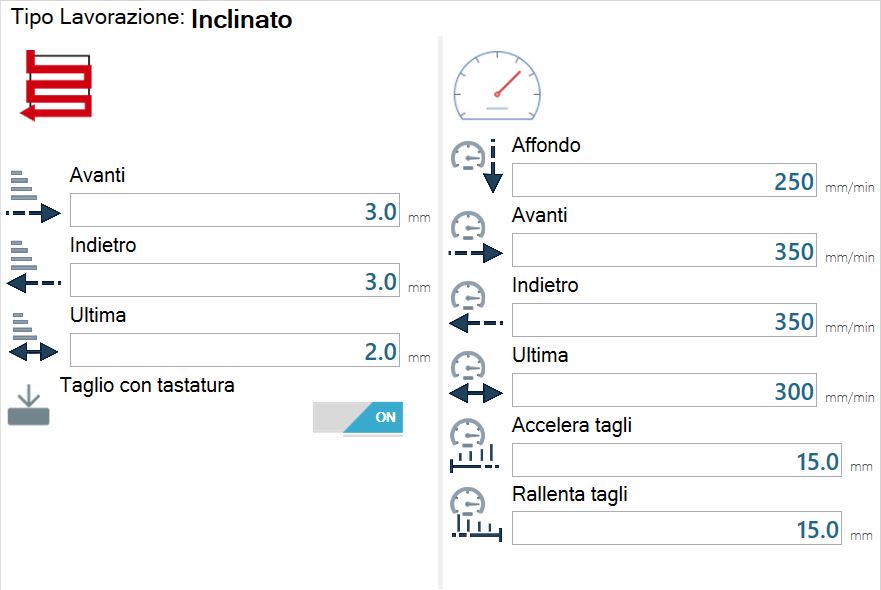
With regard to increments and speeds, the “Back” and “Last” parameters may both be present, neither may be present, or only one of the two may be present.
These choices are normally made when the program is installed and are determined according to the customer's working requirements.
These options can be changed if a different working method is preferred by contacting Donatoni Assistance.

Arc

TipoLavorazione2_Arco_B.png

Step pass

TipoLavorazione2_Arco_PassataStep.png

Miter cut

3B-20250314-150104.png

Full pass

TipoLavorazione3_Inclinato_PassataPiena.png

Step pass

TipoLavorazione3_Inc_B.png

Increment parameter description

Inc_TaglioConTastaturaOff_B-20250314-064648.png
Inc_TaglioConTastaturaOn_B.png

Cut with probing (enabled / disabled)
If enabled, before the miter cut is executed, two measurements are taken with the slab probe at the ends of the required cut and their average is calculated.
This value is used while machining the miter cut.

Milling

TipoLavorazione4_Fresatura_B.png

Full Pass

TipoLavorazione4_Fresatura_PassataPiena.png

Step pass and spiral pass

TipoLavorazione4_Fresatura_PassataStep.png
TipoLavorazione4_Fresatura_PassataSpirale.png

Hole

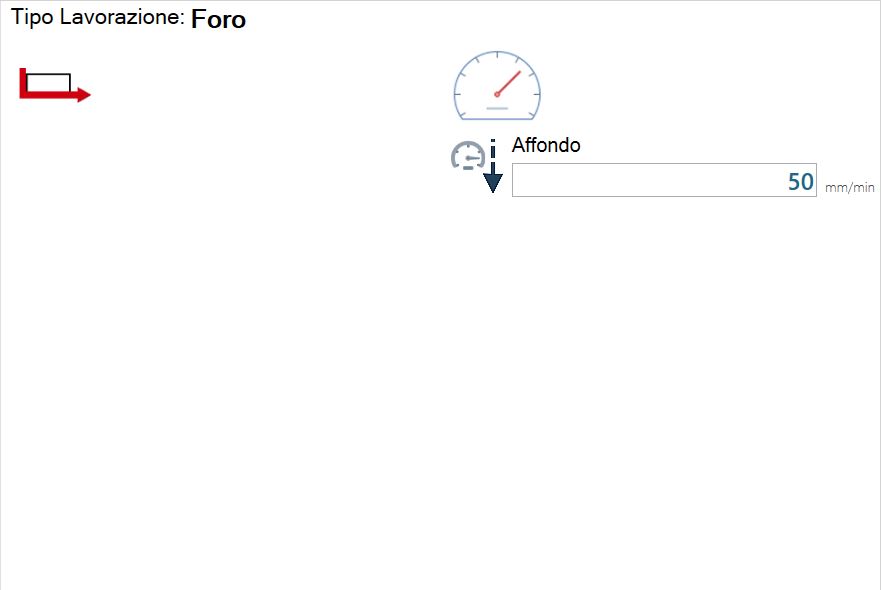
TipoLavorazione5_Foro_B.png

Full pass

TipoLavorazione5_Foro_PassataPiena.png

Step pass

TipoLavorazione5_Foro_PassataStep.png

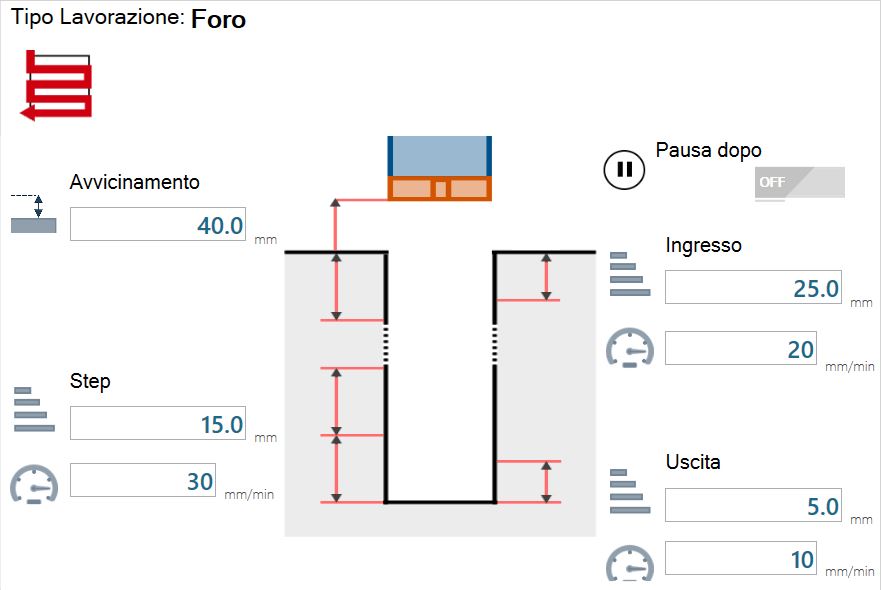
Executing a working with step pass:

  • The machine approaches the material at maximum speed until it reaches the distance from the material specified in the APPROACHING parameter.

  • The number of steps is calculated as:

    • Material thickness divided by step thickness

      • rounded up if necessary

  • The machine starts moving at working speed.

    • If the ENTRY STEP parameter is set (different from and greater than zero), the machine works at the speed set in the second ENTRY field until the distance set in the ENTRY STEP field is reached.

  • The machine executes the steps calculated in the second point at the Step speed.

  • After each step (including the first), the machine returns to the material position at maximum speed, then returns at maximum speed to a short distance before the start of the next step.

  • If the EXIT STEP parameter is set (different from and greater than zero), the machine works at the speed defined in the second STEP field until the distance defined in the first EXIT field is reached.

    • The remainder of the step is performed at the EXIT speed.

Description of Hole parameters with step pass
ParForo_Avvicinamento_C.png

Approach position
The machine approaches the material at maximum speed until it reaches the distance from the material set in this parameter. From this point, the core drill starts moving at working speed.

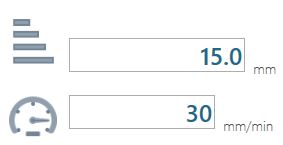
ParForo_2B.png

Step
These parameters define the working step thickness and working speed. The number of working steps is also calculated based on the working step thickness and the material thickness.
For example, for a material thickness of 20 mm, if the user sets the parameter to 3 mm, the hole is made in 7 steps.

ParForo_1B.png

Way in
If this value is set to a value other than 0, an interval is defined starting from the first step and, if applicable, for subsequent steps, during which the machine works at a speed different from that defined in “STEP”.

ParForo_3_B.png

Exit
If this value is set to a value other than 0, an interval is defined starting from the last step and, if applicable, for previous steps, during which the machine works at a speed different from that defined in “STEP”.

ParForo_PauseOn_B.png
ParForo_PauseOff_B.png

Pause after
If this parameter is enabled, the machine pauses after each hole is completed to allow the operator to check for any material residue trapped inside the tool.
The operator must press the START button again to allow the program to continue.

Change of cutting parameters

The parameters previously described for the disk, milling cutter and core drill can be changed if the user is authorised to use them.

image-20250314-151025.png

To select the tool whose parameters are to be changed, press one of the buttons visible on the right side of the “Select tool” panel.

BottoneApri.png

Change cutting parameters
Provides access to the screen for changing the cutting parameters of the selected tool.

Pressing this button displays a window containing a saved parameter configuration for each available material. The results also depend on the selected working type.

A “Change Cutting Parameters” window similar to the following example image is opened:
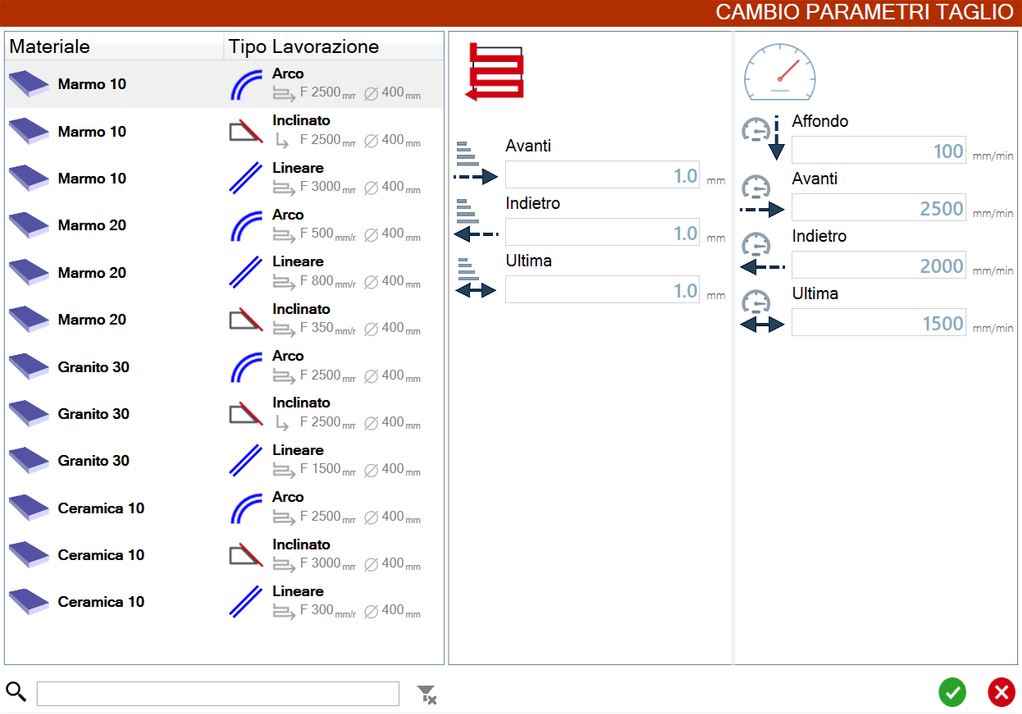
image-20250325-123240.png

At the bottom left of the “Change Cutting Parameters” panel is an initially empty text bar that can be used to apply a search filter.
The button to the right of the bar is enabled only when text is present in the bar and a search filter is therefore applied. Pressing it clears the filter and the text bar.

Bottom bar

The bottom bar of the Slab Parameters panel appears similar to this:

Elemento_6_BarraInferiore_E-20250828-125415.png

This bar consists of the following elements:
Elemento_6_BarraInferiore_E_1-20250828-125722.png

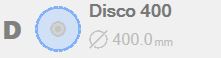
Disk preview
Displays the disk tool currently mounted on the machine.

Elemento_6_BarraInferiore_E_2-20250828-125750.png

Milling cutter/hole preview
Displays the milling cutter or core drill tool currently mounted on the machine.

Elemento_6_BarraInferiore_E_2_b-20250320-064243.png

Tool Panel
Pressing this button provides direct access to the Tool Panel.

;