

This section describes the “Image Template” optional feature, which allows a background and watermarks to be configured and displayed when the slab is saved. This optional feature can be requested from our technician during the initial installation.
When this optional feature is enabled, the “Homepage” screen is displayed as follows:
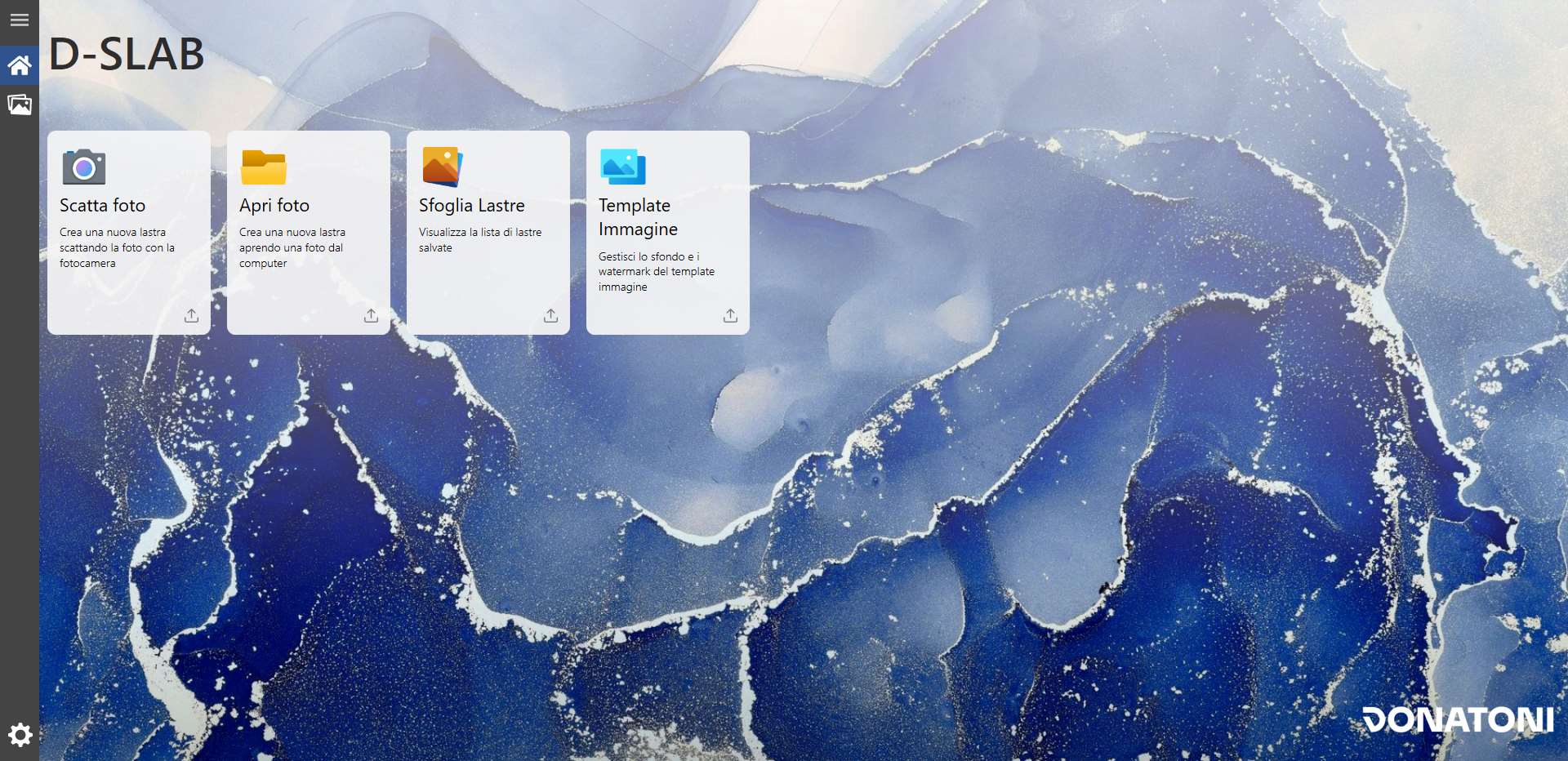
Card
A new selectable card is now available:
 | Image Template |
Window
When the window opens, the following screen is displayed:
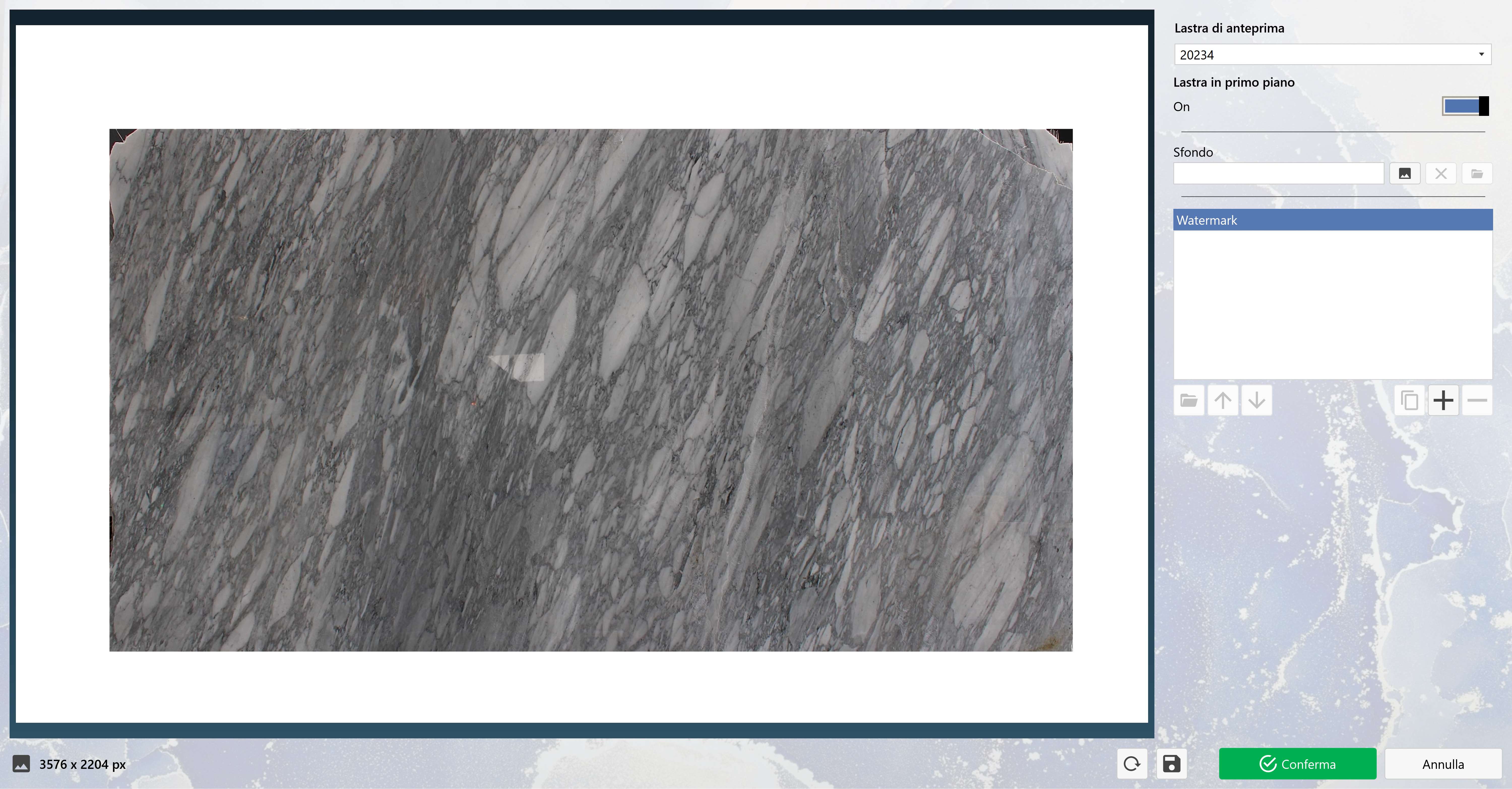
The screen is divided into several sections:
Template Preview
The preview section displays a selected slab with the base background. The image can be modified using the Add Images section on the right.
This section is for display purposes only.

Slab Settings
The preview slab can be managed in this section using the following parameters:
 | Preview Slab |
 | Slab in Foreground |
Add Images
Images can be added to the template in this section.
Background

The buttons on the right can be used to perform actions on the image background:
 | Select Background |
 | Remove Background |
 | Open Folder |
Watermark
Images can be added above the background in this section so that they appear in the image.
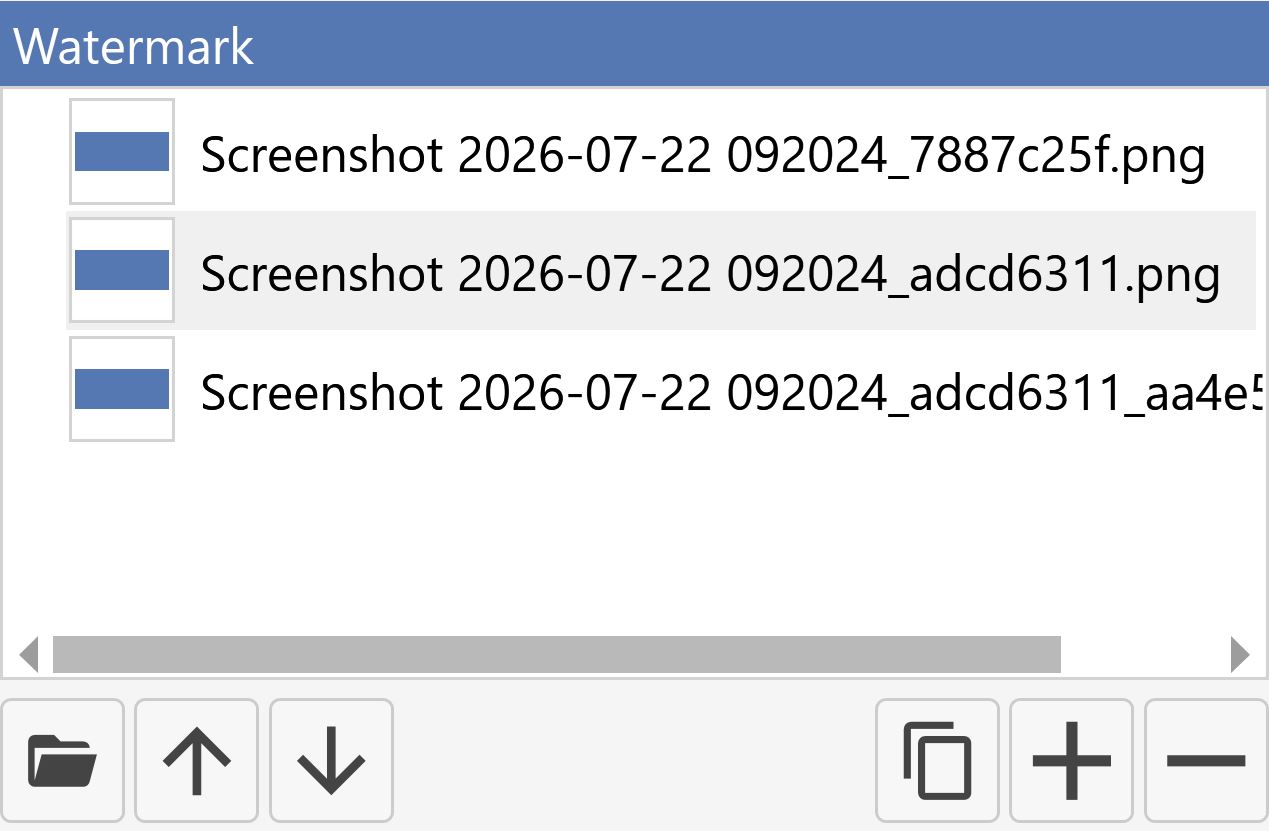
The buttons in the lower section can be used to perform various actions:
 | Add |
 | Remove |
 | Clone |
| Open Folder |
 | Move |
Watermark Properties
This section is displayed only when a watermark is selected from the list and allows its settings to be modified.
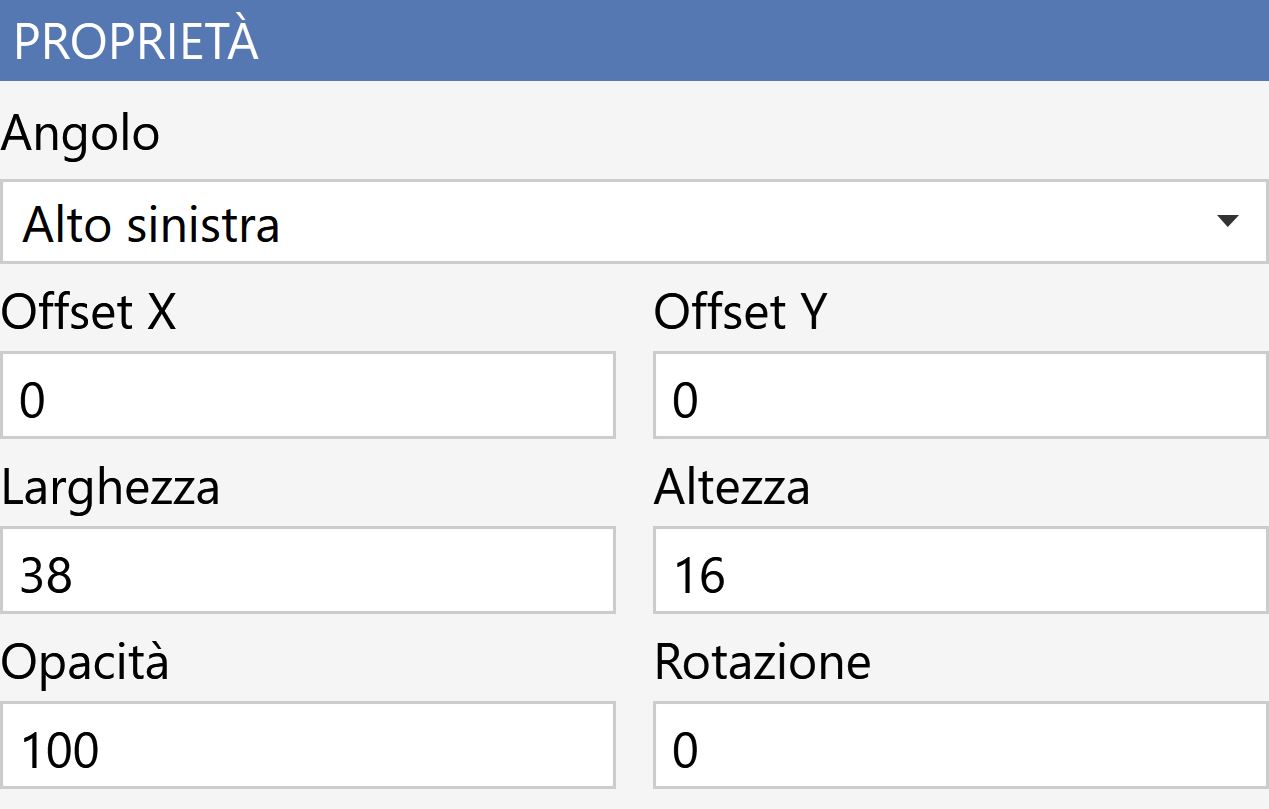
Corner | Sets the image corner from which the offsets are measured. |
X/Y Offset | Sets the X and Y distance of the watermark from the selected corner. |
Width/Height | Sets the width and height of the watermark. |
Opacity | Sets the watermark opacity. |
Rotation | Sets the watermark rotation. |
Lower Section
The lower section manages all actions for the entire screen, from confirmation to changes.

 | Reset |
 | Save |
