

View, create and edit recipes for piece working through this page.
The actions on recipes are managed in the panel on the left side, which contains the recipe list, while the main view window is used to display:
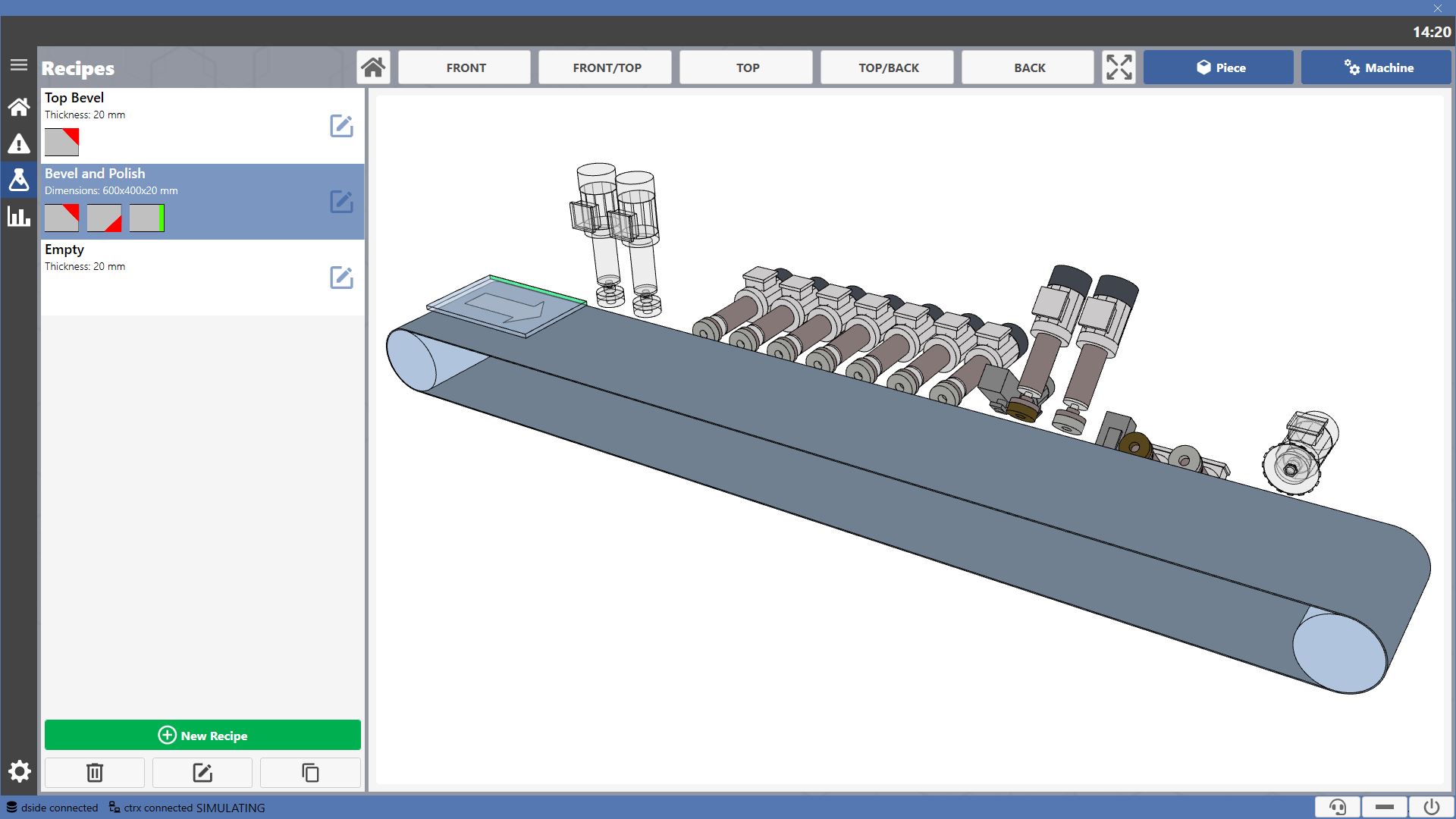
The machine with highlighted active working groups.
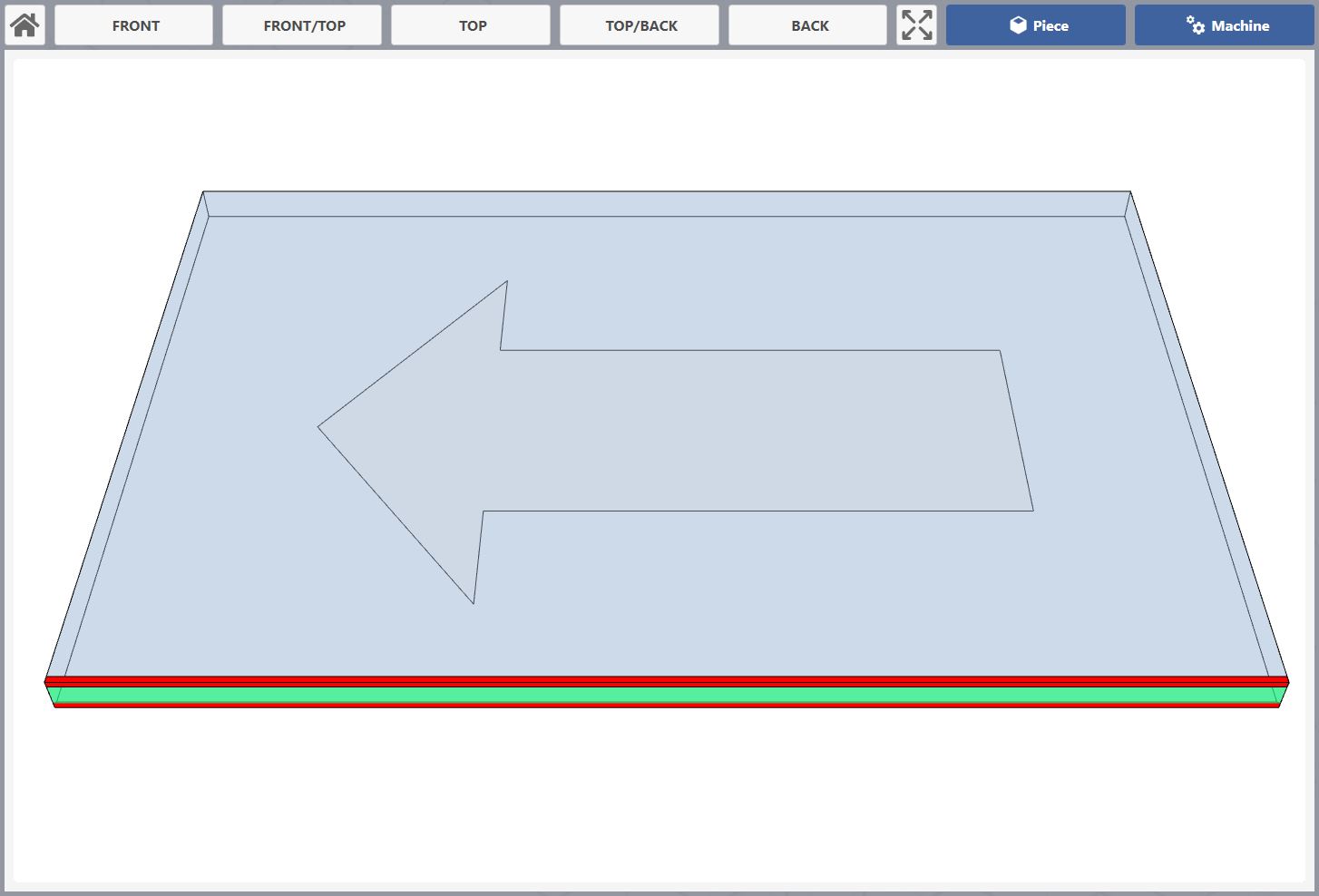
The selected piece with the applied workings highlighted.
Preview
This section is used to display the selected recipe. The operator can choose whether to show the machine elements that will be used for those workings or a preview of the resulting piece.
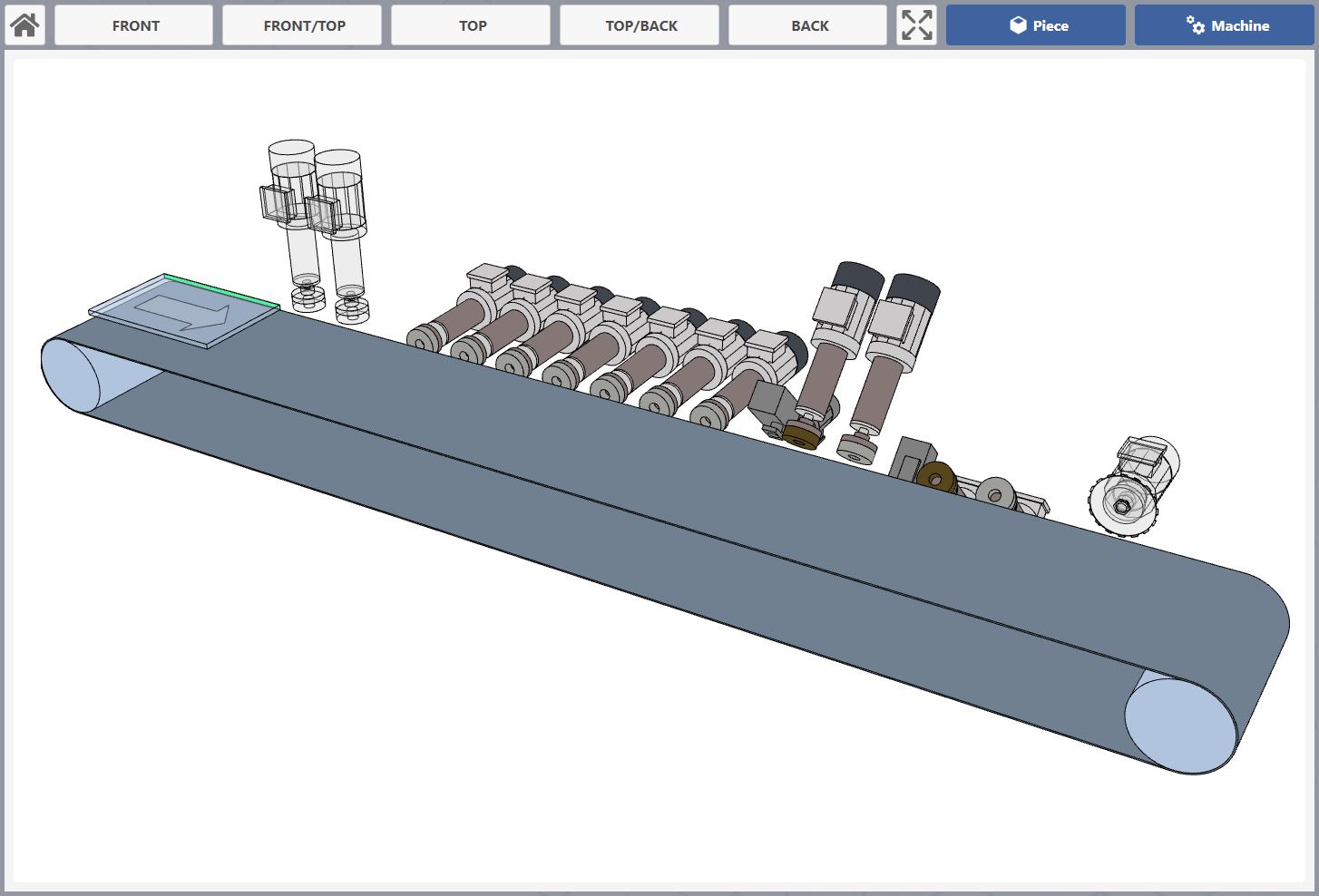
The bar located at the top allows interaction with the angle of the preview camera. The blue buttons instead, allow the operator to select the model to display in the preview.
 | Piece view |
 | Machine View |
Selecting 'Piece' displays the selected piece in the recipe list with its workings.
Recipe Panel
This panel allows selecting recipes for viewing and managing their creation, deletion, copy and editing.
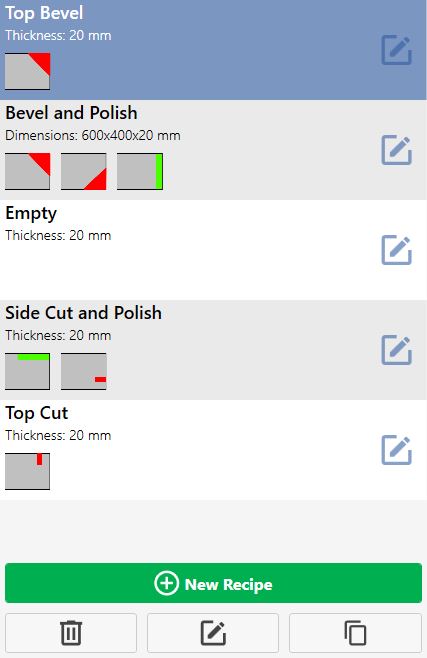
Each entry in the list displays the recipe name, the dimensions of the piece to be worked, and the workings defining it.
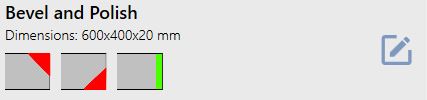
Manage the list recipes with the buttons at the bottom.
 | New Recipe |
 | Delete Recipe |
 | Edit recipe |
 | Copy Recipe |
New Recipe
Pressing the 'New Recipe' button opens the panel for creating a new recipe.
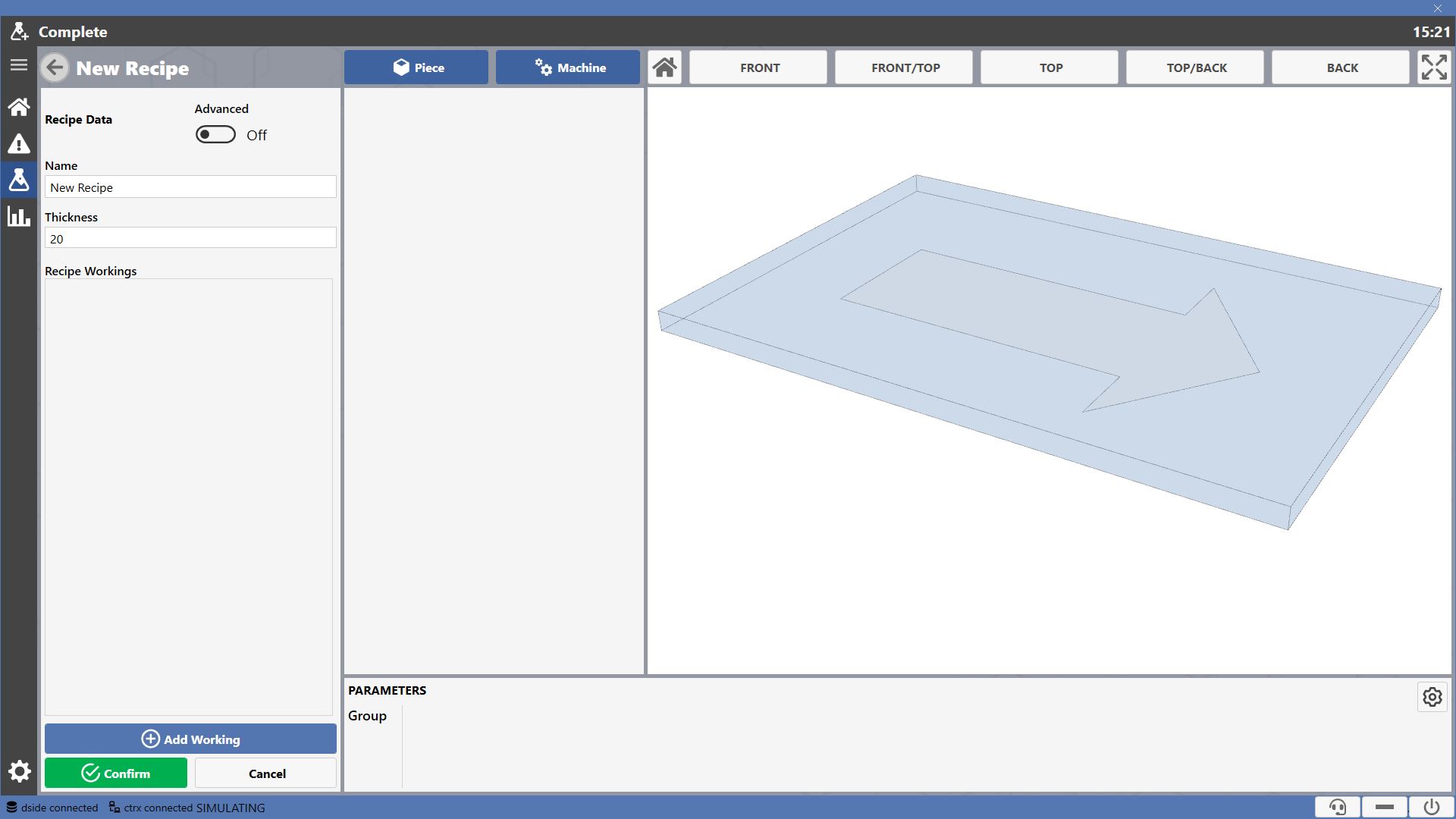
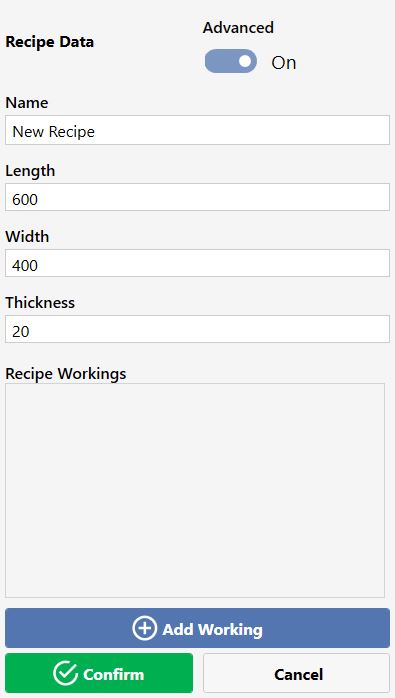
Recipe Data
Through this section it is possible to insert the main information for the new recipe, and add workings.
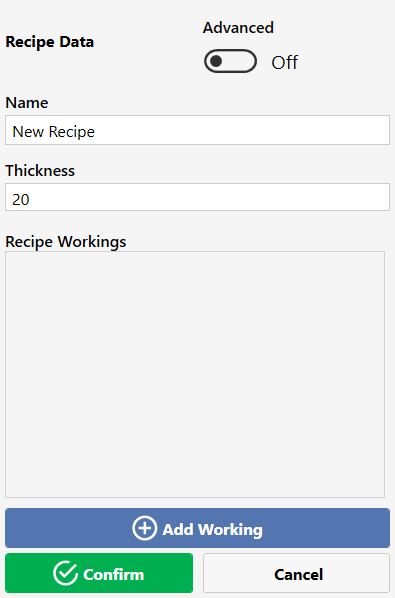
 | Name |
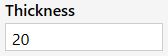 | Thickness |
The operator can use the button located at the top right to enable the advanced recipe.
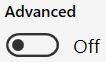 | Advanced settings |
Advanced recipe settings allow inserting, in addition to thickness, recipe length and width, and in case of non-through workings, to specify different references for the start and end of the working.
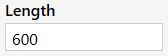 | Length |
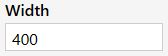 | Width |
The button to add workings to the recipe is located at the bottom.
 | Add working |
Add Working
The button 'Add Working' opens a new tab where the desired working can be selected.
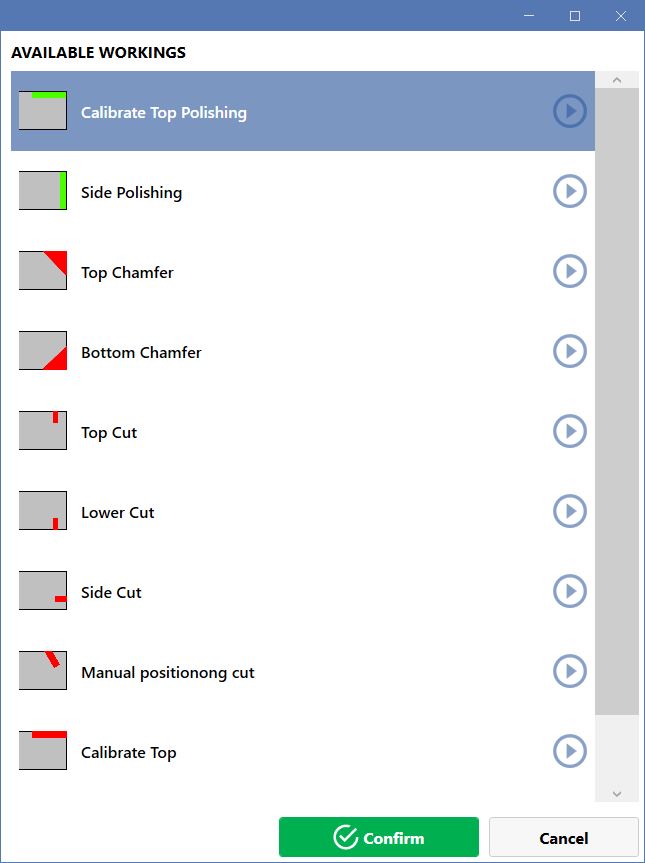
Press the button located on the right to add a working.
 | Apply working |
Working group selection
The selected working may be executed by multiple groups, the operator can choose which of the available ones to use.
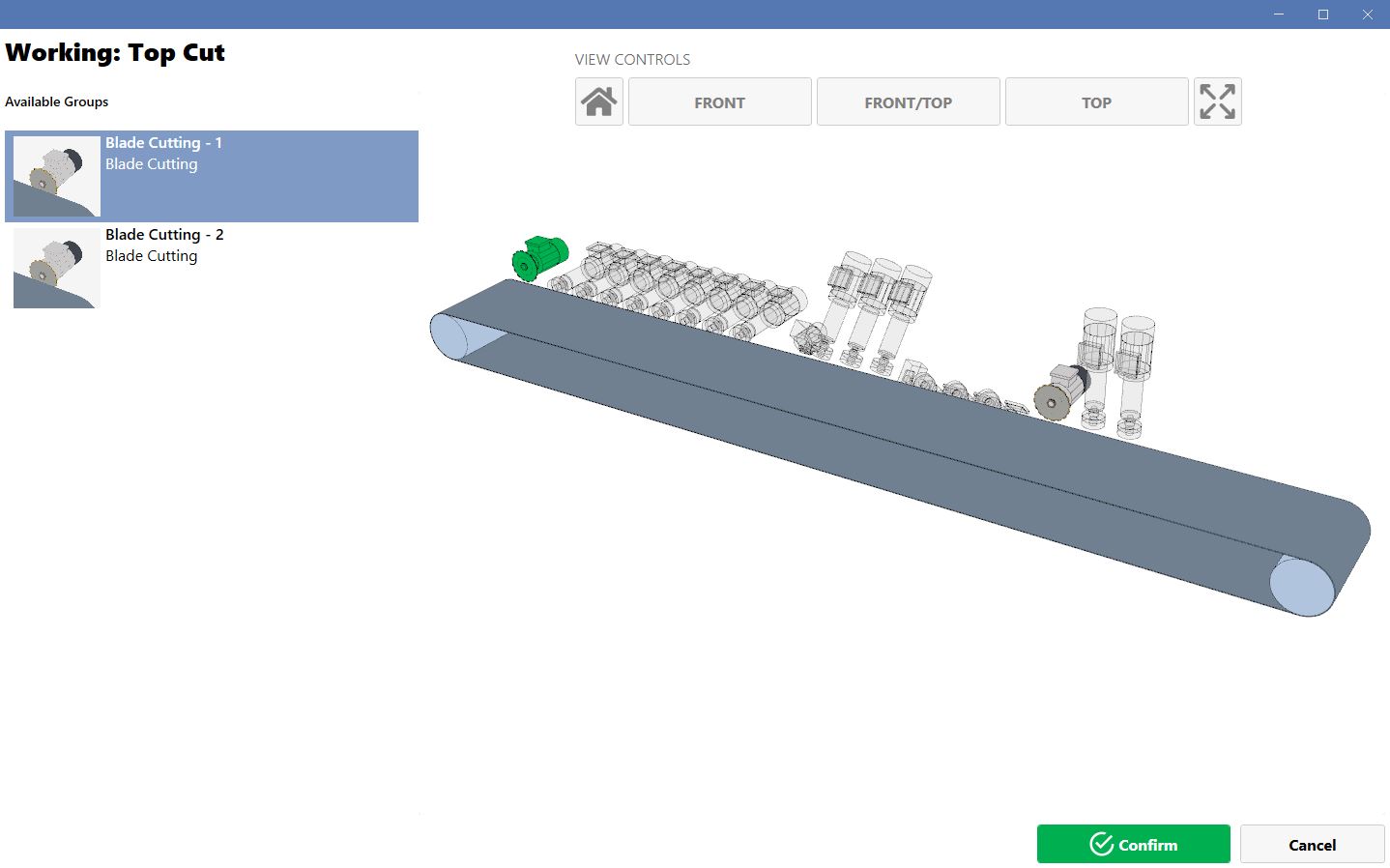
Once selected, that group will no longer be available for that working.
It is possible to add the same working to the recipe multiple times as long as there are available groups.
Working parameters
Selecting and opening a new working displays the working sheet of the selected type, with the relevant user-editable data.
For each working it is possible to insert the parameters that define its geometry.
In the preview the quantities affected by the working parameters are highlighted.
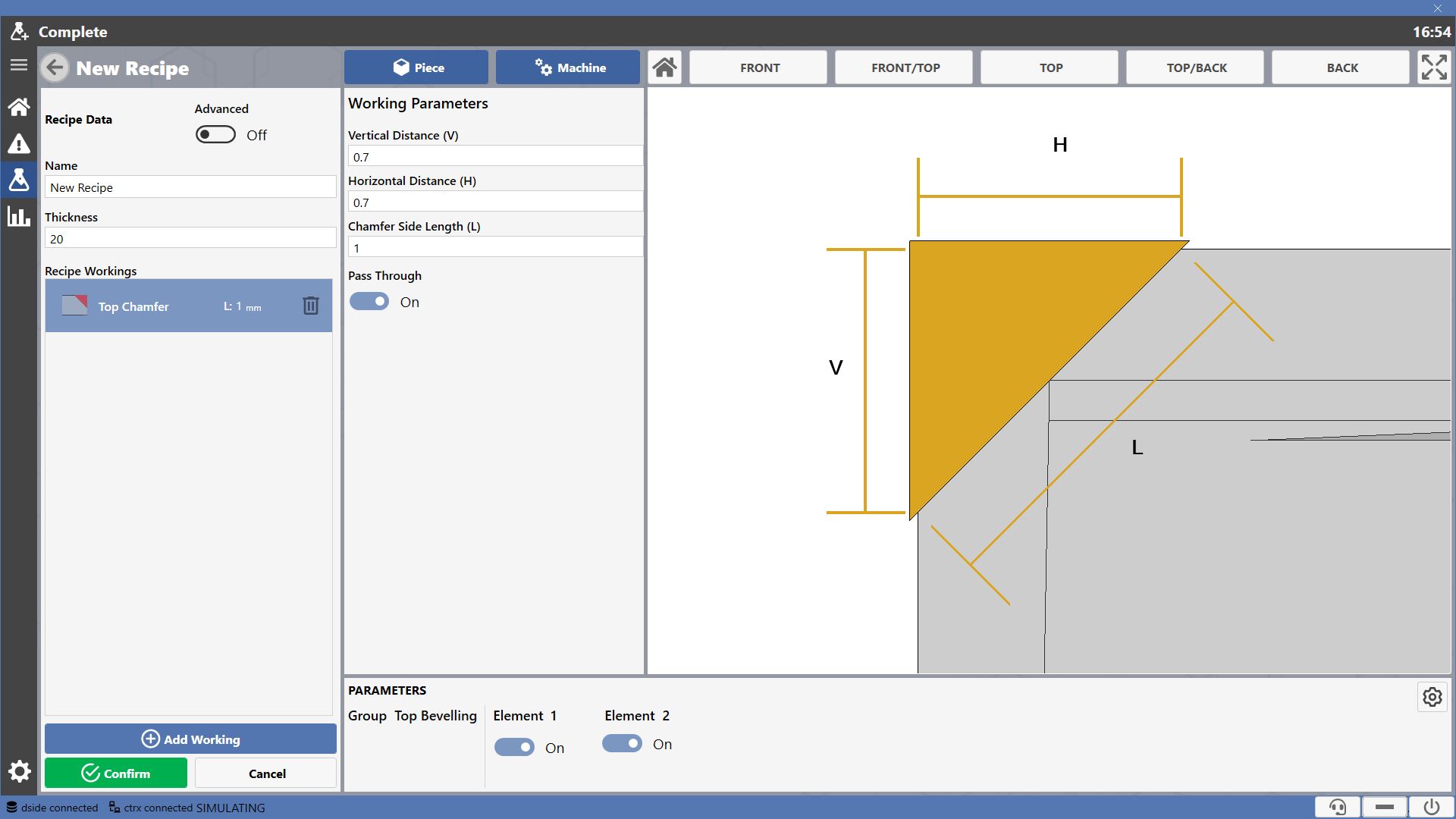
Group Parameters
The machine view mode allows seeing the piece and the machine, specifically which groups are active and which are inactive to perform the workings applied to the recipe.
The group associated with the selected working is colored green.
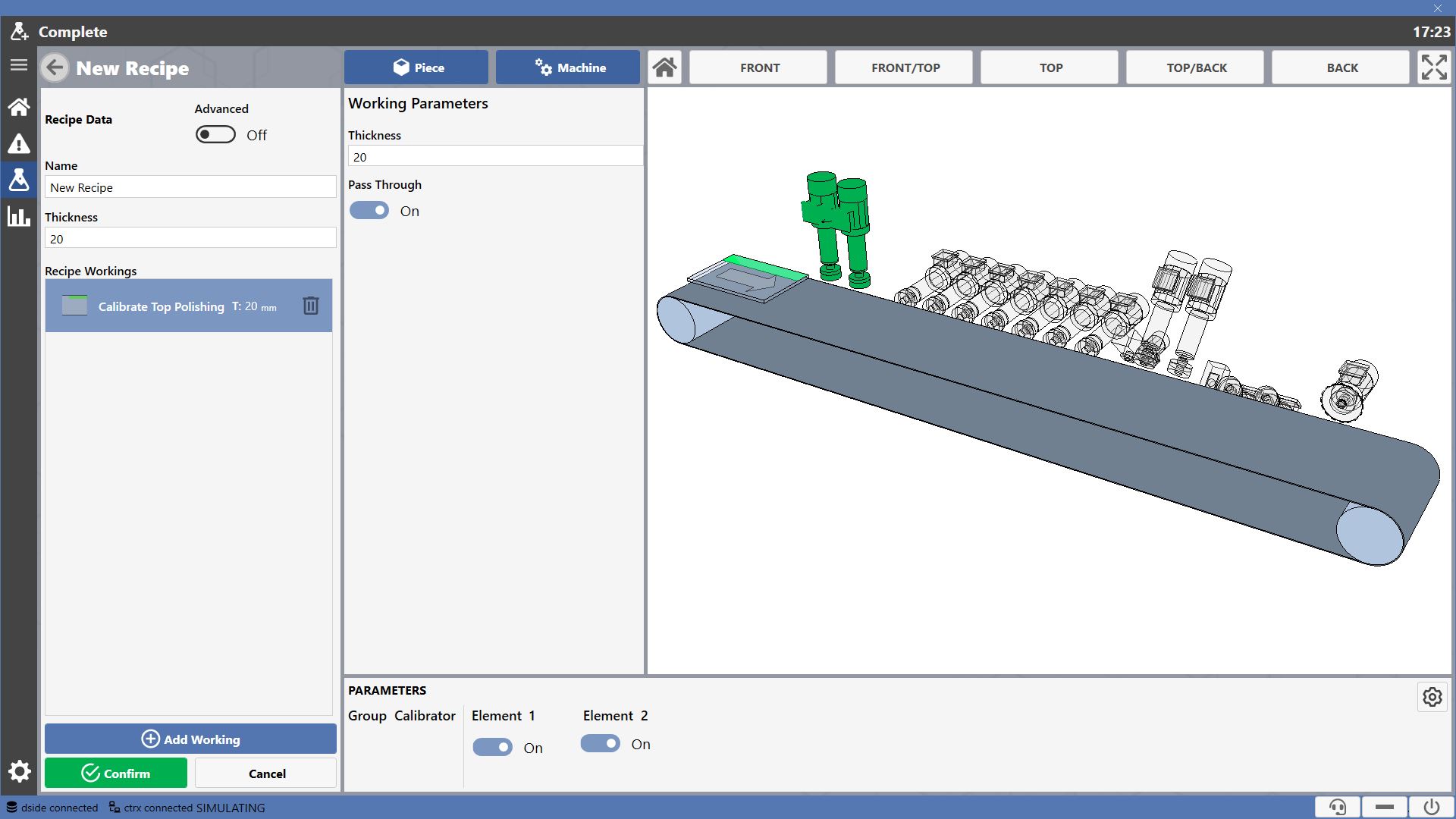
From the panel below there is a quick access to the parameters of the group performing the working, from which it is possible to activate and deactivate the individual elements.
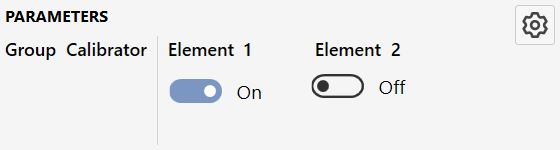
 | Toggle element Enable/Disable element |
 | Advanced Parameters Panel |
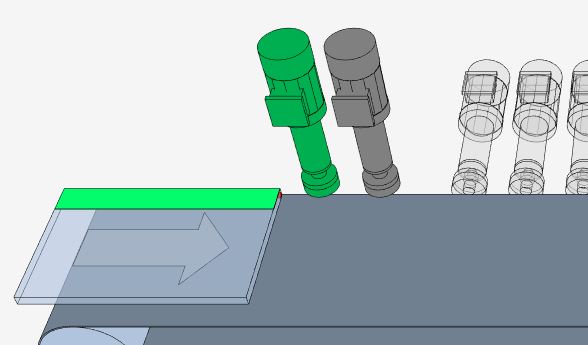
Disabled elements will be displayed in dark gray in the machine view mode.
Edit recipe
From the initial page and from the recipes page, pressing the edit button of the selected recipe opens the modification panel.
It is possible to edit main informations, and add workings.
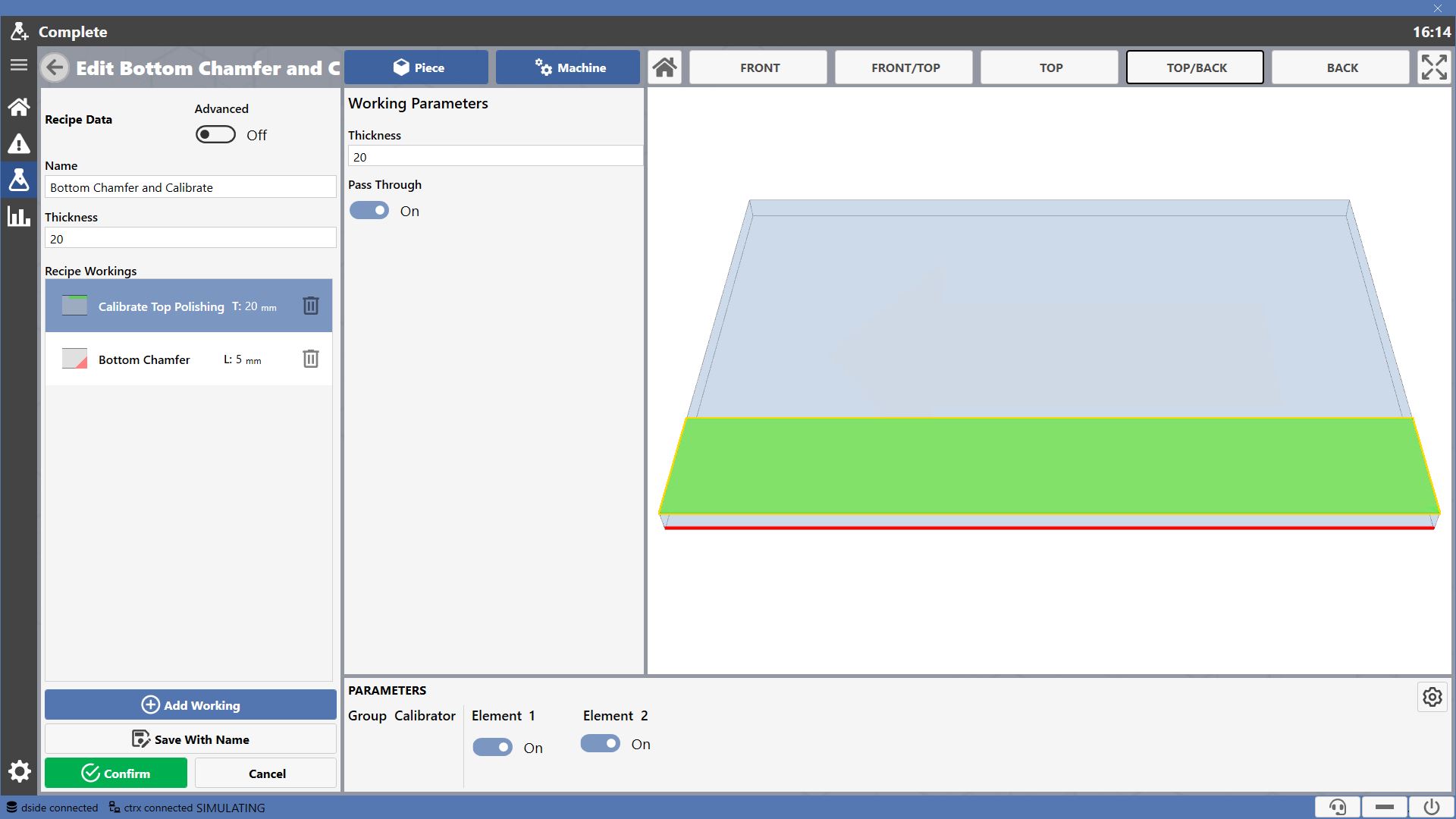
The workings on the recipe are displayed in the visualization window.
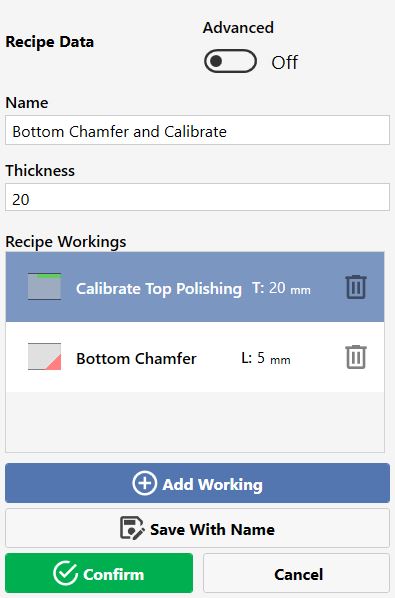
The workings composing the recipe are visible within the list below.
Each entry displays a preview of the working, the name identifying it, and some characterizing measurements.

Selecting the working, it is possible to edit its parameters.
Use the button located to the right of the respective row to delete a working from the recipe.
 | Remove Working |
At the end of the modification, it is possible to decide whether to apply the changes to the original recipe or create a new one with all assigned workings.
 | Save With Name |
