

The 'Statistics' page is the page where it is possible to view the statistics related to the machine and the work performed by the machine.
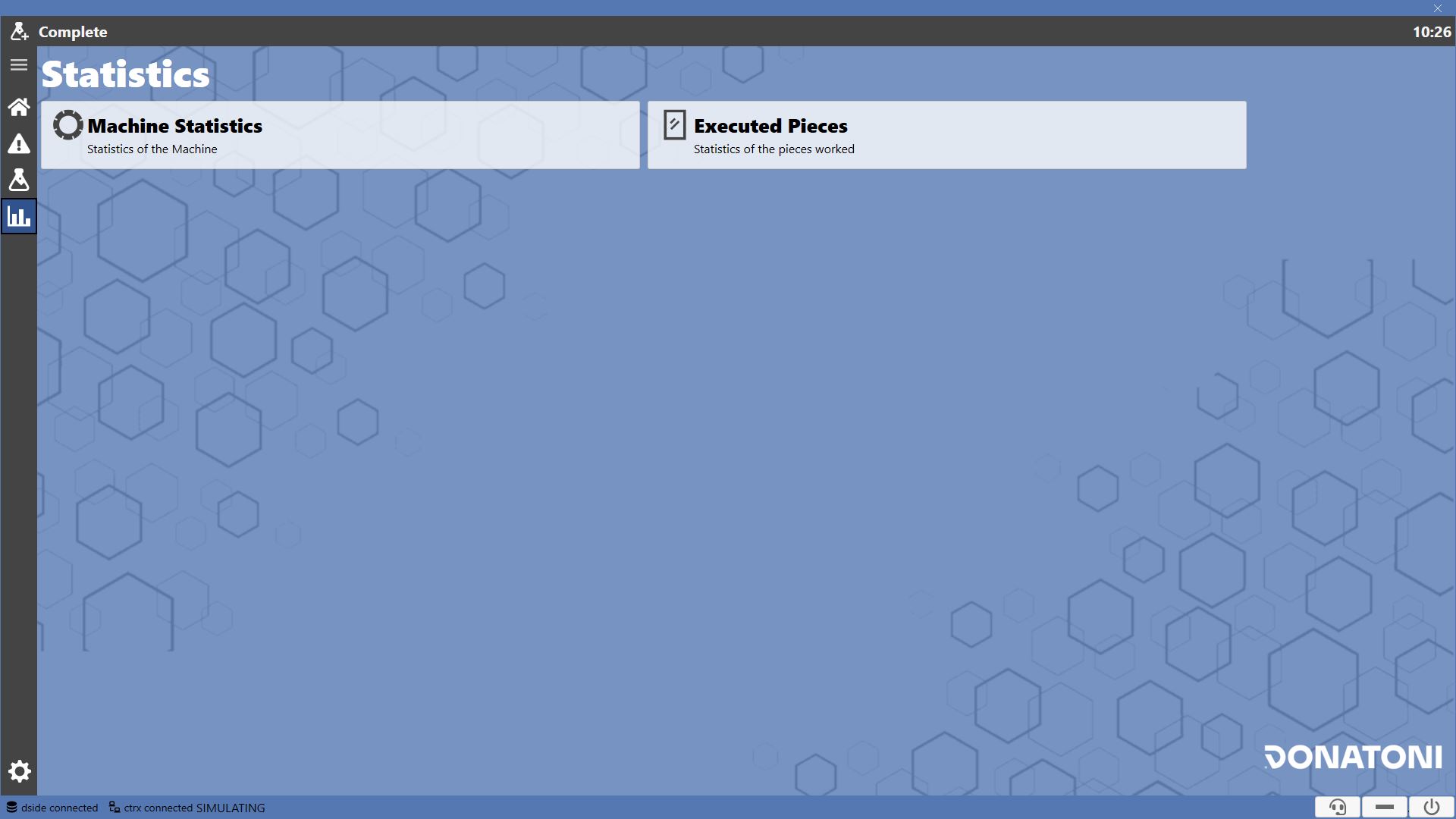
Categories
The main page provides two buttons allowing access to the specific sub-pages for the desired type of statistics.

 | Machine Statistics |
 | Processed pieces |
Available at the top left of each screen are the following buttons for navigation.
 | Back |
 | Reload |
Machine Statistics
Monitored on this page are the statistics related to machine usage.
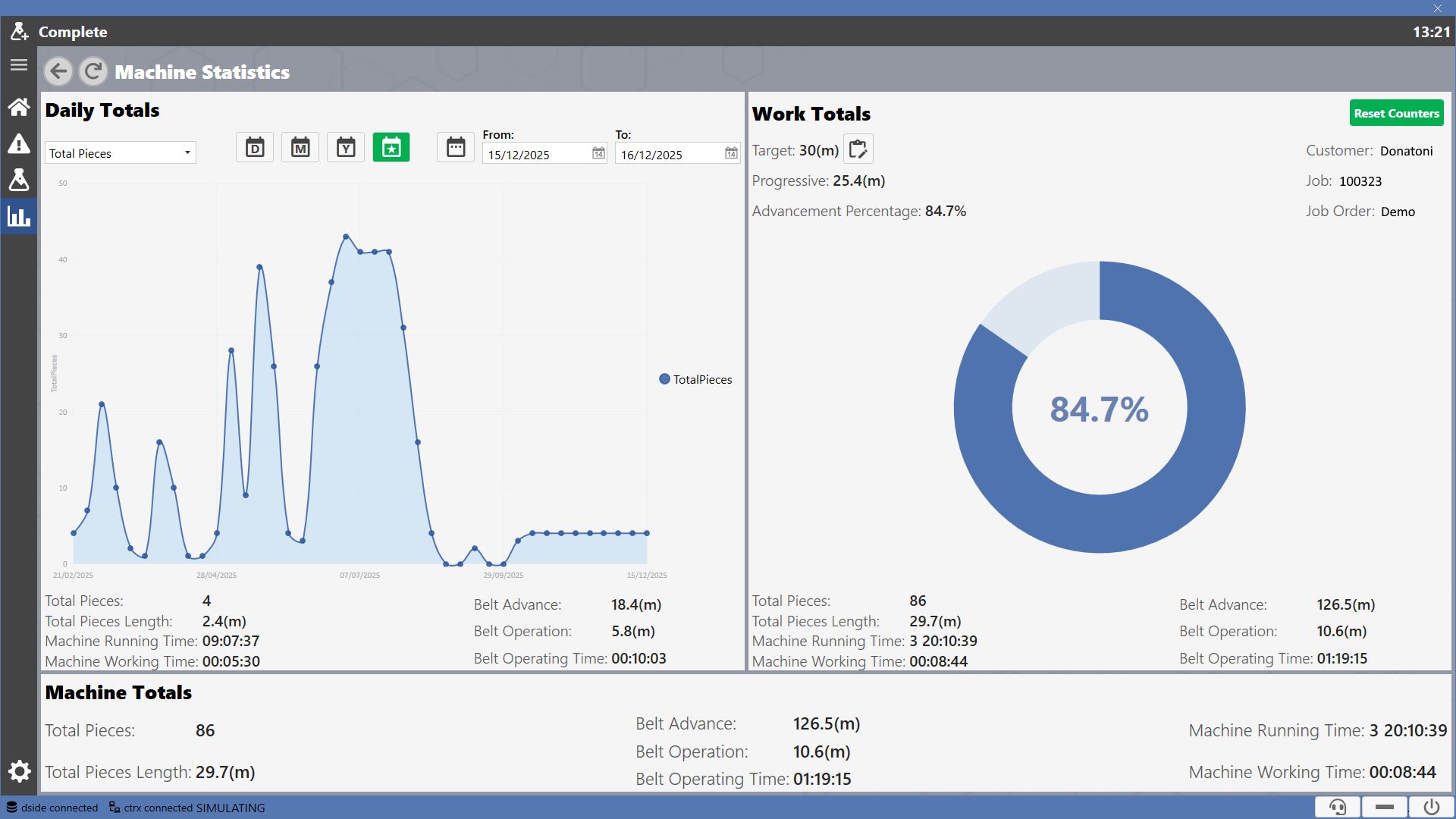
Tracking of the following Statistics is kept on this page:
Total Pieces | Number of executed pieces. |
Total pieces length | Total length of executed pieces. |
Belt advance | Distance traveled by the belt. |
Belt operation | Distance traveled by the belt during working. |
Belt Operating Time | Belt Operating Time. |
Machine Running Time | Machine Running Time. |
Machine Working Time | Machine Working Time. |
The Machine Statistics page allows viewing statistics through the three panels:
Daily Totals
Work Totals
Machine Totals
Each panel displays statistics concerning the same measured quantities, but with different conditions depending on the observed section.
Daily Totals
In this section there is a chart showing the desired statistics in the selected time frame.
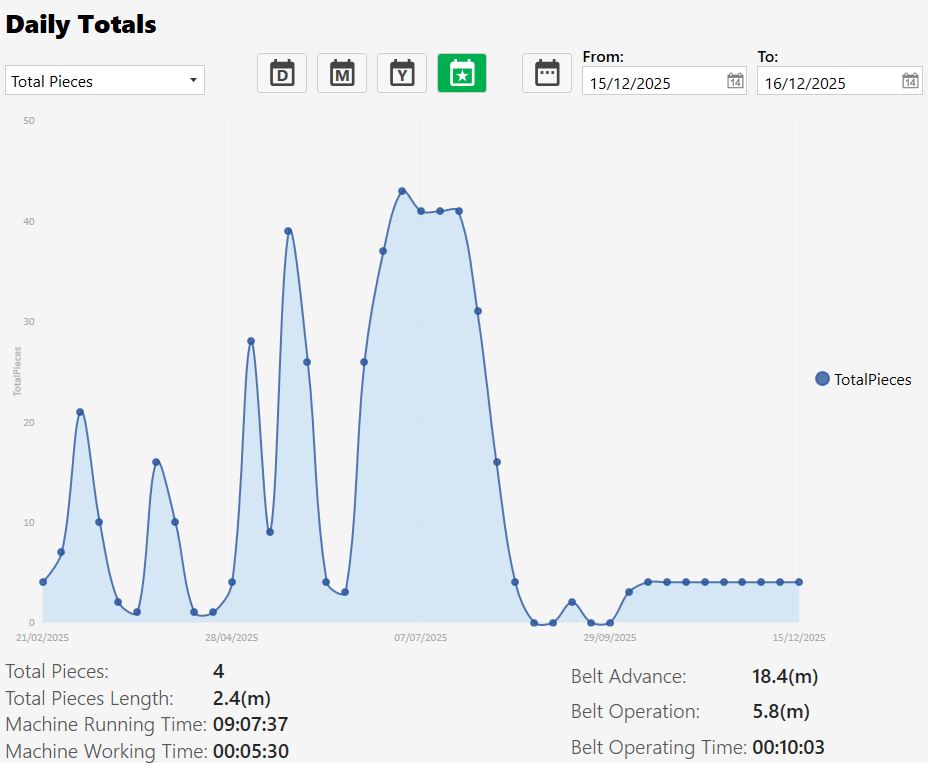
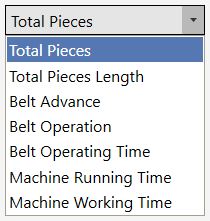
Top bar contains a filter for the statistics to be displayed in the chart.

The first component of the bar allows selecting the desired Statistics.
The buttons allow selecting a time interval, highlighting the selected one in green.
 | Daily Statistics |
 | Monthly Statistics |
 | Annual Statistics |
 | Total Statistics |
 | Custom Statistics |
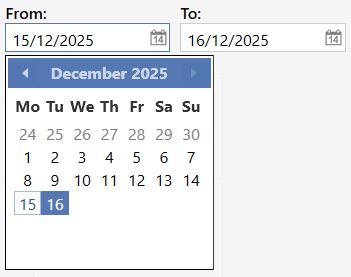
The custom range can be modified using the dedicated components located to the right of the button. Press the calendar-shaped icon to the right of the date and select the desired date for the range.
Work Totals
In the Work Totals it is possible to view through the circular chart the advancement percentage of the work, calculated as the ratio between the progress made and the final target.
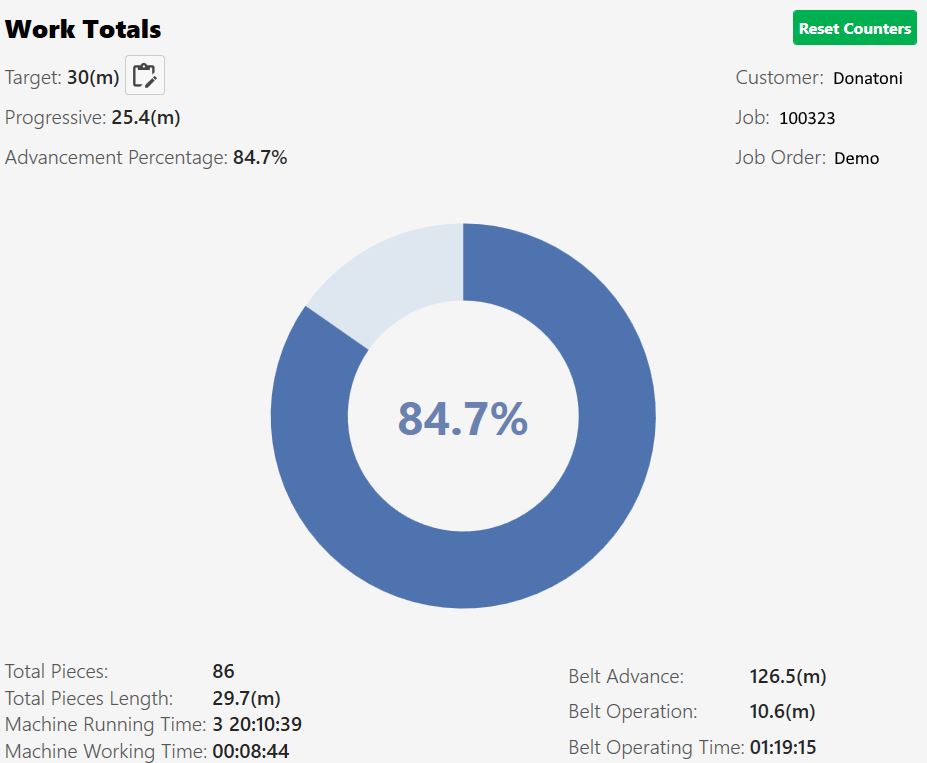
Statistics related to the target quota are displayed at the top left.
Target | Fixed length value for pieces to be worked. |
 | Edit target quota |
Progressive | Length of pieces worked since last reset. |
Advancement percentage | Advancement percentage of the work, calculated as the ratio between the progress made and the final objective. |
Press the button located at the top right to reset the counters.
 | Reset counters |
Machine Totals
General statistics for the entire machine activity period are displayed in this section.

Processed pieces
Through this page the operator can filter and view specific information of the executed pieces.
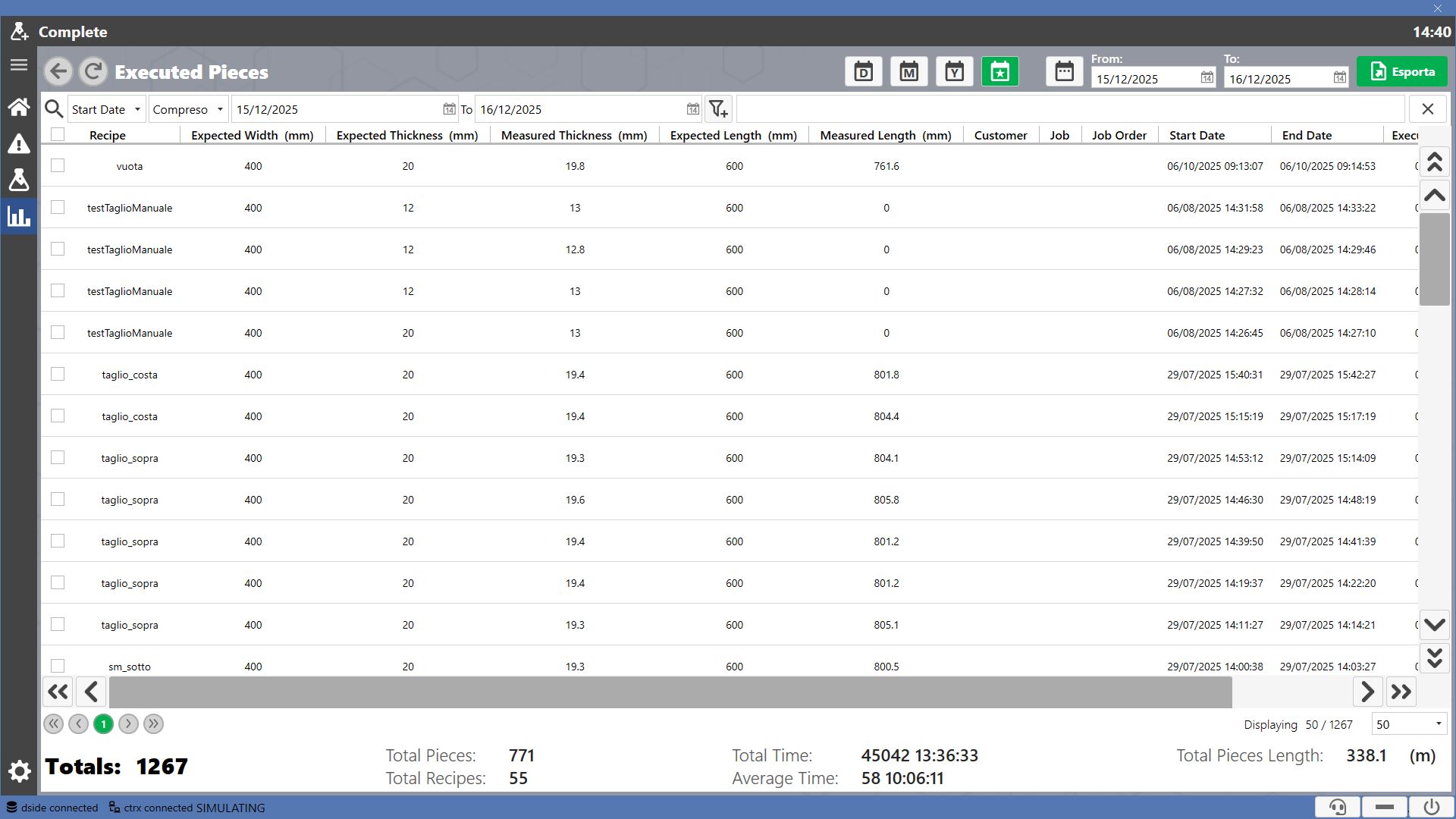
In the list forming the main part of this screen, all working pieces are cataloged. Each row corresponds to a piece.
Pressing the square located on the left allows row selection.
Export the selected statistics using the button located at the top right.
 | Export |
Filtering Statistics
The filtering bar allows selecting different conditions to filter the Statistics.

Pressing the first bar component allows selecting the property to filter.
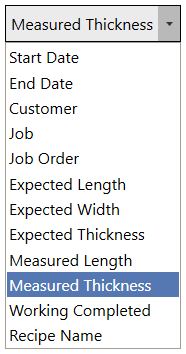
Pressing the second component allows selecting the operation to be performed to determine which elements will result after filtering.
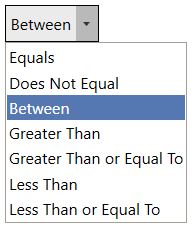
The value to be used for the filtering operation must be entered in the adjacent bar to the two components just described.

The selected filter is added to the bar to the right of the button, it is possible to remove it by pressing the X on the left.

Listed below are the buttons useful for performing the operations described above.
 | Add filter |
 | Remove filters |
If the number of selected items exceeds those visible, it is possible to navigate pages using the numbered buttons at the bottom. The selected page number is highlighted in green.

It is possible to select the number of rows per page that can be displayed.

