

After completing the preparation in the fourth step, the final stage can be accessed. This includes displaying the result and generating the ISO file.
A 3D view of the generated machining operation is shown in the centre, taking the machining mode into account. Click in the area to rotate the view and control the zoom.
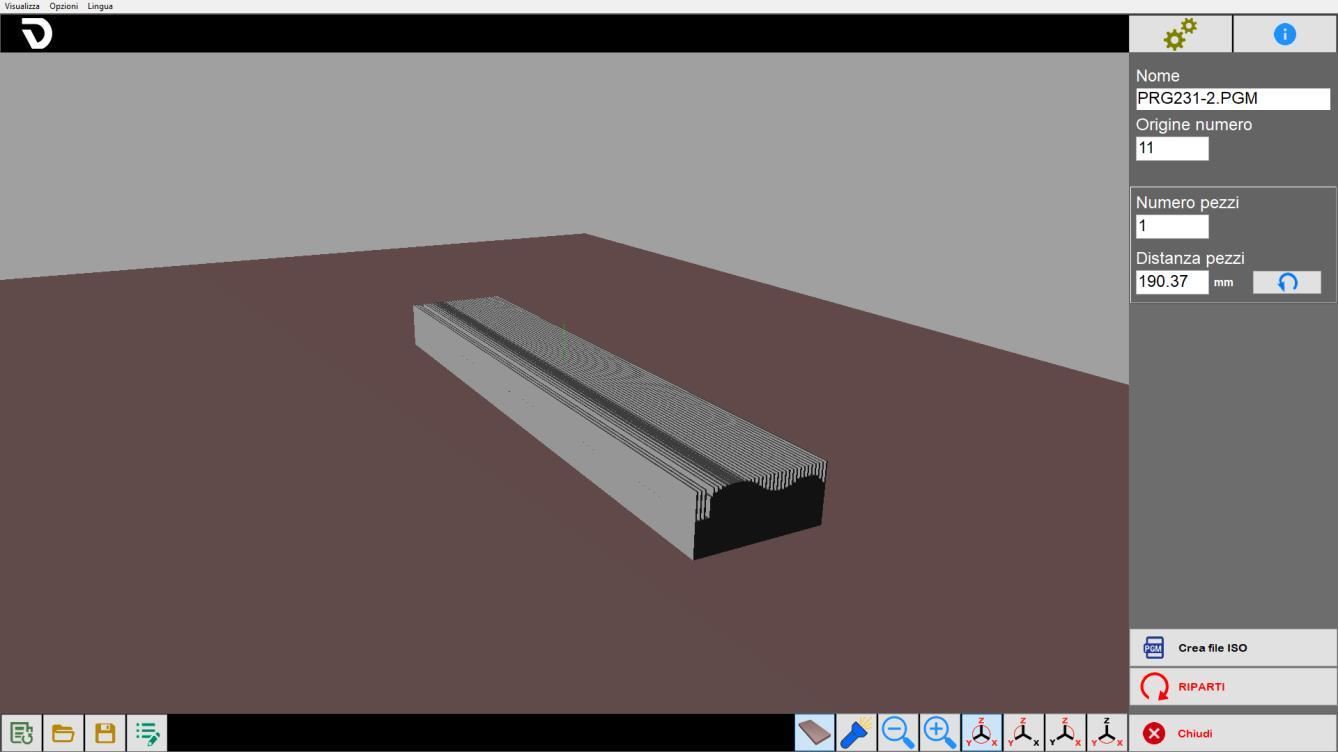
Side bar
The name used to save the generated file and the workpiece origin to which the program refers can be set.
 | Create ISO file |
 | Restart |
Repetition
The prepared shape can be repeated several times at defined distances to obtain multiple workpieces from a single starting block.
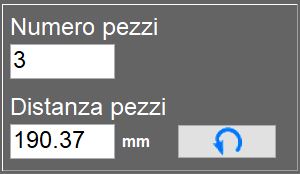
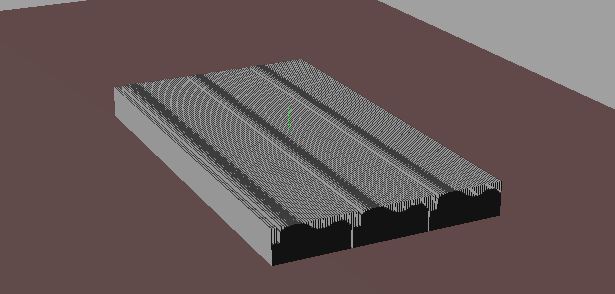
 | Minimum distance |
Bottom bar
 | Table view |
 | Additional lights |
 | Zoom |
 | Preset views |
Basic procedure
Step 1
To begin, press the "New machining operation" button. Make sure the "Connected segments" function is enabled, then enable the "Line" command. Click repeatedly in the work area to draw the required section. Once the drawing is complete, click the "Line" command again to disable it. Then select each entity individually to check its parameters and change them if necessary.
Step 2
In this step, the operator can configure some basic settings relating to the required machining type.
Step 3
The parameters relating to the tool and the type, orientation and settings of the selected machining operation can now be configured.
The “Machining parameters (advanced)” panel also provides an overview of all the parameters configured up to this point.
Step 4
A list of cuts for the current machining operation is generated automatically. Cuts can be added, edited and removed according to operating requirements.
ISO generation
The final machining step allows the operator to create an ISO file from the resulting machining operation or restart the procedure.
