

This function allows to apply orderings and operations customized to the cuts.
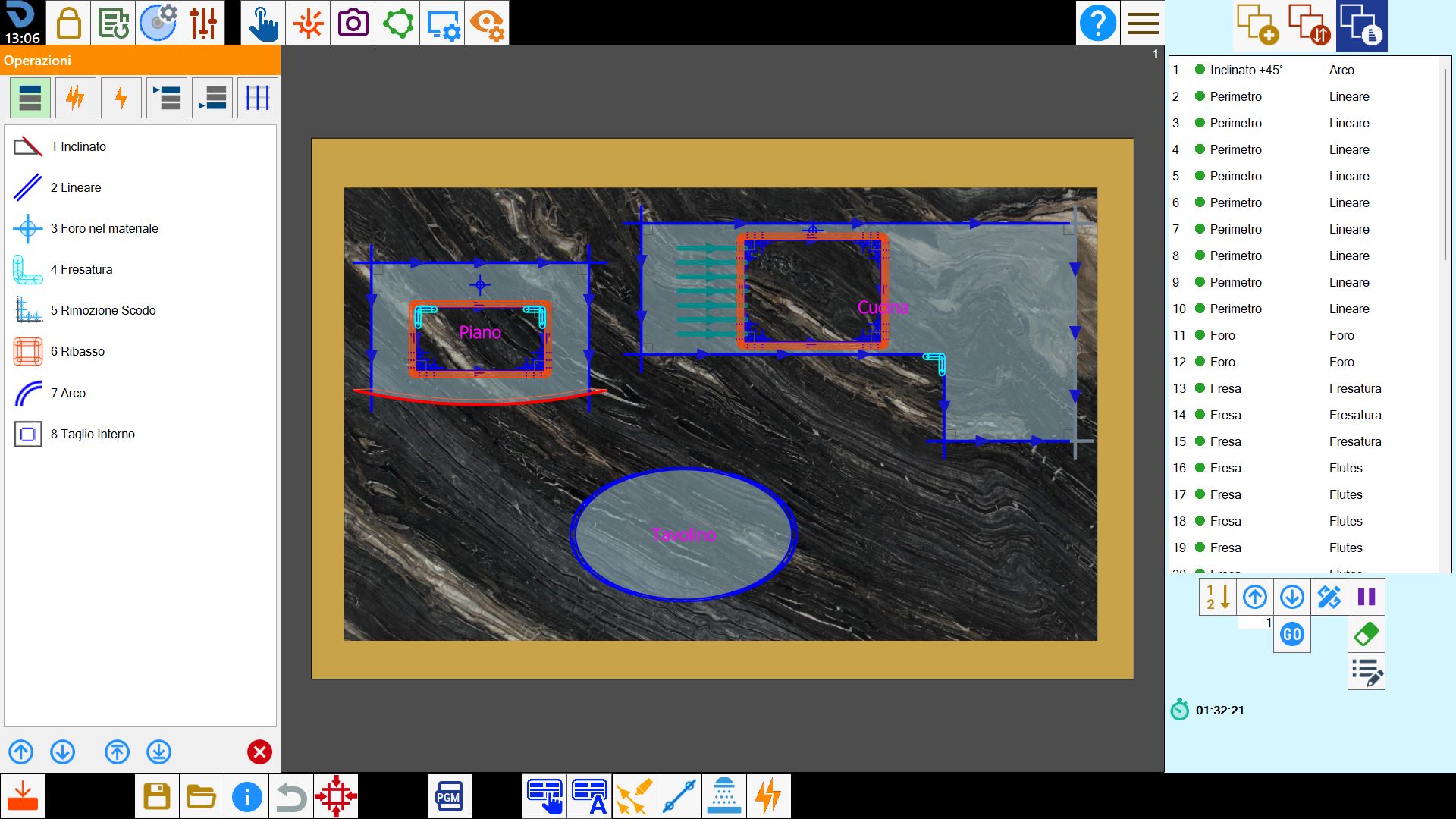
Available Operations
 | Sorting for processing |
 | Macro |
 | Single operations |
 | Workings order in head |
 | Sorting workings queue |
 | Sort based on cuts |
Execution workings order
Allows the operator to choose the execution order of the cuts based on the type of processing used.
The list is composed by the workings requested to execute the cut.
Changing the order of the workings changes also the order of the cuts of the list.
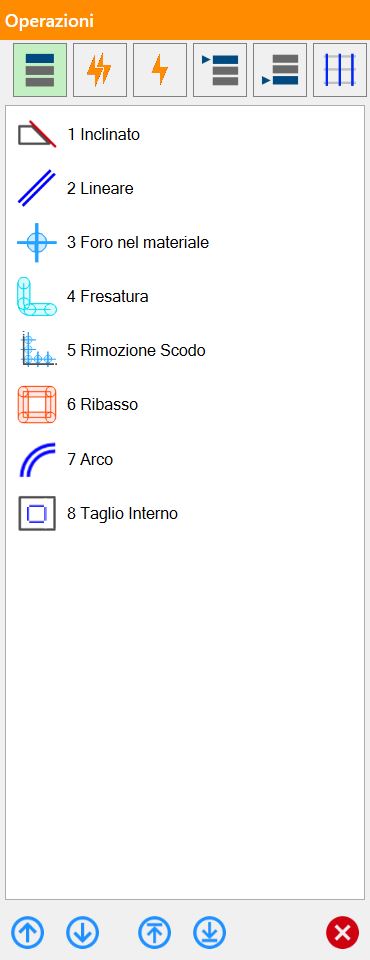
The working types shown within this list are related to those associated with the cuts present on the working area.
Based on this, different entries can come.
Lower bar
It is possible to order the list items via some move buttons.
 | Move |
 | Go top/bottom |
Macro
It is possible to define and apply macros. Each one of them allows the operator to apply advanced sorting options on the cuts.
The selection of a macro in the top part of the panel allows the operator to view all the operations contained in the same macro.
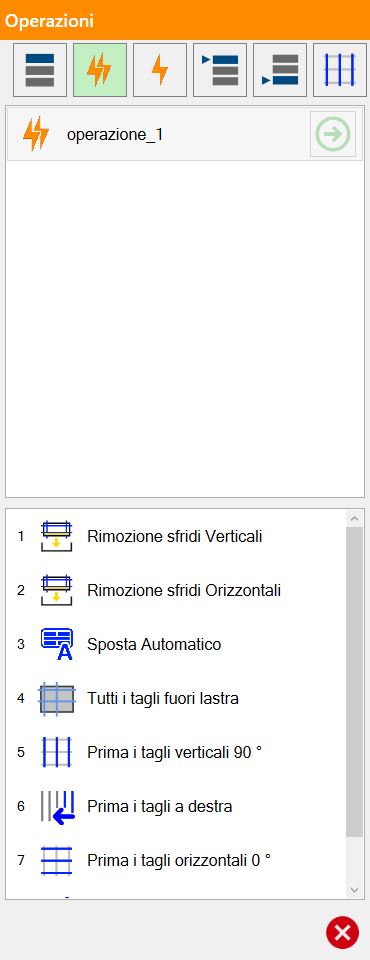
The macros available to the operator can be managed in the user parameters.
According to this, different entries can come.
Buttons
 | Apply operation |
Single operations
Some operations can be applied by pressing the green arrow that is seen on the right of each item in the list.
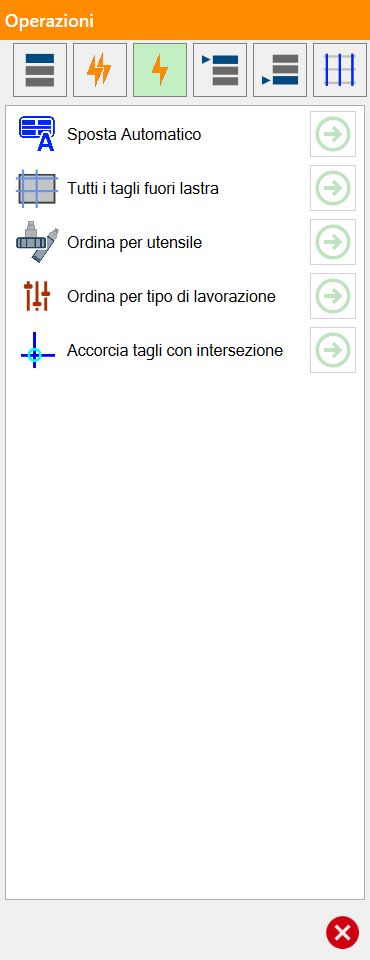
Single operations available
 | Move auto |
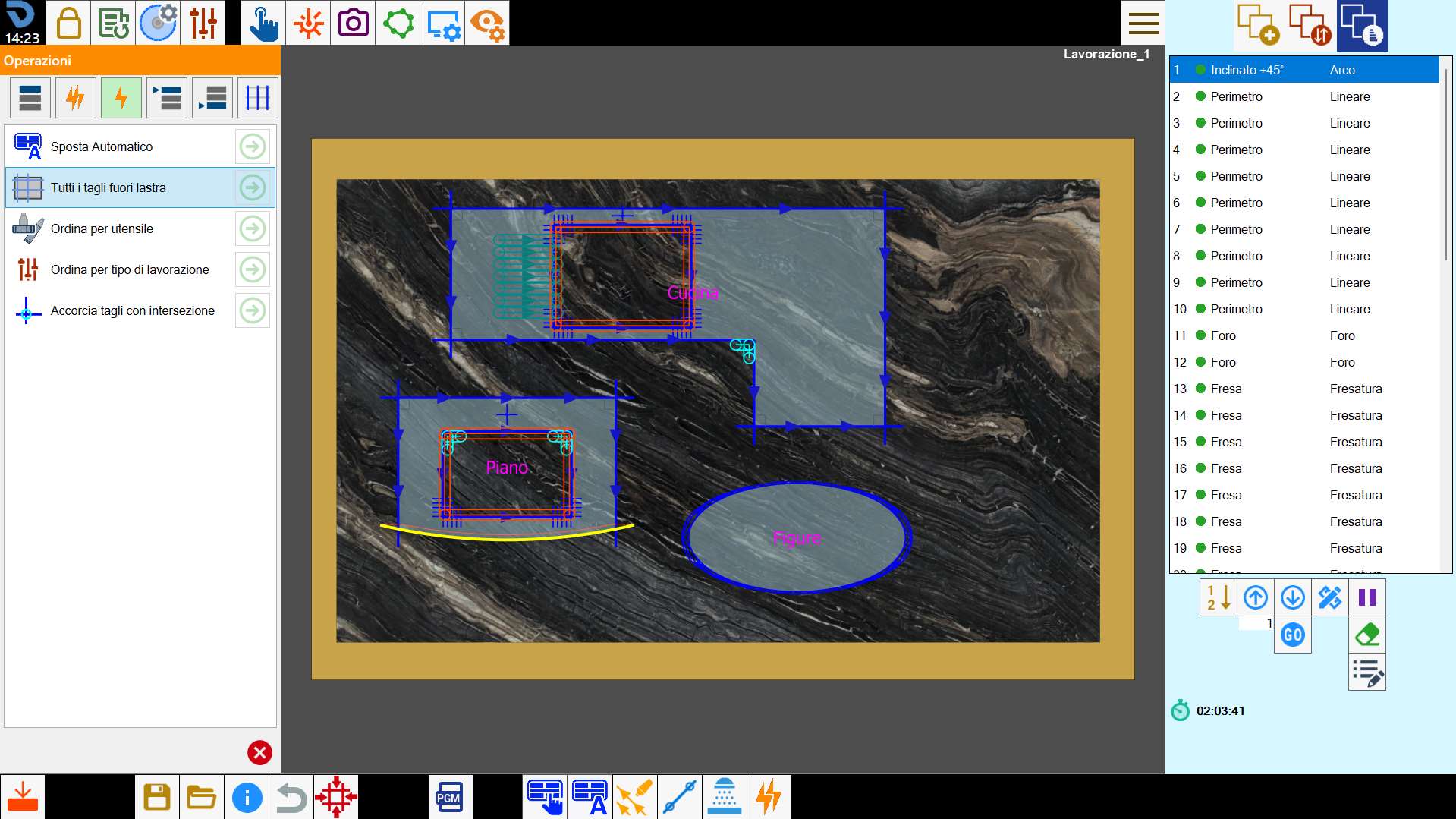
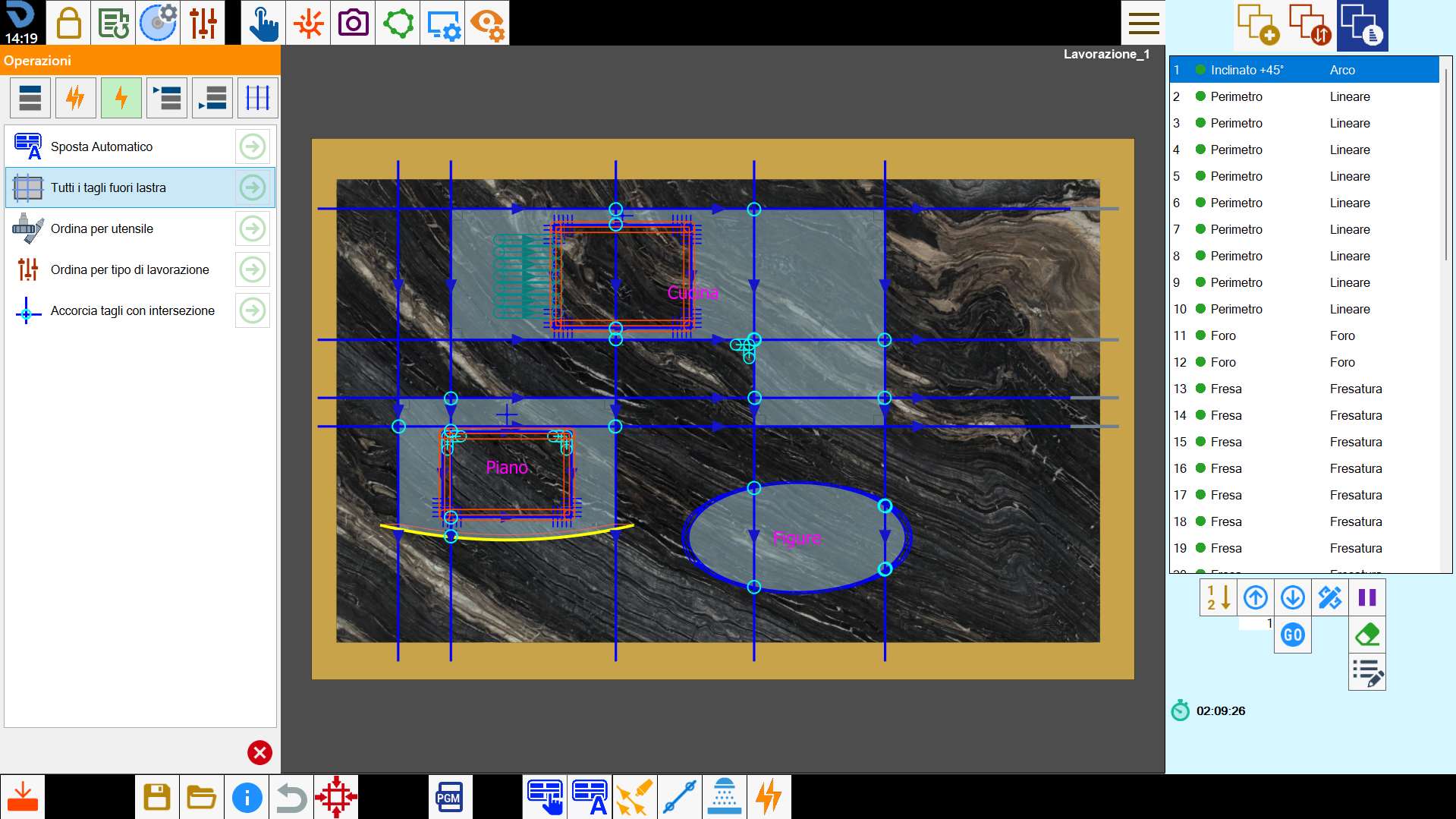
 | All cuts out slab |
 | Order by tool |
 | Order by working type |
 | Shorten cuts with intersections |
All cuts outside slab
Below is provided an example for the above working, before the work's application:
And the result obtained following the application:
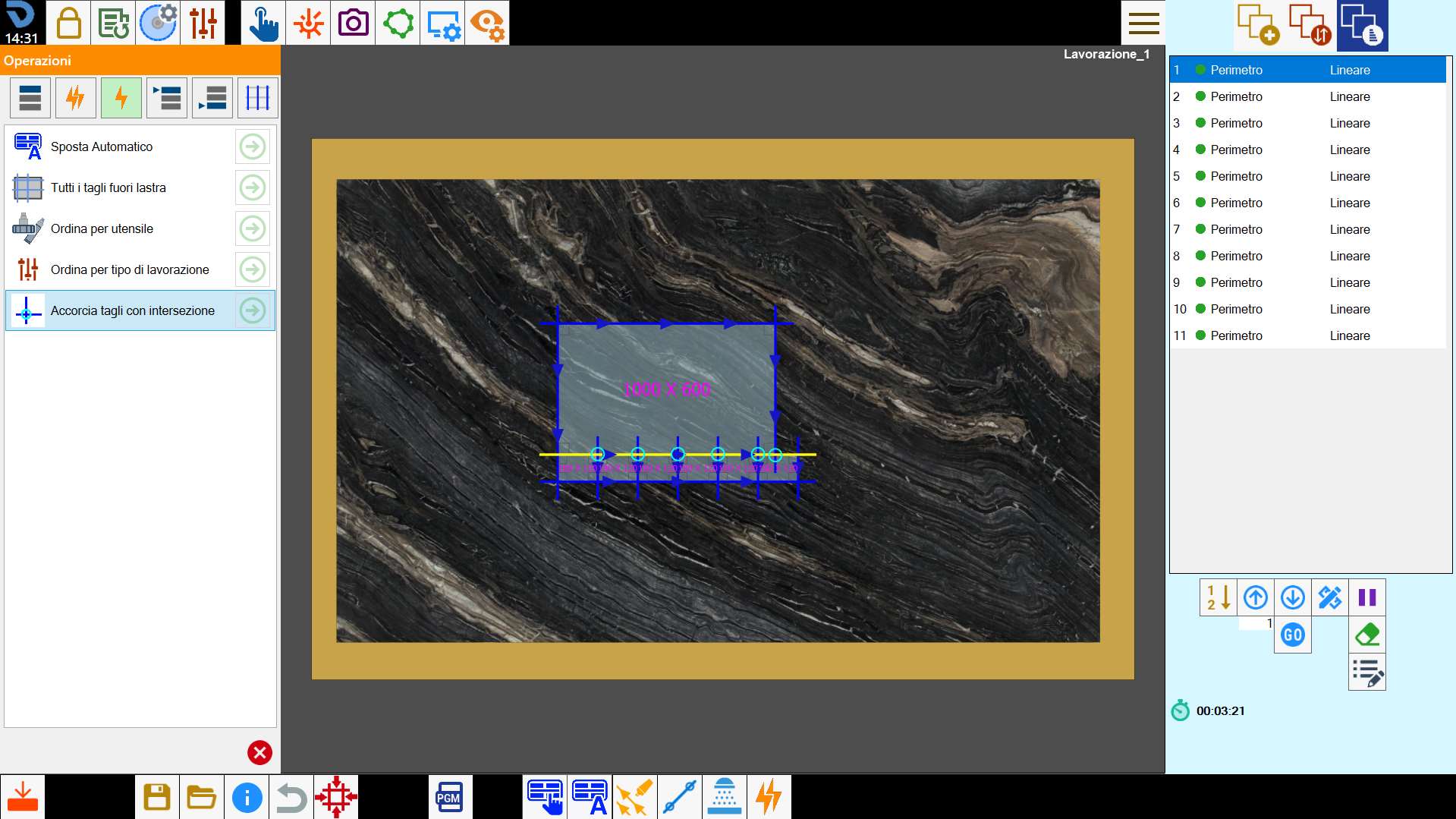
Shorten cuts with intersections
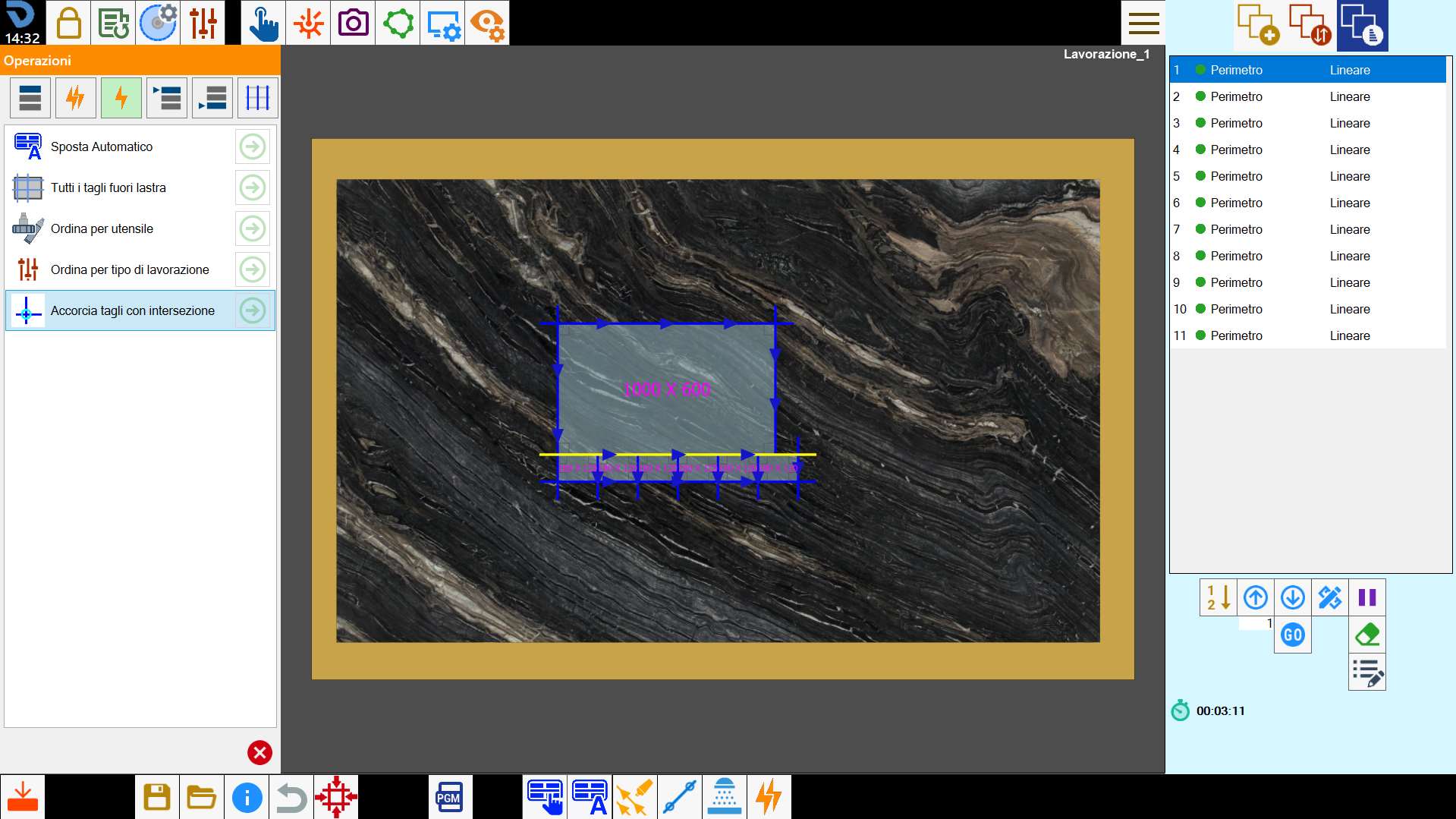
This operation allows the operator to shorten the cuts that intersect each other to avoid ruining the inside of a piece.
In the following example image there are 6 intersections between the cuts of the pieces reported in the work area with small blue circles:
The application of this operation involves a shortening of the cuts in order to avoid any intersections.
Single operations available (Optional)
It is possible to set the presence of some single operations in relation to how the following optional are set.
Unload piece
With the Unload Piece function enabled, some single specific operations will be available.
 | Unload pieces |
| Unload all pieces with repetition |
| Unload watermark with repetition |
Double disk
With the Double disk feature enabled, some single specific operations will be made available.
 | Extend cut for double disk |
| Verify for double disk |
Workings sorting in head
The operator can change the order of execution of the workings and put at first place one of the workings that he sees on this window.
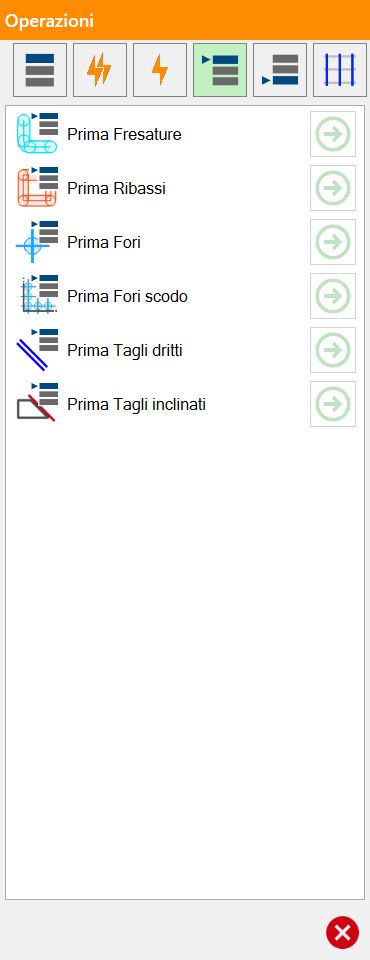
The working types shown within this list refer to those associated with the cuts present on the working area.
Based on this, different entries can come.
Sorting workings in queue
The operator can change the order of execution of the workings and put at the end one of the workings that is seen on this window.
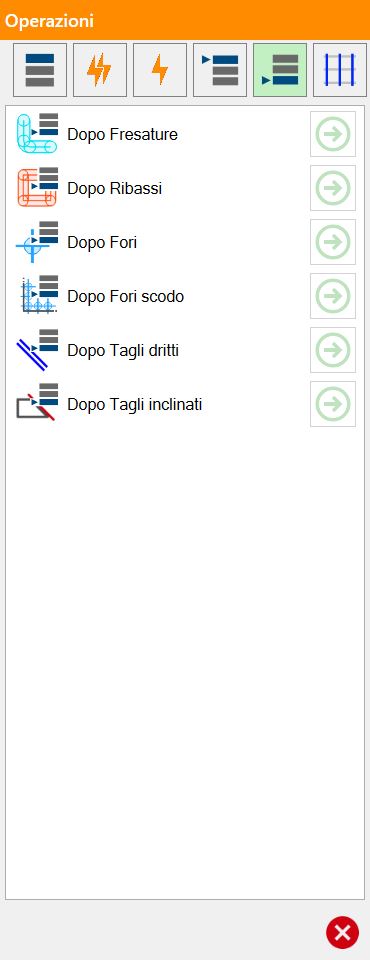
The working types shown inside this list refer to those associated with the cuts present on the working area.
Based on it, different entries can come.
Sort based on cuts
These operations allow to change the order of the cuts of the list based on some criteria that depend on their arrangement on the work area.
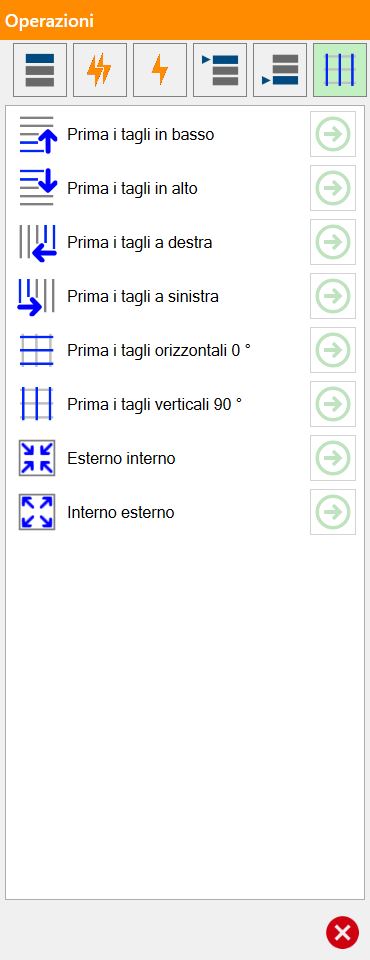
Operations sorting based on cuts
 | First bottom cuts |
 | First top cuts |
 | First right cuts |
 | First left cuts |
 | First horizontal cuts 0_ |
 | First vertical cuts 90_ |
 | First cuts with direction |
 | External internal |
 | Internal external |
