

The ISO file programming page allows workings to be managed and started using .pgm files previously created with CAD-CAM programs.
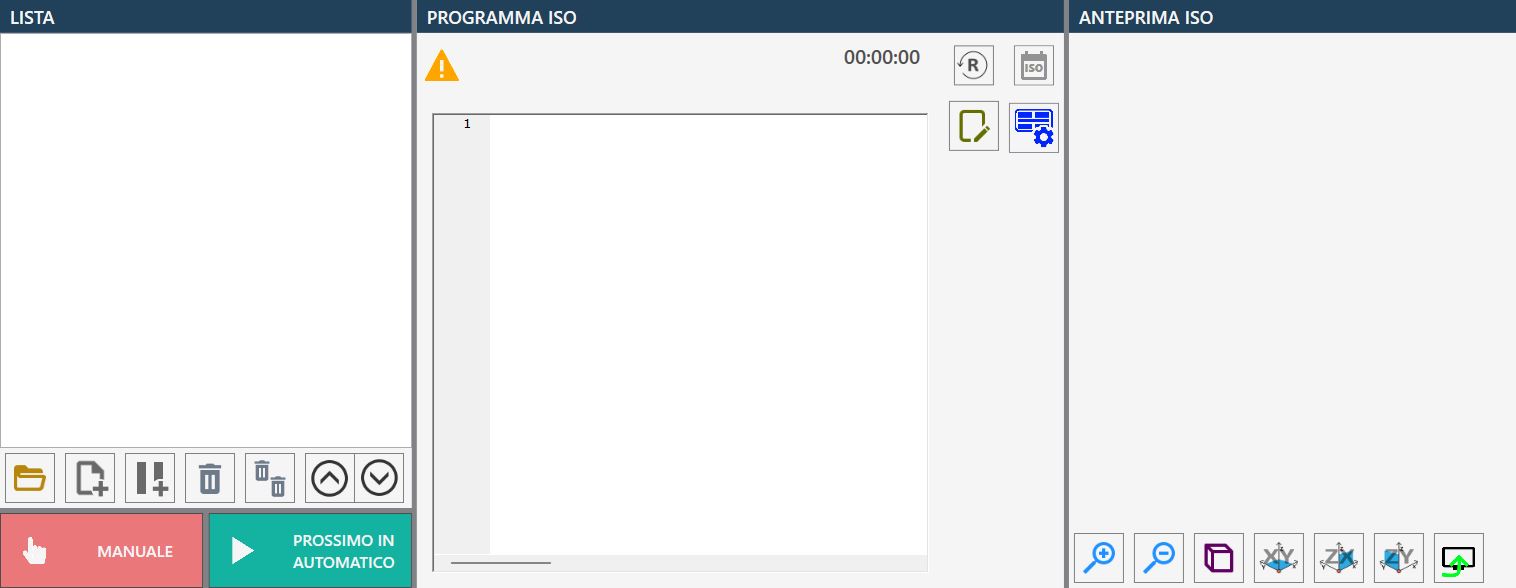
List
The ISO program list, initially empty, contains all ISO programs that can be executed sequentially.
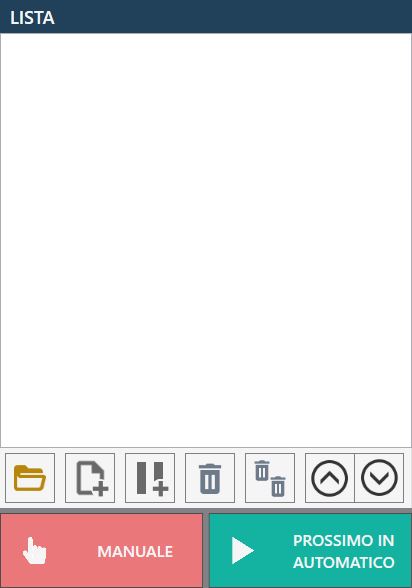
Buttons
A series of buttons is available for managing the list.
 | Open File |
 | New ISO list |
 | Add Pause |
 | Remove selected item |
 | Clear list |
 | Move selected item up |
 | Move selected item down |
At the bottom there are also two buttons relating to program execution modes:
  | Manual / automatic |
  | Single / next automatic |
Open file
Pressing this button displays an “Open File” window as shown in the following image:
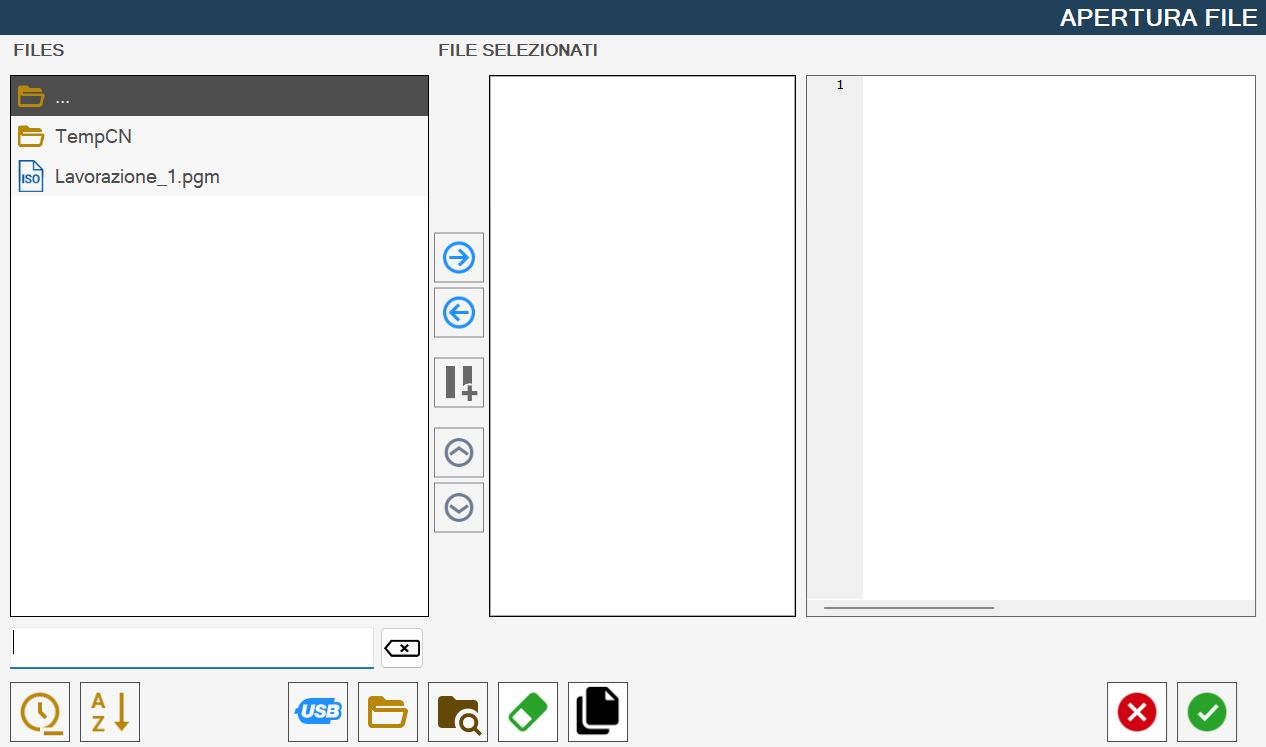
This window is divided into the following components:
Files List
includes all .pgm files in the currently selected directory
Buttons between the Files list and the Selected Files list
Selected Files List
List initially empty
Selected File preview
Shows a preview of a .pgm file selected from Files or Selected Files
Bottom bar and search filter
Central buttons located between the “FILES” list and the “SELECTED FILES” list
 | Select item |
 | Remove item |
| Insert pause |
 | Move selected item up |
 | Move selected item down |
The contents of the bottom bar are shown below:
 | Clear search filter |
 | Sort by last modified |
 | Alphabetical sorting |
 | Display USB drive files |
 | Display ISO folder |
 | Display contents |
 | Remove file |
 | Enable/Disable copy |
ISO Program Code
The code of the ISO program being executed is displayed in this window:
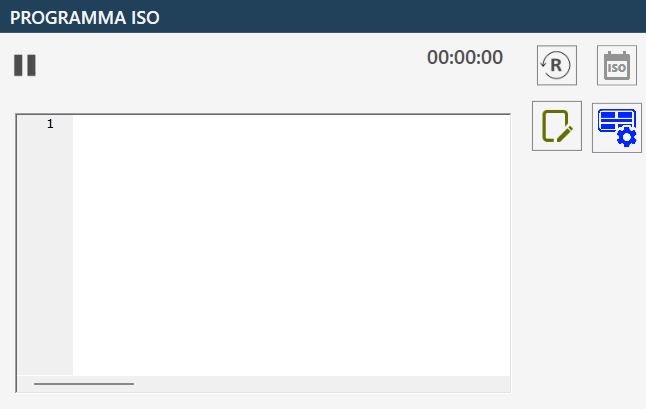
Buttons
This section of the ISO program contains the following buttons and corresponding functions.
 | Timer and Reset |
 | View ISO |
 | Block search |
 | Block search by line After entering a number in the “Line number” field and pressing the “Go to” button, the ISO program code display moves to the required line, or to the last available line if the entered number exceeds the number of lines in the selected ISO program. A block search can be ended and the “Block search” button made visible again by pressing the Close button: |
 | Dry Run function (Enabled / disabled) |
 | ISO Test function (Enabled / disabled) |
 | Suction cup panel |
 | Save |
Block search
When executing (.pgm) files, the block search function may be useful for repositioning the tool at the point where the machine interrupted program execution, for example if the tool becomes jammed in the material or another type of stoppage occurs.
After pressing the button, the line from which to continue/start the working can be found either by line number using the “Block search by line” button or by scrolling through the file with the scroll bar beside it and selecting the desired line.
After selecting the point in the program from which the machine will resume the interrupted work, press the “Start cycle” button; the machine recalculates all lines of code in the .pgm file without performing any movement. The speed of this operation depends on the number of lines of code that must be generated without any movement.
When recalculation is complete, the machine activates an automatic pause and requires the “Start cycle” button to be pressed again to start the working.
Before starting the cycle, it is recommended to consider the machine's initial positioning, which involves all axes simultaneously.
This is necessary because the machine moves from its current position to the point where it starts working by taking the shortest path and, to do so, all axes move to reach that exact point.
This means, for example, that the Z axis does not lower only once the starting point has been reached, but lowers gradually along the path. This could damage the machine or the material if the machine collides with material located along the path.
Therefore, depending on the current situation, movement of one or more axes can be deselected in order to prevent damage.
To do this, simply select the buttons above each axis; they change from green to red.
The buttons automatically turn green again after “Start Cycle” is pressed.
View ISO
If the ISO preview has been enabled, an additional pane similar to the one shown below is displayed to the right of the “ISO Program Code” pane:
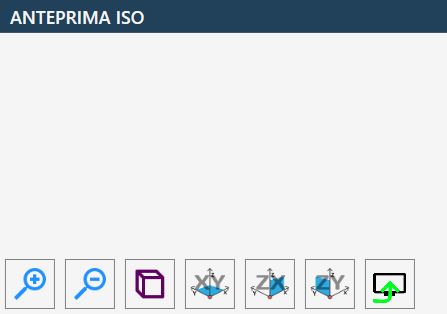
The ISO preview provides the following buttons:
 | Perspective View |
 | View orthogonal to the XY plane |
 | View orthogonal to the ZX plane |
 | View orthogonal to the ZY plane |
 | Enable or disable preview display 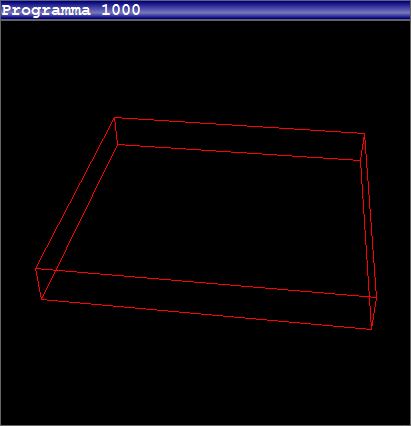 |
Executing the working
The operator can create a list of PGM files by opening the desired files using the dedicated loading function.
Before execution is started, the order of the files in the list can optionally be changed and pauses can be inserted between executions. These pauses provide more flexible process management and, if necessary, allow it to be stopped safely.
When the execution mode is set to “Automatic”, the “ISO Test” function is also available and can be used to check that the selected ISO program is correct before actual execution.
To start the execution cycle, the operator must press the “Start Cycle” button. This executes the first ISO program loaded and displayed in the list.
ISO programs can be executed in two operating modes:
“Single” mode stops programmed execution at the end of each ISO file. The “Start Cycle” button must be pressed again to execute the next file in the list.
“Next Automatic” mode executes the ISO files sequentially without manual intervention until the end of the list.
In both modes, any pauses inserted between files allow the operator to interrupt the cycle at any time, thereby ensuring continuous control over execution.
