Donatoni Macchine
Machine technical documentation Operational document

This function can be used to add multiple cuts.
This particular type of cut allows a series of parallel cuts to be created within the same group, with the option of having two groups, each with its own settable direction.
The interface appears similar to the following:
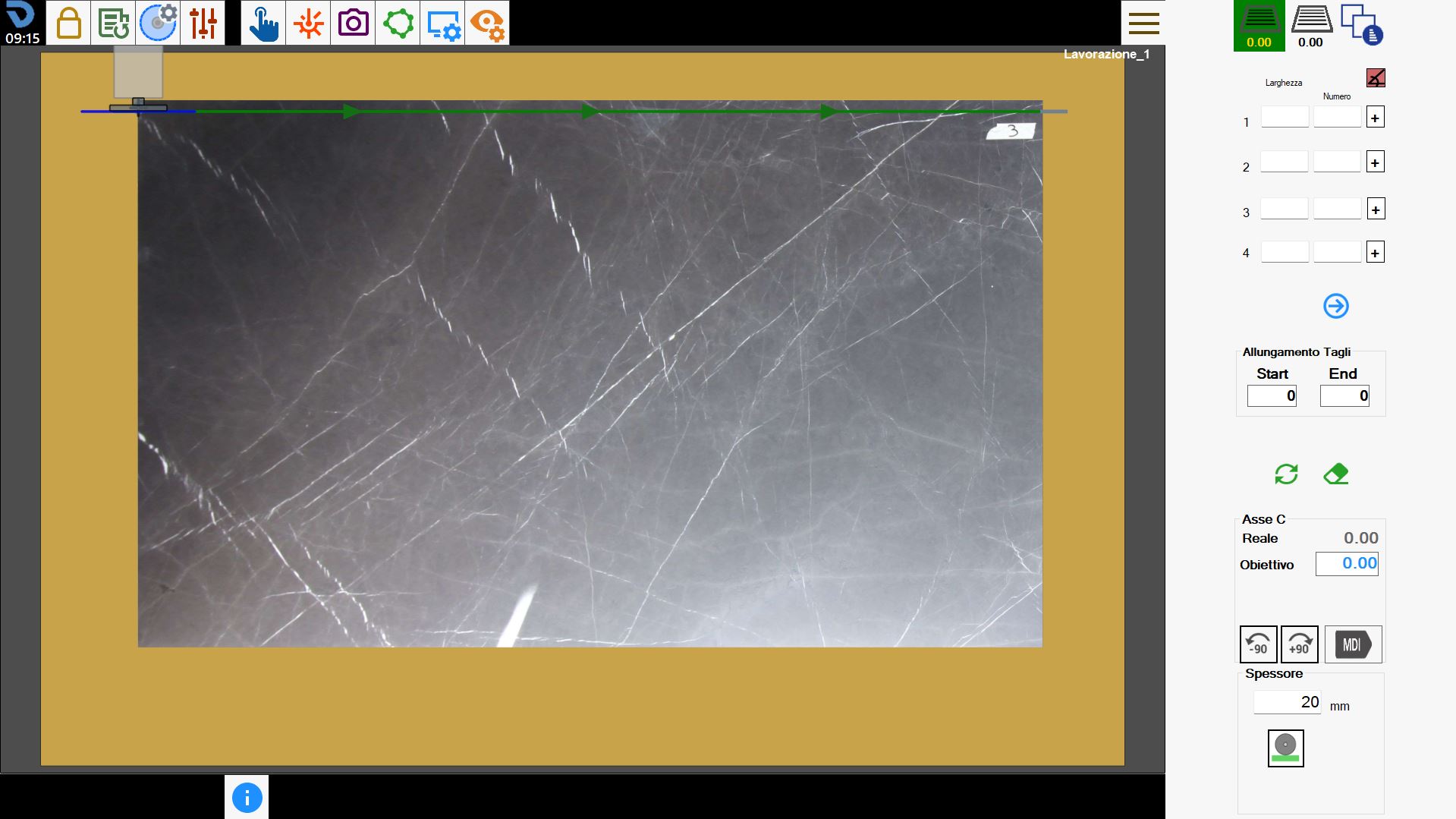
0.0-20250731-072128.png

Sidebar

Cut group selection and management

1.2_OnOff-20250716-130309.png

Create first cut group
Cuts parallel to the current machine position are created.
The direction in degrees for the first cut group is shown below the button.

1.2_OnOff-20250716-130309.png

Create second cut group
The second cut group is created in a similar way to the first, except that the direction may be different. The direction in degrees for the second cut group is shown below the button.

1.3-20250716-100441.png

Cut management
In this mode, changes can be made to the cuts before they are executed. Cuts can be edited, disabled, moved, deleted, and pauses can be added before the cut is executed.

Cut parameters

For each of the two cut groups available to the operator, up to 100 simultaneous cut configurations can be entered with their respective parameters.

1.4_b_1.5_b-20250716-143506.png

Orthogonal directions
If the two cut groups have orthogonal directions, the first green icon is displayed immediately below the cut group selection and management buttons. Otherwise, the second red image is displayed.

Width

The distance between one cut and the next.

Numbers

The number of parallel cuts to be created.

__--20250717-063907.png

Cut position
These buttons are located next to each cut configuration and allow the operator to decide whether to position the cuts starting from the disk position towards the motor, or conversely to move away from the motor with the cuts.

1.6_sx_dx-20250717-063636.png

Display next/previous cuts
Allows the operator to display all cuts in the selected group.
Editing the selected group returns to the first page of the group, where the first four cut configurations in the group are displayed.

Stretching Cuts

The operator can extend all cuts in the first and second groups at the start or end by the set distance.

Screenshot_2025-07-17_130514-20250717-112939.png

Start
Using this parameter, the cut can be extended at its start.

Screenshot_2025-07-17_133007-20250717-113155.png

End
Using this parameter, the cut can be extended at its end.

Delete and update cuts

6.3-20250718-073310.png

Delete cuts
Clicking this button allows the operator to delete the created cuts and start again with a new arrangement.

6.2-20250718-073203.png

Update cuts
When this button is pressed, the cuts are moved to the correct position relative to the machine.

C axis

The machine head can be rotated to adjust the orientation of the cuts in both the first and second groups.

4.0-20250718-072542.png

Rotate _90
Pressing the button rotates the machine head by 90_ from its current position.

4.1-20250718-072622.png

Rotate -90
Pressing the button rotates the machine head by - 90_ from its current position.

4.2-20250718-063420.png

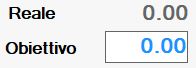
Machine head rotation
The following parameter can be used to specify the machine head rotation angle (in degrees).

4.3-20250718-072659.png

MDI
Pressing this button rotates the machine head according to the value set in the previous parameter.

Thickness

The operator can define the thickness of the slab to be cut.
5.1-20250718-065958.png

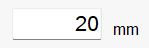
Manual thickness
The operator can enter the slab thickness manually.

5.2-20250718-073005.png

Thickness using machine
The operator can acquire the thickness using the machine by moving the machine height to the desired position and selecting the button. The distance between the workbench and the disk is considered the material thickness.

Executing the working

The operator can set both cut groups by editing their respective parameters.
Once the desired result has been obtained, press the “Start cycle” button to execute the working.

First cut group

In the first cut group, one or more groups of cuts are defined by changing the Width, Number and Cut Position parameters, as well as the C-axis rotation.
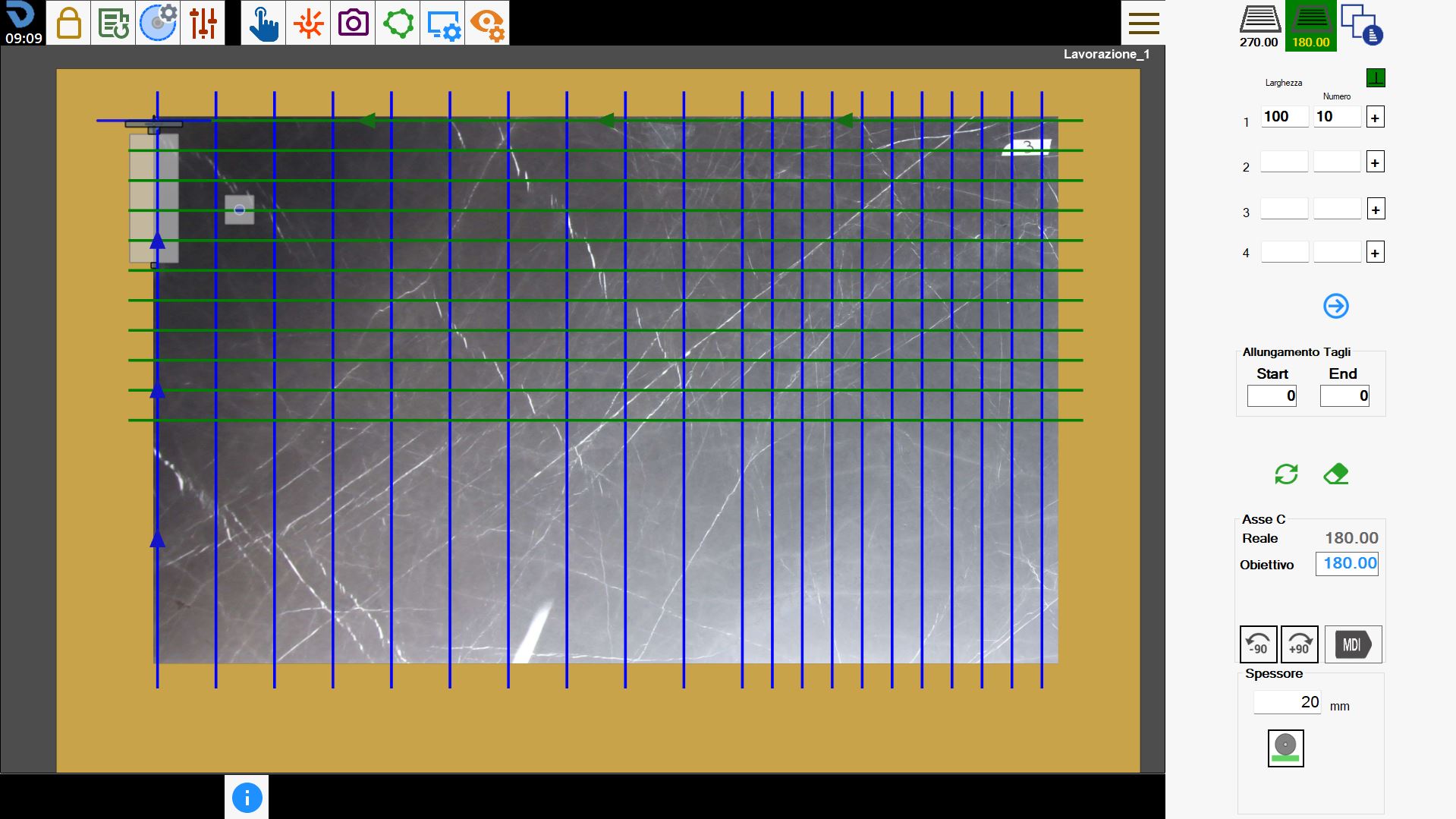
In the following working, cuts parallel to the current machine position have been set.
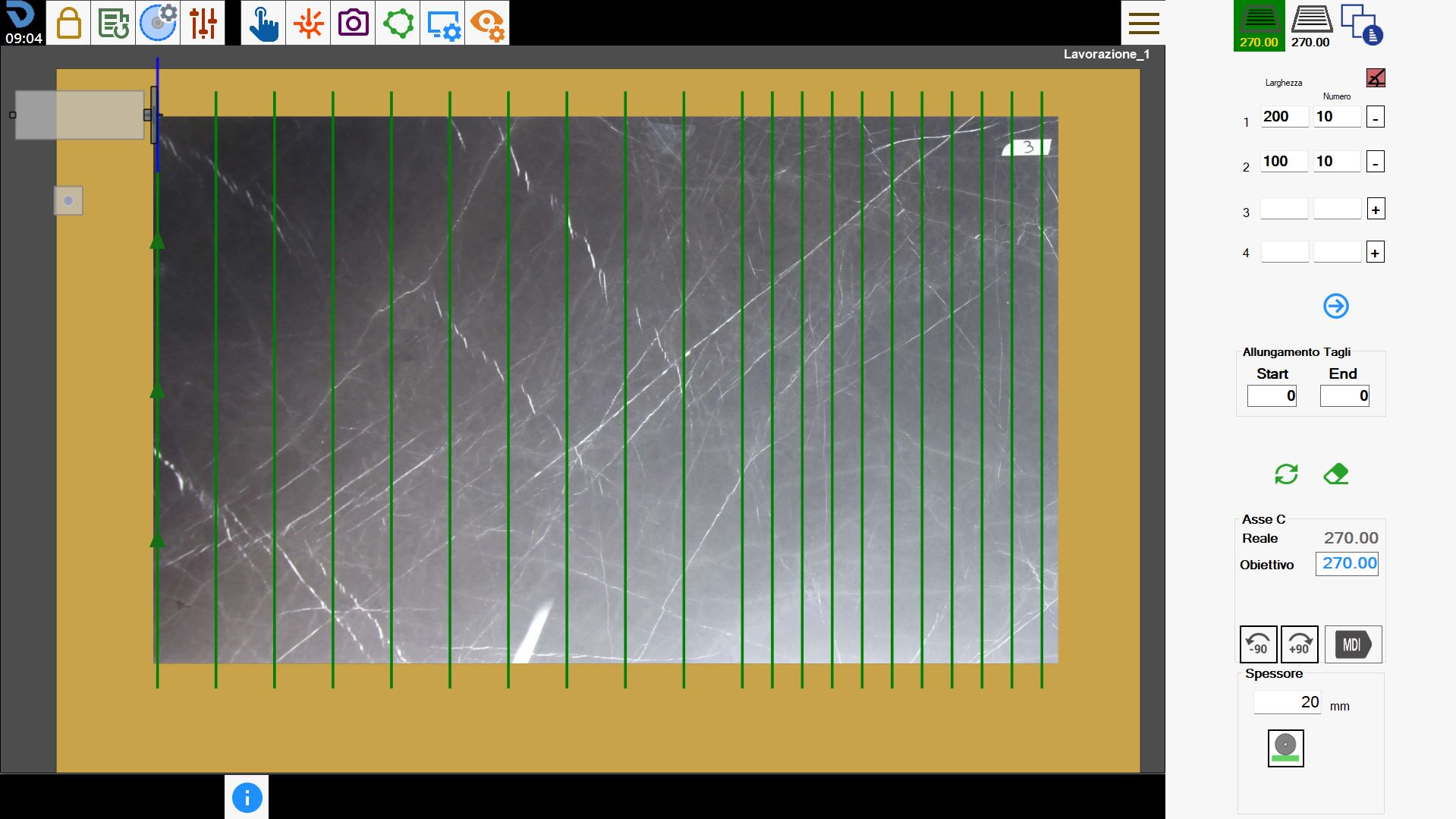
3.1-20250731-071602.png

Second cut group

As with the first cut group, the parameters of the second group can be changed to obtain the desired result.
In this working, the cut direction has been changed, creating cuts orthogonal to those in the first group.
3.2-20250731-071625.png

Cut optimisation and management

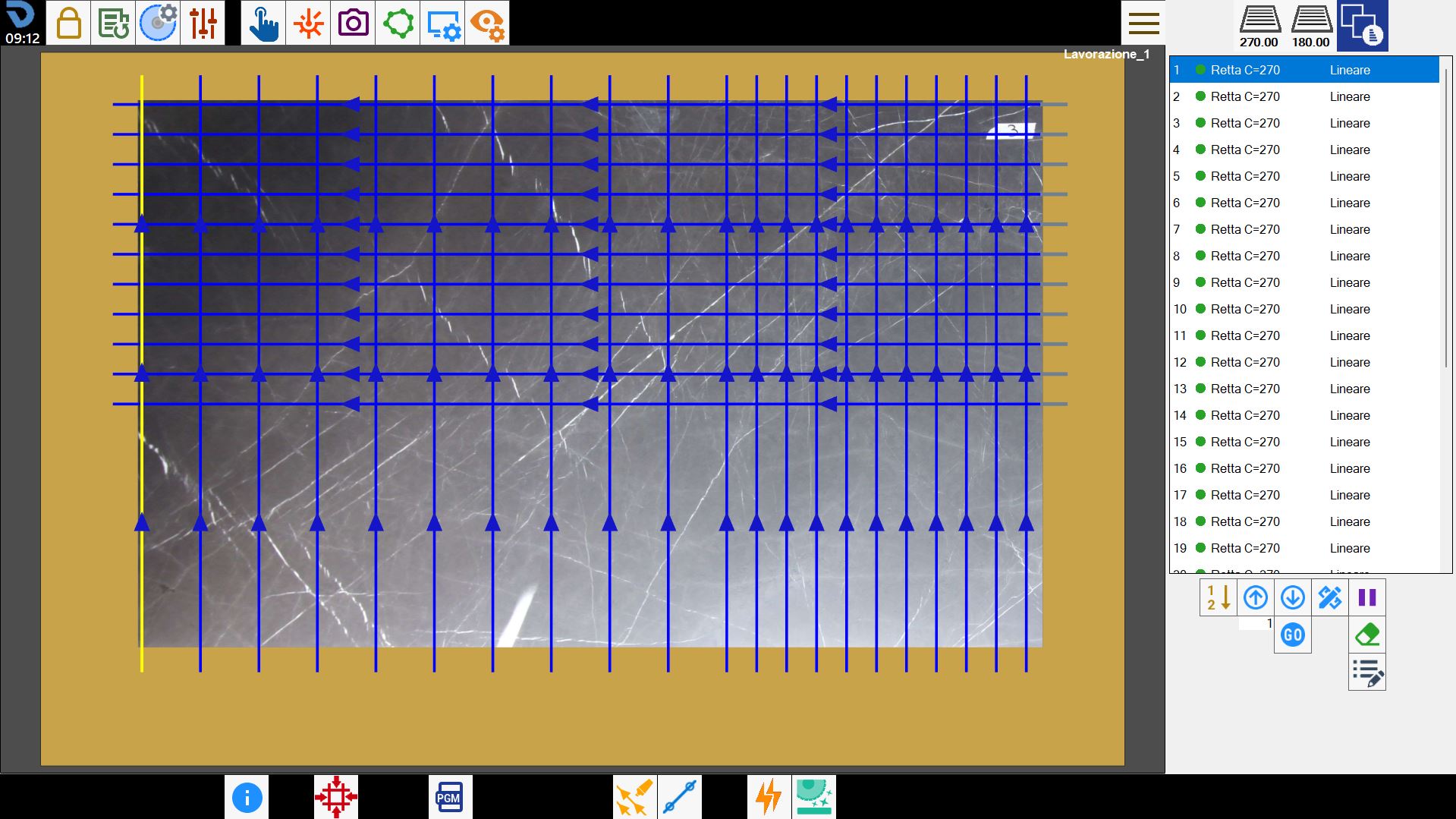
In this section, the cut execution order can be changed and it is possible to choose whether or not to execute a cut.

3.3-20250731-071313.png

;