

In this section, pieces can be created using parametric figures with predefined shapes. To draw a figure, simply enter the values that define it.
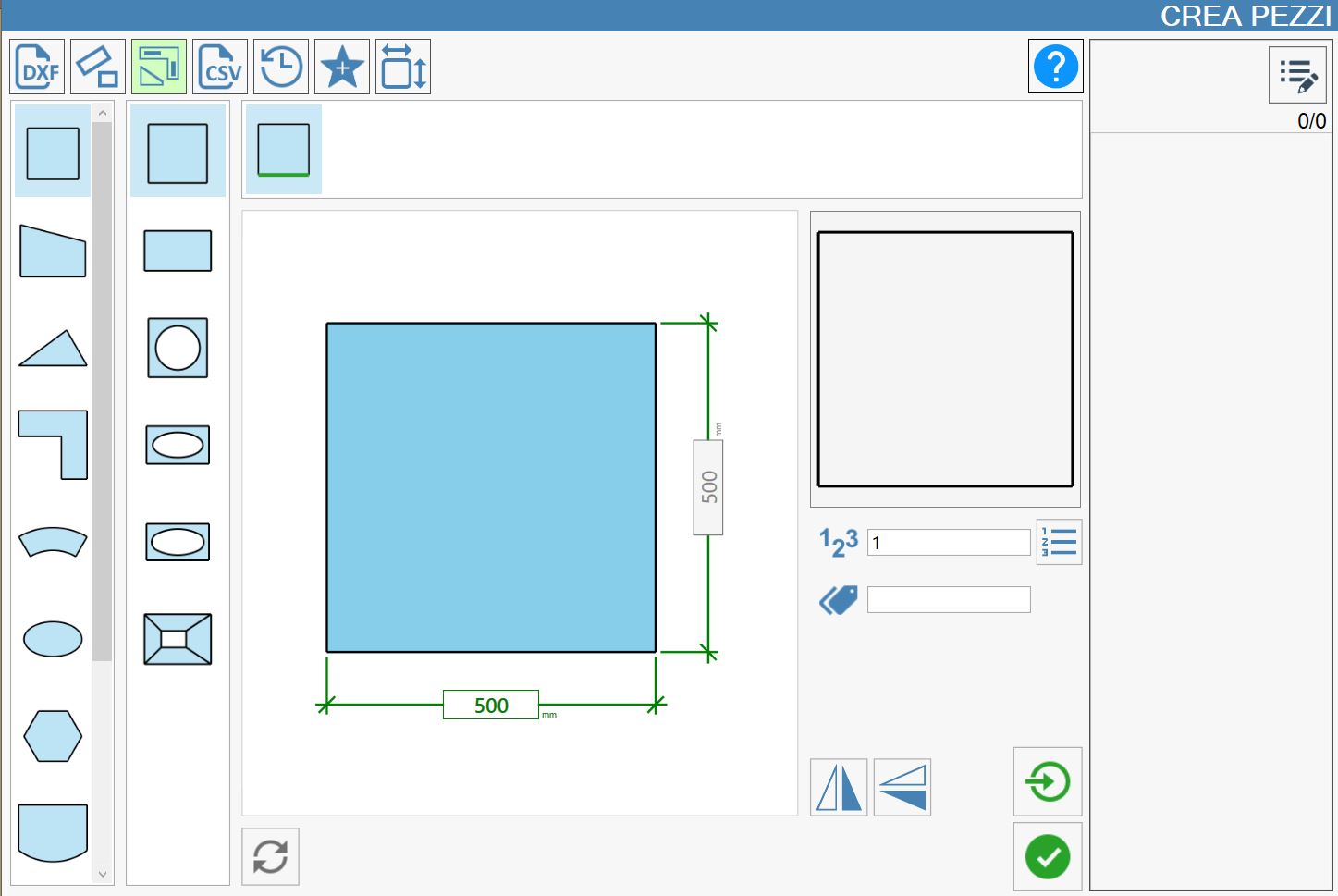
Parametric figure categories
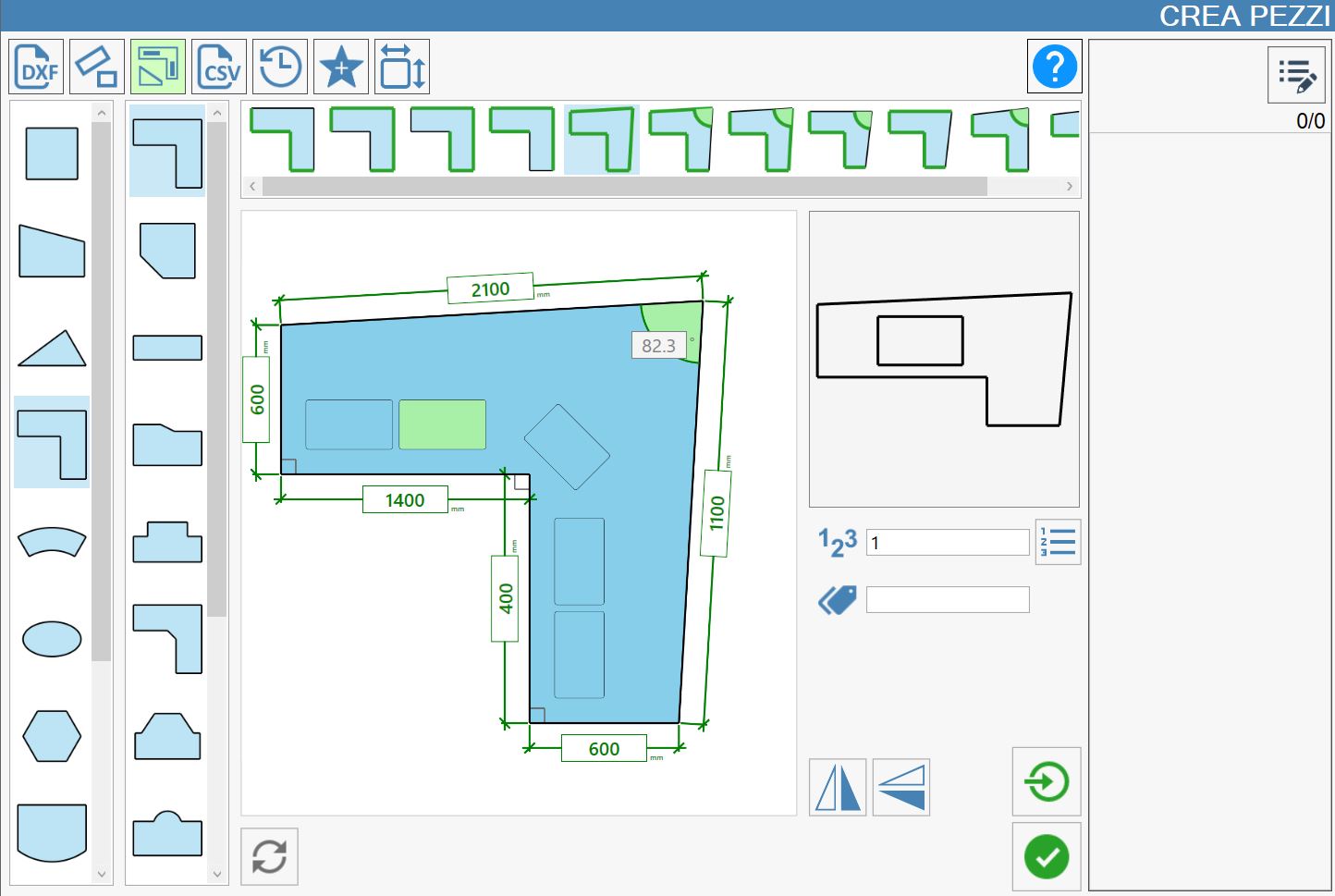
Referring to the image above, the main categories of parametric shapes are shown in the left column.
 | Rectangular figures |
 | Quadrilaterals |
 | Triangular figures |
 | Kitchen worktops |
 | Sector-type figures |
 | Elliptical figures |
 | Polygonal figures |
 | Bathrooms |
 | Stone or memorial figures |
 | Tables |
 | Special figures |
Preview and parameter values
Depending on the selected category, the next column to the right opens the selection of the correct shape to use.
An image in the centre of the screen provides detailed indications of the dimensions to be entered. To the right of the reference image, a preview of the figure being drawn is displayed and updated in real time whenever the values defining the figure are changed.
As in the previous paragraphs, once the dimensions have been entered, it is possible to enter the mark (or label) displayed on the piece when it is inserted in the work area, the number of copies of the piece, and decide whether to perform a single import.
The following image shows an example of creating a kitchen worktop.
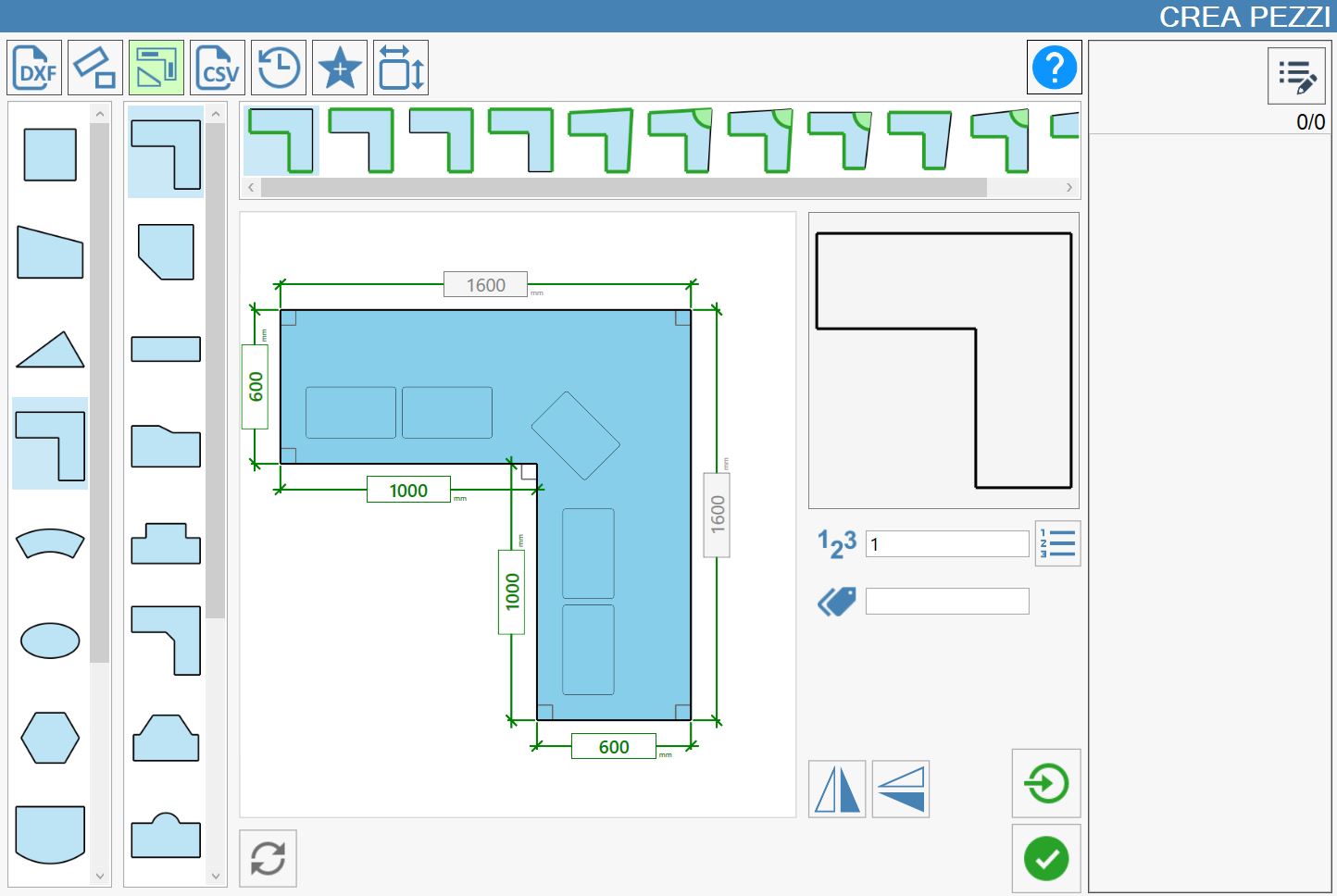
Create internal breaks
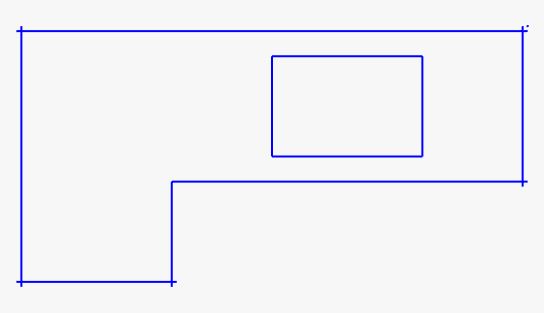
To create internal breaks, press one of the internal rectangles in the central image. The window shown below opens, where the break can be edited as required before being inserted into the original image.
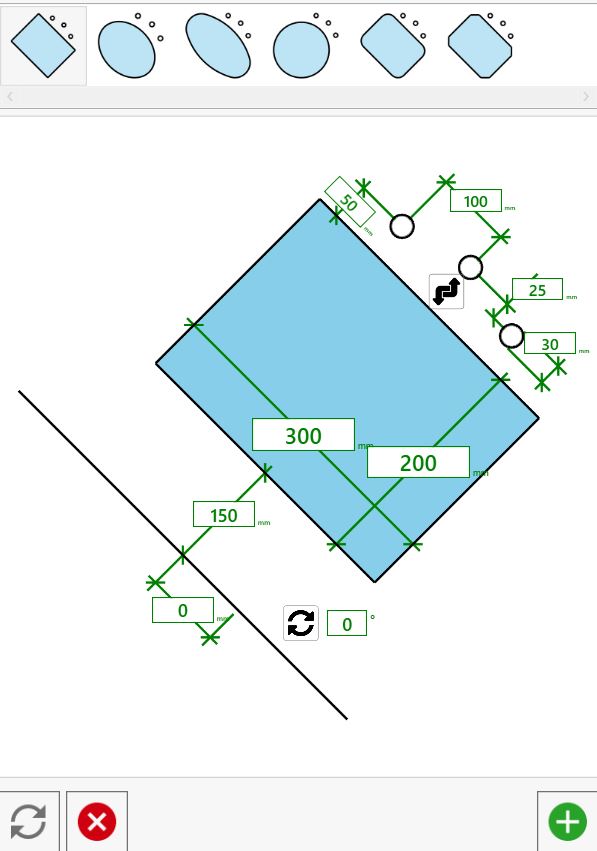
Additional settings
Additional parameters
The following data is required to create rectangular pieces:
 | Number of pieces |
 | Mark |
Additional buttons
 | Single import |
  | Mirror |
 | Restore |
Out-of-square piece bar
Some pieces can be created using non-square angles (i.e. angles other than 90 degrees).
To use this option, a bar above the central image contains all modification versions of that image. Editable parameters are coloured green.
Mirror
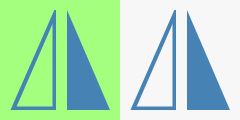
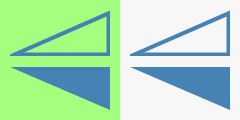
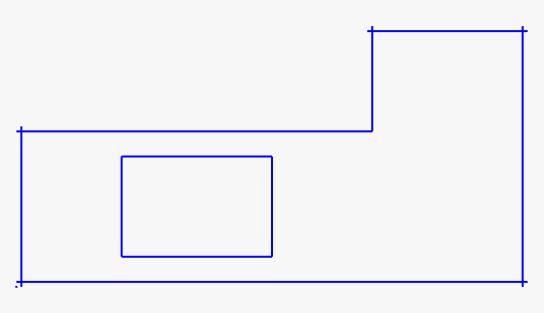
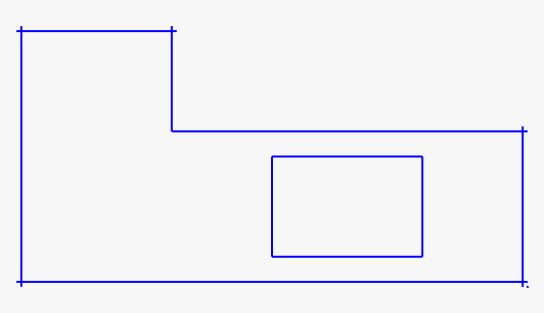
Pressing the two dedicated buttons flips the result displayed on screen along the vertical or horizontal axis respectively. This function allows the display to be adapted according to operating requirements or the type of working in progress.
Some examples of horizontal and vertical flipping are shown below:
Horizontal flip only | Vertical flip only | Horizontal and Vertical flip |
 |  |  |
 |  |  |
