The ‘Internal Break’ function allows a rectangular, circular or elliptical internal break to be added to the piece.
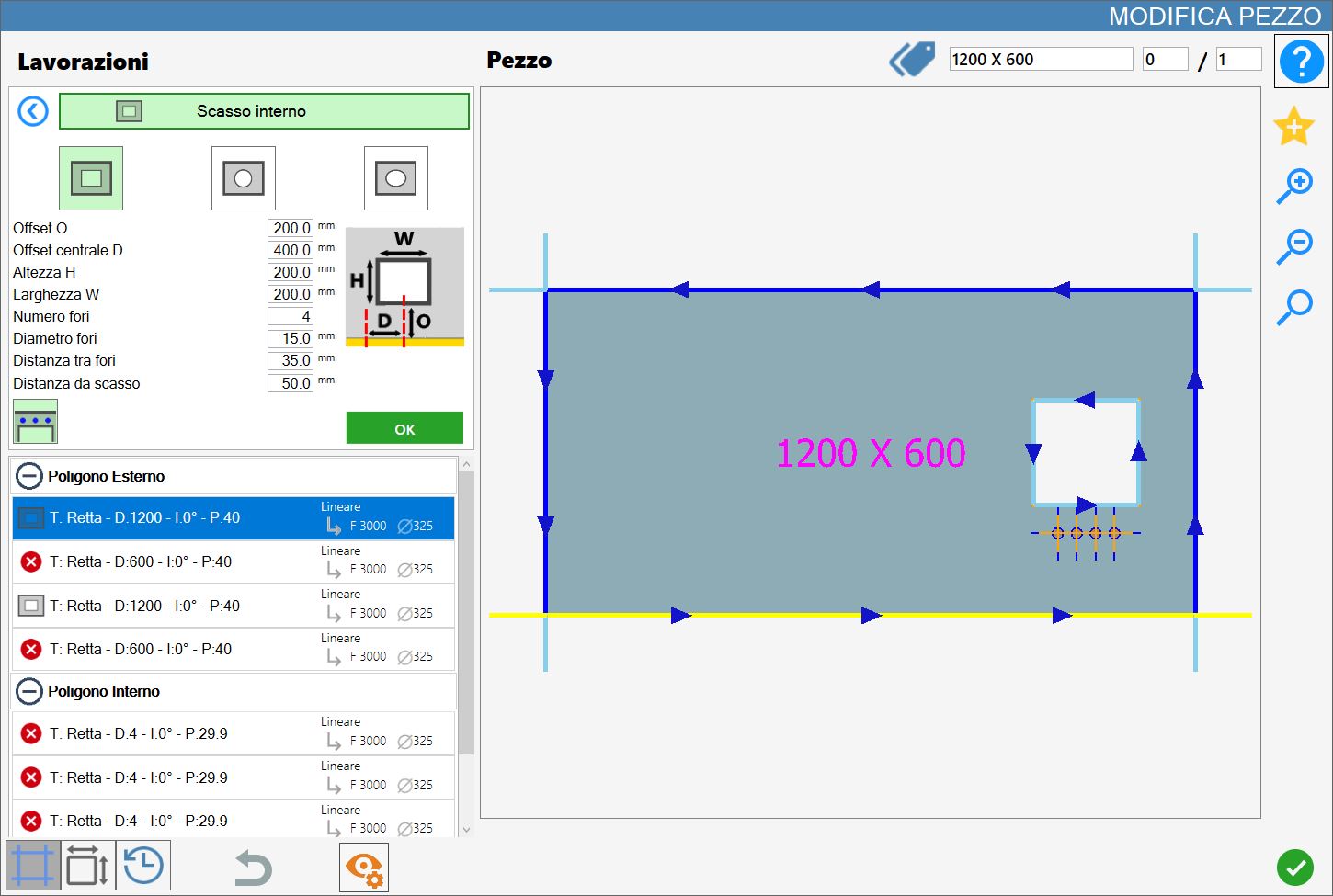
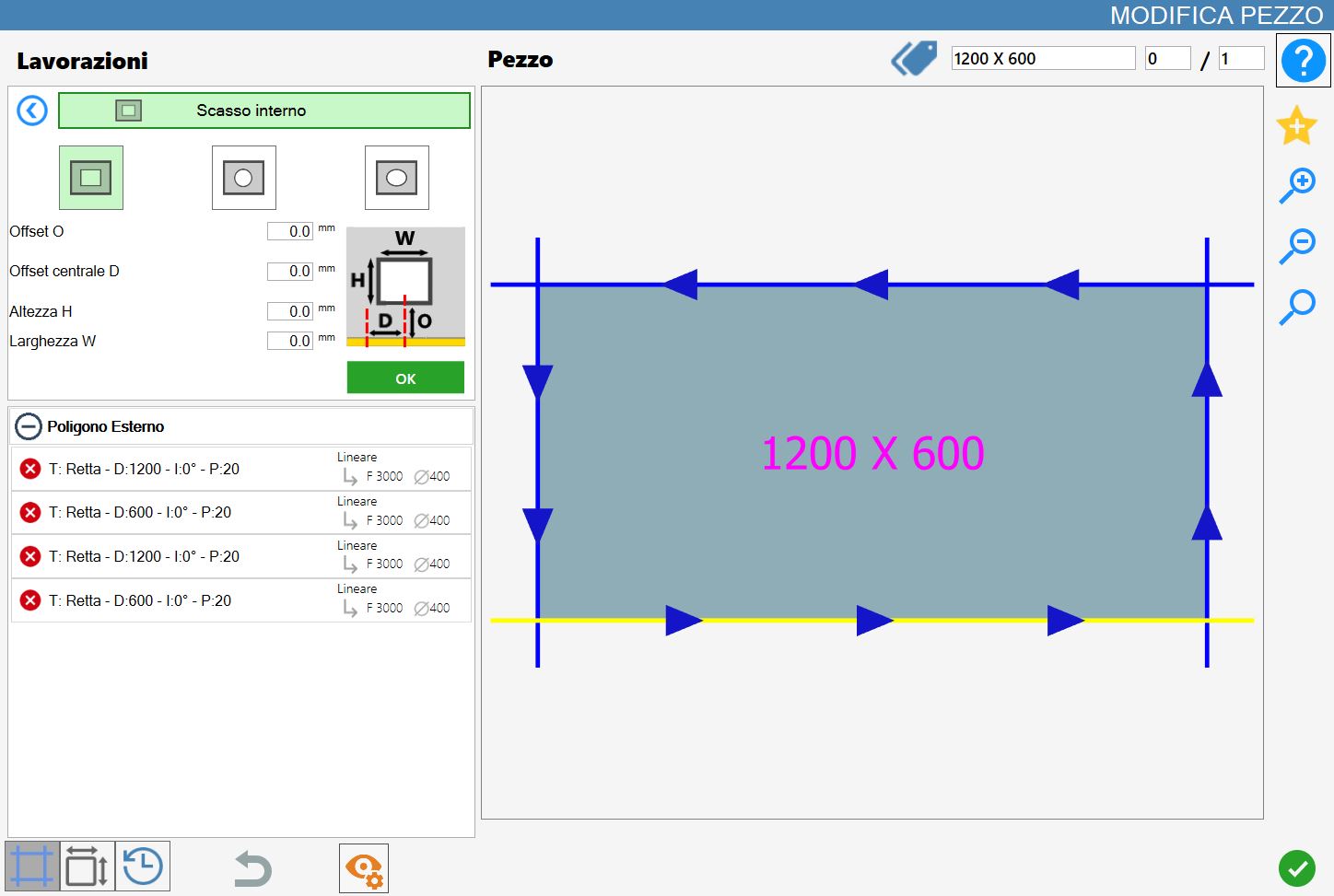
The interface for this function is similar to the following image:
Working types
To use this working, first select one of the two available modes by pressing the corresponding button:
The ‘Rectangular’, 'Circular’ and 'Elliptical' modes are mutually exclusive: enabling one automatically disables the others.
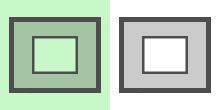 | Rectangular internal break |
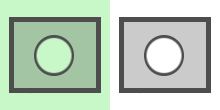 | Circular internal break |
 | Elliptical internal break |
Rectangular Internal Break
When this mode is enabled, the rectangular internal-break preview is displayed directly in the working preview, highlighted in light green. The dimensions and position of the internal break depend on the default parameters, which can be changed by the user.
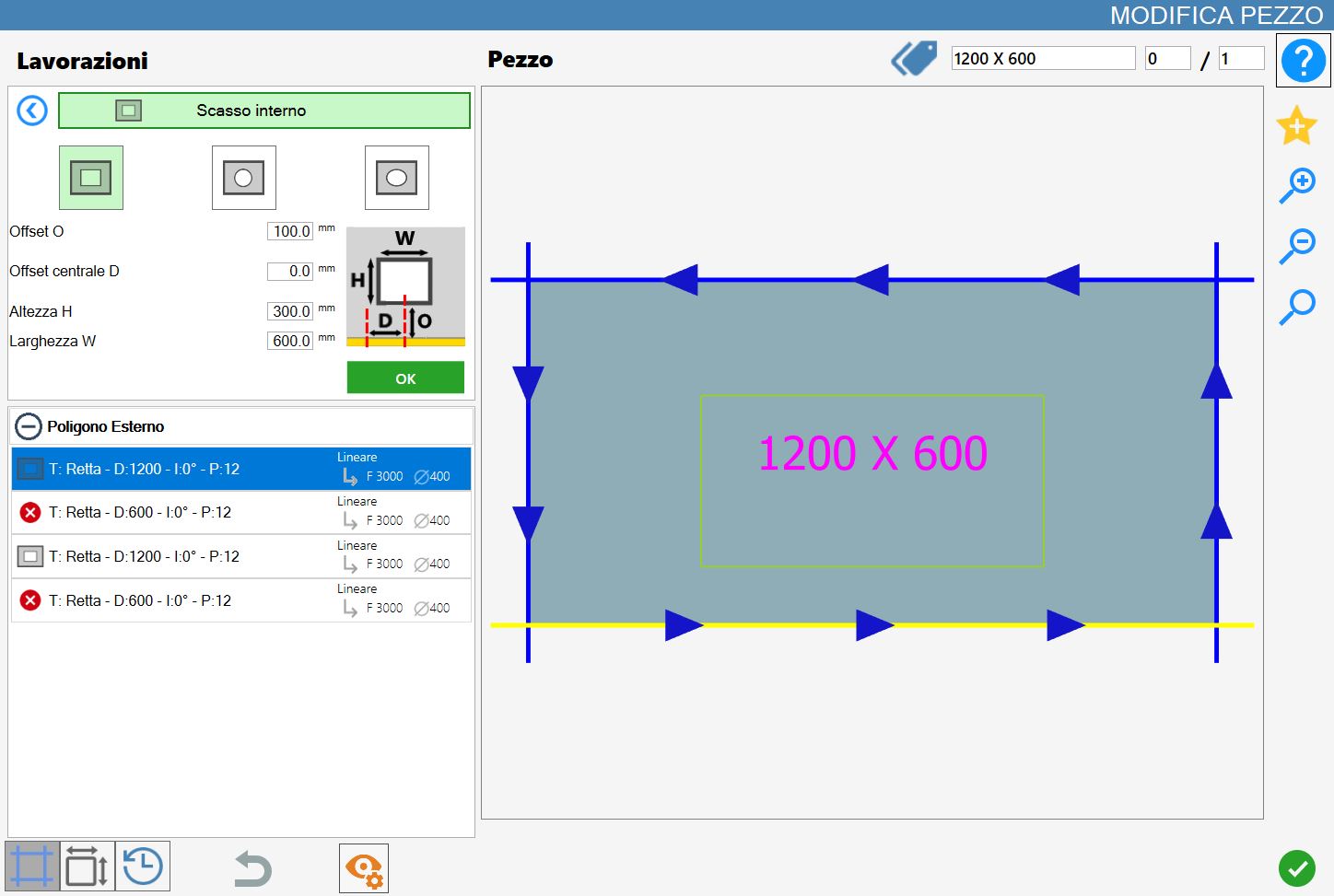
Rectangular internal-break parameters
While in this mode, the following parameter panel is displayed:
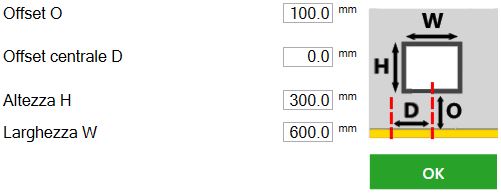
Offset O | Distance between the edge of the internal break and the reference side of the selected piece. |
Midpoint offset D | Distance between the side of the piece parallel to the selected side and the centre of the internal break. |
Height H | Internal-break height. |
Width W | Internal-break width. |
Executing rectangular internal break
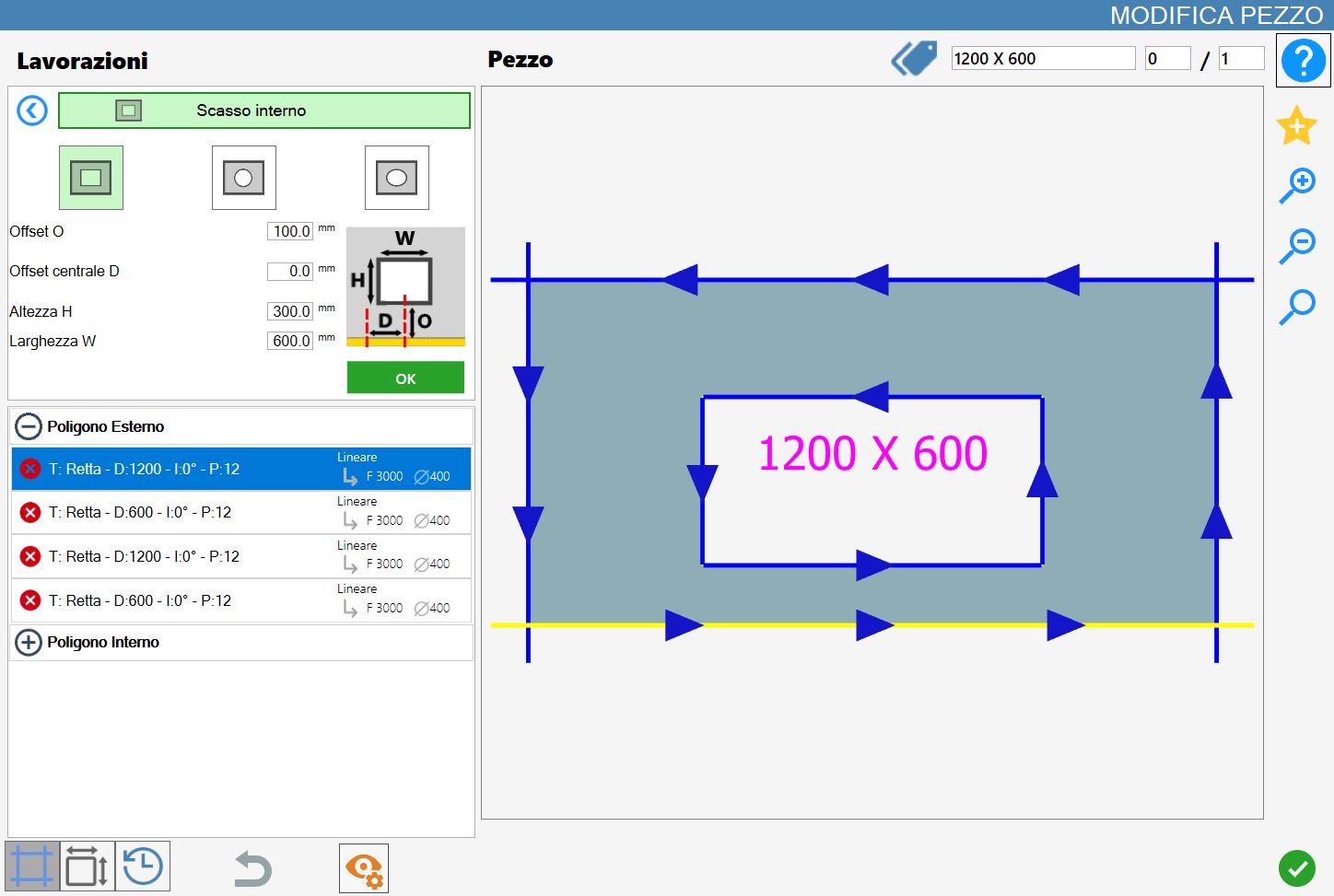
The working can be applied by pressing the button to the left of the appropriate cut in the polygon list.
A red icon with an 'X' indicates that the working cannot be applied to the desired cut.
Confirming the working adds a new internal polygon to the piece, both graphically and in the polygon list on the left:
Circular Internal Break
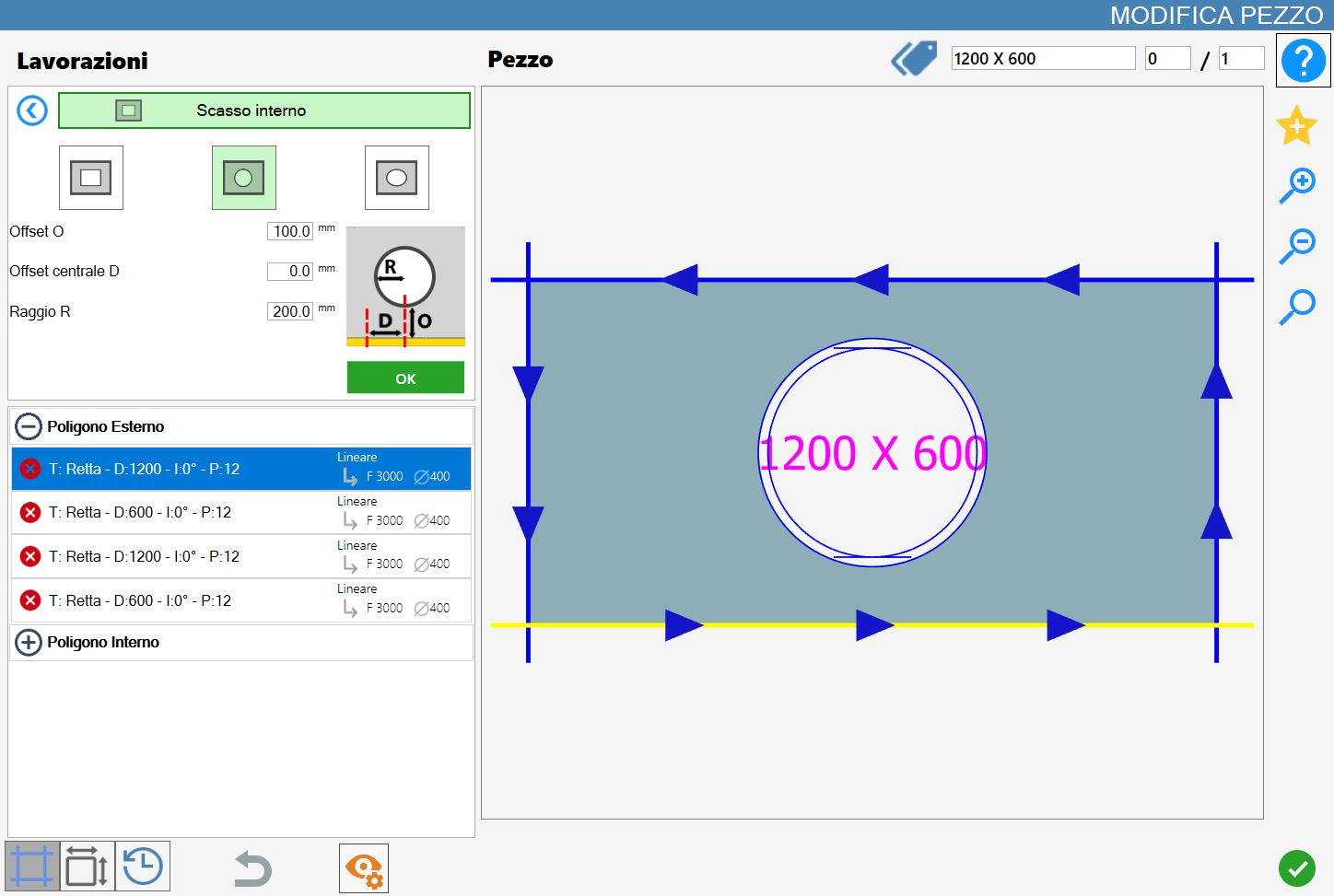
When this mode is enabled, the circular internal-break preview is displayed directly in the working preview, highlighted in light green. The dimensions and position of the internal break depend on the default parameters, which can be changed by the user.
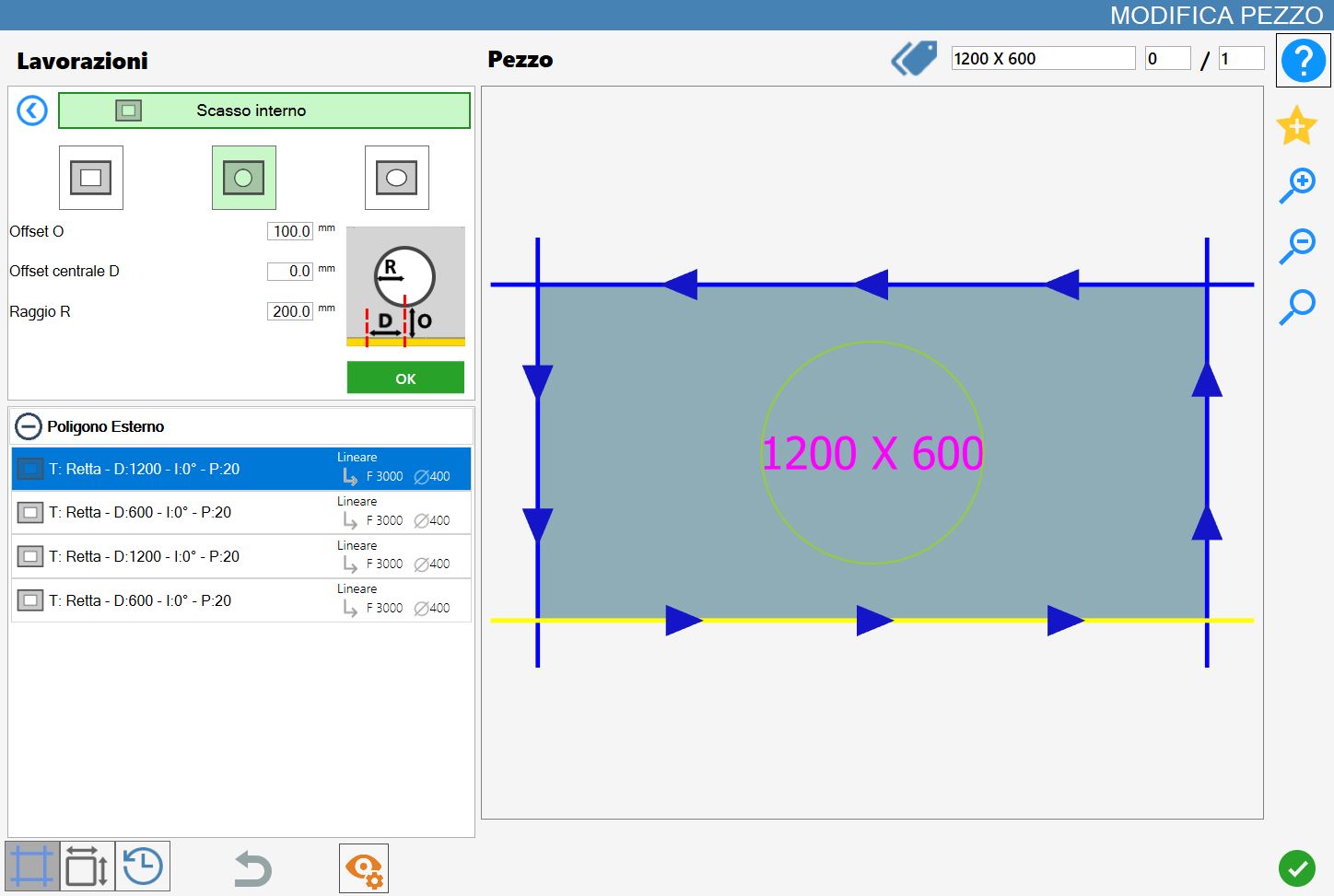
Circular internal-break parameters
While in this mode, the following parameter panel is displayed:
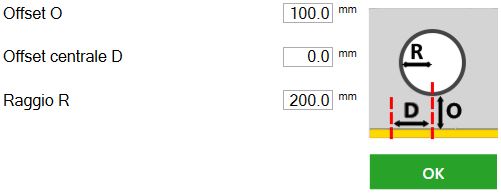
Offset O | Distance between the edge of the internal break and the reference side of the selected piece. |
Midpoint offset D | Distance between the side of the piece parallel to the selected side and the centre of the internal break. |
Radius R | Internal-break radius. |
Executing circular internal break
The working can be applied by pressing the button to the left of the appropriate cut in the polygon list.
A red icon with an 'X' indicates that the working cannot be applied to the desired cut.
Confirming the working adds a new internal polygon to the piece, both graphically and in the polygon list on the left:
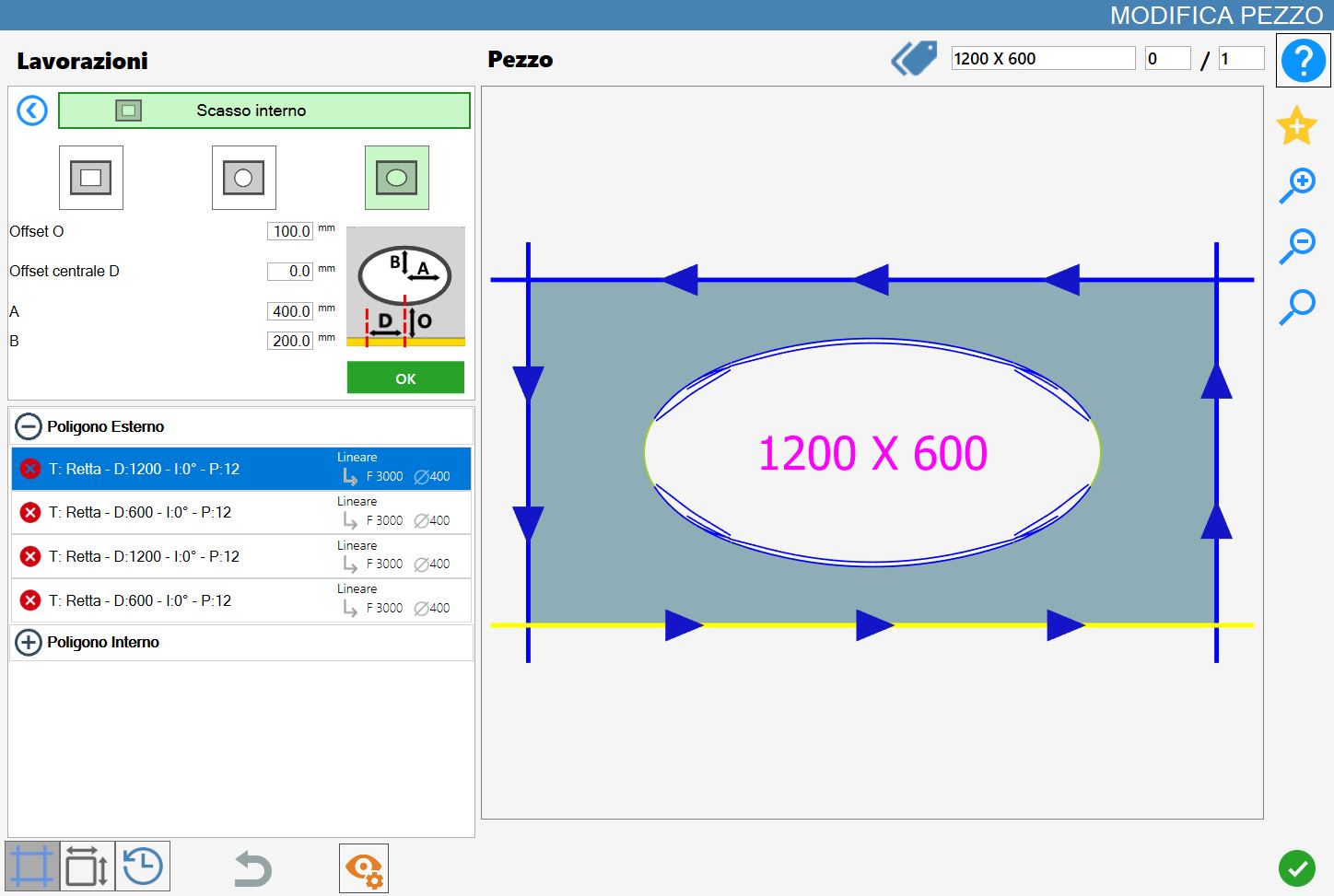
Elliptical Internal Break
When this mode is enabled, the elliptical internal-break preview is displayed directly in the working preview, highlighted in light green. The dimensions and position of the internal break depend on the default parameters, which can be changed by the user.
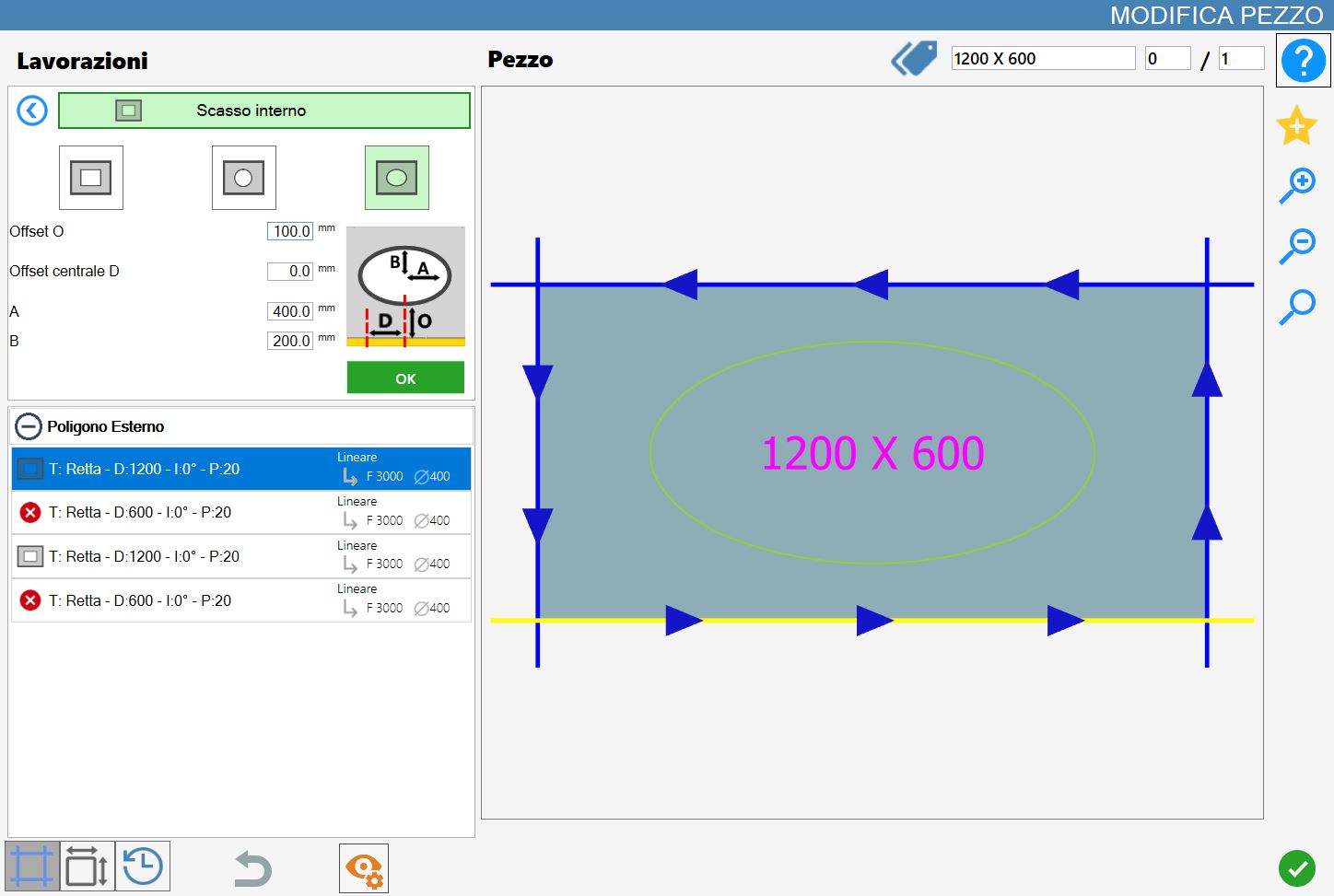
Elliptical internal-break parameters
While in this mode, the following parameter panel is displayed:
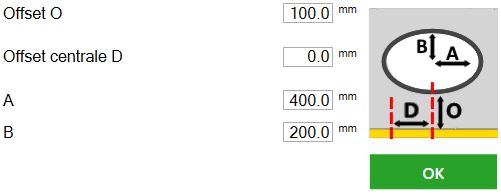
Offset O | Distance between the edge of the internal break and the reference side of the selected piece. |
Midpoint offset D | Distance between the side of the piece parallel to the selected side and the centre of the internal break. |
To | Value corresponding to the semi-major axis of the elliptical internal break. |
B | Value corresponding to the semi-minor axis of the elliptical internal break. |
Executing elliptical internal break
The working can be applied by pressing the button to the left of the appropriate cut in the polygon list.
A red icon with an 'X' indicates that the working cannot be applied to the desired cut.
Confirming the working adds a new internal polygon to the piece, both graphically and in the polygon list on the left:
Optional tap holes
Pressing the button to the left of the OK button enables the tap-hole option. This option creates additional holes around the main central hole and displays additional parameters to configure.
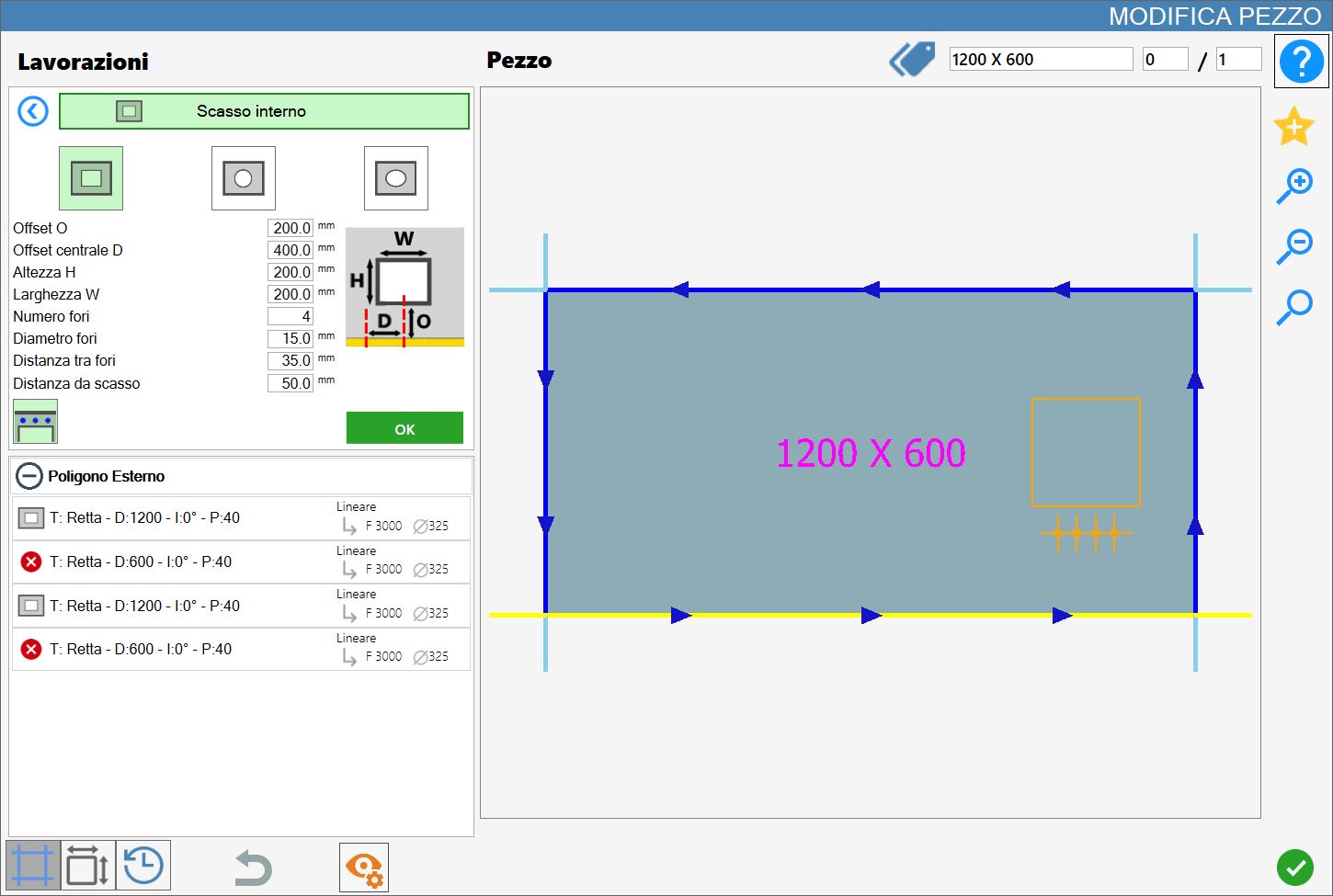
If the tap-hole diameter value is equal to or less than the maximum hole radius value, the tap holes will be created as holes; if the tap-hole diameter value is greater than the maximum hole radius value, the tap holes will be created as internal breaks.
Tap-hole parameters
While in this mode, the following parameter panel is displayed:
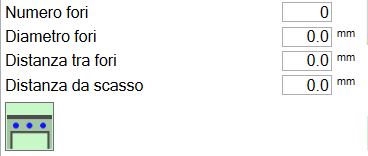
Holes number | Indicates how many holes are to be applied to the current working on the selected cut. |
Hole diameter | Indicates the diameter of the holes applied to the working. |
Distance between holes | Indicates the distance measured between the centres of two consecutive holes. |
Distance from internal break | Indicates the distance between the centre of the hole and the edge of the internal break. |
Executing tap holes
NOTE
The working can be applied by pressing the button to the left of the appropriate cut in the polygon list.
A red icon with an 'X' indicates that the working cannot be applied to the desired cut.
Confirming the working adds tap holes in addition to a new internal polygon on the piece, both graphically and in the added workings list on the left: