

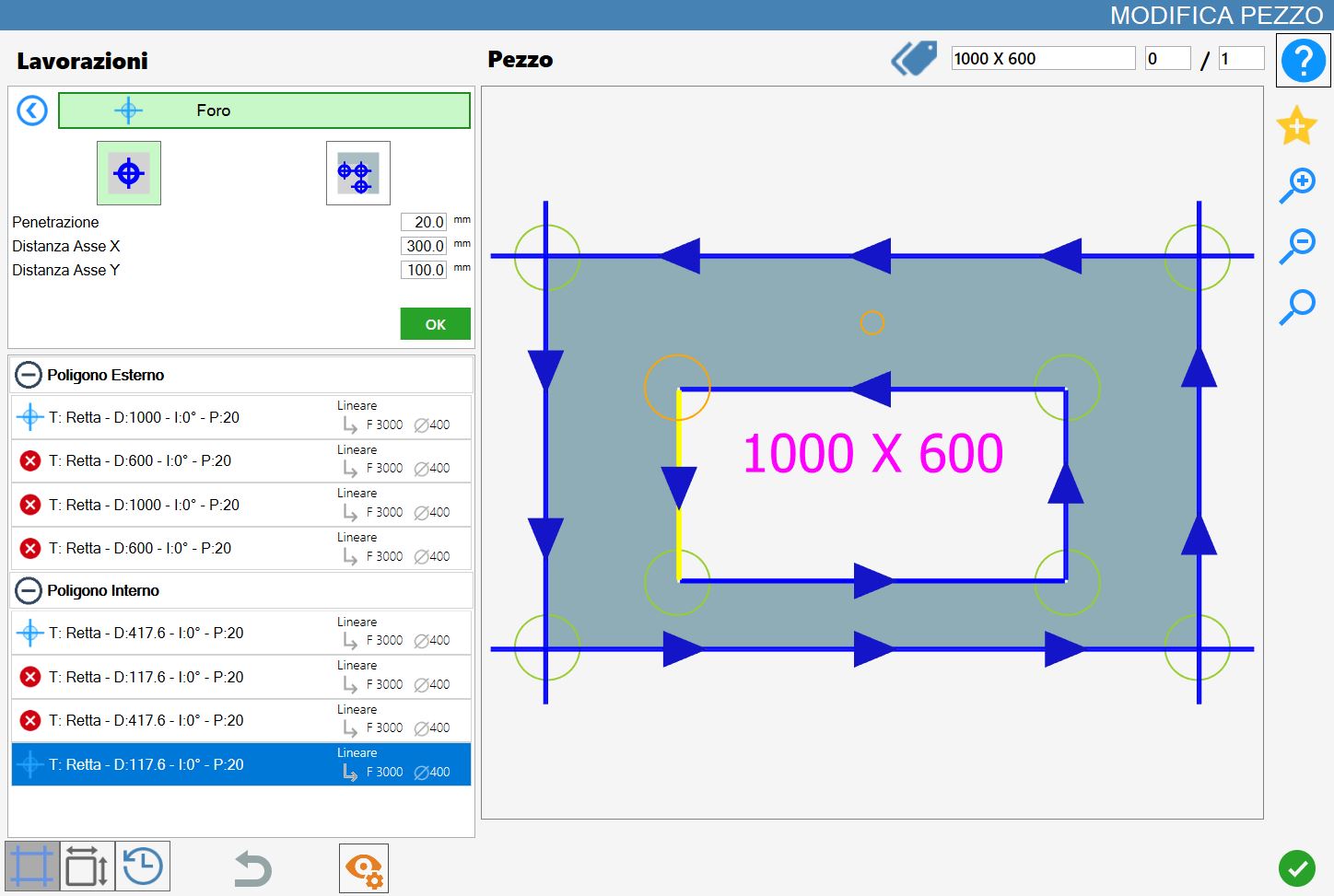
On this page, a single hole can be drilled at a specific position or a series of holes can be drilled at a fixed distance.
Working types
To use this working, first select one of the two available modes by pressing the corresponding button:
The 'Hole in the material' and 'Remove Disk's Material' modes are mutually exclusive: enabling one automatically disables the other.
 | Hole in the material |
 | Remove Disk's Material |
Hole in the material
When this working mode is selected, the currently selected vertex is highlighted in orange and, starting from it, a preview of the hole to be added is projected. The preview is also shown in orange and is generated according to the set parameters.
Parameters
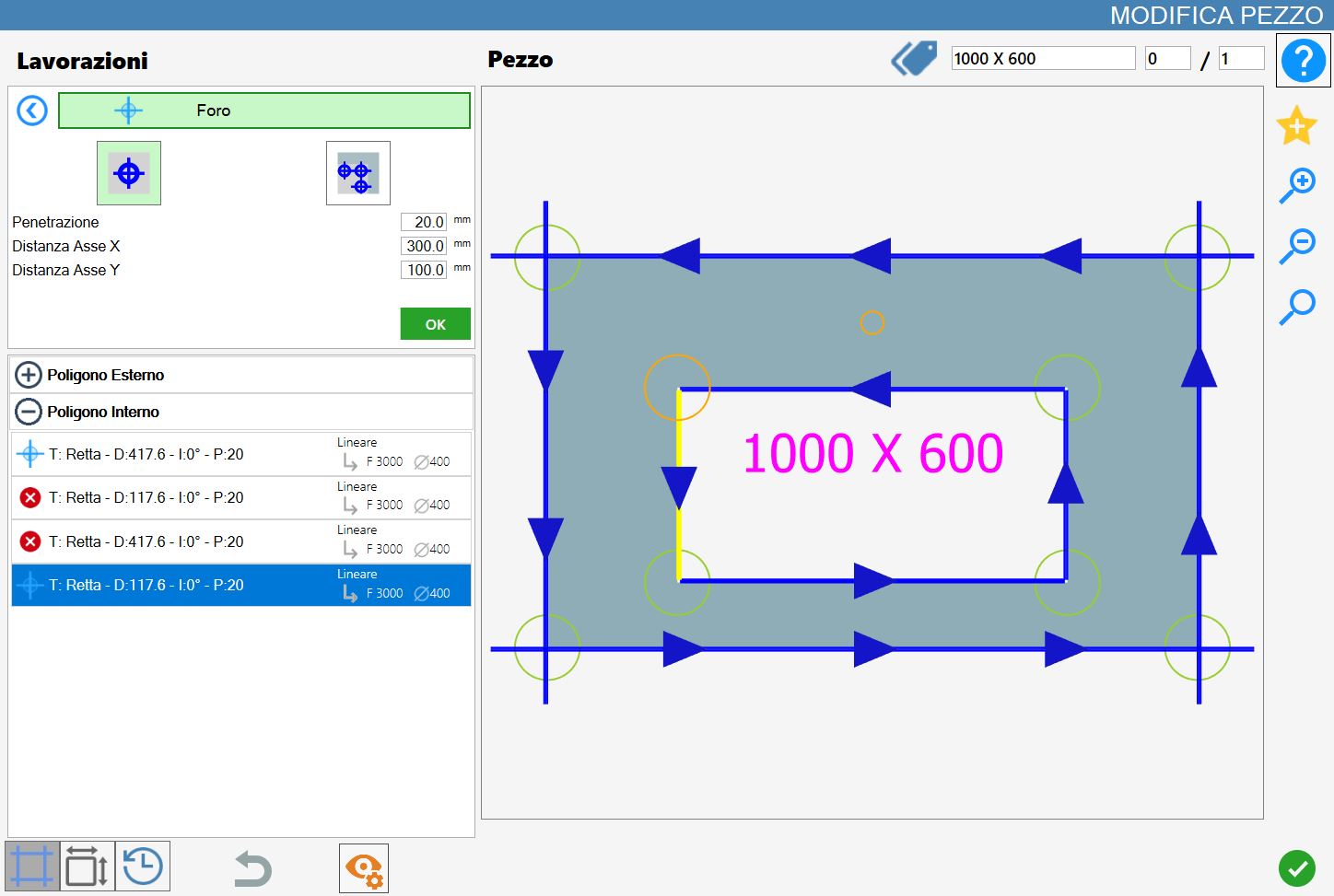
Penetration | Indicates the depth that the working must reach. |
Distance X axis | Distance on the X axis from the starting point of the selected cut at which the hole will be created. |
Distance Y axis | Distance on the Y axis from the starting point of the selected cut at which the hole will be created. |
Relative to the selected point, the area to the right of the circle is considered positive (for X) and the area above the circle is considered positive (for Y), as shown in the figure.
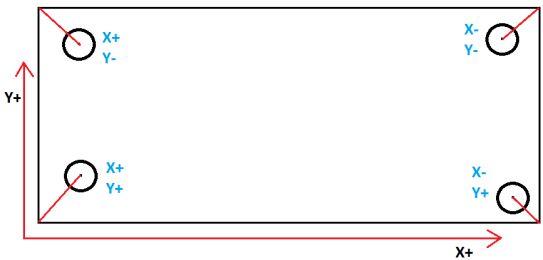
Executing Hole in the material
The working can be applied by pressing the button to the left of the appropriate cut in the polygon list.
A red icon with an 'X' indicates that the working cannot be applied to the desired cut.
Once a vertex has been selected and the distance and penetration parameters have been set, the working can be confirmed by pressing the green OK button.
Each hole successfully inserted in the material updates the preview and is automatically added to the 'Added Workings' section on the left:
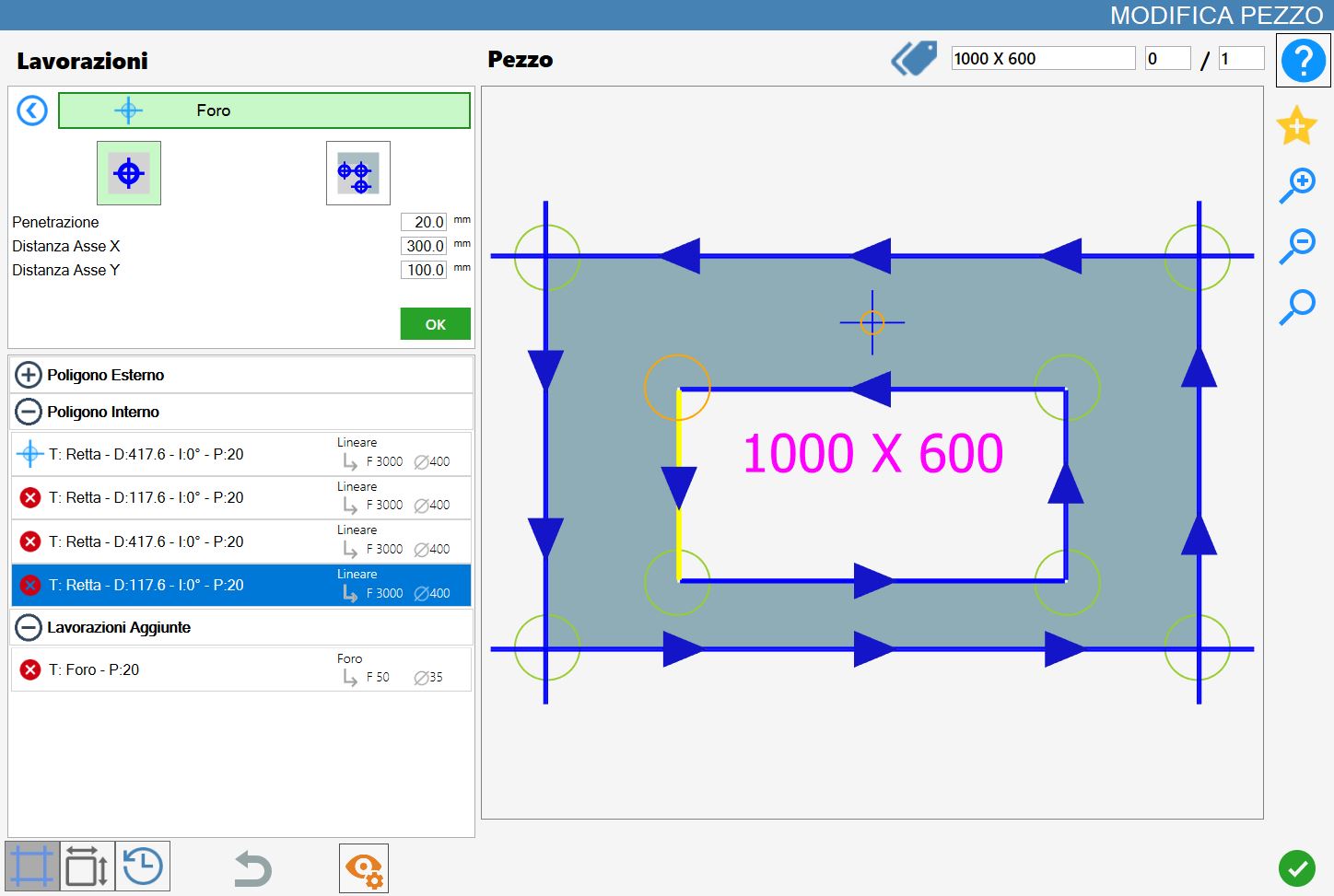
Unlike Remove Disk's Material, however, the centre points of the arcs can also be selected. These are highlighted in the preview together with all the other valid reference points for inserting holes in the material
Remove Disk's Material
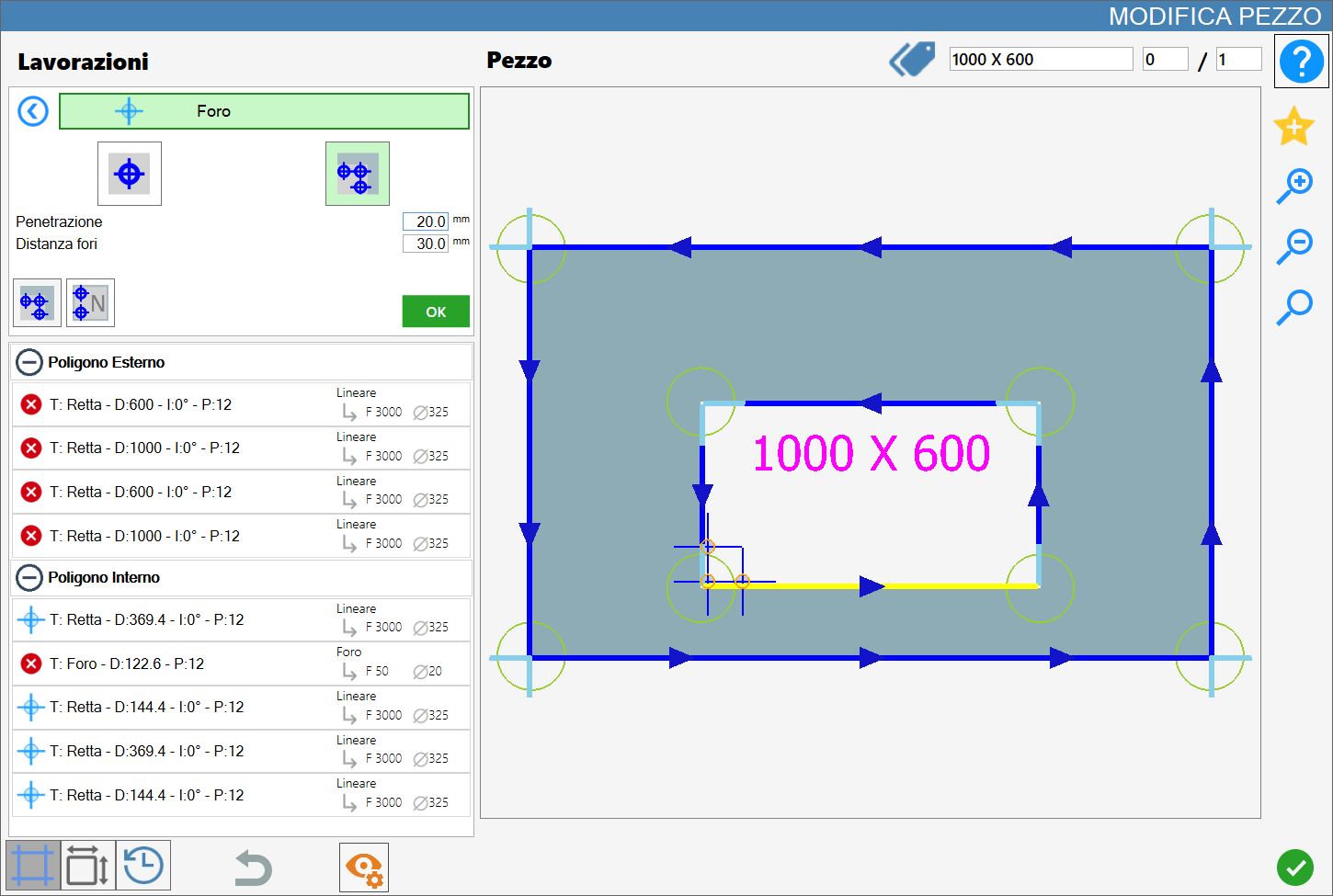
When this mode is enabled, the selected vertex becomes the origin point of an orange preview consisting of multiple holes. Their size depends on the mounted core drill and their number is determined by the Holes distance parameter.
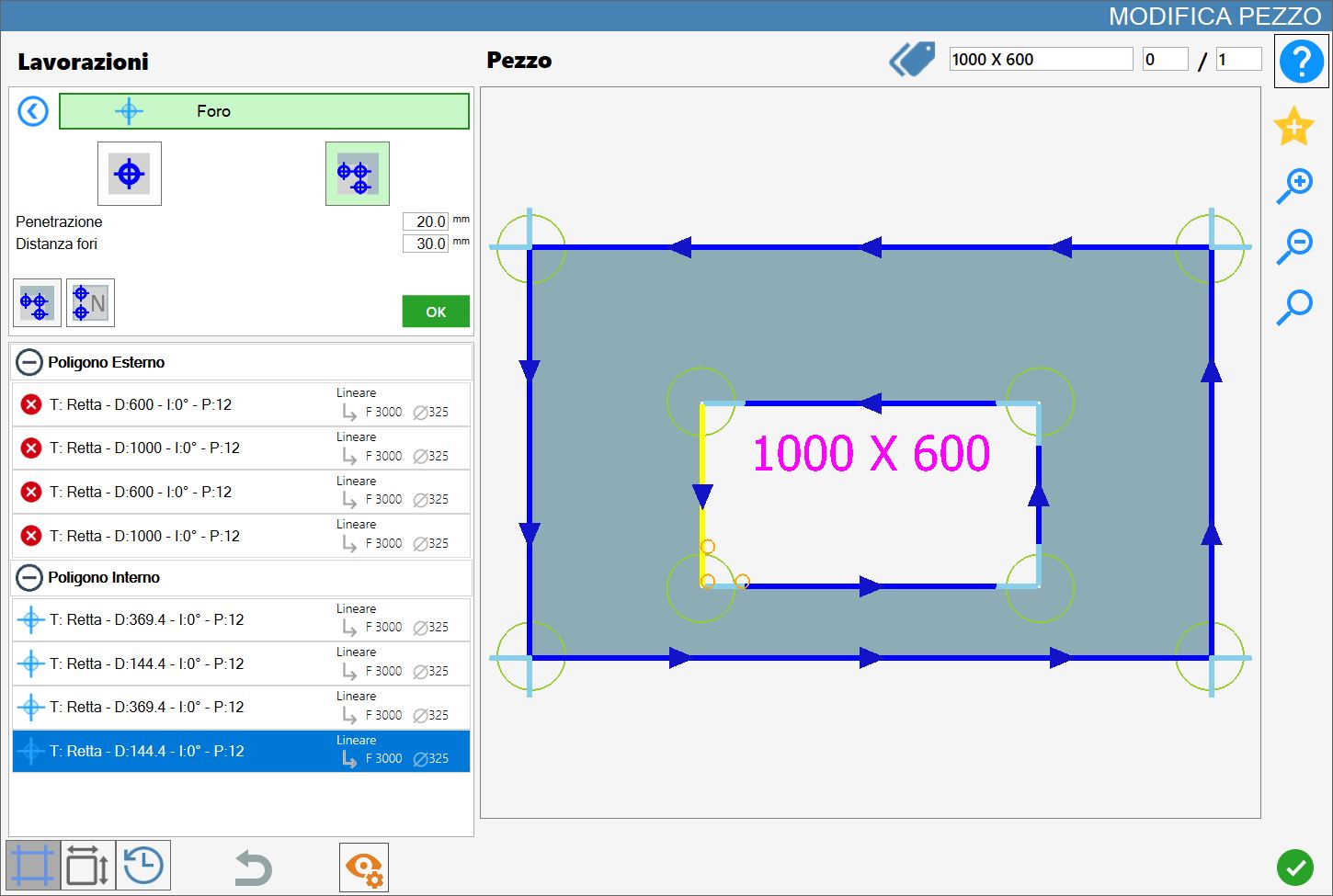
Remove Disk's Material Parameters
Penetration | Indicates the depth that the working must reach. |
Automatic holes distance | Determines the distance between the origin points of the holes. |
Executing Remove Disk's Material
The working can be applied by pressing the button to the left of the appropriate cut in the polygon list.
A red icon with an 'X' indicates that the working cannot be applied to the desired cut.
Remove Disk's Material mode can be used between two consecutive cuts, whether both are lines, both are curves, or one is a line and the other a curve.
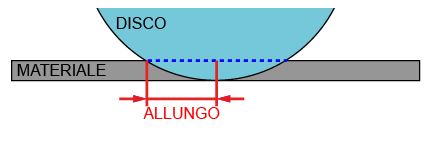
The hole is added to the internal polygon list and identifies the Remove Disk's Material working.
The following is an example of Remove Disk's Material applied to two adjacent sides of the internal polygon:
Buttons available in Remove Disk's Material mode
 | Concave holes |
|---|---|
 | Holes number |
