Donatoni Macchine
Machine technical documentation Operational document

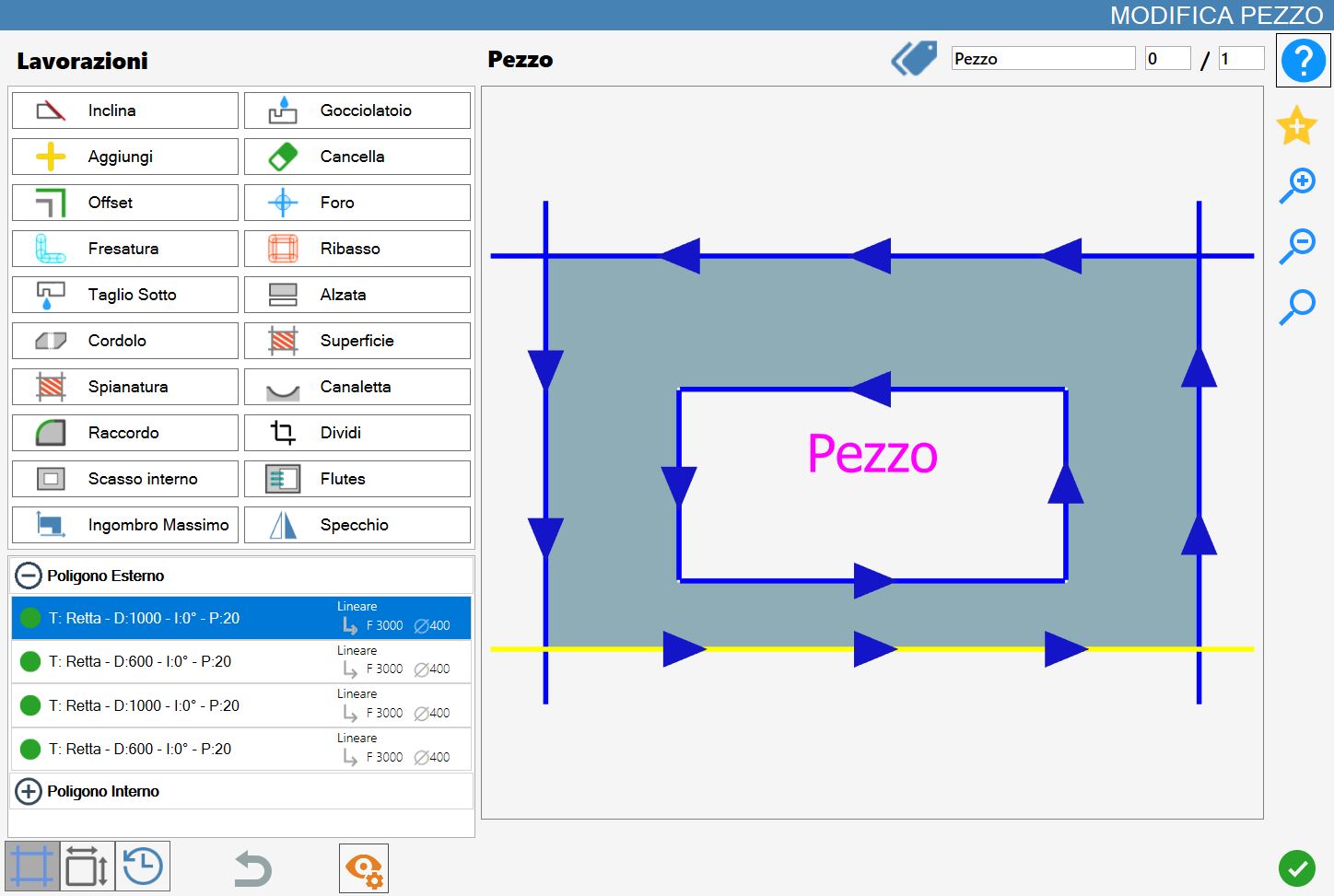
This panel allows the operator to apply different types of working to a designated piece.
When opened, the following screen is displayed:
7.0.png

WARNING!

Some of the functions described in this section are also available on the main Parametrix page, but with one difference.
If a piece or cut is edited using the ‘Edit Piece’ panel, all pieces in the selected row are modified accordingly with the same workings.
Conversely, if the working is set from the work area, only the selected piece is modified.

Working types

Using the “Edit Piece” panel, one or more of the following workings can be applied; each is described individually below. In particular, Parametrix can:

0_b-20250611-085820.png

Miter Cut
Change the inclination of cuts, both under-square and over-square.

0_b-20250611-090132.png

Drip system
Add a drip system alongside a cut.

0_b-20250611-090404.png

Add
Add a cut parallel to one side of the piece.

0_b-20250611-090725.png

Delete
Delete the piece cuts.

0_b-20250611-091914.png

Offset
Change the piece dimensions by applying offsets to its sides.

0_b-20250611-092003.png

Hole
Add holes in the material, including to remove material that the disk was unable to cut.

0_b-20250611-092106.png

Milling
Replace disk workings with milling cuts.

0_b-20250611-092147.png

Rim
Apply milled rims. This is used, for example, to create recesses for sinks in kitchen worktops.

1-20250616-092820.png

Lower Cut - (Optional)
Perform a cut on the lower surface of the piece using the dedicated optional mechanical equipment.

0_b-20250611-092343.png

Downstand
Add downstands or lowered panels to the sides of the piece.

0_b-20250611-093644.png

Curbs
Add a chamfered cut to one side of the piece.

1.1.png

Surface - (Optional)
Apply surface passes with vertical cuts and the disk horizontal.

1.1.png

Leveling - (Optional)
Apply a leveling cycle with vertical cuts and the disk horizontal.

1-20250616-092944.png

Channel Working - (Optional)
Add a drainage channel to the piece using the disk.

0_b-20250611-093855.png

Fillet
Round a vertex or a side of the piece by applying a fillet.

0_b-20250611-094004.png

Crop
Cut the piece using a side or a custom line as reference.

0_b-20250611-094317.png

Internal break
Add an internal break to the piece, with a rectangular, circular or elliptical shape.

0_b-20250611-094500.png

Drain board flutes
Create grooves by milling.

1.png

MaxBound - (Optional)
Determine the maximum bounding shape of the piece.

1-20250616-093104.png

Mirror
Create a mirrored version of the piece.

NOTE

Depending on the combination of options, some of these buttons may not be present.

Cut list

The piece cuts are displayed in the lower-left section of this panel.

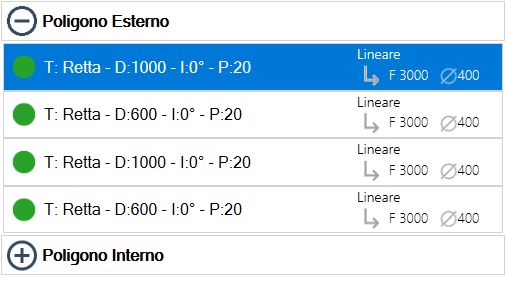
A dedicated subdivision indicates whether a cut belongs to the external perimeter or to one of the internal perimeters. This classification makes it possible to show/hide the list of cuts belonging to a polygon by pressing the icon for the corresponding section.
0.1.png

As shown in the image, each row displays information about the cut it represents. In particular:

2.3.png

Manage working
Button used to interact with the cut and apply the current working.
On the main page, it enables/disables the cut.

0.2.png

Cut information

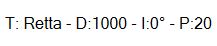
  • T - indicates the cut type (“Line”, “Curve”, “Milling”, etc.).

  • D - indicates the cut length.

  • I - indicates the cut inclination.

  • P - indicates the cut penetration.

0.3.png

Working information

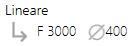
  • Working type (“Linear”, “Arc”, “Miter cut”, etc.).

  • Pass mode (Full pass or Step pass).

  • Cut feed speed.

  • Diameter of the tool used for the working (Disk, Milling cutter, etc.).

NOTE

This information changes according to the cut type it describes. Not all information is always displayed.
For example, for holes only the penetration into the material can be displayed.

NOTE

If no cut is present on part of the piece, it is indicated by the wording “Nothing”.

Preview

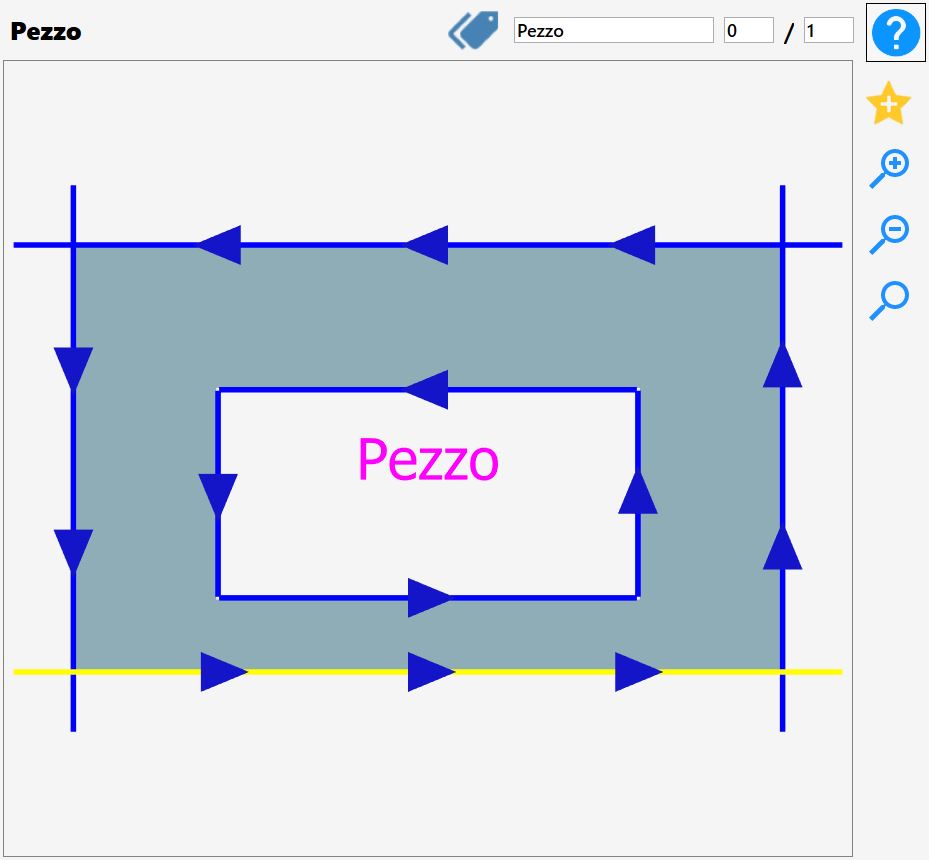
The main part of the “Edit Piece” function provides the operator with a complete preview of the selected piece, showing all workings currently applied.
0.4.png

The displayed piece can be manipulated simply by moving the preview or by using the zoom buttons to its right.

This section also contains other functions, which are described below.

0.5.png

Mark
The mark of the selected piece can be changed.

0_4_2-20250611-095441.png

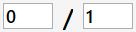
Number of pieces
The number of processed pieces and the total number of pieces can be changed.

0_4_3-20250611-110520.png

Add favourite
The piece displayed in the preview is added to the favourite pieces list together with all changes applied when it is added to favourites.

Cut selection

A cut can be selected directly from the preview; its colour changes to yellow to confirm the selection. Alternatively, select the corresponding row in the cut list available in the lower-left menu.

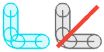
Clicking the green dot to the left of each list item disables the corresponding cut.
In this case the dot turns red and the piece preview is updated, with the disabled cut changing to grey.
In the following example, the first two cuts of the piece's external polygon have been disabled:
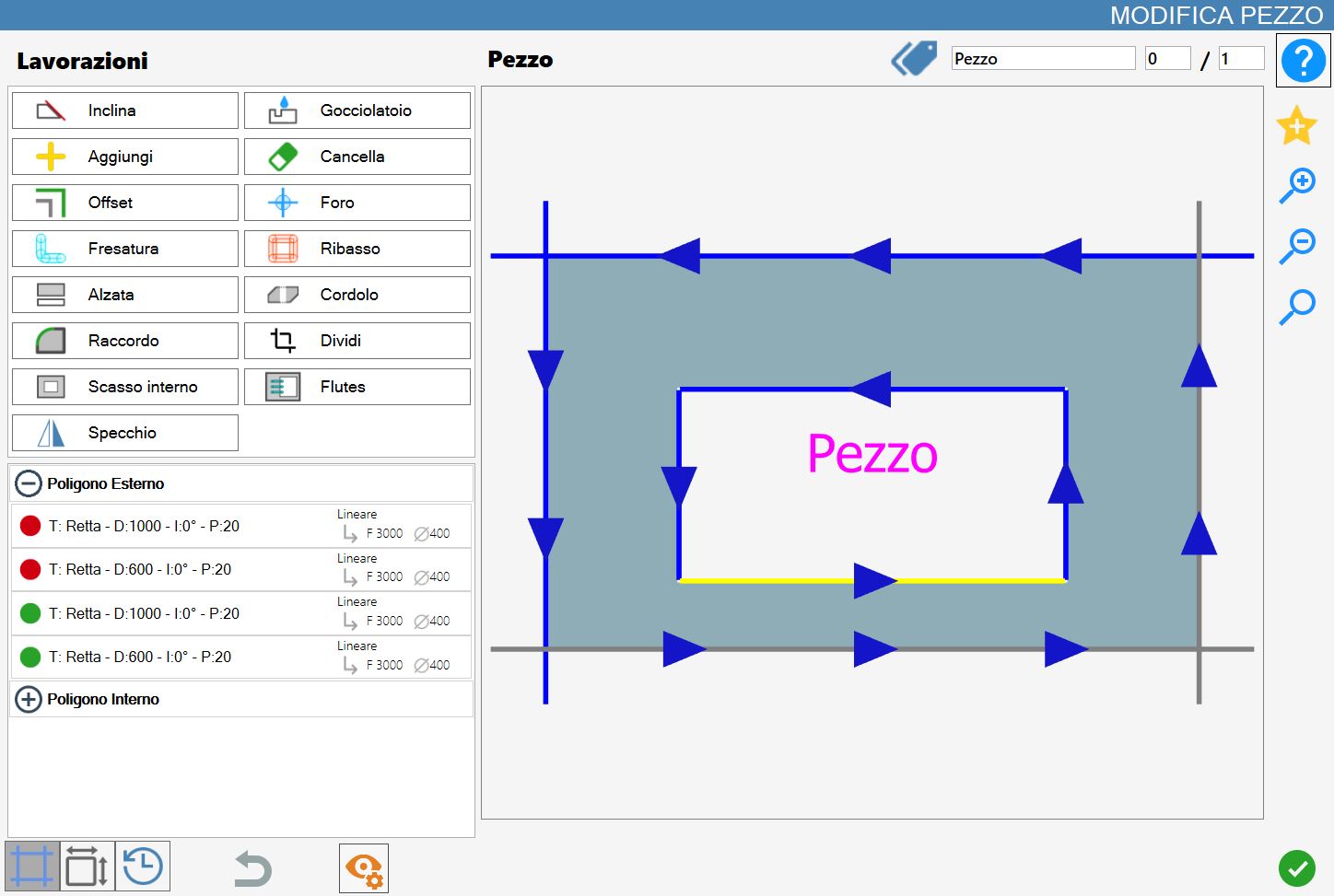
0.6.png

Bottom bar

This bar provides several functions that simplify use of the Edit Piece workings:

0_3-20250611-074753.png
3_1-20250611-120434.png

Cuts
Displays the piece cut list.
This is the default view of this panel.

3_2-20250611-120533.png

Sides
This button displays the length of the Piece sides in the list instead of the cut length. Selecting directly on the image or in the list highlights the selected side of the piece in yellow.

NOTE

In this mode, workings cannot be added to the piece.

3_3-20250611-120611.png

History
Displays the history of operations applied to the piece.
It also allows the piece to be reset to the desired operation.

3_4-20250611-120701.png

Undo
Undoes changes made to the piece.
Pressing this button multiple times allows the piece to be returned to its initial conditions.

WARNING!

The button works as long as the “Edit Piece” panel remains open on the piece being edited.
If the panel is closed, the ability to undo changes to that piece is lost, even if the panel is reopened.

3_5_OffOn-20250611-120944.png

Edit view
Enables or disables certain piece entities to make the piece easier to view and edit.

History

Displays all changes applied to the current piece and, if necessary, allows the current piece to be restored to a previous state.
If changes have been applied to the current piece, they are displayed in the list on the left:
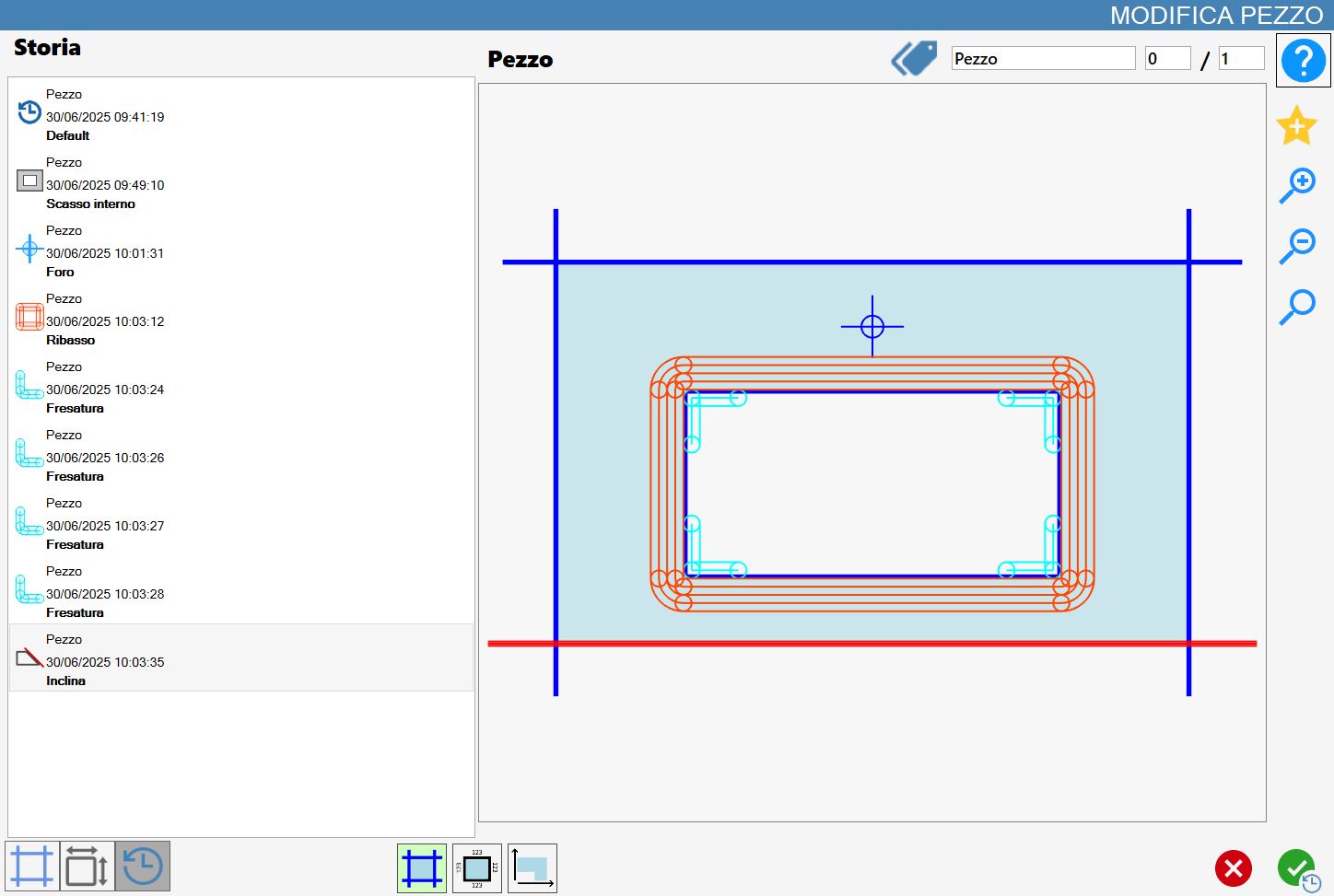
0.7.png

The menu on the left displays the piece working states.
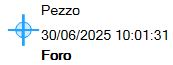
0.8.png

Working state
Identifies a specific point in the piece working history. It displays:

  • Name of the current piece;

  • Date the working was applied;

  • Name of the applied working;

  • Icon identifying the working performed.

The state of the current piece without changes is called “Default”.
Selecting an item from the menu on the left displays the preview corresponding to the moment when that working was applied.
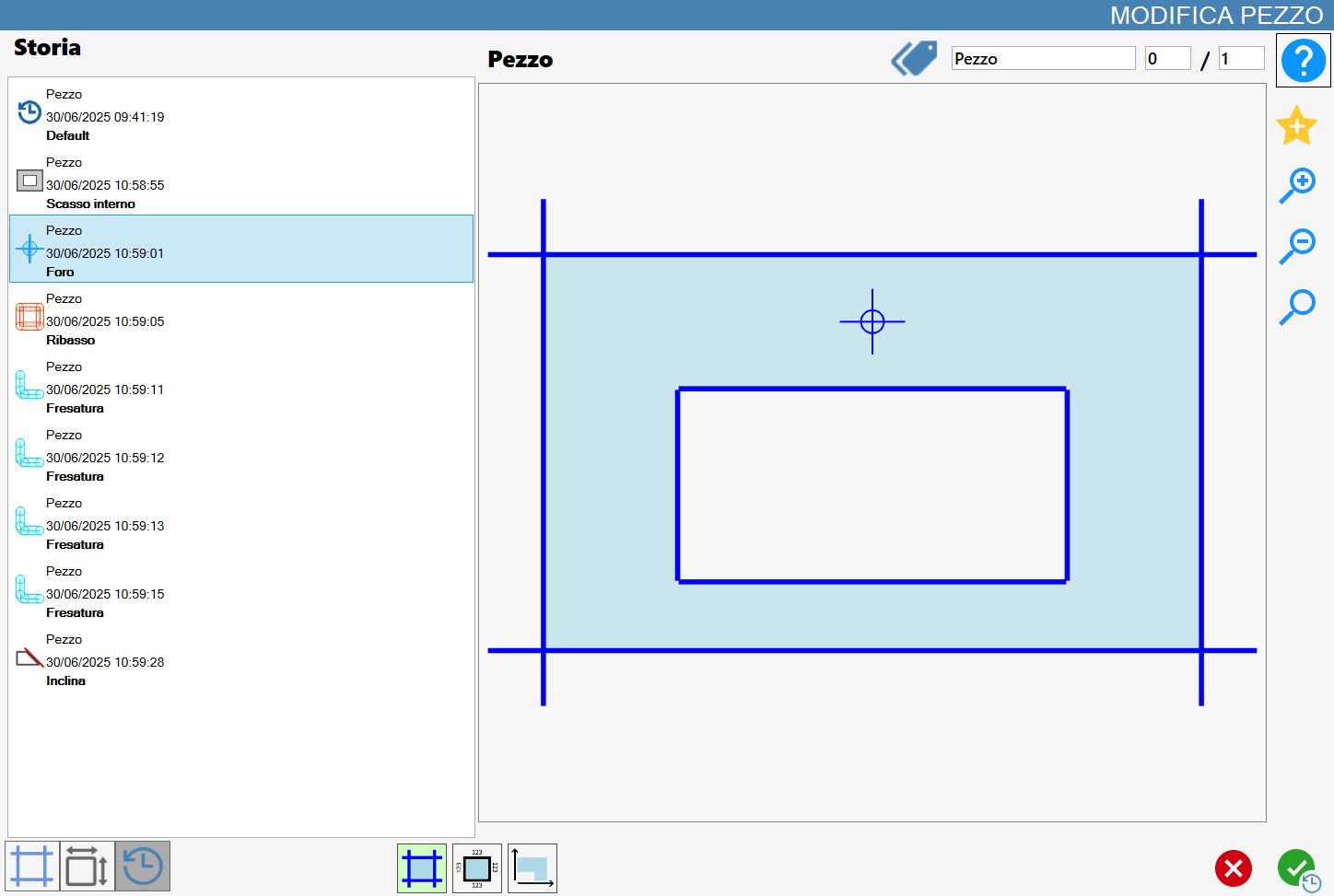
0.9.png

Pressing the confirmation button restores the piece to the selected state. Changes made after the selected state are removed.

At the bottom of the panel, three utility buttons are displayed for viewing the piece in the preview:

3_5_1_on-20250611-075706.png

Display cuts
Shows the cuts on the figure.
This is the view active by default.

0_5_1-20250611-115240.png

Display measurements
Shows the measurements of each side of the figure.

1.11-20250611-114215.png

Display angle
Shows an angle of the figure with its corresponding measurements.

Edit View

This mode provides the operator with several buttons that are visible only when “edit view” is enabled.

MenuModificaPezzo-20260611-071053.png

Each of the following buttons enables or disables one of the following piece elements:
3_5_1_OnOff-20250611-122515.png

Cuts
Shows/hides disk cuts in the preview.

3_5_2_OnOff-20250611-122541.png

Holes
Shows/hides holes.

3_5_3_OnOff-20250611-122604.png

Milling
Shows/hides milling operations.

3_5_4_OnOff-20250611-122630.png

Rims
Shows/hides rims.

3_5_5_OnOff-20250611-122657.png

Cut arrows
Shows/hides the arrows indicating the direction of disk cuts.

3_5_6_OnOff-20250611-122718.png

Piece name
Shows/hides the piece name.

3_5_7_OnOff-20250611-122745.png

Dynamic Tags
Shows/hides the piece Dynamic Tags.

Bothperimeter-20260611-080840.png

Highlight Perimeter
Highlights the piece perimeter with a black line.

;