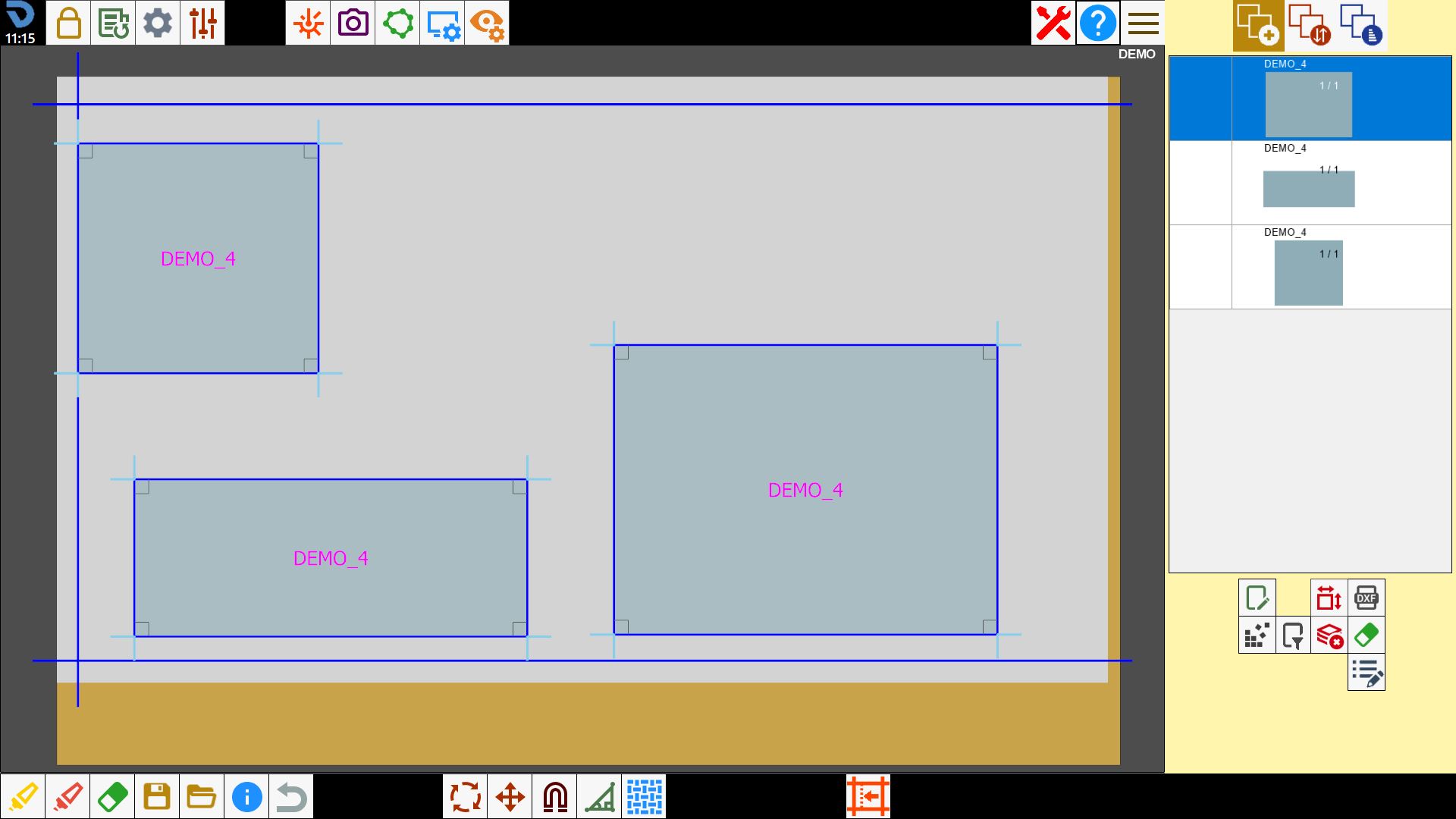
This function loads a working previously saved in Parametrix.
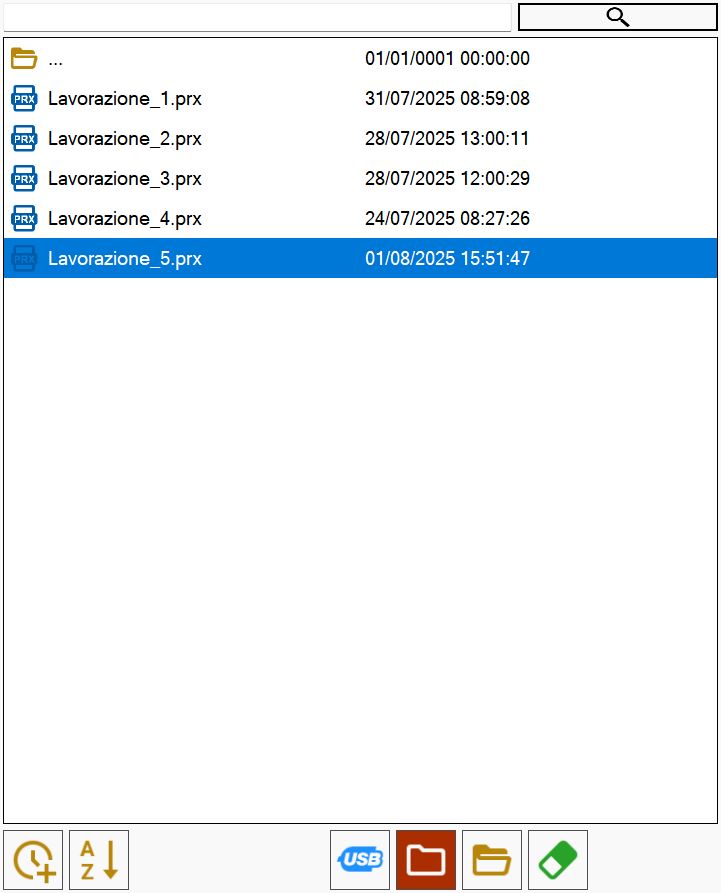
Piece list
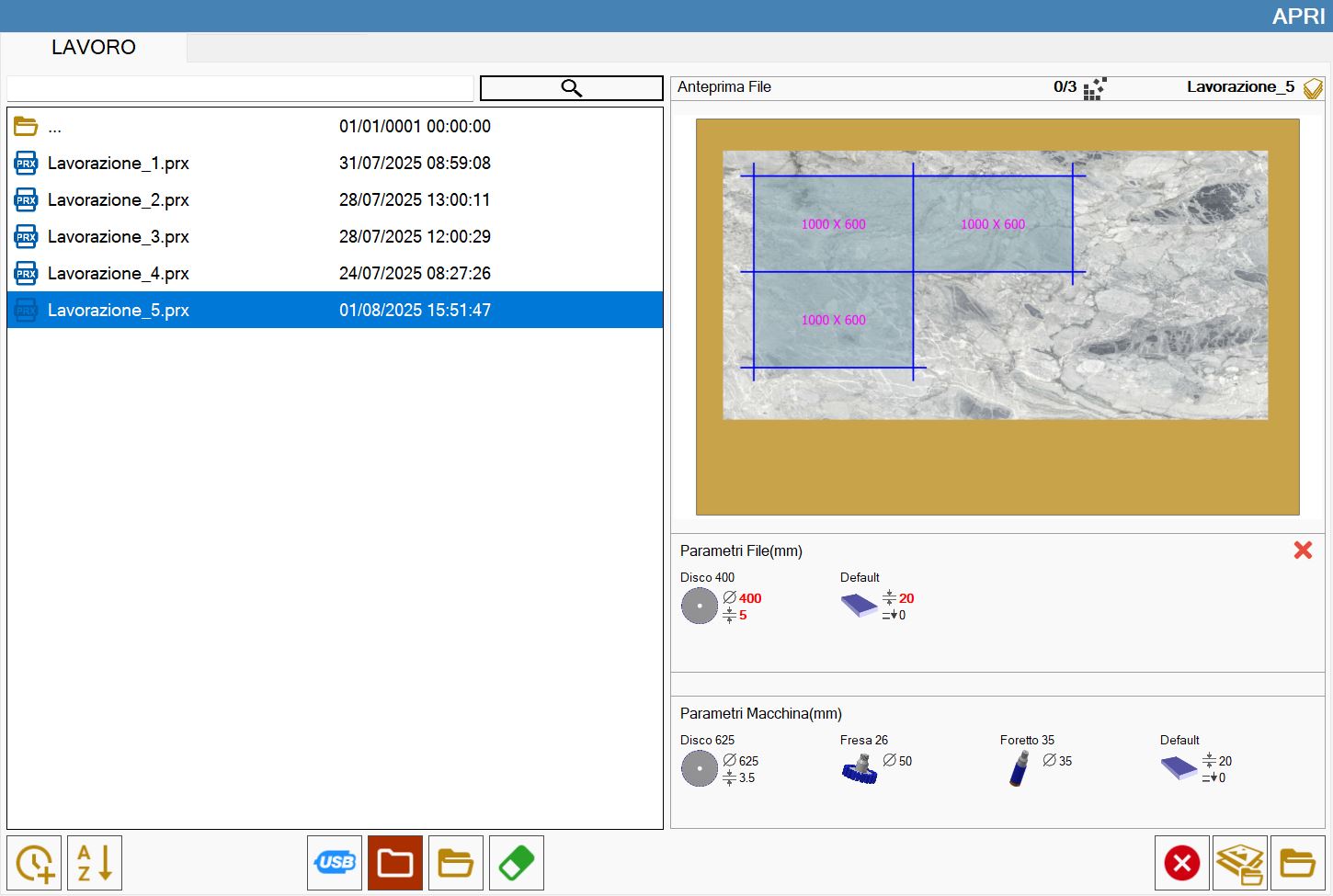
The section on the left contains the list of state files that can be loaded.
Buttons
 | Sort by date |
 | Sort by name |
 | USB memory |
 | Working folder |
 | Browse folders |
 | Delete file |
 | Search files |
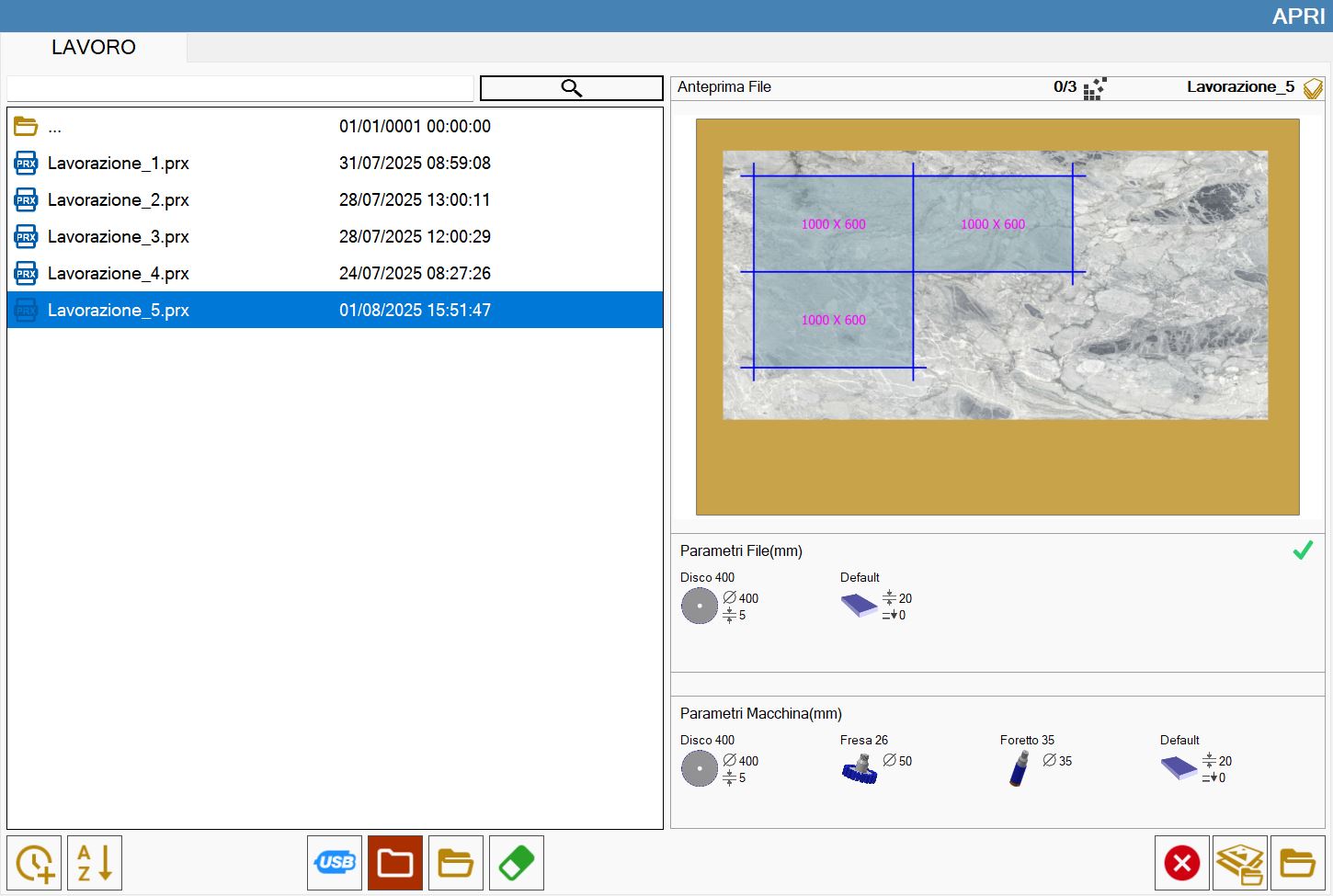
Preview
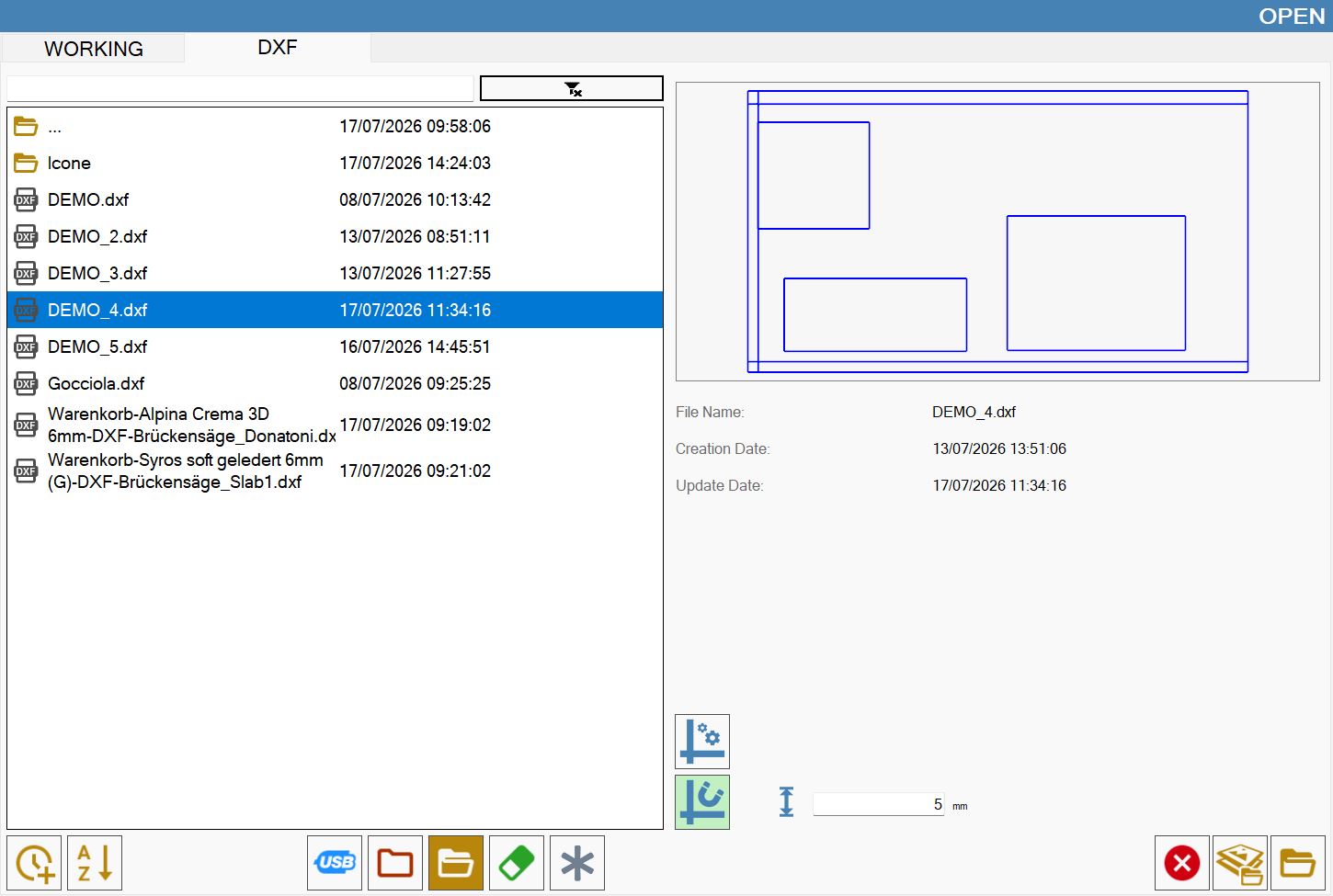
This section shows a preview of the file selected from the list.
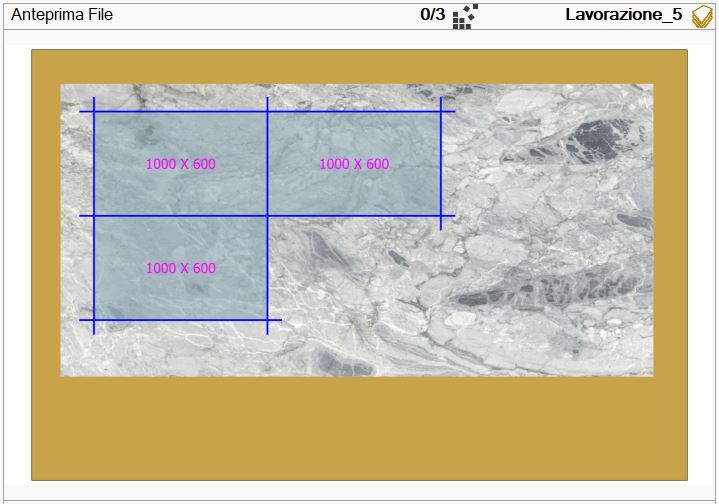
Below the preview, the slab and tool parameters from the selected file and from the machine are shown in the upper and lower sections respectively.
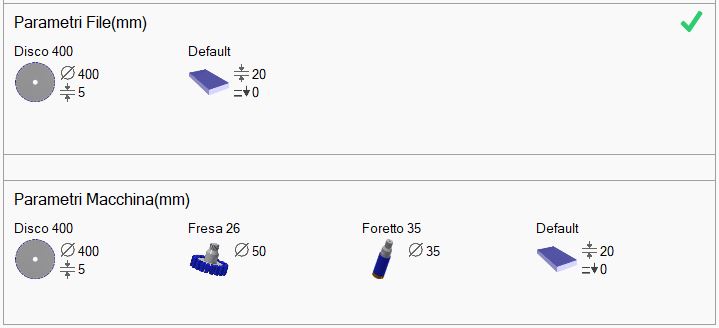
To open a working completely, the file parameters must be identical to the machine parameters.
Otherwise, file parameters that differ from the machine parameters are highlighted in red.
If the parameters are not the same, the working opens partially, with piece arrangement only. A message informs the user that changes to the cuts cannot be made.
Other buttons
 | Slab Matching |
 | Load state |
How to load a state
From the main page, open the panel for loading a state.
Then select the file for the working to be reproduced.
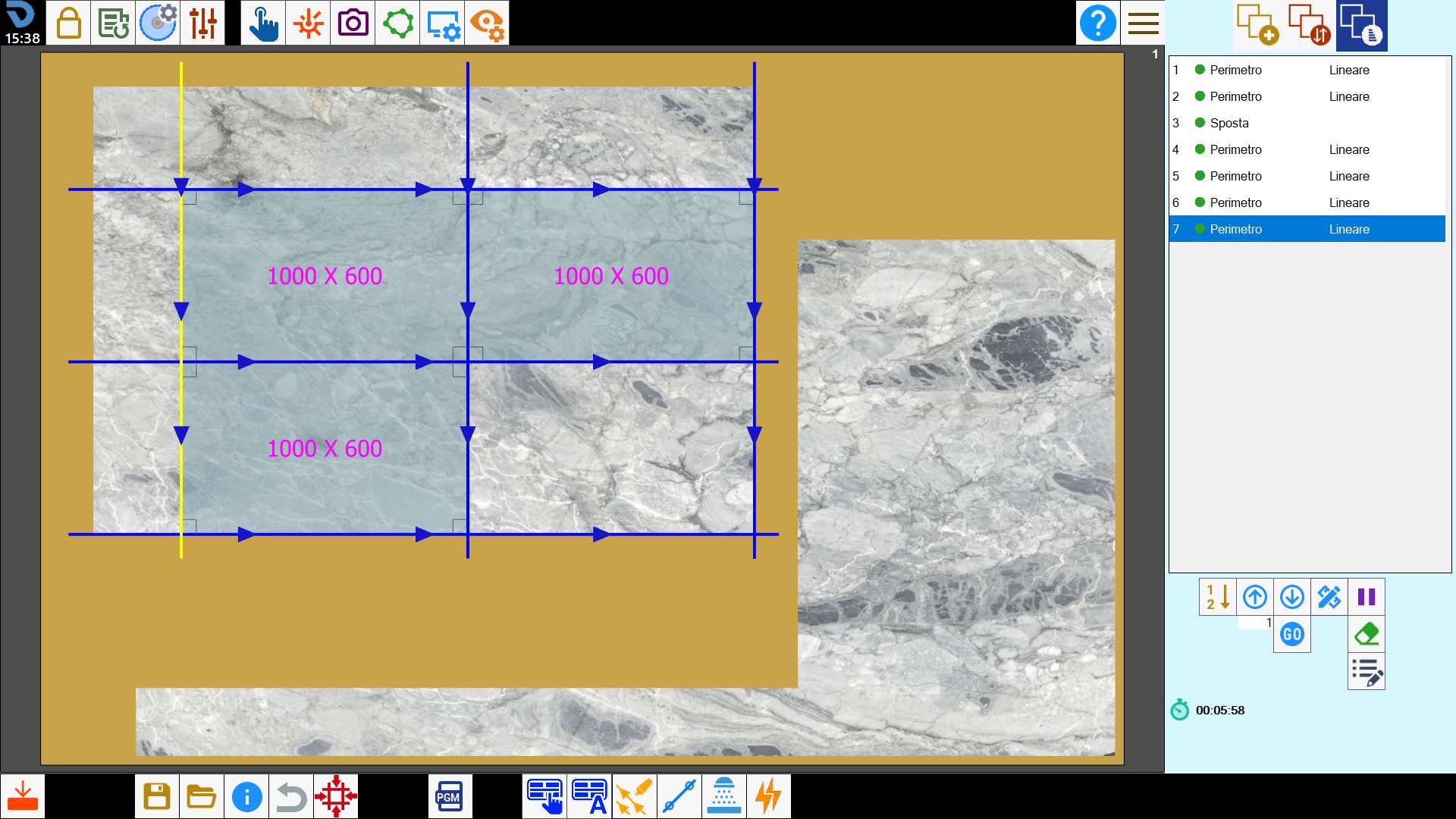
After confirmation, the pieces are created and inserted into the work area with all operations that have been applied to them.
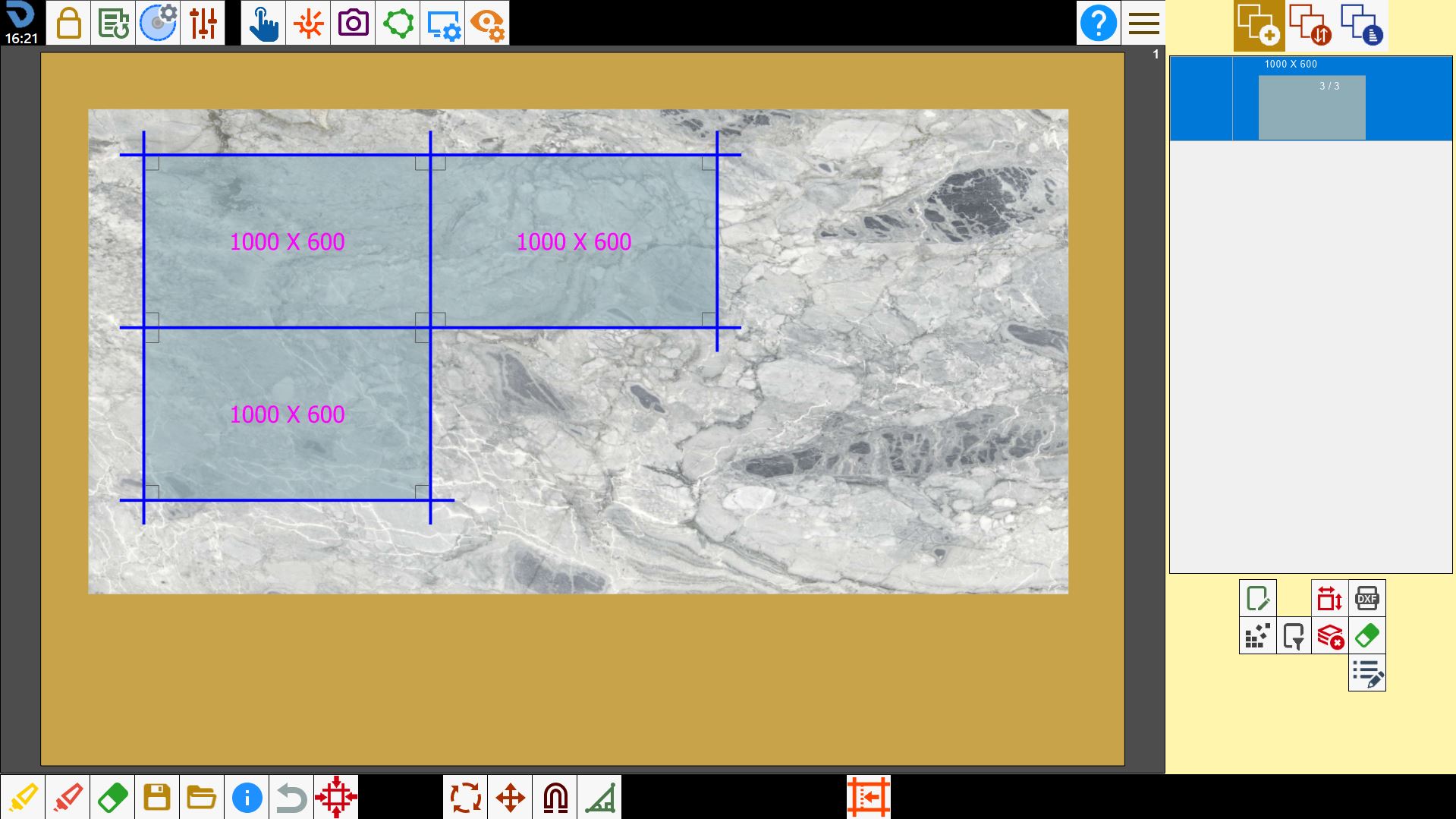
Likewise, a previously programmed working can be loaded with all operations performed.
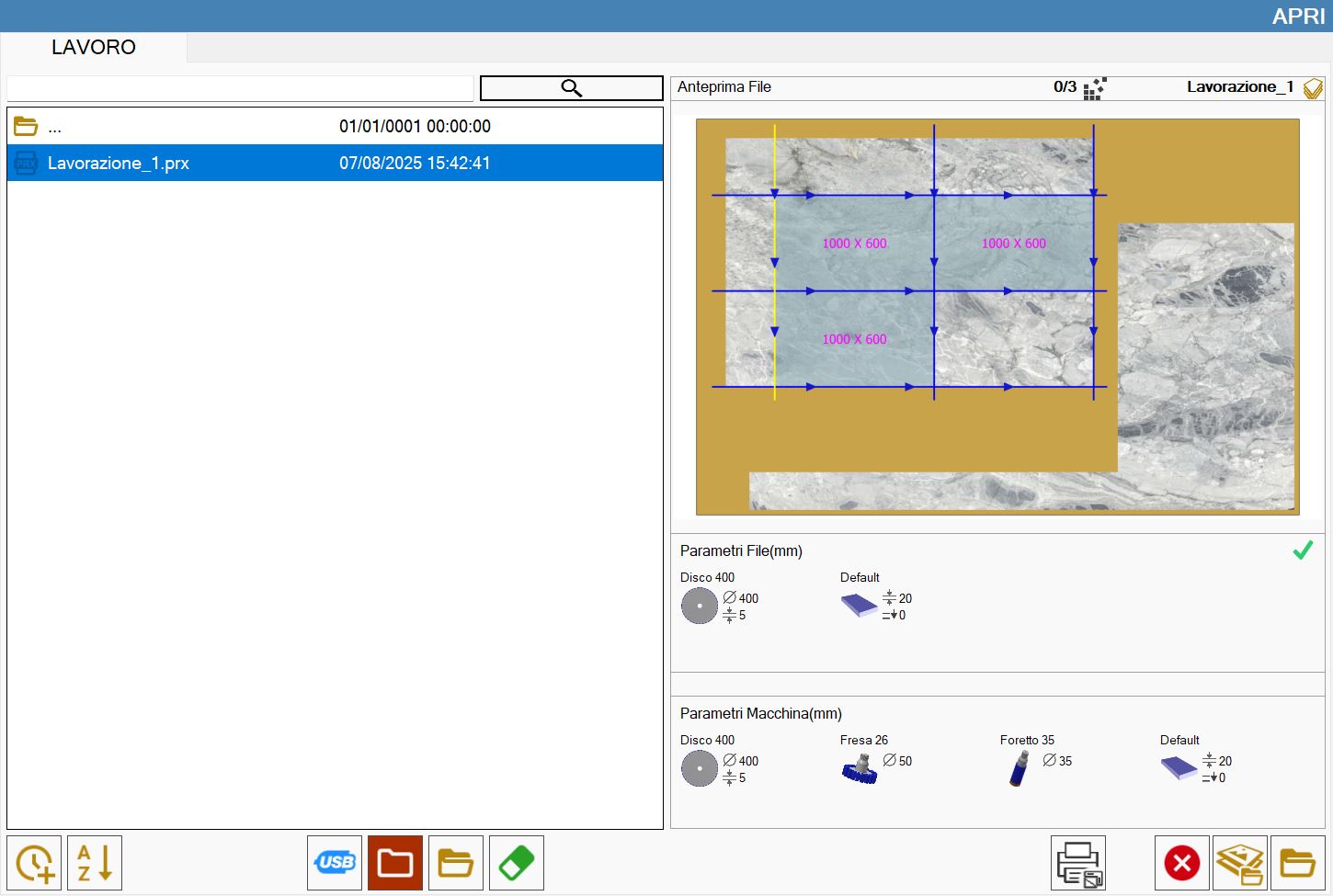
This function is used to reload a previously saved working onto the machine.
Import DXF (Optional)
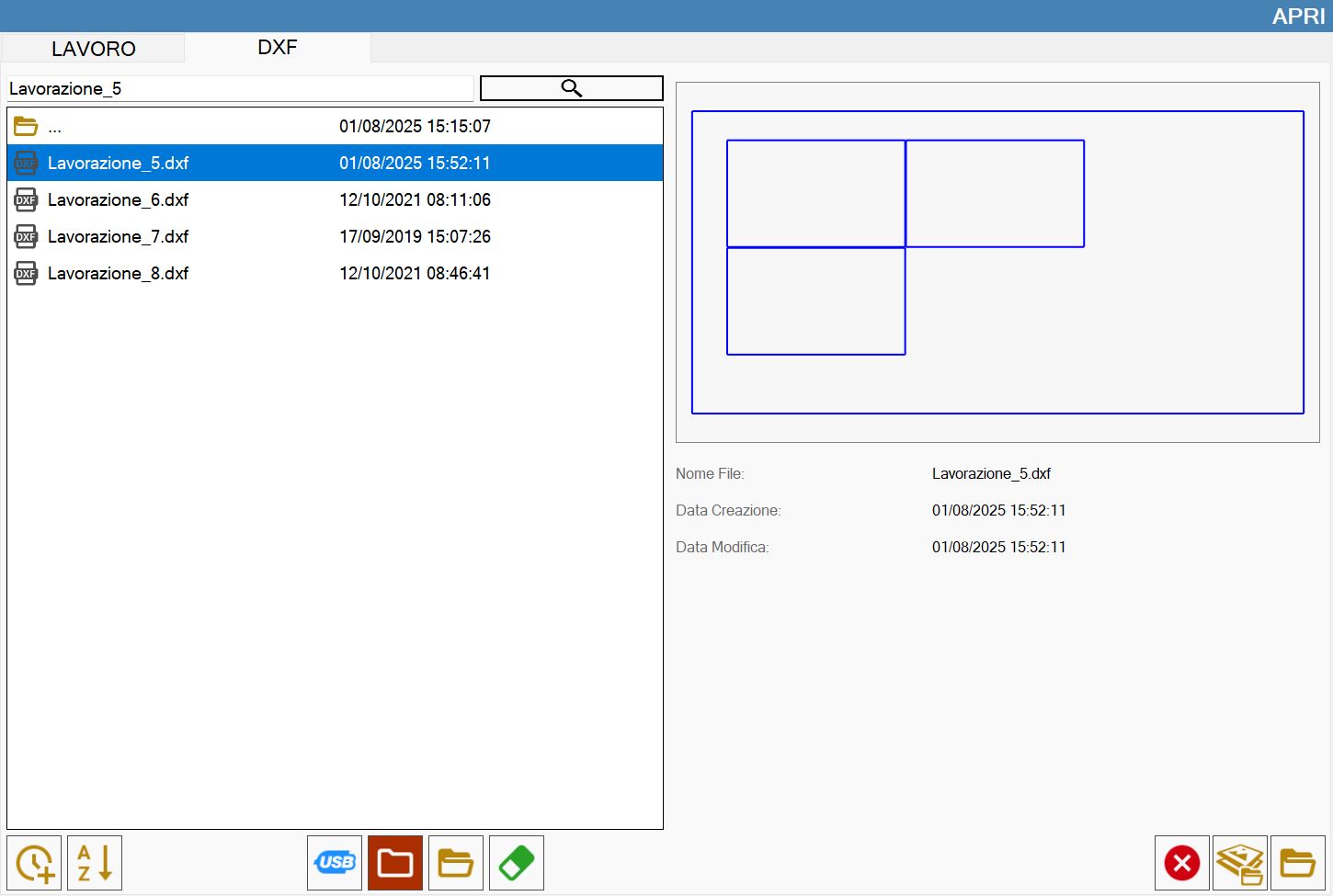
This function loads the state of a working saved in a DXF file.
Import trimming cuts from DXF layout
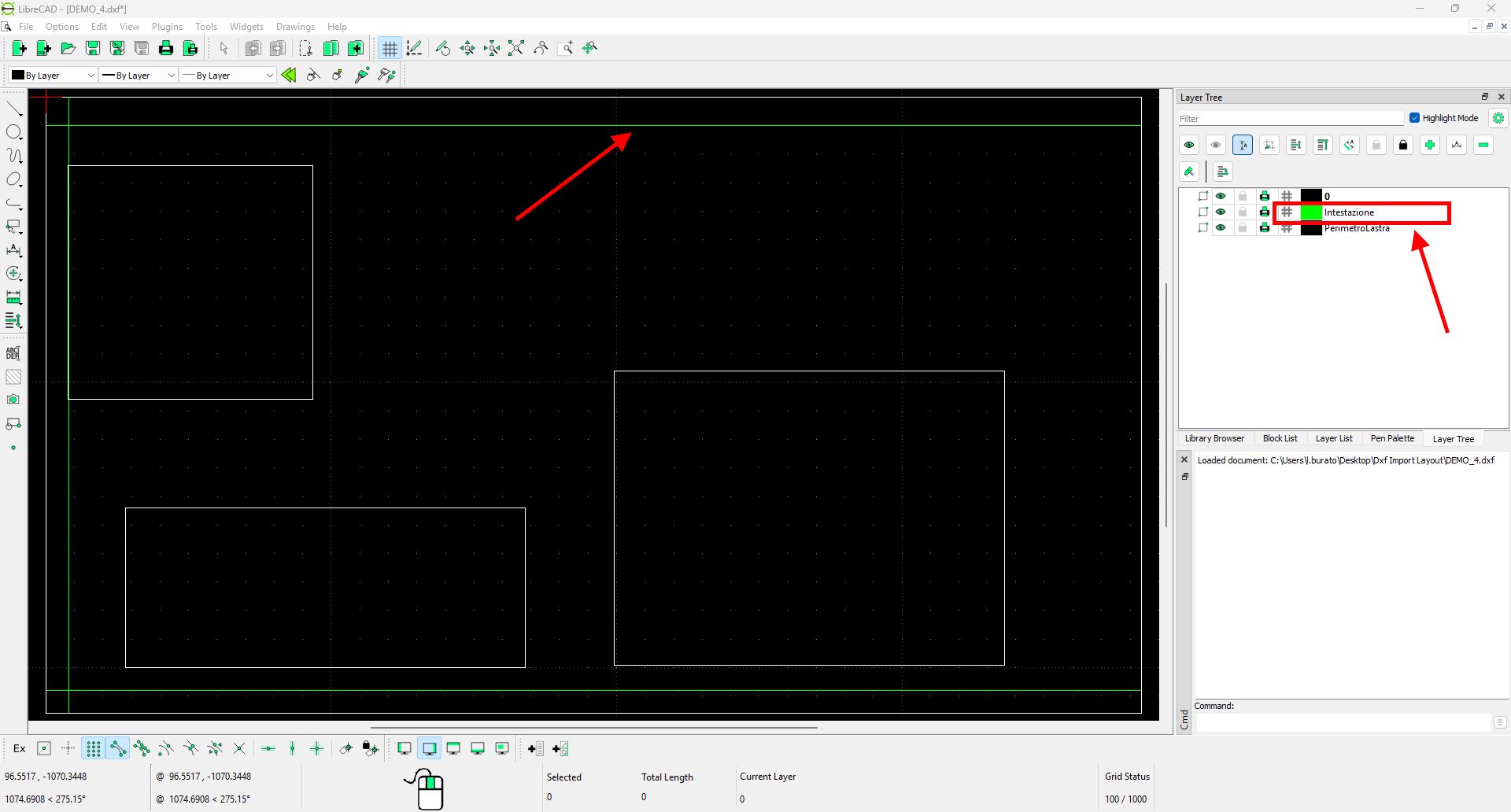
A slab with its trimming cuts can now be imported into Parametrix by drawing them on a dedicated layer of the DXF file.
The name of the layer dedicated to the trimming cuts must be defined together with a Donatoni technician. Once configured, it can no longer be changed.
Within this layer, each trimming cut must be represented by a line.
When creating the DXF file, the following rules must be observed:
the slab perimeter must be present;
the slab perimeter must be rectangular;
the perimeter sides must be horizontal or vertical and must not be rotated;
each trimming line must be parallel to one of the sides of the rectangle;
there must be no more than one trimming line for each side;
if several lines are drawn for the same side, Parametrix uses only the one closest to the edge.
To import the file, open the DXF layout import page in Parametrix and select the desired file.
Available settings
On the file selection screen, several settings can be changed using the buttons below the preview on the right side of the screen.
 | Automatic mode |
 | Magnet mode |
 | Magnet distance |
Examples
The images show a DXF file containing the slab perimeter, pieces and trimming cuts, as well as the result obtained after import into Parametrix.