The system has been designed to make it easier for the operator to program automatic cuts. The software can be used to:
Define the slab position in the machine work area and create the material perimeter for machining
Create pieces using parametric figures
Import figures created with other CAD systems
Generate a list of pieces to be machined
Find the best position for the pieces on the slab
Set special cutting functions
Program the cutting order and create the machine movements
Monitor cut execution on the screen
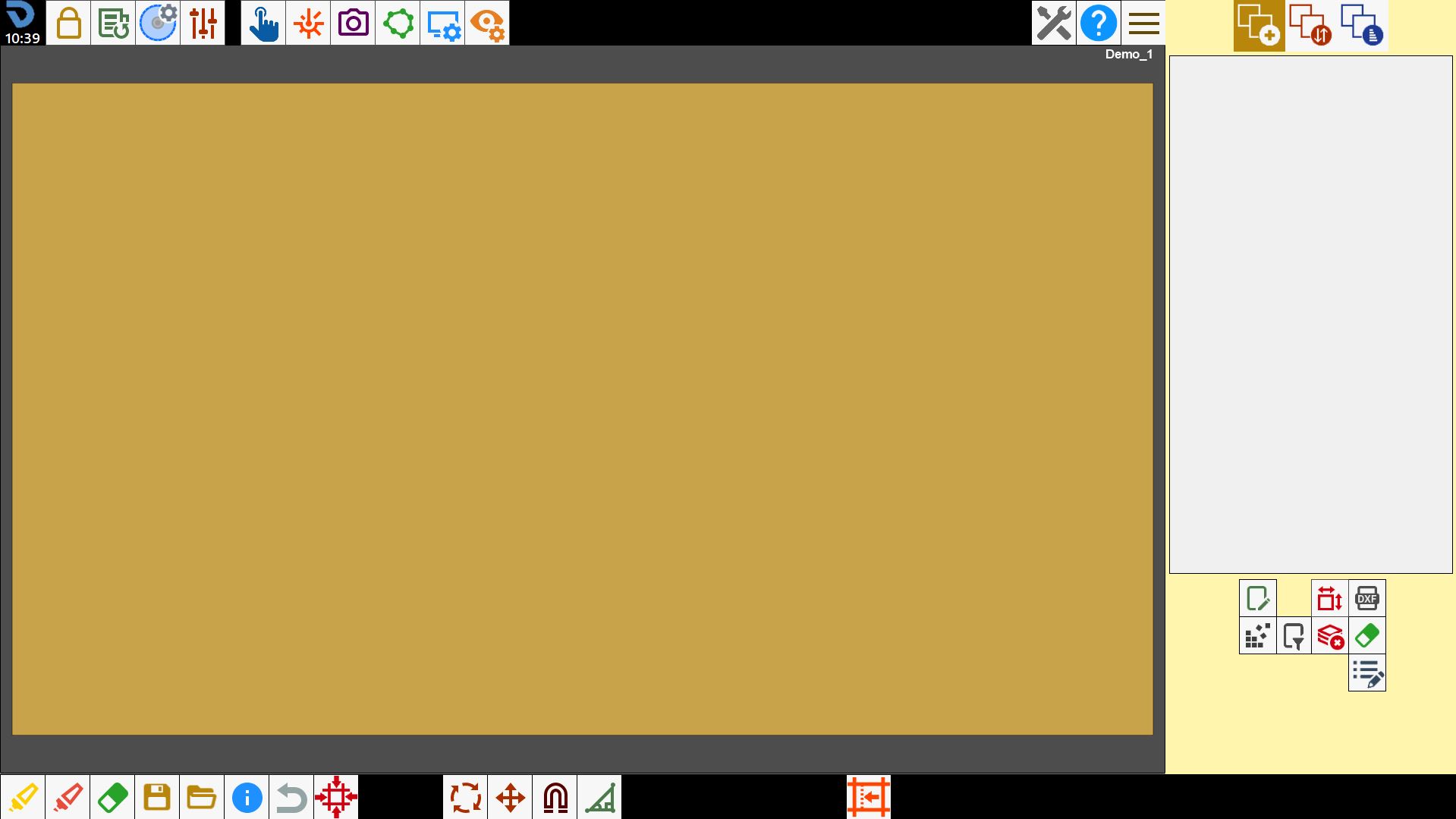
Work area and piece list
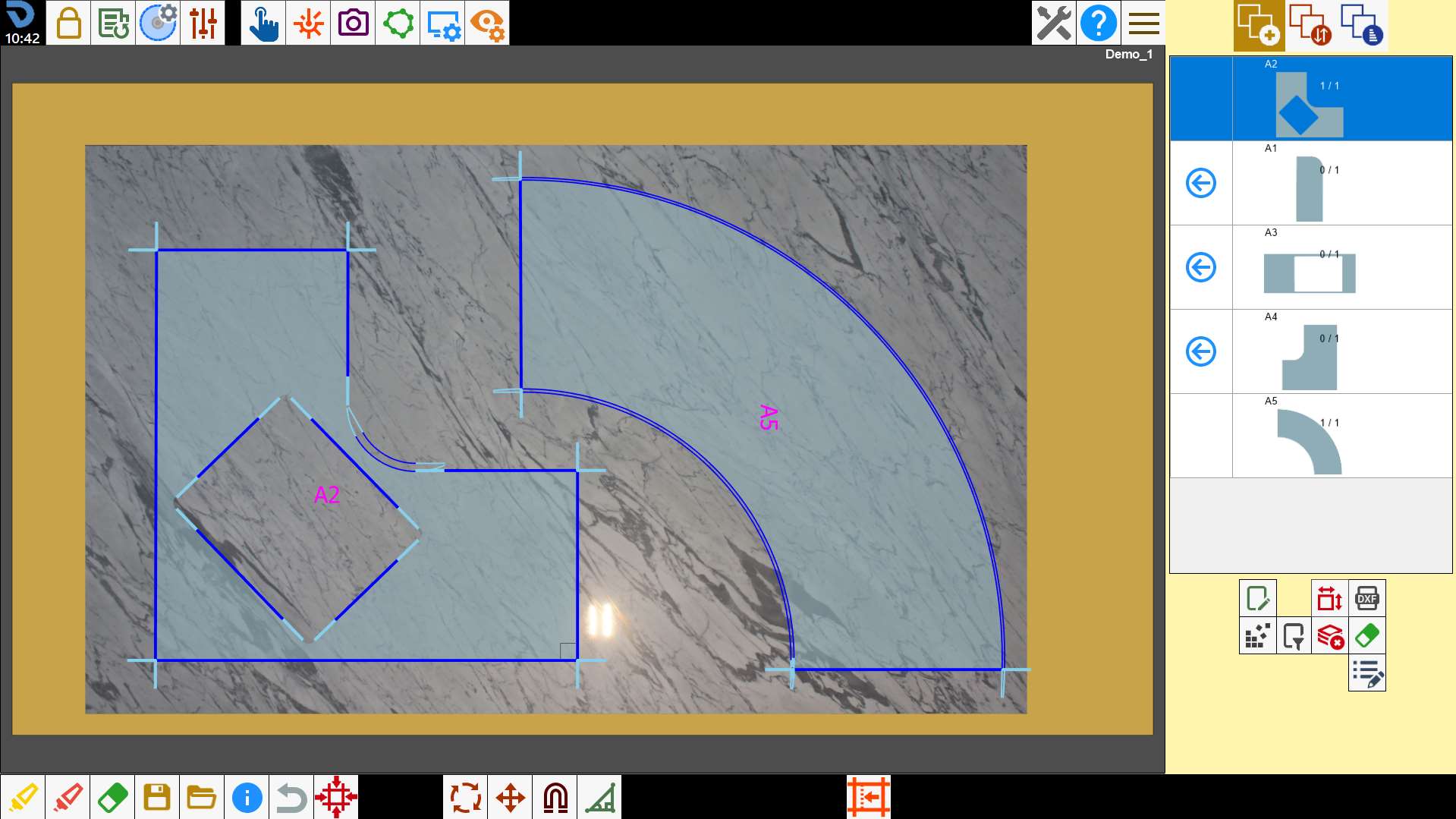
The following is a typical representation of the Parametrix work area, with the list of imported pieces already populated and an acquired slab image.
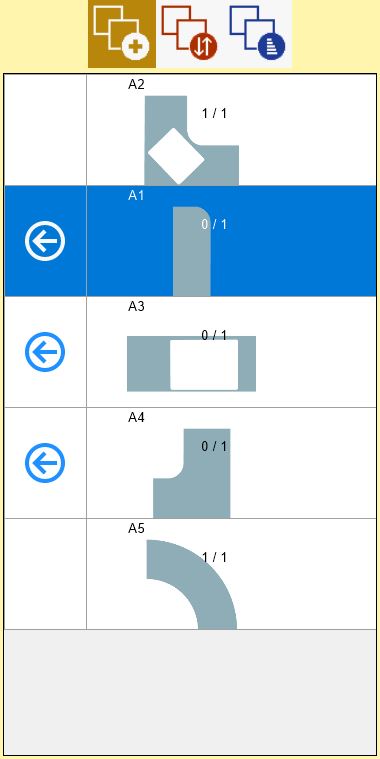
List of inserted pieces
When a piece is created, the program adds it to the piece list; from the list, pieces can be inserted into the work area, changes can be made to the piece, and the number of pieces still required for the job can be checked.
Piece positioning
Parametrix allows pieces to be positioned within the machine work area in order to create the cutting file. Once the slab has been acquired, the perimeter created and the pieces for the job created, the pieces must be imported into the slab. The button on the piece table places the piece in the work area. It is possible to work with 1 or more pieces at the same time.
If the pieces are not completely inside the slab, a warning/danger symbol appears in the top-left corner. The appearance of this symbol indicates that problems may occur when managing the cuts; however, no program function is blocked.
Top bar
At the top of the screen, in the centre and on the left, the following buttons are visible, preceded by the logo and the displayed time:
The top command bar also includes several buttons that are described later:
User parameters Opens the technical parameters page. Intended for use by a technician.
New working Pressing the button assigned to complete one working and start the next displays a confirmation pop-up.
Parameters tool Allows the operator to manage the tools.
Slab machining parameters panel Pressing this button switches from the “Tool Panel” to the “Slab Parameters” panel.
Access to manual commands A small panel can be opened with manual commands such as rotating the axis and parking the machine.
Laser management This function activates the slab acquisition menu.
Add photo to workbench This function can be used to take a photo of a slab or select one from the files and position it in the work area.
Slab perimeter This function allows the perimeter to be traced.
Workbench display management This function opens a small panel containing tools for resizing the work area.
Display of working entities This function opens a small panel containing display tools.
Side section
The buttons at the top right allow the operator to change the Parametrix screen.
Each screen is responsible for a particular aspect of slab machining.
Piece positioning Main Parametrix screen. The following operations are performed:
creating and editing pieces;
acquiring the slab photo on the workbench and its perimeter;
positioning the pieces in the work area;
Piece cutting order management Screen for managing the piece cutting order.
Cut optimisation and management Screen for cut optimisation and management. The following operations are managed:
sorting and editing cuts;
moving the material using suction cups;
washing the workbench;
starting the machine cutting program;
The following buttons are located at the bottom right; their functions are described later.
Edit piece Panel used to apply additional workings to the pieces.
Enable/disable standard pieces Allows the list rows associated with commercial pieces to be hidden or displayed.
Piece creation Panel for managing the creation and import of pieces in Parametrix.
Nesting Automatically arranges the pieces within the slab perimeter.
Sort or filter pieces Function that allows the operator to apply a filter and/or sort the pieces in the list.
Delete piece list Allows all contents of the piece list to be deleted.
Delete piece Allows pieces to be deleted from the piece list.
Edit additional piece properties The operator can assign and edit the additional properties of the selected piece.
Bottom bar
When the “Parametrix” function is opened, the bottom bar changes as shown below:
This bar also includes the following buttons:
Multiple selection This function allows multiple pieces to be selected or deselected at the same time.
Select all This function allows all pieces in the work area to be selected or deselected.
Remove piece Allows pieces to be removed from the work area.
Save Allows the current work state to be saved.
Load Allows a project or working to be loaded.
Information panel Opens a small panel containing various information.
Undo edit Undoes the last operation performed.
Machine on cut Allows the position of the piece in the work area to be checked against its position on the machine.
Piece rotation Small panel used to rotate the selected piece or pieces by 90 degrees or by a specified number of degrees at a time, clockwise or counter-clockwise.
Move pieces Small panel used to move the piece in the various directions.
Magnetise pieces Function that allows two cuts to be attached to each other.
Miter cut Small panel used to make a miter cut on a piece in the work area.
Edit standard piece Small panel used to change the dimensions of a commercial piece.