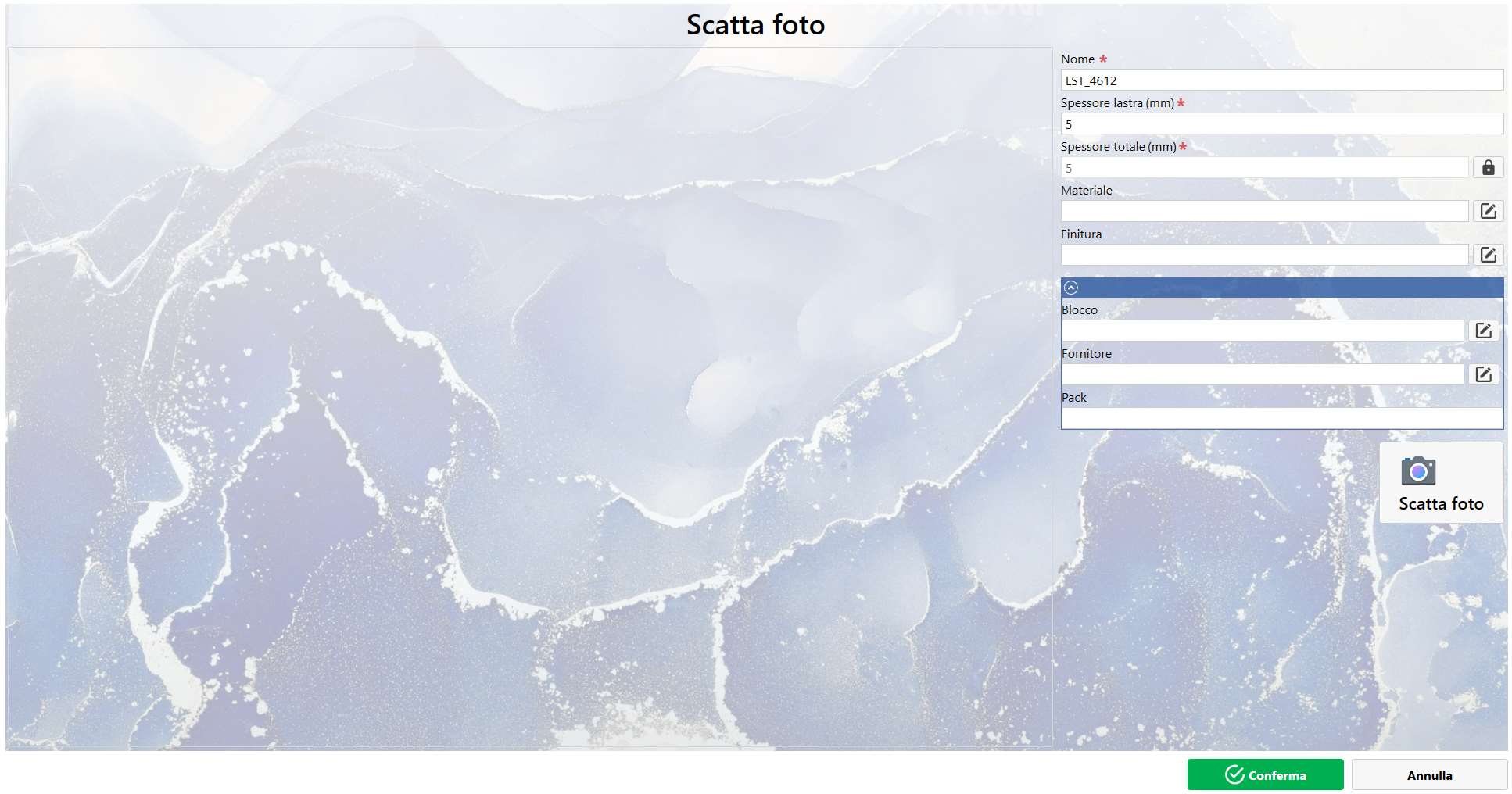
This function imports an image of a slab using a camera connected to the device. When the panel opens, the following screen is displayed, initially without a preview image:
Photo Preview
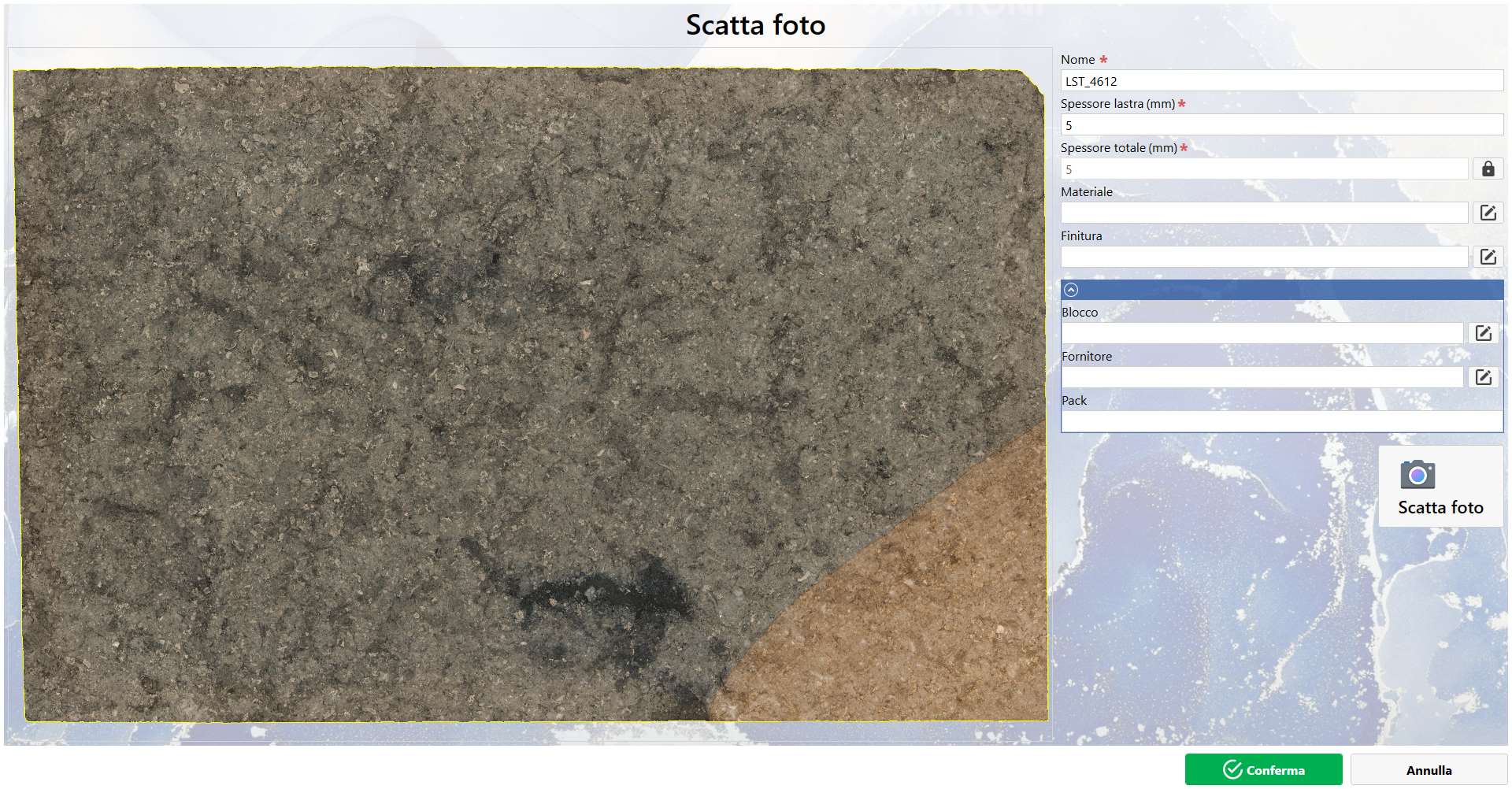
The Photo Preview is the area occupying most of the central and left-hand part of the panel. The preview of the currently loaded image can be loaded by pressing the “Take Photo” button.
Parameters
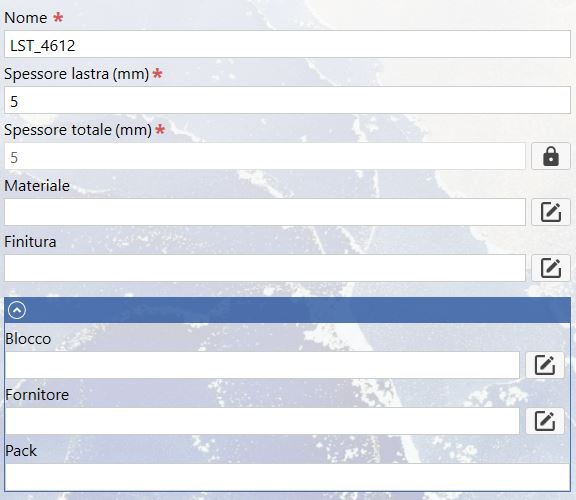
The Parameters section is located at the top right of the panel and contains the following types of parameters:
Main Parameters
NOTE
The “*” symbol next to a name indicates that the parameter is mandatory.
Name Unique identifier of the slab.
Slab thickness Actual slab thickness.
Total Thickness Total thickness of the slab.
Material Type of stone associated with the slab.
Finishing Surface treatment of the slab.
Context Parameters
Block Slab origin code.
Supplier Company that supplied the slab.
Pack Logistics and commercial grouping.
Parameter Buttons
Some parameters have dedicated buttons on the right that allow the user to perform specific actions:
Lock/Unlock Parameter Indicates that the parameter is respectively locked and cannot be modified, or unlocked and can be modified. The parameter can be toggled between locked and unlocked by clicking this button.
Select Allows the parameter to be set by selecting from values previously entered in the system.
Take Photo Action
Take Photo Pressing this button allows the user to take a photo using the camera properly configured and connected to the system. The captured image is then displayed in Photo Preview.
WARNING!
A photo cannot be taken until all mandatory parameters have been configured.
Bottom Bar
Confirm After taking the photo and completing the parameters, confirm to open the window that allows additional parameters to be added or modified.
WARNING!
Clicking this confirmation does not yet add the slab to the system; this must be done in the next window.
Cancel Closes the window without applying changes and returns to the Home screen.