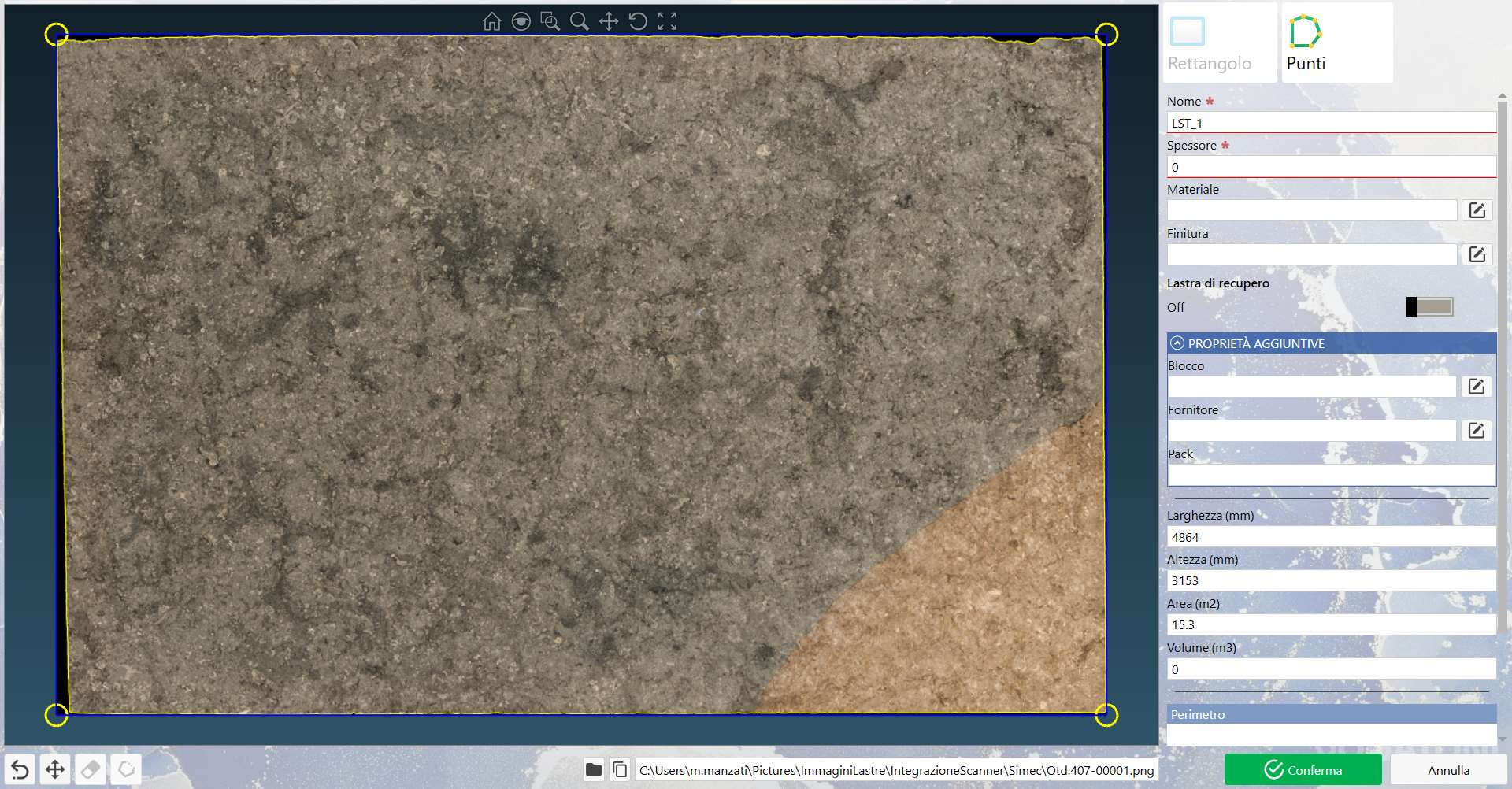
In this panel, the user can edit and manage a single slab. The following example window is displayed both when the user adds a new slab and when an existing slab is edited using the dedicated section:
Slab Preview
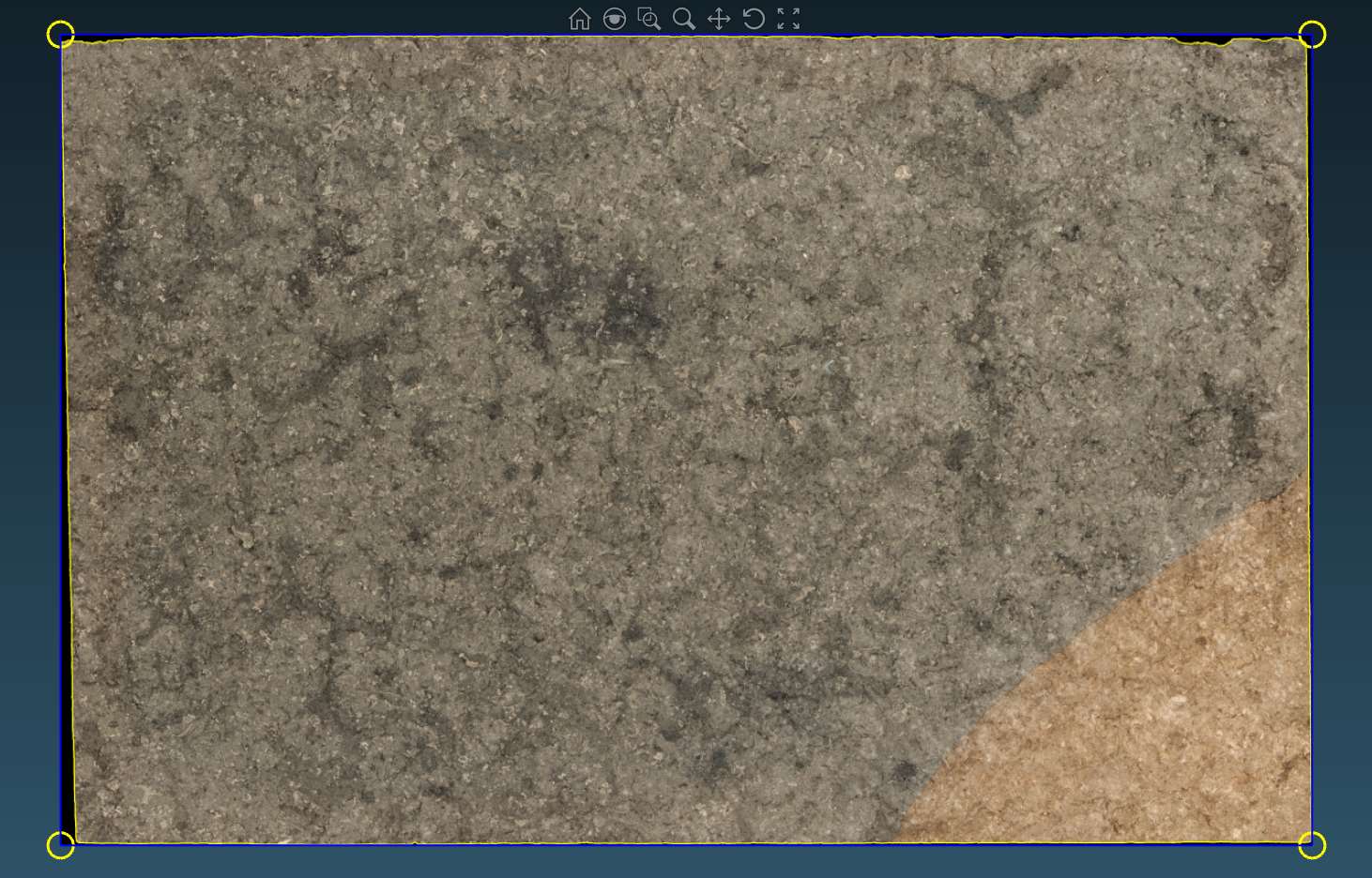
This section occupies the central and left-hand part of the panel and displays the slab image.
View Tools
These tools, located at the top center of the Slab Preview, allow the user to perform the following actions:
Home Restores the initial view regardless of any movement made within the preview.
Magnifying Glass Activates a magnifying glass that temporarily zooms in on the area under the mouse pointer.
Zoom Window Allows an area to be enlarged by selecting a perimeter with the mouse.
Zoom Allows the zoom area to be enlarged or reduced.
Pan Allows movement within the preview area along the X and Y axes.
Rotate Allows the slab image to be rotated within the preview area around the X, Y and Z axes.
Zoom Fit Sets the view to the full image size and the preview perimeter.
Perimeter
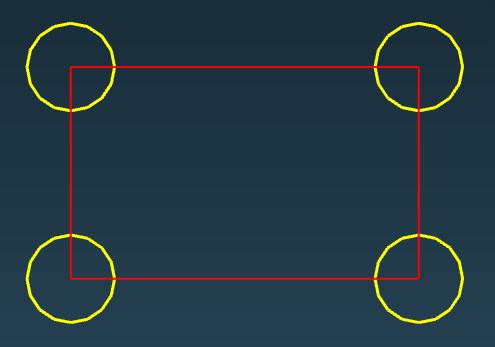
The perimeter can be set in the Slab Preview and is displayed as follows:
Perimeter Represents the entire perimeter area in the preview. The perimeter can be resized using the corners, highlighted by yellow circular indicators, and modified using the Perimeter Tool.
Corner Represents a perimeter corner. To be valid, a corner must be connected to two sides. The corner can be added, moved or deleted.
Side Represents a side of the perimeter, which appears only if both adjacent corners are connected.
Perimeter Tools
Rectangle Allows the perimeter of the slab preview to be set using a resizable rectangle.
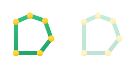
Points Allows the perimeter of the slab preview to be set using the corners.
Perimeter Actions
Remove Last Point Allows the last point added to the preview perimeter (yellow circle) to be removed without closing the perimeter.
Move Perimeter Activates the mode for moving the entire perimeter within the Slab Preview.
Delete Point Activates Delete Point mode: clicking a perimeter corner removes it and recalculates the perimeter using the remaining points.
Close Perimeter Closes the perimeter by joining the two end corners of the polyline.
Slab Defects
All perimeters present in the image are shown at the bottom of the Parameters section.
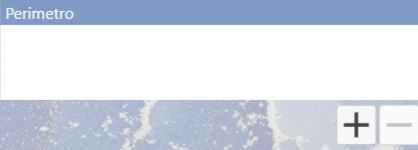
At the bottom of the Parameters section, the last area contains a Perimeter list indicating how many perimeters are present.
The first always indicates the perimeter of the entire slab; the others have a red perimeter to indicate defective areas. The first perimeter in the list refers to the perimeter of the entire slab. Each subsequent perimeter is shown in red and indicates defective areas to the user, as shown in the following example image:
Buttons
Add Allows a defect perimeter to be added to the list and to the Slab Preview for configuration.
Remove Removes the currently selected defect perimeter from the list and the preview.
NOTE:
If only the main perimeter is present in the list, this button is disabled.
Parameters
Main Parameters
NOTE
A red asterisk indicates that the field is mandatory.
Name Unique identifier of the slab.
Thickness Actual slab thickness in millimeters.
Material Type of stone associated with the slab.
Finishing Surface treatment of the slab.
Recovery Slab Indicates whether or not the slab is a recovery slab.
Additional Properties
Block Code of the block from which the slab originated.
Supplier Origin of the slab.
Pack Logistics/commercial grouping.
Perimeter Properties
Width Value indicating the width of the perimeter drawn in the preview.
height Value indicating the height of the perimeter drawn in the preview.
Area Value calculated based on the slab width and height. This field cannot be modified by the user.
Volume Value calculated based on the area and slab thickness. This field cannot be modified by the user.
File Location
In the lower section of the Edit Slab panel, the user can view and access the location of the slab image and parameter files.
The absolute path of the image linked to the slab is set automatically. The following buttons are also available to the user: