

This tab allows slabs in the system to be viewed, searched, edited, deleted and exported.
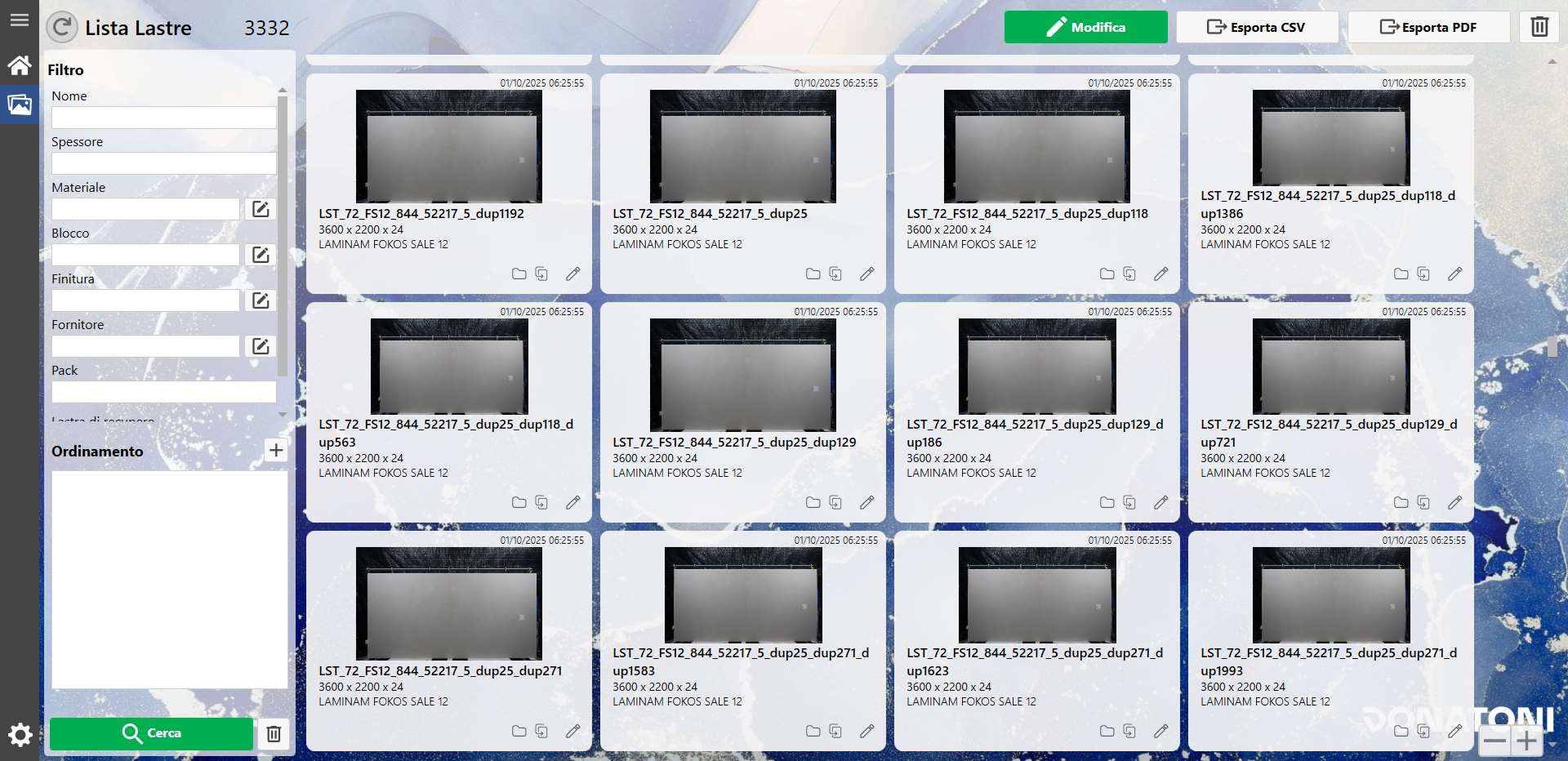
Structure
The tab is divided into the following sections:
Filters and Sorting
Slab List
Actions
Filters and Sorting
This section allows filters to be set and slabs to be sorted according to their parameters, using the “Search” action.
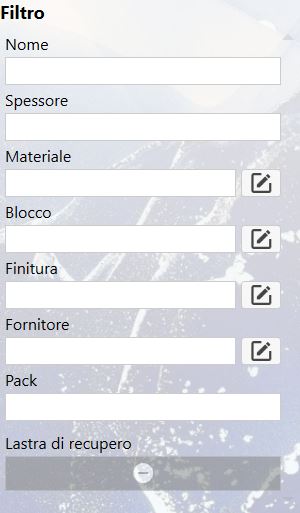
Filter
Most filters are used as shown in the Edit Slab panel.
The only exception to the parameters shown previously is the Yes/No parameter (for example, “recovery slab”), which has three selectable states:
 | Any |
 | Yes |
 | No |
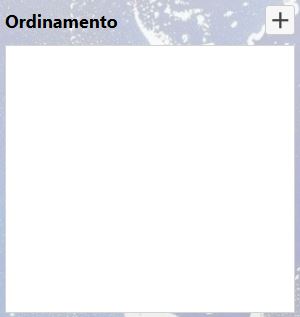
Sorting
The advanced sorting system allows the “Add” button at the top right to be used to select the sorting parameters, their order, and whether they are ascending or descending.
 | Add |
When a parameter is added to the sorting list, it appears as follows:

It has three action icons:
 | Move |
 | Ascending/Descending Sorting |
 | Remove |
Actions
 | Search |
 | Clear Filters |
 | Reload |
Slab List
This section displays a preview of the slabs in the system, with options to filter and sort the view.
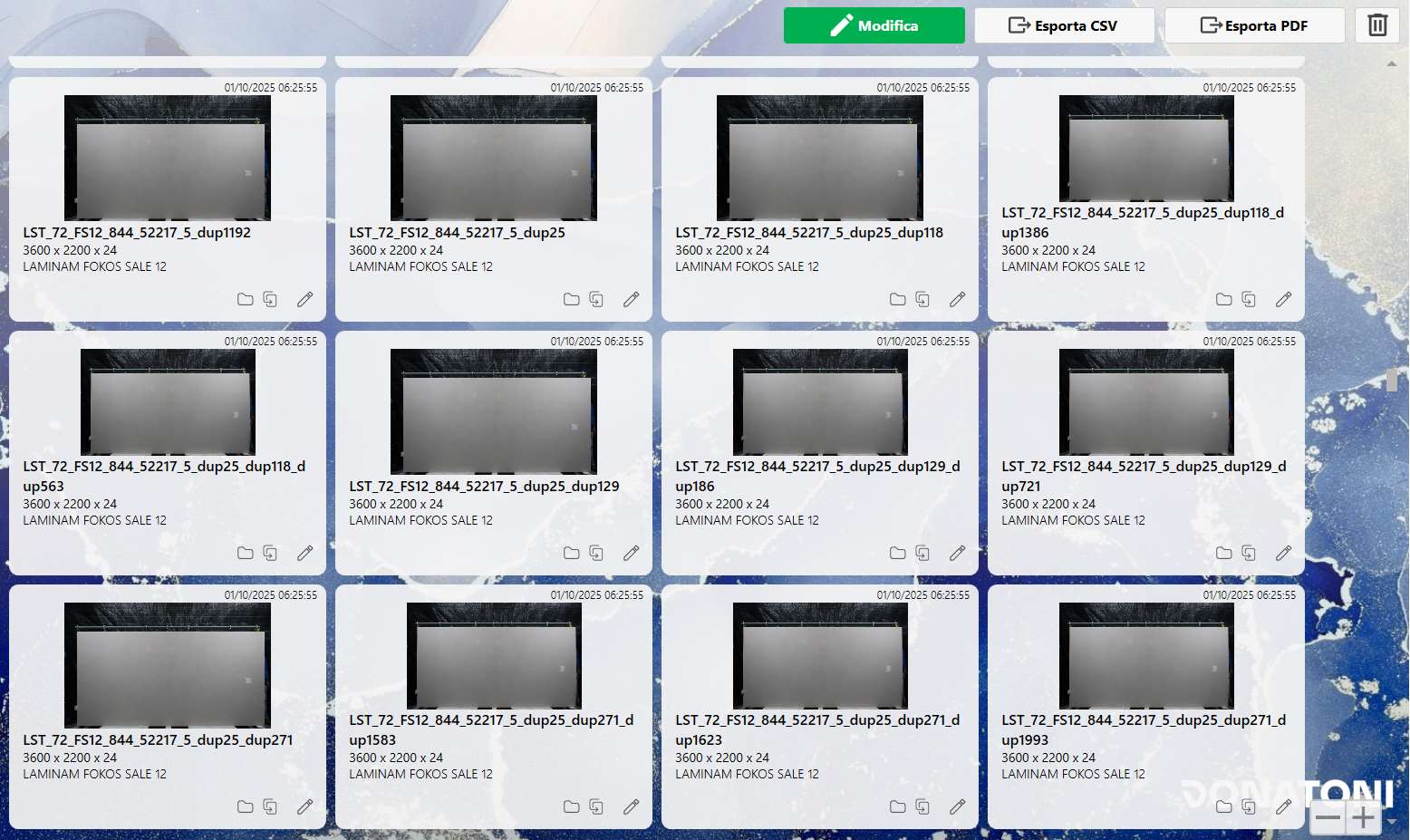
Card
A single card can be selected for editing or deletion.
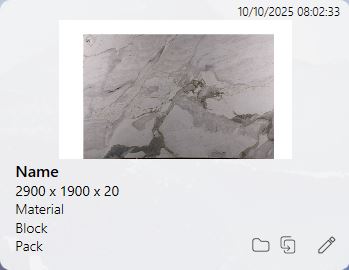
The following information can be seen in the image:
Creation Date: indicates the date and time when the slab was added to the system (top left);
Slab Preview: displays the slab image;
Name: the first text value (in bold) indicates the unique slab code
Dimensions: indicates the slab dimensions (Width x Height x Thickness)
Material: material code set for the slab
Block: indicates the block set for the slab
Pack: indicates the pack set for the slab
In addition to the information, buttons are available:
 | Open Folder |
 | Copy |
 | Edit |
Layout Size
At the bottom right, two buttons can be used to enlarge or reduce the cards, making the slabs easier to view or allowing more slabs to be displayed at the same time.
 | Zoom in |
 | Zoom out |
Actions
 | Edit |
 | Export CSV/PDF |
| Delete |
